

AI Photo Generator: Muselab AI
- 268.00
- 4.7
- Installs
- 1.00M
- Price
- Free
Screenshots
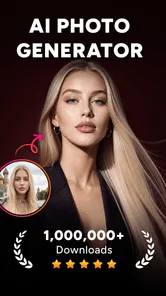
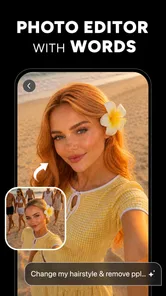
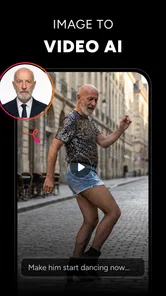
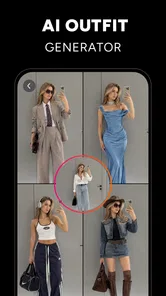
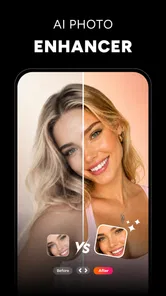
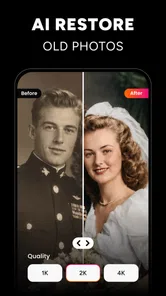
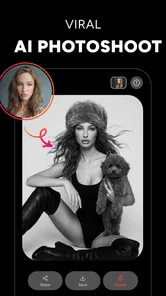
Analysis by Reviewed
When I want to turn a quick phone photo into something more polished—or explore an image idea without opening a full desktop editor—I look for a tool that keeps the process approachable. AI Photo Generator: Muselab AI is a free photography app from Shotcut Video Workshop, built around AI image generation, filters, and photo editing. Its focus makes sense for casual creative work, though I would treat it as a companion to a regular camera and editor rather than a replacement for either.
My useful test for an app like this is not whether it can produce an eye-catching result once. It is whether I can start with a clear idea, make a few sensible choices, and end with an image I would actually share or keep. Muselab AI is aimed at that kind of lightweight experimentation. It may suit someone who enjoys trying different looks on portraits or creating a visual from a prompt, while a photographer who needs precise control over color, layers, and export settings may prefer a more traditional editor.
From a rough idea to an image worth keeping
I like to begin with a simple question: what do I want the finished image to do? That keeps an experiment with Muselab AI from turning into aimless tweaking, and it helps me choose whether to start from a photo or a fresh visual idea. I’d also decide where the result needs to go, because a playful image for a private chat deserves a different level of scrutiny than something others may mistake for a real photograph.
Start with the picture you want to make
The app’s strongest appeal is the combination of an AI photo generator and familiar photo-editing tools. That gives me two plausible starting points: bring an existing image for a different treatment, or begin with an idea and see what an AI-generated image can offer. In either case, I would decide on the intended use first. A playful profile image, a mood-board reference, and a realistic picture for a work presentation have very different standards for believability.
For an existing portrait, I would choose a photo with a clear subject, decent light, and a background that does not compete too much. This is a practical habit, not a special Muselab setting: image tools have less ambiguity to work through when the subject is easy to read. If I were trying a filter, I would keep the original nearby and judge the edit against it. A dramatic look can be fun, but it can also make skin tones or small details feel less natural than intended.
For generation, I would write a focused description rather than piling on unrelated ideas. A subject, setting, and overall mood usually give a more useful starting direction than a long string of adjectives. Then I would assess the result for the purpose at hand: a conceptual image can tolerate imaginative details, while a picture meant to resemble a real person or place needs closer scrutiny.
One useful way to avoid wasting time is to decide which parts of the image are non-negotiable before generating or editing. If I need a recognizable face, for example, I would prioritize that over an elaborate setting. If I only need a background image for a personal mood board, atmosphere may matter more than exact details. This simple ranking gives me a fair way to judge a result instead of calling it a failure because it missed several different goals at once.
More From Our News Desk

 Gmail
GmailGmail in a Busy Inbox: Who Benefits Most?
From first account to crowded workday, Gmail earns its place through dependable search and flexible sorting—but its best fit depends on how much inbox maintenance you can tolerate.

 Prime Video
Switching to Prime Video: What Changes in Your Viewing Routine
Prime Video can make a compelling second home for streaming, but switching means learning a different catalog, rental layer, and route from browsing to playback.

 Universal TV Remote Control
Universal TV Remote Control Works Best as a Reliable Backup
A phone remote earns its place through quick setup and reliable habits. Here is how to get more from Universal TV Remote Control—and where its limits show.

 Weather - By Xiaomi
Weather by Xiaomi Review: Clear at a Glance, Less Clear Up Close
Xiaomi’s weather app makes everyday forecasts quick to scan, but its calm surface can leave useful details and recovery paths harder to find than they should be.

 X
XX Under Pressure: Can It Recover When Posting Goes Wrong?
A resilience-focused review of X, examining setup, mistaken posts, interruptions, weak connections, and the gaps that matter when recovery needs to be dependable.

 Clash of Clans
Clash of Clans Is Won Between the Battles
Its raids are quick; its community is a long-term project of coordination, teaching, rivalry, and shared responsibility—with all the friction that entails.
Latest News



Make changes in small, deliberate passes
Once I have an image to work with, I would treat the editing stage as a sequence of modest decisions. First I would ask whether the image has the right overall feel. Only after that would I consider a filter or other finishing treatment. Applying a strong style before deciding what needs fixing can make it harder to tell whether the picture improved or simply became more striking.
That order is especially useful with portraits. I would check the face and the edges of the subject before deciding the image is finished, since highly stylized treatments can draw attention away from details that matter. If the result is meant for a small social avatar, minor imperfections may not matter. If I plan to use it at a larger size or in a presentation, I would inspect it more carefully and be ready to choose another result or return to the original.
A good practical tip is to keep the goal narrow for each pass: decide on the concept, judge the composition, then decide whether the look feels right. That approach helps separate a weak starting image from an overly heavy filter. It also prevents the common trap of continuing to edit simply because more options seem tempting.
I would also avoid changing the image just to make it look more “finished.” A strong effect can flatten the differences between a subject and its background, and extra styling may take the picture away from the reason I opened the app in the first place. When I am unsure, I would pause with the first acceptable version and compare it with the source later. That short break often makes it easier to spot whether a change genuinely helped or merely looked exciting while I was making it.
Think about the handoff before you begin
Most people do not make an image for its own sake; they want to share it, save it, or use it as a reference elsewhere. I would therefore decide where the finished picture needs to go before investing time in a detailed edit. A casual image for a chat has different requirements from artwork intended for printing or a project that will be edited again in another app.
Muselab AI’s role in a larger workflow is clearest when I use it for the creative first pass: explore a look, make a quick alternative, or generate a visual starting point. If I need exact cropping, careful retouching, or a consistent set of images, I would expect to hand the result to a conventional photo editor or desktop tool. That is not a failure of an AI-focused app; it is a sensible division of work. The important question is whether the result is clean enough for that next step.
For a simple everyday scenario, imagine I have a portrait I like but want a more imaginative version for a personal profile. I would start with the clearest original, try a restrained visual direction, and compare the outcome with the untouched photo. If the edited version still looks like the kind of image I want to represent me, I can use it as-is for a casual purpose. If it feels too artificial, I would keep the original and use the generated result only as inspiration.
For a more practical handoff, I might be preparing a small invitation or a slide for a personal project. I would use the app to explore a visual direction, then move the image into the tool where I am assembling the finished layout. At that point, I would check whether the subject leaves enough clear space for text and whether the colors work beside the other material. An image can look appealing on its own yet become distracting once it sits inside a page or presentation, so I would judge it in context before calling the workflow done.
That is also why I would keep a clean copy of the starting photo. It gives me a way back if an experimental treatment becomes difficult to work with, and it lets me compare the finished image without relying on memory. For a one-off social post, the extra step is easy to skip; for a set of images I may revisit later, keeping the source and the edited result separate is a sensible habit.
Judge the outcome by its intended use
AI-generated imagery can be appealing precisely because it is not constrained to ordinary camera results. That freedom is useful for concept art, playful experiments, and mood-board material. It also means I would not assume that a generated picture is documentary evidence or a faithful record of a real event. When realism matters, I would inspect the image rather than trusting its overall impression at a glance.
Filters have a different trade-off. They can give a familiar photo a distinct atmosphere quickly, but a filter is not a substitute for careful correction when the source itself has a problem. If the original is poorly lit or the composition is confusing, a new visual treatment may disguise the issue without solving it. For that reason, I would use Muselab AI to explore, then make a straightforward edit elsewhere if the image needs precision.
The app is free to start, and its in-app purchases range from $4.99 to $49.99 per item. I would approach any paid option by asking whether it removes a real obstacle in my workflow, rather than buying on the assumption that payment automatically makes an image better. For occasional experiments, trying the basic experience first is the sensible move; frequent creators should weigh the cost against how often they use the tools.
Before paying for anything, I would first establish what I actually want to do with the app. A person who only wants to make the occasional playful portrait may not need a paid option at all, while someone who returns to image generation regularly may find a purchase more relevant if it supports a task they already value. I would make that decision after trying the ordinary workflow, not while chasing a single result that happens to be disappointing. An appealing image is not a reliable reason on its own to spend more.
Where the process can lose its appeal
The main limitation is also part of the format: AI results are not always the same as a carefully directed manual edit. A prompt can express an idea, but it does not guarantee that every detail will match what I pictured. When exact likeness, consistent branding, or reliable reproduction is important, I would choose a tool with controls designed for that job and keep AI generation in the brainstorming stage.
There is also a difference between a fast creative app and a full photography workspace. Someone who routinely adjusts individual tones, works with layered compositions, or prepares images for demanding professional use may find a dedicated editor more comfortable. Muselab AI makes more sense when I want to test a look without turning a small task into a long editing session. If I only need to crop, straighten, and lightly brighten a snapshot, the basic editor already on my phone may be the simpler choice.
Another point to consider is how much trial and error suits your patience. A generated image can head in an unexpected direction even when the idea is clear, so I would not choose this kind of workflow when there is a strict deadline and the picture must meet a precise brief. In that situation, a stock image, a regular camera photo, or a manual illustration may be a more predictable starting point. Muselab is more appealing when exploration is part of the job rather than a detour from it.
Before relying on any generated or edited image, I would check how it looks on the screen where it will be used. A filter that feels balanced on a phone may be too intense elsewhere, and fine details that disappear in a thumbnail can become distracting at full size. This small review step is useful whether the destination is a profile, a message, or a project handoff.
I would also be thoughtful about what I ask an image to represent. For an imaginary scene or personal creative exercise, a surprising result can be part of the fun. For a product photo, a portrait meant to represent someone accurately, or an image that could be mistaken for a real event, I would favor clarity and honesty over visual novelty. That distinction matters more than how polished the final picture appears, and it is a good reason to keep generated art separate from images meant to document something.
Who I would recommend it to
Muselab AI has a 4.7 average from around 23,000 ratings, and more than 1 million installs. It is rated Everyone, runs on Android 8.0 and later, and its current version is 2.0.0. Those figures suggest a widely used option, but I would still judge it by fit: the app is most compelling for curious phone users who want to play with AI imagery and filters without committing to a complex editing setup.
I would recommend it to someone making occasional social images, exploring visual ideas, or looking for a quick creative detour from ordinary camera photos. I would be less likely to recommend it as the only editor for a working photographer, a person who needs exact and repeatable retouching, or anyone who prefers to avoid AI-generated imagery altogether. Shotcut Video Workshop has placed generation and editing in the same photography app, which is a convenient starting point, but convenience does not remove the need to inspect the result.
Compared with a standard photo editor, Muselab is the choice I would reach for when I want the software to suggest a different visual direction rather than simply correct exposure or crop a frame. Compared with a camera app, it comes into play after I have a picture—or when I want to explore an image concept that a camera cannot capture directly. Those tools solve different problems. If I already know exactly what I want and need reliable, repeatable adjustments, a conventional editor is the better fit; if I want to see what an idea could become, this app has a clearer purpose.
For someone new to AI imagery, I would start with a low-stakes task, such as making a playful image for a private chat or gathering ideas for a personal project. That makes it easier to judge the result without needing it to be perfect. Once the workflow feels comfortable, I would decide whether it belongs in more regular creative work. There is no need to treat it as a replacement for every camera or editing app on the phone; its value is in giving me another route from an initial idea to a visual I can use or develop further.
My bottom line is that Muselab AI is worth trying when the goal is experimentation rather than pixel-perfect control. I would begin with one clear image or idea, make changes in measured steps, and decide early whether the result is for fun, sharing, or a more demanding project. Used that way, it can add a creative option to a phone workflow; when accuracy and fine adjustments matter most, I would hand the image to a traditional editor instead.
AI Photo Generator: Muselab AI Frequently Asked Questions
What is AI Photo Generator: Muselab AI?
AI Photo Generator: Muselab AI is an app for creating or transforming images with artificial intelligence. Depending on the tools available in your version, you may be able to turn a text prompt or an uploaded photo into a new visual, try different styles, or make edits without using a full desktop editor. Check the app listing and in-app descriptions to confirm which features are currently offered.
How do I create an image with Muselab AI?
The usual workflow for an AI image generator is to select a creation tool, describe the image you want, choose any available style or settings, and start generating. If Muselab AI offers photo-based effects, you may also need to upload or take a picture first. Results can vary, so clear prompts and well-lit source photos often help. Available controls and generation limits may depend on the app version.
Is AI Photo Generator: Muselab AI free to use?
The app may be available to download without an upfront charge, but that does not necessarily mean every feature is free. AI generation can be limited by credits, daily quotas, advertisements, or a paid subscription, and pricing or trial terms can change. Before starting a purchase or trial, review the current in-app offer carefully, including renewal frequency, cancellation steps, and whether unused credits expire.
Does Muselab AI require an internet connection, and what happens to my photos?
AI generation commonly relies on remote processing, so an internet connection may be required to submit prompts, upload images, and receive results. If you use personal photos, review the app’s privacy policy and the permissions it requests to understand how images and related data may be handled or retained. Avoid uploading sensitive pictures unless you are comfortable with the stated processing and storage practices.
Is AI Photo Generator: Muselab AI safe for all ages, and can I share its images?
Suitability depends on the app’s content rules, available generation tools, and the age rating shown in your app store. Parents should check those details and supervise younger users, particularly when prompts or uploaded portraits are involved. Before sharing generated images, consider privacy, consent, and the rights associated with any source photo; also check the app’s terms for restrictions on commercial use or redistribution.
Pros
- Creates multiple visual styles from a text prompt or reference photo.
- Useful for producing quick concept art and social media images.
- Simple interface makes it approachable for first-time AI image users.
- Can help spark ideas when you are unsure what to create.
- Offers a faster alternative to manually editing some images.
Cons
- Generated images may not match the prompt precisely.
- Fine details
- especially hands and text
- can look distorted.
- Results and available tools may depend on credits or a subscription.
- Image generation requires an internet connection.
- Review privacy settings before uploading personal or sensitive photos.











