AI Video Editor: ShotCut AI
- 4.87K
- 4.2
- Installs
- 50.00M
- Price
- Free

Screenshots
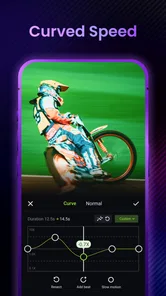
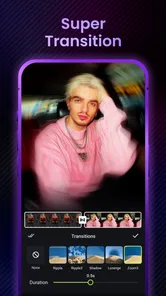
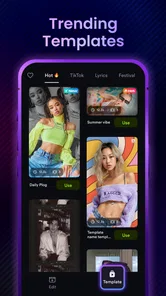
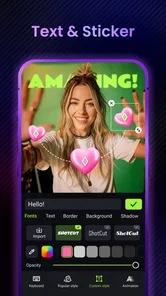
Analysis by Reviewed
On a shared phone or tablet, video editing often starts with a small household moment: someone wants to turn a few clips from a birthday or weekend outing into something worth watching, while another person is waiting to use the device. I’d consider AI Video Editor: ShotCut AI for that kind of casual project because it aims to make editing approachable rather than demanding a desktop workflow. The key is to treat it as a shared creative tool, not assume that everyone’s drafts, preferences, or account activity will be separated for them.
Sharing the device without sharing every decision
When several people use one device, I’d agree on a simple routine before importing footage: choose whose clips are being edited, decide who is making the final choices, and avoid leaving a half-finished project open for the next person to change accidentally. That practical boundary matters more than any editing trick. A parent might assemble a short family recap, while a teenager uses the same app for a school activity video; those are different projects, and keeping the source clips and intended audience clear can prevent confusion.
For a quick household workflow, I’d first pick a small set of clips rather than throwing in every recording from the day. Then I’d review the AI’s suggested edits instead of accepting them automatically, especially if a clip includes a private conversation or someone who would rather not appear. That check is useful even when the goal is only a lighthearted slideshow: automated choices can help with pace, but the person editing should still decide what belongs in the finished video.
Who will enjoy it, and where it may not fit
The app is aimed at video editing and making, and Shotcut Video Workshop is its developer. It is free to install, with optional in-app purchases ranging from $0.99 to $99.99 per item, so I’d look at any purchase prompt carefully if a child or another household member is using the device. Its age rating is Everyone, but that label doesn’t replace a family’s own judgment about what clips are appropriate to edit, share, or keep.
I’d recommend trying it for informal clips, simple slideshows, and short social posts when convenience matters more than a carefully controlled production pipeline. Someone who needs detailed control over color, audio mixing, or a repeatable professional process may be happier with a more traditional editor. Likewise, if your main need is only to trim a single clip, a device’s built-in editing tools may be quicker and avoid learning another interface.
It has an average rating of 4.3 from around 359,000 ratings and has been installed over 50 million times, which suggests that it has found a broad audience. Those figures are useful context, not a promise that every workflow will feel effortless on every device. The current version is 3.0.1, and it requires Android 8.0 or later on Android; people using iOS should check compatibility on their own device before committing to a project.
Getting Started with ShotCut AI
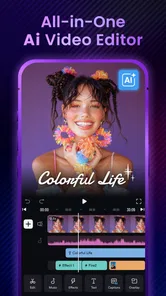
First off, let's talk about the interface. It's as smooth as butter! You know how some apps just make you want to pull your hair out because they're so complicated? Well, ShotCut AI is the exact opposite. It's intuitive and super user-friendly. The moment you open it, you’re greeted with a sleek design that just feels right.
More From Our News Desk

 Gmail
GmailGmail in a Busy Inbox: Who Benefits Most?
From first account to crowded workday, Gmail earns its place through dependable search and flexible sorting—but its best fit depends on how much inbox maintenance you can tolerate.

 Prime Video
Switching to Prime Video: What Changes in Your Viewing Routine
Prime Video can make a compelling second home for streaming, but switching means learning a different catalog, rental layer, and route from browsing to playback.

 Universal TV Remote Control
Universal TV Remote Control Works Best as a Reliable Backup
A phone remote earns its place through quick setup and reliable habits. Here is how to get more from Universal TV Remote Control—and where its limits show.

 Weather - By Xiaomi
Weather by Xiaomi Review: Clear at a Glance, Less Clear Up Close
Xiaomi’s weather app makes everyday forecasts quick to scan, but its calm surface can leave useful details and recovery paths harder to find than they should be.

 X
XX Under Pressure: Can It Recover When Posting Goes Wrong?
A resilience-focused review of X, examining setup, mistaken posts, interruptions, weak connections, and the gaps that matter when recovery needs to be dependable.

 Clash of Clans
Clash of Clans Is Won Between the Battles
Its raids are quick; its community is a long-term project of coordination, teaching, rivalry, and shared responsibility—with all the friction that entails.
Latest News



Features That Stand Out
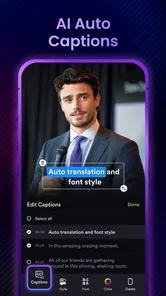
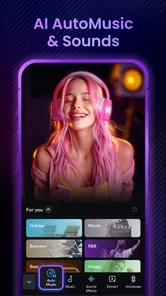
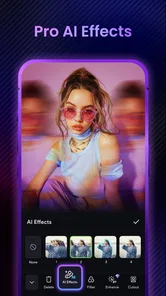
One of the coolest features has to be the AI-powered editing tools. I mean, who would've thought that your phone could do half this stuff? It can automatically edit your videos, suggest cuts, and even apply trendy filters that make your videos look like they were edited by a pro. There's also this fantastic feature where it analyzes your video content to suggest the best background music. It’s like having a little creative assistant in your pocket!
Another thing I love is the precision editing capabilities. You can trim clips with pinpoint accuracy, and the app supports multiple layers of video and audio, which is perfect if you're looking to create something a bit more complex. And, if you're into adding text or emojis, there’s a whole variety you can choose from to spice up your videos.
Performance and Usability
Performance-wise, ShotCut AI is a beast. No lags, no crashes, just seamless editing. Even when working with high-resolution videos, the app handles everything effortlessly. It’s available on both Android and iOS, which is awesome because it means everyone can join the fun!
Exporting videos is a breeze too. You can easily share your creations directly to your social media platforms, or save them in various formats depending on your needs. Whether you want to post on Instagram, TikTok, or just save it for a family archive, ShotCut AI's got you covered.
Final Thoughts
Wrapping it up, AI Video Editor: ShotCut AI is a must-have for anyone who wants to elevate their video editing game without breaking a sweat. It’s packed with powerful features yet remains accessible for beginners. Whether you're a casual user or someone who likes to dive deep into editing, this app offers the perfect mix of simplicity and functionality. So why not give it a shot? You might just find yourself becoming the next video editing whiz in your circle!
Overall, ShotCut AI is not just another app on the market; it’s a delightful tool that makes video editing fun and straightforward. So, next time you have some video footage to edit, you know exactly where to turn!
A more dependable shared workflow
For a family recap, I’d make one person responsible for the final cut and ask everyone else to choose a few favorite moments first. That avoids turning an easy project into a long debate over every clip. I’d also watch the full export before sharing it: a suggested cut can change the context of a reaction, and music that suits a montage may drown out a spoken message. Keeping the original recordings untouched gives you a straightforward fallback if the edit doesn’t feel right.
There’s a useful trade-off in the AI approach. Suggestions can help someone get past a blank timeline, but they’re a starting point, not a substitute for judgment. I’d use them to find a rough rhythm, then adjust trims and layers by hand when timing or audio matters. That hybrid workflow is a better fit for a family event than expecting automation to know which moments carry personal meaning.
Practical limits before you commit
Compared with the usual choices in mobile video editing, this app sits between a basic trim tool and a more hands-on editor. A built-in phone editor is often the fastest route for one-off cuts; a traditional timeline-focused app is preferable when you want granular control throughout a longer project. ShotCut AI’s appeal is the mix of automatic assistance and manual tools, though a newcomer may still need to explore the interface to understand how its suggestions relate to the layers and edits they can adjust.
If several people take turns on one device, don’t assume a project is private or separated by person simply because each user has a different purpose. Check whose footage is selected before editing, and be deliberate about the final share destination. The app’s Everyone rating describes its content classification, not whether every video is suitable for a public post or whether a child should make purchase decisions without an adult. Those are household choices worth settling in advance.
My household verdict
I’d choose it for a shared-device household that wants to turn everyday footage into a polished-looking short video without making editing a hobby in itself. It’s less compelling for someone who needs a strict professional workflow, or for a user who wants nothing beyond a quick trim. The strongest practical approach is to let the AI speed up the first pass, review every suggestion, and keep a person in charge of the final edit. Used that way, it can make a family slideshow or casual post feel manageable while leaving the important decisions where they belong: with the people in the video.
A routine that keeps a project moving
A useful everyday example is making a short recap after a school performance or a weekend visit. I’d ask each person to flag one or two clips they care about, then build the first pass from those rather than trying to include every recording. That keeps the edit focused and makes it easier to notice when a useful moment has poor sound or an awkward beginning. If the footage contains a child’s name, a house number, or a private exchange in the background, I’d inspect the frame and audio before deciding whether that clip belongs in something meant for wider sharing.
For coordination, I’d separate collecting opinions from making edits. Letting everyone suggest moments is inclusive; handing the phone around while the project is open can lead to accidental changes or a final cut nobody owns. One editor can make the adjustments, then show the export to the group before posting or sending it. This is a simple household habit rather than a special app function, but it makes the workflow calmer and provides a clear chance to catch a mistaken cut or unintended detail.
Making better use of automatic suggestions
The most useful way to approach automated edits is to give them material that has a clear purpose. A compact selection of clips from one event is easier to assess than a mixed camera roll containing unrelated scenes. I’d also decide whether the finished piece should preserve conversations or work as a music-led montage. That choice affects which cuts feel right: a rapid sequence can be lively, but it may remove the pause or reaction that makes a spoken moment meaningful.
Text and emoji overlays can make a casual recap easier to follow, but I’d keep them restrained when the footage already tells the story. An overlay can cover a face or a meaningful detail, and several decorative elements may compete with the action. I’d treat filters similarly: they can help clips feel more consistent, yet applying a look automatically is not always the best choice when lighting varies from scene to scene. Reviewing the result clip by clip is more reliable than assuming one treatment suits everything.
Choosing the right level of control
Compared with editors built mainly around manual timelines, the AI-assisted approach is appealing when I want help getting started and still want to refine the result. The trade-off is that an automated first pass may not understand the story I have in mind. It can offer a convenient structure, but choices about whose reaction to keep, where a joke lands, or whether a quiet moment should remain are personal. For a quick social clip, that balance can be just right; for a carefully paced documentary or a client project, I’d lean toward a conventional editor with a workflow I can control consistently.
It also helps to match the app to the job rather than to the label “video editor.” If I only need to shorten the start and end of one recording, the built-in phone editor is usually the more direct option. If I’m combining multiple clips, arranging video and audio layers, and adding text, a dedicated app gives me more room to shape the result. Someone new to editing should expect to spend a little time learning where the controls sit before a deadline; the easygoing feel is useful, but it does not remove the need to review a finished video.
Purchases, age, and shared-device boundaries
Because optional purchases range from $0.99 to $99.99 per item, I’d make purchase expectations clear before passing a shared device to a younger user. The Everyone age classification is a helpful general indication, not a judgment about a particular family’s footage or sharing habits. An adult can decide what kinds of videos are appropriate to make public, while the young person can still take part in choosing clips and captions. That conversation is more practical than treating an age label as a substitute for supervision.
I’d also avoid assuming that one person’s project or preferences will be kept separate from another household member’s use. Before handing over the device, close or finish the current project and make sure the next editor knows which footage is intended for them. If the video is important, keep the source recordings available until you have checked the saved result. These small steps reduce the chance of losing a preferred edit or sharing a draft before it is ready.
Who should try it, and who should pass
This is a sensible choice for people who make occasional videos and want more than a basic trim without turning every edit into a technical session. It can suit a parent assembling a family slideshow, a student preparing a short activity recap, or a casual creator who likes having automatic suggestions alongside hands-on adjustments. It is less suited to anyone who needs precise, repeatable control over a long production, detailed sound work, or a dependable professional handoff. In those cases, a fuller desktop or timeline-focused editor is the safer fit.
My practical recommendation is to test the workflow on a low-stakes set of clips first. Try the automatic pass, inspect the cuts, adjust a trim or layer, and watch the exported video from beginning to end. That tells you more than judging the interface at a glance: you’ll learn whether its suggestions match your style, whether the manual controls feel comfortable, and whether its approach suits the kinds of projects your household actually makes. For informal video-making, that balance of assistance and user judgment is its strongest reason to keep it in mind.
AI Video Editor: ShotCut AI Frequently Asked Questions
What kinds of projects can I make with AI Video Editor: ShotCut AI?
AI Video Editor: ShotCut AI is an editing app for videos, slideshows, and movies. That makes it relevant if you want to assemble a short video or combine images into a slideshow, as well as work on a movie-style project. Its focus is video creation and editing, so consider whether that matches the kind of content you plan to make before downloading.
Who develops AI Video Editor: ShotCut AI?
AI Video Editor: ShotCut AI is made by Shotcut Video Workshop. Knowing the developer can help you distinguish it from other apps with similar names when searching for it or checking its app details. The app is listed as a video editing tool, intended for creating and editing videos, slideshows, and movies.
What should I check before downloading AI Video Editor: ShotCut AI?
Check that your Android device meets the app’s minimum operating-system requirement and that you have enough free storage for the app and the media you plan to edit. It is also worth considering whether you want to create videos, slideshows, or movies, and reviewing any optional purchases before using the app so you can decide whether it fits your needs.
What is the current version of AI Video Editor: ShotCut AI?
The current version is 3.0.1. Checking the version can help you confirm that you are looking at the intended app and understand which release you are considering. The app is a video editor for creating videos, slideshows, and movies, so make sure your device also meets its operating-system requirement before installing it.
When was AI Video Editor: ShotCut AI released?
AI Video Editor: ShotCut AI was released on April 28, 2021. It is a video editing app from Shotcut Video Workshop, with tools intended for videos, slideshows, and movies. If you are comparing editing apps, its release date can provide context, but you should also consider whether its editing workflow and purchase options suit your plans.
Pros
- User-friendly interface for quick editing
- Advanced AI tools for automatic editing
- Supports multiple video formats
- Cloud storage integration for easy access
- Regular updates with new features
Cons
- Limited free version capabilities
- Requires high-end device for smooth operation
- Occasional glitches in AI feature
- Large app size consumes storage
- Subscription required for premium tools