XB Game Controller
- 11.00
- 3.6
- Installs
- 50.00K
- Price
- Free
Screenshots
Analysis by Reviewed
I’d treat XB Game Controller as a practical second way to interact with an Xbox, not as a promise that a phone can do everything a gamepad does. The distinction matters: using a touchscreen for a quick menu choice is very different from relying on it through a demanding game. When the regular controller is out of reach, or I only need to make a brief adjustment, having the phone available can be useful. The real test is whether its touch controls suit the job I want done.
Developed by Fa9ssa, this free app is listed among libraries and demo tools and is rated for Everyone. Its average is 3.6 from around 280 ratings, and it has more than 50,000 installs. I see those figures as a reason to consider trying it, not as a guarantee that it will fit every setup or playing style. The app’s current release is version 15.0, and it requires Android 7.0 or later.
Start with a simple, repeatable setup
I find a repeatable starting point more useful than trying to make the phone handle every kind of play. This section looks at how to test the connection and choose a low-pressure first task, so the next part can focus on making the controls comfortable enough to use again.
Make the first session a test, not a gaming marathon
My advice is to begin with a low-pressure task. Open the app, follow its on-screen setup, and try a basic interaction before relying on it for a long session. A menu, a media screen, or another forgiving task is a better first test than a fast game where a missed tap matters. This gives you a chance to see whether the phone and console are communicating as expected and whether the controls feel natural in your hand.
I would also keep the standard Xbox controller within reach during that first run. That isn’t a criticism of the app; it is a sensible way to learn a new control method. If something feels awkward, you can switch back immediately instead of turning a small setup snag into a frustrating evening. Once the connection and touch layout are familiar, you can decide which jobs are genuinely easier on the phone.
A useful habit is to separate “control the console” from “play a game.” Phone-based input can be appealing for navigation or occasional actions, but a touchscreen lacks the physical feedback and distinct buttons of a gamepad. I wouldn’t assume that every title will feel good simply because the app can serve as a controller. Treat the first few minutes as a compatibility and comfort check, then use it where it earns its place.
Choose a job for the phone before reaching for it
The most practical use case is often the one that doesn’t require precision. Imagine settling in to watch or browse something and realizing the controller is across the room. A phone already in your hand can be a convenient way to handle a quick menu action, rather than getting up or interrupting what you’re doing. Another everyday situation is keeping the usual controller charging while using the phone for a brief, noncompetitive session.
More From Our News Desk

 Gmail
GmailGmail in a Busy Inbox: Who Benefits Most?
From first account to crowded workday, Gmail earns its place through dependable search and flexible sorting—but its best fit depends on how much inbox maintenance you can tolerate.

 Prime Video
Switching to Prime Video: What Changes in Your Viewing Routine
Prime Video can make a compelling second home for streaming, but switching means learning a different catalog, rental layer, and route from browsing to playback.

 Universal TV Remote Control
Universal TV Remote Control Works Best as a Reliable Backup
A phone remote earns its place through quick setup and reliable habits. Here is how to get more from Universal TV Remote Control—and where its limits show.

 Weather - By Xiaomi
Weather by Xiaomi Review: Clear at a Glance, Less Clear Up Close
Xiaomi’s weather app makes everyday forecasts quick to scan, but its calm surface can leave useful details and recovery paths harder to find than they should be.

 X
XX Under Pressure: Can It Recover When Posting Goes Wrong?
A resilience-focused review of X, examining setup, mistaken posts, interruptions, weak connections, and the gaps that matter when recovery needs to be dependable.

 Clash of Clans
Clash of Clans Is Won Between the Battles
Its raids are quick; its community is a long-term project of coordination, teaching, rivalry, and shared responsibility—with all the friction that entails.
Latest News



There’s a trade-off, though: using your phone as a controller ties up the device you might otherwise use for messaging, browsing, or other tasks. If you regularly switch between apps, the phone may be less convenient than a dedicated gamepad that can stay ready beside you. I’d think of XB Game Controller as an extra control option, not as a reason to put away every other input device.
Before settling into a longer session, make sure the phone is comfortable to hold and that the screen is easy to reach without stretching your thumbs. A case with a slippery finish or a large phone can make repeated touch input tiring. Small practical details like where you sit, whether the phone is charging, and whether you need it for something else can matter more than the novelty of controlling the console from it.
Fit it into the kind of session you actually have
For a short, ordinary evening, the most useful routine may be to open the app before you settle in, make one or two simple choices, then put the phone aside if you plan to play for longer. That avoids turning a convenient backup into the main input method by default. I’d also keep in mind whether someone else needs to use the phone: a shared screen is an awkward controller if the owner wants to check messages or move to another task.
This is especially relevant in a living room where the console is used casually rather than for one uninterrupted gaming session. A person can pick up the phone to handle a quick interaction, then hand control back to the standard gamepad without changing the whole evening’s setup. If the phone is already being used for something else, though, fetching the controller may be the simpler choice. Convenience depends on what is already in your hands.
Check the controls and build a routine
Once the basic setup feels dependable, I’d pay attention to the small habits that reduce fumbling: knowing where the controls are, keeping a steady grip, and deciding when to hand play back to a gamepad. The section that follows covers those checks and routines without relying on shortcuts the app may not offer.
Spend a minute learning what each tap does
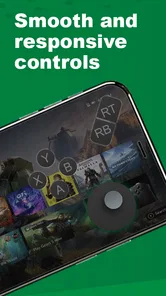
Rather than tapping around during an important moment, take a little time to understand the controls shown in the app. Confirm which on-screen areas correspond to the actions you use most, and try them deliberately. A short familiarization pass helps prevent the common touchscreen mistake of hitting a nearby control when your thumb covers part of the display.
I’d pay special attention to any control you expect to use repeatedly. If a button is small or close to another action, slower, deliberate taps may be more reliable than quick thumb movements. This is one place where a physical controller has a clear advantage: its buttons are separated by feel. The phone’s strength is convenience, not tactile precision, so it pays to adapt your pace rather than expect the screen to behave like a gamepad.
Keep the phone orientation and grip consistent once you find a comfortable arrangement. Changing how you hold it between sessions can make familiar controls feel misplaced, particularly if you rely on muscle memory. A repeatable starting position—phone in the same hand, screen at a similar angle, and thumb resting away from active controls—makes short interactions more predictable.
Check settings before building muscle memory
Before settling on a routine, I’d review the options the app actually presents and make sure the on-screen layout is readable and comfortable for my device. I wouldn’t assume there is a particular customization or shortcut unless it is visible in the app. A useful check is simply to confirm that the controls you expect to use are easy to identify and reach, rather than learning a hurried tapping pattern that turns out to be uncomfortable.
It also helps to test the phone’s own display behavior in the situation where you plan to use it. If the screen dims or locks while you pause, you may need to wake it before continuing, so learn how that feels during an unimportant interaction. Keeping the phone charged enough for the session is another practical consideration: a controller that occupies your phone is less convenient if you need the device for a call or other everyday task.
Use shortcuts as habits, not assumptions
Experienced users often get more value from a modest tool by repeating a simple workflow. For example, I’d keep the app easy to find, open it before I need to make a quick console adjustment, and use the same sequence of actions each time. That reduces fumbling without depending on undocumented shortcuts or assuming the app can automate tasks it doesn’t explicitly offer.
It also helps to decide in advance when to switch back to the regular controller. If a task becomes more demanding, involves frequent simultaneous inputs, or requires precise timing, use the gamepad. That handoff is not a failure; it’s a good division of labor. The phone can cover convenience tasks, while the dedicated controller remains the better tool for sustained, demanding play.
For a household with more than one person, I would establish a simple turn-taking routine rather than passing a phone around mid-action. The person holding the phone has the controls, and the device may contain personal notifications or other distractions. Keeping the session focused and agreeing who is operating the console avoids accidental taps and makes the phone feel like a deliberate remote instead of an improvised shared gamepad.
Keep expectations realistic about connection and comfort
Wireless control is only useful when the connection remains dependable. If commands seem delayed or the interaction feels inconsistent, pause and check the basic setup before blaming your own timing. Restarting the session and repeating the app’s connection steps can be a more useful troubleshooting habit than rapidly tapping the screen. I would avoid starting a high-stakes game until the controls have behaved consistently in a simple test.
Comfort is just as important as connection. A phone held above your lap for a long time can tire your hands, and the screen may be harder to read or reach than a controller’s familiar layout. For a few selections or a short session, that may be a fair exchange. For hours of play, I’d generally choose a proper gamepad, especially when the game depends on accurate movement or several inputs at once.
Where it fits—and where it doesn’t
A phone controller can be handy in a narrow, practical role, but it comes with trade-offs that matter more during demanding or extended play. I weigh its convenience against a standard gamepad and other ways to navigate, then consider who is likely to benefit—and who will be happier with a different option.
A different option from a standard gamepad
Compared with an ordinary Xbox controller, the phone is easier to have nearby and can be useful when you don’t want to pick up another accessory. Compared with a typical remote-style app, its appeal is specifically the controller role rather than general phone management. That distinction matters: if all you need is occasional navigation, a dedicated remote or the console’s usual interface may be simpler. If you want to try touch-based control from the phone you already carry, this app is the more relevant experiment.
It is not a substitute I’d recommend universally. Players who rely on precise timing, comfortable physical buttons, or long sessions are likely to prefer their regular controller. People who need a dependable input method for a competitive match should not make a touchscreen their only option. Likewise, if you rarely use the Xbox without a controller close by, the app may solve a problem you don’t really have.
On the other hand, it can make sense for someone who wants a lightweight backup or a convenient way to handle occasional console interaction. The best fit is a user who values having another option more than having a perfect replacement. That is a narrower promise, but it is also a more honest way to evaluate a phone controller: usefulness depends on the task and the user’s tolerance for touch controls.
Know when another option is the better one
If the main goal is reliable play rather than convenience, I’d choose the dedicated controller already designed for that job. Its physical buttons are easier to distinguish without looking, and it leaves the phone free for messages, calls, and other tasks. A remote-style alternative may also make more sense when the only goal is navigating occasionally and a controller layout is unnecessary. XB Game Controller is most compelling when the phone itself is the input you want to try, not when every other option is inconvenient by definition.
There is also a useful distinction between a backup and a replacement. As a backup, the app can be worth having ready for a quick interaction, even if it is not the tool I reach for during most games. As a replacement, it asks for more compromise: touch input, phone availability, and the need to judge comfort for yourself. Knowing which role you expect it to fill makes the decision much clearer.
Version and device basics to keep in mind
The current release is version 15.0, and the app’s minimum operating-system requirement is Android 7.0. If you’re setting it up on an older Android phone, check that requirement before spending time troubleshooting. The version number tells you which release you’re installing, but it doesn’t change the main practical advice: test the connection and control feel on your own setup before depending on the app.
Because it is free, it is relatively easy to try without treating it as a major purchase decision. I’d still approach installation thoughtfully: use the app for the purpose you actually need, and decide after a short trial whether the screen-based controls are comfortable enough to keep in your routine. The right question is not simply “Does it work?” but “Does it work well enough for the way I use my Xbox?”
A sensible choice for occasional control
My verdict is that XB Game Controller is worth considering as a convenient companion, especially for quick, low-precision interactions and as a backup when a physical controller isn’t at hand. Its strongest approach is to pair it with a repeatable setup, learn the touch controls in a calm moment, and switch to a gamepad whenever precision or extended comfort matters. If you want a complete replacement for a traditional controller, I’d skip it; if you want a phone-based option for occasional control and understand the trade-offs, it is a reasonable app to try.
XB Game Controller Frequently Asked Questions
What is XB Game Controller, and what does it do?
XB Game Controller is an app intended to let you use a compatible mobile device as a controller for supported games or gaming systems. Its features and connection options can vary by version and device, so check the app listing and its setup instructions before installing. In particular, confirm that your game or console is supported; an app cannot provide controller functionality for every game automatically.
How do I connect XB Game Controller to a game or console?
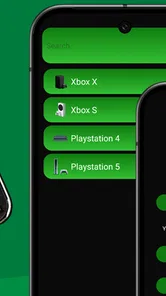
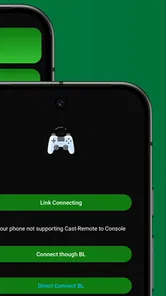
The setup process depends on the app version and the device or game you want to control. The app may require Bluetooth, Wi-Fi, a companion app, or additional configuration, so follow its on-screen instructions rather than assuming that pairing alone is enough. Keep both devices on a compatible network when required, enable the requested permissions, and check the developer’s guidance if the controller is not detected.
Is XB Game Controller compatible with my phone and games?
Compatibility can depend on your Android or iOS version, the controller app’s current release, and the game or system you intend to use. Before downloading, review the store listing for supported operating systems and any stated requirements. Also verify game compatibility separately: some games accept external or virtual controllers, while others do not, even if the app installs and opens successfully on your phone.
Is XB Game Controller free, and does it include ads or in-app purchases?
The price, advertisements, and available purchases may differ by platform, region, and app version. Check the Google Play or Apple App Store listing before downloading for the current price and details about in-app purchases or subscriptions. If the app offers optional paid features, review what they unlock and whether a purchase is required for the connection or controller functions you plan to use.
Is XB Game Controller safe, and what permissions might it request?
Download XB Game Controller only from a trusted official app store, and review the developer information, privacy policy, and permissions shown before installation. Depending on how the app connects to another device, it may request Bluetooth, nearby-device, or network access. Grant only permissions that make sense for the feature you are using, and avoid entering account credentials unless you can verify why they are needed.
Pros
- Supports a wide range of Android games that offer controller input.
- Physical buttons can be easier to use than touchscreen controls.
- Useful for testing controller compatibility before starting a game.
- Can make long gaming sessions more comfortable for some players.
- A practical option for games with complex or precise controls.
Cons
- Compatibility depends on the game and the connected controller.
- Some games may require manual button mapping or setup.
- Controller features can vary across Android devices and versions.
- Wireless play may introduce input lag or connection dropouts.
- The app cannot add controller support to games that lack it.