Camera endoscope
- 10.00
- 3.3
- Installs
- 100.00K
- Price
- Free
Screenshots
Analysis by Reviewed
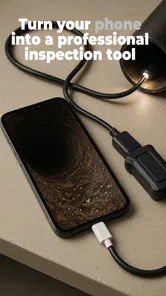
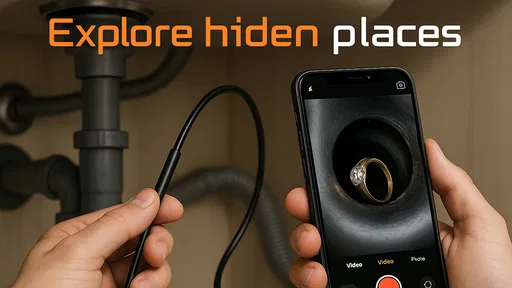
I’d approach Camera endoscope as a companion for a particular piece of hardware, not as a camera that works by itself. Its purpose is to help you use a USB endoscope camera to inspect places your phone camera cannot reach, such as a gap behind an appliance or the inside of a roomy storage space. That makes the app potentially handy, but only if you already have a compatible USB endoscope and a phone that can connect to it.
A good first goal is a simple one
If you are new to USB endoscopes, I would make the first session a test of the whole setup rather than an attempt to solve an urgent problem. Pick a safe, familiar place where you can see the opening and retrieve the camera easily. Success can be as basic as getting a live view and recognizing a nearby surface. That first result tells you more than an ambitious attempt inside a hard-to-reach appliance.
It also helps to think of the app as one link in a small chain: phone, connector, camera, and viewing software. If one link is incompatible, the screen may not show what you expect, even when the other parts seem fine. A calm, step-by-step test makes the experience less intimidating and helps you decide whether the setup is useful for your actual needs.
Getting from connection to a useful view
I find the jump from a working live image to a genuinely useful inspection is mostly about moving deliberately, not pushing the camera farther in. I’d use the first clear view to learn how small turns affect the picture, then change one thing at a time so I can tell whether the angle or the target is causing confusion. That makes it easier to decide what to try when the view is less straightforward.
What to expect before you install
This is a free Android app in the Libraries & Demo category, developed by Fa9ssa. It is rated for Everyone, and its audience is fairly specific: people curious about connecting a USB inspection camera to a phone. The app has a 3.3 average from around 1,100 ratings and has passed 100,000 installs. Those figures suggest it has found a real audience, while also giving me reason to set expectations rather than assume every setup will be effortless.
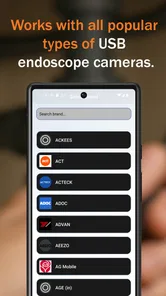
The main thing to understand is that the app is only one part of the chain. The camera, its connector, the phone’s USB connection, and the app all need to work together. If you are shopping for an endoscope, check that it is intended to connect to your Android device before relying on this app. A camera that plugs into a different kind of device, or cannot communicate with your phone, will not become usable just because you have installed a camera app.
I would also think about the job before choosing this approach. A phone’s built-in camera is quicker for photographing a visible area, while a USB endoscope is useful when access is tight and looking directly is awkward. It is not a replacement for a purpose-built inspection tool in situations where dependable measurements or professional diagnosis matter. I see the best fit as casual visual checking: finding where a dropped item went, looking into an accessible cavity, or checking a dark corner before deciding whether it needs a closer look.
More From Our News Desk

 Gmail
GmailGmail in a Busy Inbox: Who Benefits Most?
From first account to crowded workday, Gmail earns its place through dependable search and flexible sorting—but its best fit depends on how much inbox maintenance you can tolerate.

 Prime Video
Switching to Prime Video: What Changes in Your Viewing Routine
Prime Video can make a compelling second home for streaming, but switching means learning a different catalog, rental layer, and route from browsing to playback.

 Universal TV Remote Control
Universal TV Remote Control Works Best as a Reliable Backup
A phone remote earns its place through quick setup and reliable habits. Here is how to get more from Universal TV Remote Control—and where its limits show.

 Weather - By Xiaomi
Weather by Xiaomi Review: Clear at a Glance, Less Clear Up Close
Xiaomi’s weather app makes everyday forecasts quick to scan, but its calm surface can leave useful details and recovery paths harder to find than they should be.

 X
XX Under Pressure: Can It Recover When Posting Goes Wrong?
A resilience-focused review of X, examining setup, mistaken posts, interruptions, weak connections, and the gaps that matter when recovery needs to be dependable.

 Clash of Clans
Clash of Clans Is Won Between the Battles
Its raids are quick; its community is a long-term project of coordination, teaching, rivalry, and shared responsibility—with all the friction that entails.
Latest News



Set up the hardware before judging the app
For a first attempt, make the setup as simple as possible. Start with the phone unlocked, open the app, and connect the endoscope using the connection method intended for your camera. If nothing appears, avoid immediately concluding that the app is broken. Check that the plug is seated, that the camera is meant to work with your phone, and that the phone has recognized the accessory. Changing one thing at a time makes it much easier to identify the actual snag.
Try the camera in a well-lit, easy-to-reach place before threading it into a narrow gap. This small test separates basic connection problems from problems caused by the inspection location. It also gives you a chance to learn how the camera responds when you move it. A flexible cable can twist or rotate the view unexpectedly, so a gentle movement in open space is a more useful first lesson than trying to steer it inside a cramped opening.
The app’s current version is 13.0, and it runs on Android 7.0 or later. The version number is useful when checking whether you have installed the current release, but it does not remove the need to check the physical connection. If your device is older or has a different USB connector, the practical question is whether the camera can connect to that phone—not simply whether the operating system meets the minimum requirement.
Your first meaningful inspection
Choose a low-stakes target that is easy to reach and has a clear reason to inspect it. For example, if a small object rolls under a cabinet, use the endoscope to look beneath the edge before moving heavy furniture. Keep the camera near the opening, pause, and make small movements. With a close-up view, sweeping the cable quickly often makes it harder to understand where you are looking.
Once you have a view, treat the image as a way to orient yourself rather than as proof of everything happening in the space. Reflections, shadows, and the camera’s angle can make surfaces look unfamiliar. If you see something potentially important, reposition the camera and compare the view from another angle. That habit is more reliable than drawing a firm conclusion from one blurry or partially blocked image.
A practical trick is to keep track of the cable’s direction outside the opening. Before moving it, note which way the lens is facing; then make a small turn and watch how the picture changes. This builds a mental map and reduces the common first-time experience of moving the cable one way while the image seems to turn another way. It is especially helpful when inspecting behind furniture, where the screen alone may not tell you how the camera is oriented.
Lighting and distance also affect whether an inspection is useful. Move closer only when you can do so safely and without forcing the cable. If an area remains hard to interpret, back up slightly or change the angle instead of repeatedly pushing forward. A view that shows the surrounding shape can be more informative than a very close image of one surface.
Where first-time users can get confused
The most likely point of friction is expecting the app to behave like a normal phone camera. Here, the phone is displaying a feed from an external USB camera, so a blank or unavailable view can be caused by the accessory connection rather than by an ordinary camera setting. Reconnecting carefully and testing in an open area is a sensible first response. If the same camera does not work with the phone at all, investigate compatibility before spending time changing unrelated settings.
Another source of confusion is the difference between a clear image and a useful inspection. An endoscope may show a surface, but the camera’s position can make it difficult to tell how far away that surface is or what surrounds it. I would avoid using a close-up view alone to judge whether a part is damaged, whether a space is completely clear, or whether an object is safe to touch. Use the image to decide what to check next, not as a substitute for careful hands-on assessment.
It also helps to distinguish an awkward target from a failed setup. If the camera works in an open space but the picture becomes confusing inside a narrow gap, the issue may be positioning, cable movement, or lighting. Pull back, reorient, and try again from a different entry angle. If the view never appears even before you begin the inspection, focus instead on the phone-camera connection and the camera’s compatibility.
For household troubleshooting, I would keep the inspection conservative. Looking into an accessible opening is different from pushing a camera into a powered appliance, a hot area, or somewhere that could snag the cable. Do not let the convenience of seeing a hidden space encourage you to probe where a cable or camera could be damaged or where the inspection could create a safety risk.
How it compares with familiar alternatives
Compared with simply using a phone camera, this app’s appeal is access: an external endoscope can reach places the phone cannot. The trade-off is that you have to bring the camera, connect it, and learn to steer it. For a quick photo of something already visible, the built-in camera is simpler. For a narrow or obstructed view, the USB setup may be worth the extra preparation.
Compared with dedicated inspection equipment, a phone-based approach can be attractive for occasional personal checks because it uses a device you already carry. It is less suitable when the task demands a dependable professional workflow, detailed documentation, or a level of certainty that a casual visual check cannot provide. I would choose the simpler phone-and-endoscope arrangement for locating or orienting myself, and a specialist tool or qualified technician when the result could affect safety, repairs, or an expensive decision.
It is also not the right choice if you do not have a USB endoscope. The app’s purpose depends on that hardware, so installing it alone will not turn the phone into a long-reach inspection camera. If you only need to look at a nearby object, your ordinary camera is the better option; if you need to inspect a space that is genuinely inaccessible, first make sure the endoscope is suitable for your phone.
Who will get the most from it
I can see this being useful for curious home users, hobbyists, and anyone who occasionally needs a closer look behind or inside an accessible space. Its strongest use is not dramatic discovery but reducing guesswork: checking whether an object is visible, seeing where a cable leads, or deciding whether a problem needs more attention. The experience is most rewarding when the question is modest and the camera can be moved safely.
A realistic use is checking beneath a cabinet after a small item disappears into the gap. Rather than shifting the furniture immediately, I would connect the camera in an open spot, confirm that the image responds to gentle movements, then guide it just far enough to locate the object. If the view is unclear, I would change the angle before reaching in. This keeps the task manageable and avoids treating a partial image as certainty.
For a hobbyist, the same approach can help with a visual check inside an accessible, unpowered object or storage space. The useful question is not “Can I see every detail?” but “Can I get enough context to choose my next step?” If the answer is no, a brighter workspace, a different entry angle, or a more suitable inspection tool may be a better use of time than repeatedly steering the cable.
I would skip it if you expect a standalone camera app, do not own compatible hardware, or need a guaranteed diagnosis. It may also frustrate someone who wants a polished, effortless experience without experimenting with connection and positioning. The average rating of 3.3 reflects a mixed reception, so I would approach it as a practical utility to test with a simple task rather than assume it will work perfectly in every phone-and-camera combination.
The app is free to download, with in-app purchases listed at $13.99 per item. I would start with the basic setup and a harmless inspection before considering any purchase. That gives you a chance to decide whether the connection works reliably for your particular camera and whether the app’s role in your routine is valuable enough to justify spending more.
A sensible next step
My recommendation is to begin with a clear, low-risk goal: connect the camera, confirm that a live view appears, and inspect an easy-to-reach spot. Then try a slightly more awkward space only after you understand how small cable movements affect the image. That progression turns the first session into a useful test of your whole setup instead of a frustrating attempt to diagnose several unknowns at once.
If you are deciding whether to keep using it, judge the experience by a few practical questions: can your phone connect to your camera, can you get a view in an open space, and can you steer the lens well enough to answer a simple visual question? A “yes” to those is a meaningful first success. If the connection itself remains unreliable, first check the hardware match rather than buying additional items on the assumption that the app alone will solve it.
Camera endoscope is worth trying when you already have the right USB camera and want a phone-based way to look into places that are difficult to see directly. Its value depends more on compatible hardware and patient positioning than on the app alone. If you keep that distinction in mind, start with an uncomplicated inspection, and treat what you see as guidance rather than a definitive diagnosis, it can be a handy tool for occasional everyday checks.
Camera endoscope Frequently Asked Questions
What is Camera endoscope used for?
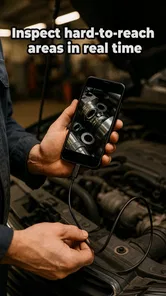
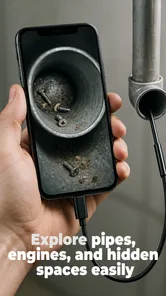
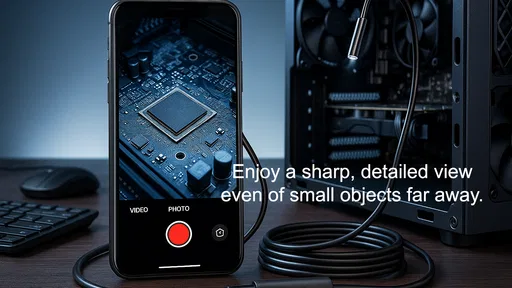
Camera endoscope is intended to show a live view from a compatible endoscope or inspection camera on your phone. People commonly use this type of app to look into hard-to-reach places, such as pipes, engine compartments, or small gaps. Its usefulness depends on the camera hardware and connection method; the app alone cannot turn a phone’s built-in camera into an endoscope.
What equipment and connections do I need to use Camera endoscope?
You generally need a compatible endoscope camera, plus a supported connection such as USB or Wi-Fi, depending on the camera and app version. Check the camera’s instructions and the app’s device requirements before downloading, since not every inspection camera works with every phone. USB use may also require an adapter, and some phones need USB host or OTG support.
Does Camera endoscope work on both Android and iPhone?
Compatibility can vary by the particular app listing, phone model, operating-system version, and endoscope camera. Before installing, confirm that Camera endoscope is available for your device and review its current store requirements. Also check whether your camera supports the same connection type on that platform. A camera that works with one phone or operating system may not work with another.
Can I take photos or record video with Camera endoscope?
The available capture features depend on the version of Camera endoscope and the connected camera. Look at the app’s current description and on-screen controls to confirm whether it supports saving still images, recording video, or both. If capture is offered, the app may request permission to access the camera, microphone, or device storage; grant only the permissions needed for the features you plan to use.
What should I check if Camera endoscope shows no image or will not connect?
First, confirm that the endoscope camera is powered, securely connected, and supported by both your phone and the app. For USB models, check the adapter and whether the phone supports OTG or USB host mode; for Wi-Fi models, follow the camera’s pairing instructions. Close and reopen the app, review its permissions, and consult the camera manufacturer’s troubleshooting guide if the live view still does not appear.
Pros
- Compact camera head can reach into narrow
- hard-to-see spaces.
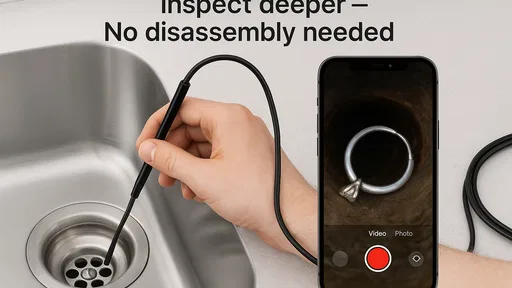
- Useful for inspecting pipes
- drains
- and behind appliances.
- LED lights help illuminate dark areas during inspections.
- Flexible cable makes it easier to navigate around bends.
- Can help identify blockages or damage before calling a professional.
Cons
- Image quality may be limited compared with a standard camera.
- A wired connection can restrict movement and working distance.
- Compatibility may vary across phones and operating system versions.
- Small camera head may struggle to provide a wide field of view.
- Inspecting reflective or water-filled surfaces can be difficult.