WakeBox
- 580.00
- 4.1
- Installs
- 1.00M
- Price
- Free

Screenshots
Analysis by Reviewed
I have always thought an alarm clock should do one thing exceptionally well: get my attention when I am supposed to be awake. WakeBox takes that simple idea seriously, presenting itself as a productivity app built around reliable alarms, full-screen alerts, and optional email access. After using it, my impression is that it is less interested in becoming a lifestyle dashboard and more focused on making the wake-up moment difficult to overlook.
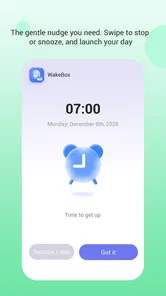
That focus is its clearest strength. Many phone alarms are easy to dismiss almost automatically, especially when the alert appears as a small notification among messages, calendar reminders, and other interruptions. WakeBox’s full-screen approach gives the alarm a much more prominent presence. For people who regularly sleep through ordinary alerts, work irregular hours, or need a dependable reminder for something more important than a morning routine, that difference matters.
At the same time, this is not an app I would recommend to everyone simply because it is free. Its Mature 17+ content classification may make some families cautious, and anyone looking for a richly customizable sleep platform may find the experience narrower than expected. My overall view is positive, but specific: WakeBox makes the most sense when visibility and reliability matter more than entertainment, wellness extras, or a large collection of clever alarm challenges.
How WakeBox feels in everyday use
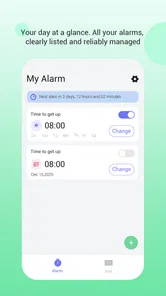
The first thing I noticed is how clearly the app defines its role. It belongs in the productivity category, but it does not try to turn productivity into a complicated system of goals, streaks, and statistics. Instead, it treats an alarm as a practical commitment. I set a time, prepare for the interruption, and expect the app to take over the screen when that moment arrives.
That simplicity is useful when I am setting an alarm while tired. A crowded interface can make a basic task feel like a small project, particularly at night when I am trying to get away from my phone. WakeBox’s appeal comes from keeping attention on the alarm itself. The less time I spend navigating through unrelated tools, the less likely I am to set the wrong reminder or abandon the setup halfway through.
The full-screen alert is especially relevant for users who keep their phone on a desk, across the room, or under a pile of notifications. A conventional alarm can be technically active yet practically invisible. WakeBox is designed to make the event visually dominant, which gives it a better chance of breaking through the passive way people often respond to ordinary notifications.
I also see value in using it for more than waking up. A full-screen alarm can mark the beginning of a commute, a medication schedule, a study block, an appointment, or the end of a limited break. Those situations have something in common: missing the alert creates a real inconvenience, while a normal notification can be ignored without much thought.
More From Our News Desk

Weather by Xiaomi Review: Clear at a Glance, Less Clear Up Close

X Under Pressure: Can It Recover When Posting Goes Wrong?

Clash of Clans Is Won Between the Battles

Android Auto Makes the Case for Quieter Car Software

MobiOffice: Transforming Mobile Productivity with Seamless Integration

EA SPORTS FC™ Mobile Soccer: Redefining Mobile Sports Gaming
A realistic morning scenario
Imagine someone who starts work early but does not keep the phone beside the pillow. The phone is charging on a table several steps away, partly to discourage late-night scrolling. A standard alarm sounds, but the user wakes only briefly, reaches toward the device, and falls back asleep. With a full-screen alert, the visual interruption is more forceful once the person looks at the phone, and the alarm is less likely to blend into the background.
That does not make WakeBox a guarantee against oversleeping. No app can replace enough sleep, a sensible phone position, or a backup plan for a genuinely important event. What it can do is remove one common point of failure: an alarm that is too easy to overlook. I would still advise using a second alarm for a flight, examination, or critical shift, but WakeBox is a reasonable primary tool for ordinary mornings.
Another practical workflow is to use it for transition points rather than only fixed appointments. I might set an alarm for the moment I need to stop getting ready, leave the house, begin a focused work session, or put away a distracting device. That turns the app into a lightweight external cue. It does not organize my whole day, but it can protect the moments when my own attention is unreliable.
The role of optional email access
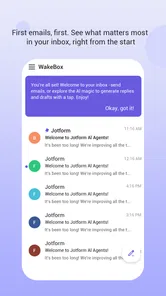
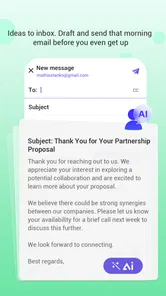
Optional email access is an unusual part of the app’s positioning, and I would approach it deliberately rather than enabling it automatically. For some users, email access may fit a workflow in which alarms connect with an inbox-based routine or provide a more visible layer of accountability. If my work already revolves around email, that possibility could make an alarm more relevant than an isolated sound on my phone.
However, optional access should remain exactly that: optional. I would not grant an app access to email merely because the feature exists. Before enabling it, I would want to understand precisely what the permission supports and whether it genuinely improves my routine. If I only need a wake-up alarm, the basic alarm function should be enough for my purposes.
This is also where WakeBox may divide users. People who like tightly integrated productivity workflows may appreciate the possibility of connecting an alarm with email-related habits. People who prefer minimal permissions and a completely self-contained alarm will probably leave that option unused. In my experience, the best approach is to begin with the simplest setup and add access only when there is a clear benefit.
What it does better than ordinary alarm options
The strongest case for WakeBox is not that it reinvents timekeeping. It is that it emphasizes the moment an alarm needs to be noticed. The difference between a normal notification and a full-screen interruption is easy to underestimate until a reminder is missed. For users who have trained themselves to swipe away small alerts without thinking, a more prominent presentation can be genuinely helpful.
It also occupies an interesting middle ground between the alarm already built into a phone and more elaborate sleep applications. The built-in clock is convenient and familiar, but it may not offer the same emphasis on an attention-grabbing alert. Sleep-focused apps can add bedtime guidance, soundscapes, sleep tracking, or smart-wake ideas, yet those extras are not automatically useful for someone who simply needs a dependable alarm.
WakeBox’s productivity angle makes it suitable for people who want the alarm to serve a task rather than a wellness routine. I can imagine using it before a remote meeting, during a timed study session, or when I need a firm reminder to leave home. In those cases, the value is not in analyzing my sleep. The value is in creating a clear interruption at a chosen time.
Its free price also lowers the barrier to trying it. I can test whether the full-screen behavior fits my habits without first committing money to a specialized alarm service. That matters because alarm preferences are personal. Some people wake easily from a quiet tone; others need a more forceful prompt. A free app makes experimentation less risky.
The app has also attracted a substantial user base, with more than a million installs and an average rating of four and a half stars from roughly one and a half thousand ratings. I do not treat those figures as proof that it will suit every sleeper, but they do suggest that the central idea has found an audience. The feedback volume is large enough to make the app feel established rather than like an untested experiment.
Small habits that make the alarm more dependable
The first tip I would give is to place the phone where the full-screen alert has a chance to work without making the alarm impossible to reach. Across the room is useful if I tend to dismiss alarms in bed, but placing it inside a drawer or behind other objects defeats the purpose of a visual interruption. The goal is to require a deliberate action, not create a scavenger hunt.
Second, I would use separate alarms for separate commitments instead of treating one alarm as a universal solution. A wake-up alarm, a departure reminder, and a meeting alert serve different purposes. Giving each one a clear role makes it easier to understand what I am responding to when the screen lights up, particularly on a busy day.
Third, I would test the setup during a low-risk period. An alarm that looks reliable in the settings screen still needs to fit my real routine: phone placement, charging habits, sound level, and my willingness to respond when tired. Testing before relying on it for an important morning is a sensible precaution, especially because the app’s main promise matters most when I am least alert.
A fourth useful habit is to avoid using WakeBox as an excuse to postpone sleep. A prominent alarm can improve the wake-up process, but it cannot compensate for consistently staying up too late. If I need several alarms every morning, the problem may be my schedule rather than the alarm application. WakeBox works best as a support for a realistic routine, not as a substitute for one.
Where the experience may frustrate you
The same full-screen behavior that makes WakeBox attractive can feel intrusive. If I am already awake, in a meeting, or handling another task when an alarm triggers, a screen-filling interruption is more disruptive than a quiet notification. That is a trade-off rather than a flaw, but it should be understood before using the app for frequent daytime reminders.
There is also a psychological difference between a helpful alarm and an aggressive one. Some users want a gentle progression from quiet sound to stronger alert. WakeBox’s identity is built around being noticed, so people who dislike forceful interruptions may prefer the ordinary clock app or a sleep application with softer wake-up options. The app is aimed at attention, not subtlety.
I would also be careful about relying on it without considering the phone itself. Alarm behavior can be affected by practical conditions such as battery level, device placement, and system settings. I would keep the phone charged, make sure the alert is not hidden by an unusual device configuration, and perform a test before depending on it for something with serious consequences. That is good practice for any mobile alarm, but it is especially important when reliability is the main reason for choosing one.
The optional email feature may create another layer of hesitation. Even when access is not required, users can reasonably ask whether connecting an inbox is worth the added complexity. My answer is no for a basic morning alarm. I would consider it only if it supports a specific workflow I already use. People who are highly privacy-conscious or who want the smallest possible permission footprint should simply keep their use focused on the alarm itself.
The Mature 17+ age classification is another consideration for households. Parents choosing productivity tools for younger users may prefer an app with a different classification, regardless of how useful the alarm function appears. I would not treat the label as a minor detail when selecting software for a shared family device or a teenager’s phone.
Who should choose a different kind of app?
I would skip WakeBox if my main goal were sleep analysis, bedtime coaching, or a broad collection of relaxing sounds. Its appeal is the alert, not a complete sleep-health program. A dedicated sleep application would be a better fit for someone who wants bedtime recommendations or a longer-term view of sleep habits.
I would also look elsewhere if I needed a highly specialized alarm that forces physical movement, solves puzzles, or verifies that I am fully awake before dismissal. WakeBox’s full-screen presentation can make ignoring an alarm harder, but that is not the same as requiring a particular wake-up challenge. Users who depend on those mechanisms should choose a tool designed around them.
On the other hand, I would not dismiss it merely because I already have a built-in clock. If I regularly miss small notifications, the difference in presentation may be enough to justify a separate app. The decision comes down to whether the problem is setting an alarm or noticing it. If the problem is noticing it, WakeBox addresses the more relevant weakness.
Compatibility, trust, and the practical setup
WakeBox is developed by BLYTHEWOOD NY LLC and currently appears as version 1.2.6. It supports devices running Android 7.0 or later, which covers a wide range of Android phones but still makes the operating-system requirement worth checking before installation. I would confirm compatibility on an older spare device rather than assume every Android phone will behave identically.
The app is free to install, which makes the decision straightforward for most users: try it with a low-stakes reminder, observe how the full-screen alert fits your routine, and then decide whether it deserves a permanent place on the phone. I prefer this approach to judging an alarm from its description alone, because the right level of urgency depends heavily on how I personally respond when tired or distracted.
My setup would be intentionally conservative. I would begin with one morning alarm, keep email access disabled unless I had a clear reason to use it, charge the phone overnight, and put it somewhere that requires me to sit up or stand. After a few ordinary days, I would decide whether the alert feels appropriately strong. If it is too disruptive, I would reserve WakeBox for important reminders and use the regular clock for gentler occasions.
That trial also answers an important question: is the app useful without its optional extras? In my view, yes. The central value is the prominent alert, so a user does not need to build an elaborate productivity system around it. This makes the app easier to evaluate honestly. If the full-screen alarm does not improve my routine, adding more connected features will not solve the underlying mismatch.
My final view on WakeBox
WakeBox succeeds because it has a clear thesis: an alarm is only useful if I notice it and act on it. The full-screen alert gives that idea a practical form, and the productivity framing makes the app useful for mornings, appointments, study periods, departures, and other moments when a small notification is too easy to ignore.
I like that it is free and focused. I also appreciate that email access is optional rather than presented as a requirement for the basic experience. Those choices let me keep the setup simple while leaving room for a more connected workflow if I later find one that genuinely helps.
Still, I would not call it a universal replacement for every alarm app. The prominent interruption may annoy light sleepers or anyone who wants a gentle wake-up. The age classification deserves attention in family settings, and users who want sleep tracking, coaching, or elaborate anti-snooze challenges may be better served elsewhere. Its strengths are specific, and so are its boundaries.
For someone who repeatedly sleeps through ordinary alarms or overlooks important reminders, I think WakeBox is worth trying. My recommendation is to start with one low-risk alarm, keep the phone charged and visible, and treat email access as an optional decision rather than part of the required setup. If what you need is a clear, hard-to-miss interruption, this app makes a convincing case for itself. If you want a complete sleep-management suite, I would choose a different tool.
WakeBox Frequently Asked Questions
Is WakeBox suitable for younger users?
WakeBox is rated Mature 17+, so it is intended for adults rather than children or younger teens. Parents and guardians should check the app’s age rating and decide whether it is appropriate before allowing a young person to install it. The app is a productivity tool built around alarms, but its age classification is still worth considering when choosing apps for a shared device.
Who makes WakeBox, and is it a well-used app?
WakeBox is developed by BLYTHEWOOD NY LLC and is a productivity app focused on waking up reliably. It has been installed over one million times and has an average rating of 4.5 from around 1,500 ratings, giving prospective users a useful sense of its adoption and reception. As with any alarm app, your experience can still depend on your phone’s settings and how you configure it.
What is WakeBox and how does it work?
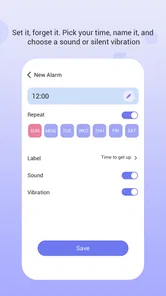
WakeBox is an alarm clock app designed to make waking up more engaging than a standard phone alarm. After installing it, you can set one or more alarms, choose available sounds or wake-up options, and adjust the schedule to match your routine. Its exact tools may vary by device and app version, so it is worth reviewing the settings before relying on it every morning.
Does WakeBox work if my phone is locked or the app is closed?
WakeBox is intended to alert you at the scheduled time, but alarm behavior can depend on your phone model, operating system, battery optimization, notification permissions, and silent or Do Not Disturb settings. Create a test alarm a few minutes ahead and confirm that it rings while the device is locked. Disable aggressive battery restrictions if the alarm is delayed or missed.
Can I customize WakeBox alarms and use different schedules?
Yes, WakeBox is useful for people who need more than one basic alarm. You can generally create separate alarms for different days, adjust times, and select the sound or behavior that suits each situation. This makes it practical for workdays, weekends, appointments, and recurring routines. Check every alarm’s repeat settings carefully, especially when changing between weekday and weekend schedules.
Pros
- Simple alarm setup with a clean
- easy-to-use interface.
- Gradually increasing volume can make waking up less stressful.
- Custom alarm schedules help fit different weekdays and weekends.
- Sleep-focused features encourage a more consistent morning routine.
- Useful option for people who dislike abrupt
- loud alarm sounds.
Cons
- Some features may require permissions that users may find intrusive.
- Battery optimization can interfere with reliable background alarms.
- The app may offer limited customization compared with advanced alarm apps.
- Ads or premium features could reduce the experience for free users.
- Not ideal for users who need highly specialized accessibility options.











