Vidoza AI Video Maker
- 0.00
- 0.0
- Installs
- 10.00K
- Price
- Free

Screenshots
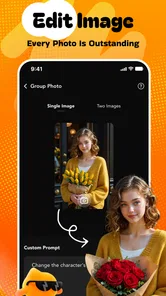
Analysis by Reviewed
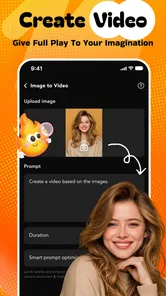
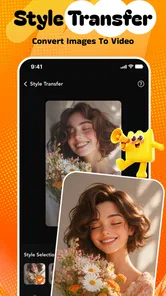
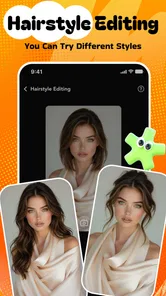
When I first tried Vidoza AI Video Maker, I approached it as a quick creative tool rather than a full video editor. Its main idea is simple: start with a photo, apply AI-driven movement and visual effects, and turn the still image into a short cinematic-looking video. That makes it interesting for everyday sharing, especially when a household has several people using the same phone to make birthday clips, travel memories, profile content, or playful experiments.
The app comes from IT Hub Info and sits in the art and design category. It is free to install, which makes testing it easy, although the presence of in-app purchases ranging from $1.99 to $99.99 per item means I would not hand the phone to a child and assume every creative option is cost-free. The current version is 1.0.1, and it supports devices running Android 7.0 or later. Those details matter less than the workflow, but they help explain where this app fits: it is an accessible experiment for people who want movement from a single image without learning a traditional editor.
How it feels when several people share one phone
A realistic household use case is a family preparing a small celebration. One person has the photos, another wants a dramatic video for a group chat, and someone else wants to try a different visual style. A conventional editor would usually require importing media, placing it on a timeline, adding transitions, adjusting duration, and exporting the result. Vidoza AI Video Maker is appealing because it focuses on the transformation itself. The photo is the starting point, while motion and effects provide the sense of a finished clip.
I found that this approach changes how I think about making content. Instead of asking, “How do I edit this video?” I ask, “Which image deserves motion?” A portrait can become more expressive, a landscape can gain atmosphere, and an ordinary snapshot can feel more suitable for a social post. That narrow purpose is also the app’s strength: it does not try to be an all-purpose production suite.
For shared-device use, I would establish a simple routine. Each person should select and review their own images before opening the creative workflow. That avoids accidentally animating a private photo or mixing one person’s pictures with another person’s project. I would also save finished clips in a clearly named location and review them before sharing, because an effect that looks amusing in a preview may feel too intense once it is seen by relatives or colleagues.
The best results begin with a photo that already has a clear subject. A face, pet, building, or object with visible separation from the background gives the effect more to work with than a dark, crowded snapshot. This is not a guarantee of a perfect result, but it is a practical habit that improves the odds of getting a convincing transformation.
What the app is really good at
Its strongest use is fast visual experimentation. If I have only a few minutes, I can take one image and explore the idea of giving it cinematic energy rather than building a sequence from several clips. That makes it useful for social posts, personal greetings, visual mood boards, and small creative tests. It is also approachable for someone who finds timeline editing intimidating.
More From Our News Desk

 Gmail
GmailGmail in a Busy Inbox: Who Benefits Most?
From first account to crowded workday, Gmail earns its place through dependable search and flexible sorting—but its best fit depends on how much inbox maintenance you can tolerate.

 Prime Video
Switching to Prime Video: What Changes in Your Viewing Routine
Prime Video can make a compelling second home for streaming, but switching means learning a different catalog, rental layer, and route from browsing to playback.

 Universal TV Remote Control
Universal TV Remote Control Works Best as a Reliable Backup
A phone remote earns its place through quick setup and reliable habits. Here is how to get more from Universal TV Remote Control—and where its limits show.

 Weather - By Xiaomi
Weather by Xiaomi Review: Clear at a Glance, Less Clear Up Close
Xiaomi’s weather app makes everyday forecasts quick to scan, but its calm surface can leave useful details and recovery paths harder to find than they should be.

 X
XX Under Pressure: Can It Recover When Posting Goes Wrong?
A resilience-focused review of X, examining setup, mistaken posts, interruptions, weak connections, and the gaps that matter when recovery needs to be dependable.

 Clash of Clans
Clash of Clans Is Won Between the Battles
Its raids are quick; its community is a long-term project of coordination, teaching, rivalry, and shared responsibility—with all the friction that entails.
Latest News



The app is less suited to projects that depend on precise storytelling. If I need spoken narration, carefully timed captions, multiple scenes, exact music cuts, or detailed control over every frame, I would choose a conventional mobile editor instead. Those tools take longer to learn, but they give me control that an automated photo-to-video workflow is not designed to replace.
That distinction is important in a household. A teenager making a quick visual for a private group may appreciate speed, while an adult preparing a polished presentation may become frustrated by the lack of traditional editing control. I would treat this app as a specialized creative layer, not as the only video tool on a shared device.
Setup boundaries matter more than the first effect
Because the app is free to install but includes paid items, I would decide in advance who is allowed to make purchases. On a shared phone or tablet, the practical boundary is not just “ask before buying.” I would make sure the device’s purchase approval process is understood by everyone who uses it, especially younger users. The app itself should not be treated as a substitute for household rules around payments.
The mature 17+ content rating is another reason to think about access before experimenting. The rating is part of the app’s store classification, so I would not present it as a general-purpose children’s creativity tool. If several age groups use the same device, adults should decide whether the app belongs in the shared app collection at all. Younger family members may need a different art application chosen specifically for their age group.
I would also separate creative ownership from device ownership. A shared phone does not mean every photo on it is available to every user. Before importing an image, I would ask who took it, who appears in it, and whether the people shown would be comfortable with an animated version being created. This is particularly important with portraits, school events, family gatherings, and images received privately from someone else.
One useful workflow is to create a small temporary selection of approved images before starting. That reduces the chance of scrolling through a large camera roll in front of other users and makes the experiment more deliberate. It also helps when several people are taking turns, since each person can work from their own chosen images without searching through everyone else’s memories.
Keeping expectations realistic on older devices
The minimum operating system is Android 7.0, so the app is not limited to only the newest Android phones. Still, compatibility does not automatically mean identical comfort on every device. AI-style processing and video creation can be more demanding than opening a normal photo. I would leave enough free storage for generated clips and avoid judging the app from a single rushed attempt on a phone that is already struggling with other tasks.
I would also avoid repeatedly processing the same image while changing every option at once. A better test is to use one clear photo, try one visual direction, inspect the result, and then compare it with a second approach. This makes it easier to understand whether a disappointing result comes from the source image, the chosen effect, or the phone’s handling of the process.
That method is especially helpful when family members share the device. It prevents one person’s long experiment from turning into a confusing queue of nearly identical files. It also makes storage management easier because unsuccessful versions can be removed before the next person begins.
Coordinating creative work without stepping on each other
Shared use becomes smoother when everyone agrees on a naming habit. I would use a short label based on the person or occasion, followed by the image subject, rather than relying on generic filenames. For example, a birthday portrait and a holiday landscape should be easy to distinguish after export. This small step prevents the common household problem of asking, “Which one is mine?” after several people have created similar clips.
I would also agree on a review point before anything is posted. The creator should watch the entire result with sound if sound is involved elsewhere in their sharing workflow, check the faces and background, and confirm that the visual treatment matches the intended audience. A cinematic effect can make a private family photo feel public or dramatic, so a second pair of eyes is useful when the clip includes other people.
Another non-obvious trade-off is that automation can reduce discussion about editing choices. With a timeline editor, I naturally decide how long an image stays on screen and where a transition belongs. With an AI-focused tool, I may accept a result quickly because it looks impressive at first glance. In a shared household, I would encourage the creator to ask whether the motion supports the memory or merely distracts from it.
This is where the app works well as a collaborative prompt. One person can choose the photo, another can suggest a mood, and a third can decide whether the final result is appropriate to share. The app handles the transformation, while the people using it still provide the judgment. That division keeps the experience creative instead of making the output feel completely automatic.
Privacy, consent, and trust around personal photos
I would be especially careful with images of children, guests, coworkers, or anyone who has not agreed to have their photo altered. Turning a still picture into moving content can change how it feels, even when the original image was harmless. Before creating a clip, I would ask whether the people shown would be comfortable with the result being saved or sent elsewhere.
The same caution applies to sensitive locations. A family photo may reveal a home interior, a school setting, or a recognizable daily route. An animated effect can draw attention to details that were easy to overlook in the original. My habit would be to crop or choose a less revealing image before processing it, rather than trying to solve the issue after the clip has already circulated.
For shared devices, I would not assume that one person’s account, gallery, or creative history should be visible to everyone else. The app may be convenient for household experiments, but convenience is not the same as separation. Each user should decide what they are comfortable leaving on the device, and finished files should be moved or removed according to the household’s normal privacy routine.
This is also where the mature age classification affects trust. I would explain to older teenagers why the app is not being treated as a child-focused toy, rather than simply hiding it and leaving them uncertain. Clear rules about suitable images, sharing, and purchases are more useful than pretending that an age label alone manages responsible use.
Where it stands beside ordinary mobile editors
Compared with a standard mobile video editor, Vidoza AI Video Maker is more immediate and less technical. I can begin with a single photo instead of collecting several video fragments. That is valuable when the goal is a quick visual message or a stylized memory, and it lowers the barrier for people who do not enjoy editing timelines.
The ordinary editor wins when precision matters. It is the better choice for a school project with exact instructions, a product demonstration requiring readable labels, a travel montage with a deliberate sequence, or any video where I need to control every cut. Traditional tools also make it easier to combine original footage, voice, text, and music in a planned structure.
There is a middle ground where this app makes the most sense. I would use it to create a moving treatment for a key image, then decide whether that clip belongs in a larger project made elsewhere. In that role, it can provide a distinctive visual moment without forcing me to abandon the control of a full editor. I would not expect it to replace an editor simply because the result looks cinematic.
Its free entry point also makes comparison practical. I can test whether the visual approach suits my photos before committing time to a more complicated workflow. However, I would keep the in-app purchase range in mind while exploring, because a free installation does not mean every available item is included without charge. If the purpose is casual experimentation, I would set a spending limit before trying premium-looking options.
Who should use it, and who should skip it
I would recommend it to someone who has a folder of still images and wants to make them feel more alive without studying video editing. It is a good match for quick greetings, social content, personal experiments, and households that want to turn one memorable photo into something more engaging. It may also suit a designer collecting visual references, provided the app’s automated style fits the intended work.
I would skip it if I need dependable professional control, detailed audio work, exact captions, or a carefully structured sequence. I would also be cautious about using it for sensitive personal material when the creator is not comfortable with the privacy implications of processing and sharing that content. The mature age classification makes it a poor default choice for young children, even if the creative concept sounds family-friendly.
People who dislike automated artistic decisions may find the experience limiting. The appeal is speed and transformation, not exhaustive manual adjustment. If I want to tune motion with frame-level accuracy, I would be happier with a traditional editor. If I want to discover what a photo might look like with movement and effects, this app is more inviting.
My household verdict after looking beyond the novelty
Vidoza AI Video Maker has a clear purpose, and I appreciate that it does not require me to begin with a complicated timeline. Its photo-first approach makes a shared creative session easy to understand: choose an image, explore a visual treatment, inspect the result, and decide whether it is worth keeping. That simplicity is its main advantage over ordinary editors.
At the same time, a household should not confuse simple operation with simple responsibility. The mature 17+ rating, paid items, personal-photo concerns, and shared-device boundaries all deserve attention before anyone starts experimenting. I would establish purchase rules, choose images deliberately, review every result, and keep personal files separated as much as the device setup allows.
The app is free, developed by IT Hub Info, and has passed the 10K+ installs mark, which places it in the category of a relatively small but accessible creative utility rather than a tool I would assume everyone already knows. Its release date is Jul 31, 2026, and the current version is 1.0.1, so I would approach it as an evolving option and judge it mainly by whether its particular photo-to-video workflow fits my needs.
My final recommendation is conditional but positive: try it when the goal is a fast, stylized transformation of a still image, especially for a shared creative moment with clear rules. Choose a conventional editor when control, privacy planning, or a complete multi-scene production matters more than speed. For the right photo and the right audience, it can turn a quiet snapshot into a memorable little video; it just works best when human judgment remains in charge.
Vidoza AI Video Maker Frequently Asked Questions
What devices and operating systems can run Vidoza AI Video Maker?
Vidoza AI Video Maker is an Art & Design app for Android, and its minimum operating-system requirement is Android 7.0. Check your device’s Android version before downloading so you can avoid compatibility issues. The app is free to download, but some features may involve in-app purchases. If you use an iPhone or iPad, confirm that the app is available for your device in its official app store before proceeding.
What is Vidoza AI Video Maker and what can I create with it?
Vidoza AI Video Maker is designed to help users produce short videos with the assistance of artificial intelligence. Its central feature is turning photos into cinematic AI videos with motion and effects in seconds. It is mainly aimed at quick content creation rather than professional, frame-by-frame video editing, so it may suit users who want to give still images a more dynamic look without taking on a complex editing workflow.
Is Vidoza AI Video Maker free to download and use?
The application is free to download, but it also offers in-app purchases ranging from $1.99 to $99.99 per item. That means some features or content may require payment, so check the purchase details shown in the app before committing to anything. Consider whether the tools available without an in-app purchase meet your needs, and review any purchase prompts carefully to avoid paying for options you do not intend to use.
Do I need an internet connection to use Vidoza AI Video Maker?
An internet connection is generally required for the main AI features because prompts, images, or video projects may need to be processed online. Offline access may be limited to viewing previously exported files or editing certain locally stored content. Generation speed and reliability can also depend on your connection and server availability, so users with mobile data limits should review how much content they plan to create.
Can I use videos made with Vidoza AI Video Maker for commercial purposes?
Commercial usage depends on Vidoza’s current terms, the subscription level you use, and the licenses attached to generated media. AI-created visuals, music, templates, stock elements, fonts, and uploaded assets may each have separate restrictions. Before using a video for advertising, monetized social media, client work, or business promotion, read the app’s license agreement and make sure you own or are authorized to use every included asset.
Pros
- Turns text prompts into videos without advanced editing skills.
- Offers AI-generated visuals for quick social media content creation.
- Useful templates help speed up video production.
- Supports creative experimentation with different video concepts.
- Can reduce the time needed for basic promotional videos.
Cons
- AI results may not always match the prompt accurately.
- Advanced features may require a paid subscription.
- Export options can be limited depending on the selected plan.
- Generated videos may look repetitive or lack originality.
- Processing times can increase for longer or more complex projects.