Universal Remote TV for Roku
- 36.00
- 4.7
- Installs
- 10.00K
- Price
- Free
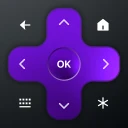
Screenshots
Analysis by Reviewed
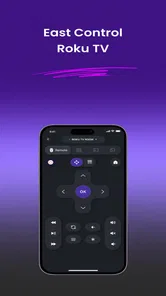
Universal Remote TV for Roku aims to solve a familiar living-room annoyance: the TV remote has gone missing, and you want to change the volume or get back to watching without turning the sofa upside down. My view is that it is worth considering as a convenient backup for compatible Roku TVs, but it should not be treated as a guaranteed replacement for every physical remote. The appeal is simple; the important question is whether your particular television and phone work well together.
A handy backup, with compatibility at the center
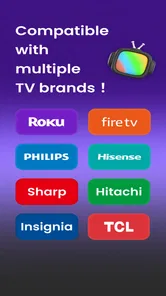
This is a free House & Home app from AxenGrid Labs, designed for people with TCL, Hisense, Insignia, Hitachi, RCA, or Westinghouse Roku televisions. That spread of brands makes it more useful than a remote app tied to one TV maker, especially in a home where the television badge is easy to forget. Still, the Roku TV connection is the key condition: having a Roku streaming stick or another Roku device does not automatically mean this app is the right fit.
The app has a 4.7 average from around 1,600 ratings, and it has passed 10,000 installs. Those figures suggest that many people have found a reason to keep it, though they cannot tell you how it will behave with your exact TV model or home network. I would use the rating as a reason to give it a try, not as a promise that setup will be effortless.
Its current version is 1.3.1, and it is intended for devices running Android 7.0 or later. The app is rated for Everyone. It is free to install, with optional in-app purchases ranging from $4.99 to $15.99 per item, so I would check what is included in any paid option before buying. You can test whether the basic remote experience suits your setup first rather than paying on the assumption that every function will be available without friction.
Where it earns its place
The most convincing use is as a spare remote kept ready for ordinary interruptions. If the TV remote slips between cushions, runs out of batteries, or is in another room, using a phone you already have nearby can be quicker than searching. That convenience matters most for small tasks: adjusting the volume, changing what is playing, or getting control back during a casual evening.
There is also a practical household benefit when the physical remote is shared. A phone can be a temporary second control point, so someone else does not have to interrupt the person already holding the remote just to make a simple change. I would still keep the original remote accessible; the app is better thought of as a useful backup than as a reason to discard the hardware that came with the TV.
A less obvious tip is to try the app while the physical remote is still within reach. That lets you check compatibility and get comfortable with the phone-based controls before you actually need them. If setup requires attention, sorting it out during a quiet moment is much less irritating than discovering a connection issue while guests are waiting for the programme to start.
More From Our News Desk

 Gmail
GmailGmail in a Busy Inbox: Who Benefits Most?
From first account to crowded workday, Gmail earns its place through dependable search and flexible sorting—but its best fit depends on how much inbox maintenance you can tolerate.

 Prime Video
Switching to Prime Video: What Changes in Your Viewing Routine
Prime Video can make a compelling second home for streaming, but switching means learning a different catalog, rental layer, and route from browsing to playback.

 Universal TV Remote Control
Universal TV Remote Control Works Best as a Reliable Backup
A phone remote earns its place through quick setup and reliable habits. Here is how to get more from Universal TV Remote Control—and where its limits show.

 Weather - By Xiaomi
Weather by Xiaomi Review: Clear at a Glance, Less Clear Up Close
Xiaomi’s weather app makes everyday forecasts quick to scan, but its calm surface can leave useful details and recovery paths harder to find than they should be.

 X
XX Under Pressure: Can It Recover When Posting Goes Wrong?
A resilience-focused review of X, examining setup, mistaken posts, interruptions, weak connections, and the gaps that matter when recovery needs to be dependable.

 Clash of Clans
Clash of Clans Is Won Between the Battles
Its raids are quick; its community is a long-term project of coordination, teaching, rivalry, and shared responsibility—with all the friction that entails.
Latest News



Another sensible workflow is to treat the app as a room-specific convenience, not a universal controller for every screen in the house. If you have more than one television, first confirm which compatible Roku TV the app is controlling before relying on it. A phone-based remote can feel effortless once the right TV is selected, but confusion about which screen is responding can quickly cancel out that convenience.
The trade-off behind phone control
The biggest limitation is inherent to this kind of app: a phone is not always as immediate or dependable as a dedicated remote. It needs to be nearby, usable, and ready when you want to control the TV. If your phone is charging elsewhere, out of battery, or being used by someone else, the app does not solve the problem. For frequent channel changes or long viewing sessions, a physical remote may remain the more comfortable option.
Compatibility deserves equal care. The named TV brands give you a useful starting point, but a brand name alone is not a guarantee that every model or configuration will behave identically. Before depending on the app, check that your television is actually a Roku TV and test the connection in your own home. If the television is not compatible, a manufacturer-specific remote app or the original remote is a more sensible choice than repeatedly trying to make this one fit.
There is a broader trade-off, too: using a phone for a basic TV task can mean unlocking it and opening an app when a button on a remote would have been faster. The app makes the most sense when the phone is already in your hand or when the remote is temporarily unavailable. It is less compelling if your physical remote is reliable and you prefer a simple button press without switching devices.
How I would choose between this and other options
Compared with the original remote, this app offers convenience without requiring another piece of hardware, but it cannot provide the same dedicated buttons or always-ready feel. Compared with a remote app made for one TV manufacturer, its appeal is the range of listed Roku TV brands. That wider scope is useful if your set comes from one of those makers, yet a brand-specific option may be the better first stop when it is designed for your exact model and works reliably.
For a home with a compatible Roku TV and a missing or shared remote, I would try this before buying replacement hardware. For a television that is outside the stated compatibility, or for someone who wants a dependable controller with no phone involved, I would choose the correct physical remote instead. This is a practical distinction, not a knock on the app: a phone remote is most valuable when it addresses a real inconvenience rather than adding an extra step to a setup that already works.
One useful test is to try the controls you actually reach for in daily life rather than judging the app after a single successful connection. See whether it is convenient for routine viewing, whether other household members can use it comfortably, and whether it still feels worthwhile when the phone is not already open. That small trial will tell you more than a quick glance at the app’s broad compatibility description.
Who should give it a try
I would recommend Universal Remote TV for Roku to someone with a TCL, Hisense, Insignia, Hitachi, RCA, or Westinghouse Roku TV who wants a free backup and is comfortable using a phone for simple controls. It is especially appealing in a shared living room, a guest room, or a household where the remote often wanders. The app’s Everyone age rating also makes it suitable for a general household audience, though comfort with the phone interface will vary from person to person.
I would be more cautious if you need a remote for a non-Roku television, expect every model from a listed brand to connect in exactly the same way, or want a phone to replace your physical remote completely. I would also think twice if unlocking a phone feels like needless hassle. In those situations, the original remote or a replacement intended for the specific television is likely to be the more satisfying everyday choice.
The app is developed by AxenGrid Labs, and its clear purpose is easy to understand: give owners of selected Roku TVs another way to control the screen. I like that straightforward role, but I would keep expectations proportional. It is a backup tool whose value depends on compatibility and on whether phone control fits your habits, not a universal fix for every TV problem.
My verdict for everyday use
For the right television, this is a sensible convenience to have installed before the remote goes missing. Its strongest case is not that it makes watching TV dramatically different, but that it can remove a small, familiar frustration at the moment you need control. The broad selection of supported TV brands and the free starting point make trying it reasonable, while the optional purchases are worth reviewing carefully if you are considering paying.
My recommendation is simple: test it with your own compatible Roku TV, keep the physical remote as a fallback, and decide based on the controls you use most. If it connects and feels natural, it can earn a place as a spare. If compatibility or the phone-based workflow gets in your way, a model-specific remote is the better answer. It is most useful as a dependable backup for the right setup, not as a universal promise.
Universal Remote TV for Roku Frequently Asked Questions
What is Universal Remote TV for Roku, and what can it do?
Universal Remote TV for Roku is a mobile app designed to control compatible Roku TVs or Roku streaming devices from a phone. Depending on the app version and your device, its remote-style controls may let you navigate menus, select channels or apps, adjust volume, and use playback buttons. Check the app listing for its exact features, since capabilities can differ by model and may require additional setup.
How do I connect the app to my Roku device?
In most cases, your phone and Roku device need to be connected to the same Wi-Fi network for the app to find and control the Roku. Open the app, grant any requested local-network permissions, and select your device when it appears. If it is not detected, confirm that both devices are online, restart the app, and review Roku settings or the app’s instructions. Connection steps can vary by device and app version.
Is Universal Remote TV for Roku free, and does it include ads or paid features?
The app may be free to install, but that does not necessarily mean every feature is available without payment. Some remote apps display advertisements or offer subscriptions or in-app purchases for extra controls and an ad-free experience. Pricing and terms can change, so check the current Google Play or Apple App Store listing before downloading. Review any trial or subscription details carefully to understand when charges may begin and how cancellation works.
Does the app work with every Roku TV, Roku player, or phone?
Compatibility is not guaranteed for every Roku model or mobile device. Support can depend on the Roku device, its software, the phone’s operating system, and the app’s current requirements. Before installing, compare the app’s store listing with your device details and check recent user feedback for model-specific issues. The phone and Roku generally also need a suitable network connection; features such as volume or power controls may not work on all setups.
What permissions or information does the app need, and is it safe to use?
A remote app commonly needs permission to access the local network so it can discover and communicate with Roku devices. Depending on the version, it may request other permissions or collect usage information; consult the app’s store privacy disclosures and its privacy policy for details. Download it only from an official app store, verify the developer, and avoid entering sensitive account information unless the app clearly explains why it is required.
Pros
- Works with Roku TVs and compatible Roku streaming players.
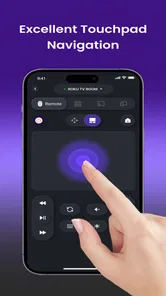
- Offers a convenient on-screen touchpad for navigating menus.
- Includes quick-access playback controls.
- Can be used as a backup when the physical remote is misplaced.
- Requires no additional hardware when the phone and Roku share Wi-Fi.
Cons
- Requires a compatible Roku device; it cannot control every TV.
- The phone and Roku generally need to be on the same Wi-Fi network.
- Some features may require in-app purchases or a subscription.
- Ad interruptions may affect the free experience.
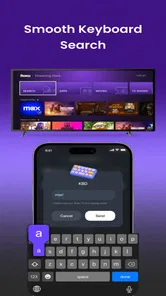
- Typing with a phone keyboard may be less convenient than using voice search.