TV Remote For Fire & TV Stick
- 103.00
- 4.6
- Installs
- 100.00K
- Price
- Free
Screenshots
Analysis by Reviewed
I like remote-control apps that solve one clear household problem, and TV Remote For Fire & TV Stick takes that approach seriously. Its main job is to make connecting to a FireStick easier while turning a phone into a television remote with a touchpad. In my experience, that combination matters most when the physical remote is misplaced, out of reach, or simply awkward for typing.
This is a free House & Home app from AxenGrid Labs, aimed at everyday television control rather than home automation in general. It has reached over 100 thousand installs and holds a 4.7 average from around 1.8 thousand ratings, which gives it a reassuring first impression for an app with such a focused purpose. The content rating is Everyone, so it is suitable for a shared family device.
The important question is not whether a phone can imitate a remote. Many apps can do that. The more useful question is whether the touchpad and connection process make real living-room tasks less irritating. That is where this app is most interesting, and also where its limitations become easier to notice.
Why the touchpad is the feature that changes the experience
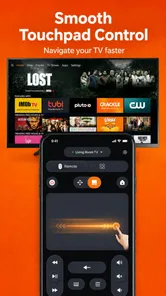
The standout capability is the touchpad control. Instead of relying only on small virtual directional buttons, I can use the phone screen as a surface for moving around the FireStick interface. That is especially useful when navigating menus, browsing rows of content, or moving through on-screen keyboards.
A conventional television remote is excellent for quick directional movement once it is in my hand. It is less convenient when I need to enter text, scroll through a long selection, or make repeated small movements. A phone touchpad gives those actions a more familiar feel, particularly for people who already use gestures on their phones every day.
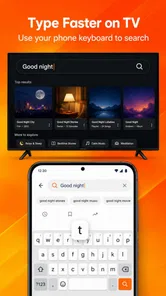
The difference is subtle during a short session, but it becomes clearer during a longer search. Entering a title with a physical remote can involve moving letter by letter across the screen. A touchpad does not remove every step, but it can make the pointer or selection movement feel less mechanical. The real benefit is reduced friction during navigation, not a dramatic replacement for every remote function.
I also see value in the touchpad when the television is being used from a sofa or bed. A phone is usually already nearby, while a small remote can disappear between cushions or be left in another room. The app turns that familiar device into a practical backup without asking me to keep another accessory within reach.
More From Our News Desk

 Gmail
GmailGmail in a Busy Inbox: Who Benefits Most?
From first account to crowded workday, Gmail earns its place through dependable search and flexible sorting—but its best fit depends on how much inbox maintenance you can tolerate.

 Prime Video
Switching to Prime Video: What Changes in Your Viewing Routine
Prime Video can make a compelling second home for streaming, but switching means learning a different catalog, rental layer, and route from browsing to playback.

 Universal TV Remote Control
Universal TV Remote Control Works Best as a Reliable Backup
A phone remote earns its place through quick setup and reliable habits. Here is how to get more from Universal TV Remote Control—and where its limits show.

 Weather - By Xiaomi
Weather by Xiaomi Review: Clear at a Glance, Less Clear Up Close
Xiaomi’s weather app makes everyday forecasts quick to scan, but its calm surface can leave useful details and recovery paths harder to find than they should be.

 X
XX Under Pressure: Can It Recover When Posting Goes Wrong?
A resilience-focused review of X, examining setup, mistaken posts, interruptions, weak connections, and the gaps that matter when recovery needs to be dependable.

 Clash of Clans
Clash of Clans Is Won Between the Battles
Its raids are quick; its community is a long-term project of coordination, teaching, rivalry, and shared responsibility—with all the friction that entails.
Latest News



That said, a touchpad is not automatically better for every action. Directional buttons can feel more predictable when I am making precise selections, and some people prefer the clear physical feedback of a real remote. The app is strongest when I am browsing or typing, rather than when I want to operate the television without looking at the phone.
What connecting feels like in a normal home
The app is designed around easy connection to a FireStick, but “easy” still depends on the conditions in the room. The phone and streaming device need to be in a workable network setup for the remote relationship to function properly. If the phone is connected somewhere else, or the FireStick is not available to the app, the touchpad cannot solve that basic communication problem.
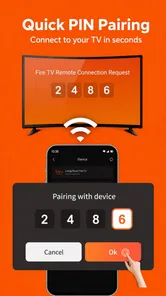
My practical advice is to open the app before settling into a long viewing session and complete the connection while the physical remote is still available. That gives me a chance to handle any pairing prompt or selection step without being stranded at the television. Once the app is connected, the phone becomes far more useful as a day-to-day control option.
This is one of the less obvious ways to use it: treat the app as a prepared backup rather than downloading it only after the remote has vanished. Installing it during an emergency can be frustrating because the television may still need a physical input before the phone can take over. Having the app ready turns a potential household search into a quick switch.
Another sensible habit is to keep the phone awake while testing the controls and to avoid judging the app from a single tap. Remote apps can feel unresponsive when the connection is still being established, when the phone is locked, or when the television itself is busy loading. A short pause and a deliberate check of the connection can prevent me from mistaking setup delay for a permanent problem.
Using it for search, browsing, and quick control
The touchpad makes the most sense in three situations: moving through content rows, navigating settings, and dealing with text entry. In each case, the phone provides a larger and more flexible control surface than a tiny remote. I can hold it in one hand, use a thumb for movement, and keep the television in view.
For simple commands, the experience is more mixed. If I only want to move up, down, left, or right once, a physical remote can be faster because I know exactly where the button is. On a phone, I need to look down and find the control area. This is not a serious flaw, but it explains why the app works best as a navigation tool rather than as a perfect replica of a tactile controller.
I would also use it when several people are sharing the television and the remote is constantly being passed around. A phone-based controller can reduce the small arguments over who is holding the remote, although it does introduce a different question: whose phone should be connected? For a household, that makes the app most useful when one person is comfortable acting as the regular controller.
The app’s store short description calls it a TV Remote, and that is a fair description of its role. I would not approach it as a universal controller for every device in the house. Its value is specifically tied to controlling a compatible FireStick and television setup through the phone, not replacing every smart-home tool I might own.
The best everyday scenario: a missing remote during a streaming night
The clearest use case is easy to imagine. I sit down to watch something, discover that the physical FireStick remote is missing, and find my phone on the nearby table. If the app is already installed and the devices are ready to communicate, I can use the phone’s touchpad to move through the interface instead of interrupting the evening to search the room.
This is more than a convenience for people who misplace things. A physical remote can be difficult to use for someone with limited dexterity, or it can be inconvenient when the viewer is holding a drink, caring for a child, or sitting farther from the television. A phone may offer a more familiar interaction pattern, especially for someone who is already comfortable with touch gestures.
There is also a useful shared-home routine here. I would install the app on the phone most often kept in the living room, connect it ahead of time, and leave the physical remote in a known place for backup. That arrangement avoids treating the app as a last-minute rescue and makes its touchpad available whenever browsing becomes tedious.
For travel or a second television, the usefulness depends on whether the new setup can be connected without the original remote. That is an important practical trade-off. I would not assume that a phone remote can always rescue a completely unconfigured FireStick. For a familiar home setup, it is much more dependable as a convenience; for an unknown television in a rental or guest room, the physical remote may still be essential.
Where the app is better than ordinary alternatives
The usual alternative is the physical remote that came with the FireStick. It wins on tactile certainty, immediate access, and independence from a phone battery. I can pick it up without unlocking a screen, and I do not need to worry about another app being open. For fast volume or directional adjustments, that simplicity remains hard to beat.
This app wins when the physical remote is unavailable or when navigation is the main task. The touchpad is more adaptable than a fixed set of buttons, and the phone is easier to find than a small remote in many homes. It also avoids buying another physical accessory just to have a spare, although the convenience depends on the phone being charged and available.
Compared with a generic universal remote app, the focused approach is a strength. I do not need a long list of unrelated device controls if my immediate goal is FireStick navigation. A narrower tool can feel less cluttered and easier to understand. The trade-off is equally clear: anyone looking for one controller for multiple brands, appliances, or entertainment systems should consider a broader solution instead.
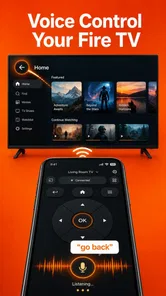
Voice control, where available through the television ecosystem, can be faster for certain searches. It is not a direct substitute for a touchpad, though. Voice input is useful when I know exactly what I want, while the touchpad is better when I am exploring menus, comparing options, or correcting a selection manually. I see them as different tools rather than direct competitors.
Small habits that make the touchpad more reliable
My first tip is to use the touchpad for broad movement and switch to precise controls when I am close to the item I want. Dragging quickly through a menu can save time, but small, careful movements are better near a row of closely spaced choices. This simple change makes the app feel less jumpy and reduces accidental selections.
My second tip is to keep the phone positioned where I can see both screens. Looking only at the phone makes it easy to lose track of the television’s selection state, while looking only at the television makes touch control less precise. A comfortable angle improves the experience more than repeatedly tapping harder or faster.
My third tip is to use the app as a planned second remote in households with more than one regular viewer. The person who installs it should complete the initial connection and explain the touchpad gesture before an evening of streaming begins. That avoids the common problem of handing someone a phone and expecting them to understand an unfamiliar control surface instantly.
One further trade-off is phone availability. If I receive a call, switch to another task, or hand the phone to someone else, the remote is no longer conveniently in my hand. A physical remote stays dedicated to the television. The app therefore works best when the phone is not doing something more important at the same time.
What to know about cost and the current release
The app is free to install, which makes it easy to test before deciding whether it fits my setup. It includes in-app purchases ranging from $4.99 to $17.99 per item. I would pay attention to any purchase screen during use and avoid assuming that every control or convenience is included in the free experience.
It is currently at version 1.4.2, and it supports devices running Android 7.0 or later. That makes compatibility worth checking before installation, especially on an older phone kept as a household controller. The age rating is Everyone, so the app does not present itself as an adult-only tool or a specialized professional utility.
The release date is January 28, 2026, which places the app in a relatively current part of the mobile-app landscape. I would still judge it by how smoothly it connects in my own network rather than by the version number alone. Remote performance depends on the phone, television, FireStick, and network working together, so real-world compatibility matters more than a polished first impression.
Who will appreciate it most, and who should skip it
I think this app is a good match for someone who frequently loses the physical remote, prefers touch controls, or spends a lot of time browsing rather than launching one familiar app. It is also appealing for a household that wants a ready-made backup without purchasing another dedicated controller.
It can be particularly helpful for users who find tiny remote buttons uncomfortable. A phone screen may be easier to hold and manipulate, although the benefit depends on personal preference. The touchpad is not a medical accessibility solution, but it offers a different interaction style that some viewers may find less demanding than repeated button presses.
I would be more cautious if I need a remote that works independently of a phone, if I regularly control several unrelated brands, or if I dislike looking down while watching television. People who want instant tactile buttons for volume and directional commands may be happier with the original remote. Likewise, anyone expecting the app to configure every FireStick from scratch should keep the physical controller available during setup.
For me, the strongest reason to keep using it is not that it replaces the original remote in every situation. It earns its place by making the awkward parts of television navigation easier, especially when browsing and dealing with menus. If your main frustration is searching through FireStick screens rather than pressing a single command, the touchpad is the feature worth trying.
Overall, I see this as a focused and practical House & Home app rather than an all-purpose remote platform. AxenGrid Labs has centered the experience on a problem many homes actually have: controlling a FireStick when the standard remote is inconvenient or missing. The free entry point makes testing straightforward, while the optional purchases mean I would review the available controls before spending anything.
My recommendation is simple: install it in advance, connect it while the physical remote is nearby, and judge the touchpad during a real browsing session instead of a quick button test. For that prepared backup role, TV Remote For Fire & TV Stick can be genuinely useful. If you need the certainty of physical buttons or a controller for an entire entertainment system, the usual alternatives remain the better choice.
TV Remote For Fire & TV Stick Frequently Asked Questions
Is TV Remote For Fire & TV Stick free to download, and are there in-app purchases?
The app is free to download, so you can try it without paying upfront. It also offers in-app purchases, with items priced from $4.99 to $17.99. Before buying anything, check the purchase details shown in the app and make sure any paid option provides features you actually want. The app is rated for Everyone.
What should I check before installing TV Remote For Fire & TV Stick on my phone?
Check that your phone runs Android 7.0 or later, and that you have a compatible Fire TV device and access to Wi-Fi. The app is developed by AxenGrid Labs and is in the House & Home category. Its current version is 1.4.2, and it has been available since January 28, 2026. These basics help you decide whether it suits your device and setup.
What is TV Remote For Fire & TV Stick, and what devices does it support?
TV Remote For Fire & TV Stick is a mobile remote-control app designed to help you operate compatible Amazon Fire TV devices from an Android or iOS smartphone. It generally supports Fire TV Stick, Fire TV, and related Fire TV models, provided the phone and streaming device are connected to the same Wi-Fi network. Compatibility can vary by device generation and app version.
How do I connect the app to my Fire TV Stick?
After installing the app, connect your smartphone and Fire TV Stick to the same wireless network. Open the app and allow it to scan for available Fire TV devices. Select your device from the list, then enter the pairing code displayed on the television if requested. If the device is not detected, check the Wi-Fi connection, restart both devices, and make sure no VPN or guest network is blocking communication.
Does TV Remote For Fire & TV Stick include a keyboard and other useful controls?
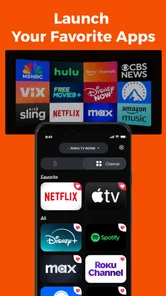
Most versions provide the essential remote functions, including directional navigation, select, back, home, playback controls, volume options, and an on-screen keyboard for entering search terms more conveniently. Some releases may also include touchpad navigation, app shortcuts, or quick-launch features. The exact controls depend on the version installed and the capabilities of your Fire TV device.
Pros
- Works with most Fire TV and Fire TV Stick models.
- Simple touchpad and directional controls make navigation easy.
- Text entry is faster than using the original on-screen keyboard.
- Useful replacement when the physical remote is lost or damaged.
- Usually connects quickly when the phone and TV share Wi-Fi.
Cons
- Requires both devices to be connected to the same Wi-Fi network.
- Some features may require in-app purchases or a subscription.
- Advertisements can interrupt use in the free version.
- Voice control may be unavailable or limited on certain devices.
- Phone battery can drain faster during extended remote use.