Tin Can
- 53.00
- 3.9
- Installs
- 10.00K
- Price
- Free

Screenshots



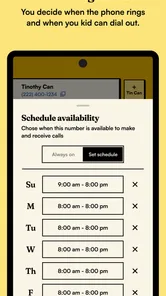

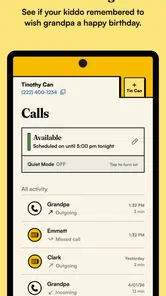
Analysis by Reviewed
Some apps try to make family communication faster; Tin Can takes a different route by making it feel more deliberate. This parenting app from TinCan is designed to work alongside the Tin Can phone, a “new-school landline” built around calling friends rather than carrying a full smartphone experience. I found that idea interesting because it changes the question from “What can my child do online?” to “How can my child stay connected with a smaller, clearer set of choices?”
The app is free, rated for Everyone, and available for devices running Android 7.0 or later. It reached version 3.0.1, and its current average is 3.8 from around sixty ratings. That is not enough feedback to treat the score as definitive, but it does suggest that the experience may suit some families much better than others. My view is that Tin Can is most appealing when a parent wants to support basic social contact without immediately handing over a general-purpose smartphone.
What Tin Can is really for in a family routine
The most useful way to understand this app is as a companion rather than a complete communication platform on its own. Its purpose is tied to the Tin Can phone, so the value comes from the relationship between the app, the child’s device, and the people the family chooses to involve. If you install it expecting a broad messaging, entertainment, or parental-monitoring suite, you may find the experience narrower than expected.
That narrowness is also the main appeal. A conventional smartphone gives a child access to many communication channels at once, often mixed with games, social feeds, browser searches, notifications, and account prompts. Tin Can points toward a simpler pattern: a child has a way to reach friends, while the adult manages the surrounding setup through the companion app. For families trying to delay a full smartphone, that can be a meaningful middle step.
I can imagine using it in a household where a child is beginning to spend time with friends independently but is not ready for unrestricted app access. The parent could treat the Tin Can phone as a practical connection tool rather than a miniature entertainment center. That distinction matters. The app is not competing with a standard phone on the number of things it can do; it is competing on how little distraction and complexity it introduces.
The developer is TinCan, and the app has passed the ten-thousand-install mark. That gives it a real user base, although it remains a more specialized choice than the familiar messaging apps most families already know. I would approach it as a focused product with a particular philosophy, not as a universal replacement for every family communication need.
A realistic everyday scenario
Picture a child visiting a friend after school. The child has enough independence to move between nearby places but still needs a reliable way to contact someone. With an ordinary smartphone, that contact may sit alongside a long list of apps and alerts. With the Tin Can approach, the communication purpose is easier to explain: the device is there to connect with approved people, and the companion app helps the adult remain involved in the arrangement.
More From Our News Desk

 Gmail
GmailGmail in a Busy Inbox: Who Benefits Most?
From first account to crowded workday, Gmail earns its place through dependable search and flexible sorting—but its best fit depends on how much inbox maintenance you can tolerate.

 Prime Video
Switching to Prime Video: What Changes in Your Viewing Routine
Prime Video can make a compelling second home for streaming, but switching means learning a different catalog, rental layer, and route from browsing to playback.

 Universal TV Remote Control
Universal TV Remote Control Works Best as a Reliable Backup
A phone remote earns its place through quick setup and reliable habits. Here is how to get more from Universal TV Remote Control—and where its limits show.

 Weather - By Xiaomi
Weather by Xiaomi Review: Clear at a Glance, Less Clear Up Close
Xiaomi’s weather app makes everyday forecasts quick to scan, but its calm surface can leave useful details and recovery paths harder to find than they should be.

 X
XX Under Pressure: Can It Recover When Posting Goes Wrong?
A resilience-focused review of X, examining setup, mistaken posts, interruptions, weak connections, and the gaps that matter when recovery needs to be dependable.

 Clash of Clans
Clash of Clans Is Won Between the Battles
Its raids are quick; its community is a long-term project of coordination, teaching, rivalry, and shared responsibility—with all the friction that entails.
Latest News



That can make the first stage of independence less intimidating for both sides. The child gets a direct way to reach friends, while the parent does not have to introduce every feature of a regular smartphone at the same time. The trade-off is that the family must accept the limits of a purpose-built setup. If the child needs school platforms, maps, video calls, group chats, or broad emergency options, a different device may be more practical.
One non-obvious advantage is that the limited purpose can make household expectations easier to communicate. “This is for calling friends” is a clearer rule than trying to explain which parts of a smartphone are acceptable and which are not. In practice, simple rules are easier for younger users to remember and easier for adults to apply consistently.
Trust starts with what you can actually check
For a parenting product, trust should not come from a cheerful description alone. I look for visible controls, understandable choices, and enough clarity to know what the parent is being asked to manage. Tin Can’s role as a companion app makes those points especially important because the adult is likely to use it when setting up or supervising a child’s communication environment.
I would therefore spend time inside the app’s account and device setup before handing the Tin Can phone over. Check which people can be added, which actions require adult confirmation, and whether the app makes it obvious when a change has taken effect. These are not glamorous details, but they determine whether a family can use the system confidently during a busy day.
The key trust question is not simply whether the app has controls. It is whether those controls are understandable enough to use without guesswork. A parent should not need to remember a complicated sequence just to review who the child can contact. If a setting affects communication, I prefer it to be visible, labelled plainly, and easy to revisit later.
Because the app is free, cost is not the main barrier to trying it. The more important commitment is accepting the Tin Can phone’s model and learning how the companion relationship works. Families should judge the product by the complete experience rather than treating the free app as a standalone utility.
Permissions, data, and the moments that deserve attention
Whenever an app sits between a parent, a child, and a communication device, I recommend reviewing every permission request at installation and again after major updates. The current version is 3.0.1, so it is sensible to check the permission screen rather than relying on an old explanation or a remembered setup process. I would grant only what is clearly needed for the function I intend to use.
The most sensitive moments are account creation, connecting the companion app to the Tin Can phone, adding contacts, and changing access after the child has already begun using the device. Those moments can affect who is reachable and who may be involved in the child’s communication. I would handle them when both the parent and child are available, instead of rushing through setup while distracted.
I also recommend checking the phone’s operating-system permission manager after installation. That gives a second view of what the app can access and helps a parent notice changes over time. If a permission appears unrelated to the task being performed, pause and investigate it through the app’s own explanation and the system prompt before continuing. This is a practical habit for any family app, and it is particularly worthwhile here because the product is designed around a child’s communication.
Another useful habit is to review the arrangement after a friend’s number changes, a device is replaced, or a child moves into a new social group. A setup that made sense at the beginning of the school year may not still be appropriate later. Treat the companion app as a living part of the family’s communication routine, not as something configured once and forgotten.
How much control should the parent keep?
The best balance is usually shared understanding rather than invisible supervision. Before giving the phone to a child, I would explain what the companion app is for, which choices the adult manages, and what the child should do if a call or contact feels uncomfortable. This makes the technology part of a family agreement instead of a mysterious system operating in the background.
A helpful workflow is to create a small contact plan together. Start with the people the child genuinely needs to reach, test the setup with them, and remove anything that no longer belongs there. Keeping the arrangement focused can reduce accidental complexity and gives the child a clearer mental model of the device.
I would also schedule occasional check-ins rather than constantly changing settings. A parent can ask whether the child can reach the right people, whether the device is easy to use, and whether any contact feels unwanted. This approach preserves adult responsibility while giving the child a voice in how the tool works for them.
There is a trade-off here. A parent who wants detailed activity reports, broad content filtering, location oversight, or a full family dashboard may prefer a mature parental-control service paired with a conventional phone. Tin Can’s appeal is more focused: it aims to shape the communication environment itself. That can feel calmer, but it may not satisfy families looking for extensive monitoring features.
Where it compares well with ordinary alternatives
Compared with handing over an old smartphone, Tin Can offers a more intentional starting point. An old smartphone may appear inexpensive, but it still brings the habits and distractions of a general device. Parents then have to configure app stores, notifications, browsers, accounts, and communication services. Tin Can’s companion model is attractive when the family wants to avoid that entire bundle at the beginning.
Compared with a basic voice-only phone, the Tin Can setup appears more socially directed because it is built around connecting with friends rather than only contacting parents. That makes it a better fit for a child whose main need is early peer communication. The limitation is that a basic phone may be easier to understand as an emergency backup, while Tin Can is more closely tied to its own ecosystem.
Compared with mainstream messaging apps, the biggest difference is not speed or feature count; it is the amount of surrounding choice. Popular messaging services are familiar and flexible, but they can expose a child to large contact lists, group conversations, media sharing, and other interactions that a parent may not want to introduce yet. Tin Can makes more sense for families who value a smaller communication surface.
That comparison also identifies who should skip it. If your child already needs several school apps, reliable navigation, video meetings, or communication with organizations outside the Tin Can setup, adding this system may create another device to maintain. In that case, a carefully configured smartphone with strong family rules could be the more coherent option.
Small habits that make the experience more dependable
My first practical tip is to test the complete path before relying on it away from home. Do not stop after installing the app. Confirm that the companion connection is working, that the intended contact can be reached, and that the child understands what to do if the expected response does not arrive. A short rehearsal can reveal confusion that would otherwise appear during a stressful moment.
My second tip is to keep the contact arrangement deliberately small at first. Adding everyone immediately may feel convenient, but a focused starting group makes it easier to identify whether the child understands the device and whether the parent understands the controls. Expand only when the initial routine feels natural.
My third tip is to separate “can contact” from “should contact right now” in the family conversation. A child may have access to friends but still need guidance about quiet hours, school time, and repeated calls. The companion app can support the structure, but it cannot replace a clear household agreement about respectful communication.
My fourth tip is to treat updates as a review point. When the app changes version, open it with the same care you would use during the first setup. Look at permissions, account controls, and device status, then ask the child whether anything feels different. This is a simple way to keep the family’s understanding aligned with the software.
Who will appreciate it, and who will not
I think Tin Can is a strong candidate for parents who want to introduce peer communication gradually. It suits a child who is ready for a little more independence but does not need the broad world of a smartphone. It may also appeal to families who dislike the idea of using a general-purpose device as the default answer to every communication need.
It is less suitable for families who want one device to handle everything. The focused design that makes it appealing can become a restriction when the child’s needs expand. It may also frustrate users who expect the convenience and familiarity of mainstream messaging services, especially if their friends and relatives are already organized around another platform.
The 3.8 average rating reflects a mixed but not dismissive reception. With around sixty ratings and just over fifty written reviews, I would read individual experiences carefully rather than relying on the number alone. Look for comments that match your own situation: setup clarity, contact management, reliability, and whether the limited purpose feels like a benefit or an inconvenience.
My cautious verdict
After looking at Tin Can as a parenting tool rather than simply as another communication app, I see a thoughtful idea with a deliberately narrow scope. Its strongest quality is the attempt to give children a way to connect with friends without making a full smartphone the starting point. Its main weakness is the same thing: families needing broad functionality may quickly outgrow the model.
I would recommend trying it when the family’s goal is clear and modest: introduce friend-to-friend communication, keep the device focused, and involve the child in sensible rules. I would not choose it as a universal replacement for a phone, a complete safety-monitoring platform, or a school-work device. The right decision depends on whether the Tin Can phone’s limited communication style matches the child’s actual day.
Because the app is free and suitable for Everyone, it is relatively easy to explore, but the parent should still approach setup carefully. Review permissions, check the available account and contact controls, test the connection, and revisit the arrangement as circumstances change. The most trustworthy use of Tin Can is an open, deliberate family setup—not an invisible shortcut to supervision.
For the right household, that restraint is valuable. Tin Can is not trying to win by offering more of everything. It is useful when doing less is exactly what a child needs while learning how to stay connected.
Tin Can Frequently Asked Questions
What devices and operating systems can run Tin Can?
Tin Can is available for Android devices running version 7.0 or later. Before downloading, check that your device meets this requirement and has enough storage for the app. Tin Can is a companion app for the Tin Can phone, described as a new-school “landline” for friends, so consider whether you have or plan to use that phone as part of the experience.
What is Tin Can, and what can I do with it?
Tin Can is a social communication app focused on sharing short messages and interacting with other users in a simple, informal environment. Depending on the version and region, it may let you create a profile, publish updates, join conversations, and discover content from the community. Before downloading, check the current store description because available features can change with updates.
Is Tin Can free to download and use?
Tin Can is free to download. Keep in mind that your internet connection or mobile data plan may still affect the overall cost of using an app that connects people. If you are considering Tin Can, also think about whether its companion-phone concept fits how you want to communicate with friends, and review the app’s current details before installing.
Does Tin Can require an account or personal information?
Tin Can may require users to register with an email address, phone number, or an existing social account before accessing its main features. The app can also request profile details, photos, contacts, camera, microphone, or notification permissions depending on how it is used. Review the privacy policy and permission prompts, and provide only information you are comfortable sharing.
Is Tin Can safe for children and suitable for private conversations?
Tin Can is rated Everyone, but suitability still depends on the people using the platform and the type of content shared there. Social apps may expose users to public posts, direct messages, unknown contacts, or material that is not appropriate for younger audiences. Parents should review the age rating, privacy controls, blocking and reporting tools, and account settings before allowing a child to use Tin Can.
Pros
- Simple interface makes logging canned foods quick and straightforward.
- Useful for tracking expiry dates and reducing forgotten pantry items.
- Helps organize supplies when building an emergency food reserve.
- Lightweight app that should work well on older compatible devices.
- Practical for households
- campers
- and anyone managing long-term storage.
Cons
- Manual data entry can become tedious when adding many cans.
- Reminder features may be limited compared with full inventory apps.
- Requires consistent updates when items are used or replaced.
- Limited usefulness if you rarely store canned or shelf-stable foods.
- Data may be lost if the app lacks reliable backup or account syncing.