Teleprompter.com
- 299.00
- 4.6
- Installs
- 500.00K
- Price
- Free
Screenshots
Analysis by Reviewed
I found Teleprompter.com most useful when I stopped treating it as a script reader and started using it as part of a repeatable recording routine. This free productivity app from Teleprompter LLC is built around one clear job: keeping words visible while I record or present. That sounds simple, but the difference between a comfortable take and a distracted one often comes down to how the script is prepared, where the text sits, and whether the scrolling pace matches the way I speak.
In my experience, Teleprompter.com is aimed at people who make short videos, record lessons, prepare presentations, or simply want to speak without memorizing every line. It is available for everyone, and its store presence shows a 4.6 average from around 11K ratings, with more than 500K installs. Those figures suggest that it has found a practical audience, but they do not replace hands-on judgment. The app is easy to understand at the beginning, while getting consistently natural results takes a little preparation.
Building a reliable recording routine
My basic workflow begins before opening the camera. I write the script in spoken language rather than polished written language, then divide it into short thoughts. Long paragraphs may look tidy in a document, but they are harder to follow while speaking. Shorter lines give my eyes clearer stopping points and make it easier to recover if I glance away.
After bringing the script into the app, I read it once without recording. This first pass is important because it reveals awkward phrases, overly long sentences, and places where I naturally pause. I then adjust the wording instead of trying to force my voice to match a badly written script. A teleprompter can keep my place, but it cannot make stiff writing sound conversational.
For a normal talking-head video, I position the text so my eyes remain close to the camera direction. The closer the reading area is to the lens, the less obvious the eye movement becomes. I do not try to read every word with equal attention. I use the script as a guide, glance ahead when a sentence is familiar, and keep my delivery focused on the idea rather than on the screen.
A realistic example is a weekly update recorded at home. I might prepare a short opening, three points, and a closing reminder. Instead of recording the whole piece in one attempt, I treat each point as a separate speaking unit. If I stumble, I pause, reset my expression, and continue from the beginning of that thought. This saves time during editing and prevents one small mistake from ruining an otherwise good take.
The app is also useful for presentations where I need prompts rather than a complete script. I can reduce the text to keywords, transitions, and figures that must be said accurately. That approach feels less like reading and more like using discreet notes. For teaching or demonstrations, I prefer this format because looking down at a full paragraph can make the delivery feel detached.
More From Our News Desk

Weather by Xiaomi Review: Clear at a Glance, Less Clear Up Close

X Under Pressure: Can It Recover When Posting Goes Wrong?

Clash of Clans Is Won Between the Battles

Android Auto Makes the Case for Quieter Car Software

MobiOffice: Transforming Mobile Productivity with Seamless Integration

EA SPORTS FC™ Mobile Soccer: Redefining Mobile Sports Gaming
One habit made a bigger difference than I expected: I mark the places where I intend to breathe. This does not require a special feature; simple punctuation and deliberate line breaks are enough. When the scroll reaches one of those points, I slow down instead of racing to keep up. The result is more natural, especially in explanations with several technical terms.
What to check before recording
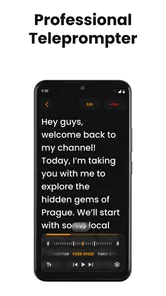
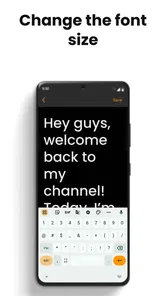
The first setting I pay attention to is text size. Small text may show more of the script, but it forces more concentrated reading and can make the delivery sound flat. Larger text reduces the amount visible at once, yet it is easier to track with peripheral vision. I choose the largest size that still lets me see enough context to anticipate the next sentence.
Text contrast matters just as much. A comfortable display is not merely a cosmetic preference when I am recording for several minutes. If the words blend into the background, I start squinting, lose my place, and speak less naturally. I check the screen from the same distance and angle I will use during the actual recording, rather than judging it while holding the phone close.
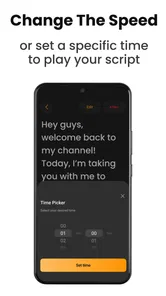
Scrolling speed deserves a separate rehearsal. I do not set it by guessing how fast I normally speak. I read the opening paragraph aloud at the pace I want for the final video, then adjust until the next line arrives slightly before I need it. A small amount of lead time is helpful; too much makes me look down or rush. The right speed can change when the script switches from a casual introduction to a dense explanation.
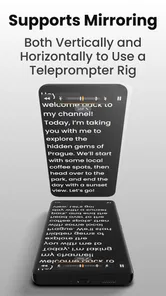
I also check how the text is aligned in relation to the camera. Centered text may be convenient, but it is not automatically the least distracting position. If the device sits below the lens, a lower reading area may create a noticeable downward gaze. If it sits beside the lens, placing the script too far toward the edge can make the eyes visibly shift sideways. I test the framing with a short sample rather than assuming the default will suit my setup.
For longer scripts, I use visual structure. I separate the opening, main sections, examples, and closing with spacing or headings in the script itself. This gives me landmarks during a recording. If I lose my place, I can identify the current section quickly instead of scanning a solid wall of text. The technique is especially helpful when I record several versions and need to return to a particular point.
It is worth checking the phone’s physical position as well. A teleprompter app cannot solve a shaky stand, a screen that keeps rotating, or a device placed so low that every sentence produces an obvious eye movement. I secure the phone first, then adjust the on-screen text. In a simple home setup, stability and lens alignment usually improve the result more than elaborate lighting changes.
Faster patterns for repeat work
When I record regularly, I avoid rebuilding the process from scratch. I keep a consistent script format: a short hook, a clear promise, the main explanation, and a closing line. This makes it faster to prepare material for Teleprompter.com and easier to notice when a new script is too long or lacks a clear purpose.
I also rehearse in two different ways. The first pass is silent, using my eyes to follow the movement of the text. The second is spoken, concentrating on rhythm and breathing. Silent rehearsal catches layout problems, while spoken rehearsal catches language problems. Combining both is more efficient than recording immediately and discovering the issues afterward.
A useful shortcut in my workflow is to write the first version with complete sentences, then create a leaner recording version. The complete draft helps me organize the idea. The lean version contains only what I actually need to say, with repeated explanations removed. This reduces the temptation to read word for word and makes it easier to sound like myself.
For interviews or live-style recordings, I use prompts instead of paragraphs. I put the question or topic first, followed by two or three points I want to cover. This keeps my answers focused without forcing an artificial script. It also leaves room to respond naturally if the conversation changes direction. A full teleprompter script is better for a planned announcement; prompt cards are better for flexible speaking.
Another practical pattern is to create a difficult section separately. If a script includes a product name, unfamiliar term, or precise sequence, I rehearse that passage on its own before running the entire piece. I then place it between simpler sections. This reduces the number of full takes I need and helps me maintain confidence when the challenging wording appears on screen.
I do not assume that faster scrolling always means a faster recording session. If the text moves too quickly, mistakes increase and retakes cancel out any time saved. A slightly slower pace often produces a cleaner first take. The best setting is the one that lets me keep eye contact, not the one that makes the script disappear as quickly as possible.
For a daily creator, the app works best as one part of a checklist. I prepare the script, confirm the lens position, read the opening aloud, check the text size, and record a short test. This routine takes less time than repairing a whole recording where the speaker repeatedly loses the line. The value is not just the scrolling text; it is the consistency that comes from using the same preparation steps.
Where it fits among familiar alternatives
Compared with printed notes, Teleprompter.com keeps the prompt closer to the camera and avoids the repeated downward glance that paper often creates. Printed pages are still better when I need to mark them heavily, spread several pages across a desk, or work without relying on a screen. For a short video, however, the on-screen approach is more convenient and easier to keep within the camera frame.
Compared with memorizing a script, the app lowers the mental load. I can focus on tone, examples, and eye contact instead of trying to recall every transition. Memorization can produce a more spontaneous performance when the speaker has enough preparation time, but it is inefficient for frequent updates or information-heavy presentations. I see the teleprompter as a support, not a replacement for understanding the subject.
Compared with ordinary note apps, its purpose is more focused. A note app is excellent for collecting research, rearranging ideas, and checking a list. It is not necessarily designed for comfortable reading while facing a camera. Teleprompter.com becomes more useful at the final stage, when the material is already organized and I need a controlled way to deliver it.
That focus also creates a limitation. If I want a broad writing workspace, detailed project planning, or deep collaboration around a script, I would rather use another tool first and bring only the finished speaking version into the teleprompter. The app is strongest at delivery. It should not be expected to replace every part of a content-production workflow.
Limits that affect experienced users
The biggest practical risk is over-reading. Even with well-positioned text, a speaker can sound mechanical when the eyes move at the same rhythm as the words. I avoid this by looking slightly ahead, varying emphasis, and occasionally speaking from memory for a phrase or two. The app helps me stay oriented, but natural delivery still depends on practice.
Long scripts require more discipline than short announcements. As the amount of text grows, it becomes easier to lose the emotional shape of the presentation. I divide lengthy material into sections and record them separately whenever possible. This is not a flaw unique to the app; it is a trade-off of using a scrolling script instead of speaking from a compact outline.
There is also a setup trade-off between readability and eye contact. Enlarging the words helps me read comfortably, while placing them close to the lens improves the appearance of eye contact. The available screen area may not satisfy both goals perfectly. I solve this by shortening the script, increasing spacing, and rehearsing enough that I can glance rather than stare.
The app is free to install and use as a starting point, while in-app purchases range from around five dollars to nearly three hundred dollars per item. That wide range means I would inspect the purchase screen carefully before committing to anything. A person who only needs occasional short prompts should begin with the free experience and decide based on actual workflow needs rather than buying immediately.
Because the app is rated for everyone, it is approachable for a wide audience, including students and first-time creators. Still, suitability depends more on the task than on age. Someone who needs a sophisticated scriptwriting environment, extensive collaborative editing, or a highly specialized production setup may prefer a broader tool or a dedicated hardware teleprompter. Teleprompter.com is a better match for straightforward, screen-based prompting.
The app was released on October 4, 2024, and it requires Android 9 or later. That makes device compatibility worth checking before planning a recording workflow around it. On a supported phone, I would still test performance in the exact orientation and filming position I intend to use. A setup that works while browsing may feel very different when the device is mounted and the speaker is standing several feet away.
Teleprompter LLC keeps the product identity clear through the store summary “Smart Video Prompter Prompt” and the short description “Teleprompter.com,” but the useful question for me is not how concise the listing sounds. It is whether the app helps me deliver a prepared message without making the audience notice the tool. With sensible formatting and rehearsal, it generally does.
My verdict after making it part of the process
I recommend Teleprompter.com to anyone who records regular updates, instructional clips, presentations, or scripted social videos and wants a simpler alternative to memorizing every line. Its real strength is not a dramatic collection of extras. It is the way a focused prompt screen can turn a nervous, stop-start recording into a repeatable routine.
I would skip it if my main need were research, collaborative writing, complex project management, or completely improvised conversation. I would also avoid relying on it as a substitute for rehearsal. The app can keep my place, but it cannot decide where I should pause, which idea deserves emphasis, or how to sound sincere.
For the best results, I would prepare short spoken sentences, use clear section breaks, set the text large enough to read comfortably, position the display near the lens, and rehearse the scrolling speed before recording. Those habits reveal the app’s strongest advantage: it rewards a disciplined workflow more than a quick tap-and-record approach.
Overall, I see Teleprompter.com as a practical productivity app for people who need dependable on-screen guidance without turning every recording into a memorization exercise. The free entry point makes it easy to test, the Everyone rating keeps it broadly accessible, and its 4.6 average from around 11K ratings reflects solid user interest. My recommendation is positive, with one condition: use it as a speaking aid, not as a crutch. When the script is shaped for the voice and the settings are adjusted to the person behind the camera, it becomes a genuinely useful part of everyday recording.
Teleprompter.com Frequently Asked Questions
Can I test Teleprompter.com before committing to a paid plan?
Teleprompter.com is free to download, so you can install it and explore its basic experience before deciding whether to pay for additional access. Some features may require an in-app purchase, and the available options can vary by platform or region. If you are considering a paid plan, review its terms in the app store before confirming, including any renewal details.
What devices can run Teleprompter.com?
Teleprompter.com is available for mobile devices, and its minimum operating-system requirement is version 9. Check your device’s operating-system version before downloading, especially if you use an older phone or tablet. The app is intended for use on compatible mobile devices, so a quick compatibility check can help avoid installation problems and make sure you can use it in the way you expect.
Who develops Teleprompter.com, and is it suitable for all ages?
Teleprompter.com is developed by Teleprompter LLC and is rated for everyone. It is a productivity app for people who want help presenting or recording from a script, whether for work, study, or personal projects. Its focus is practical rather than entertainment-based, so it may be most useful if you regularly speak to a camera or audience and want your notes close at hand.
What is Teleprompter.com and who is it designed for?
Teleprompter.com is a mobile teleprompter app that displays a scrolling script while you record video, livestream, present, or practice a speech. It is useful for content creators, teachers, business professionals, journalists, students, and anyone who wants to speak more confidently without memorizing a complete script. The interface is designed to make reading and recording from a phone or tablet relatively straightforward.
Can I use Teleprompter.com while recording videos on my phone?
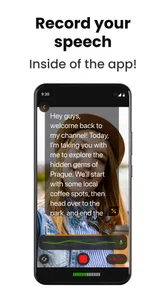
Yes, Teleprompter.com is intended to help you read a script while recording video on a compatible mobile device. Depending on the device and version of the app, you may be able to use the built-in camera or work alongside another recording setup. Before filming important content, it is worth checking camera permissions, microphone access, text positioning, and whether your device supports the recording arrangement you prefer.
Pros
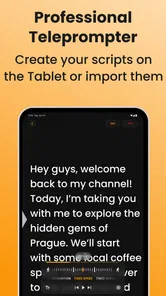
- Simple interface makes it easy to create and manage scripts.
- Adjustable scrolling speed helps match different speaking styles.
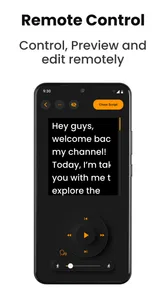
- Supports importing scripts for faster setup.
- Useful for recording videos
- presentations
- and live broadcasts.
- Works well for solo creators who need hands-free prompting.
Cons
- Some advanced features may require a paid subscription.
- Long scripts can be harder to navigate on smaller screens.
- Text readability depends on the device’s screen size and brightness.
- Accurate delivery may require time spent fine-tuning scroll speed.
- Limited usefulness when you need frequent eye contact away from the screen.











