T-Mobile Fiber: eero
- 78.00
- 4.9
- Installs
- 50.00K
- Price
- Free

Screenshots
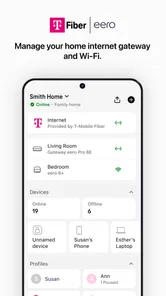
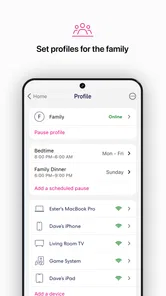
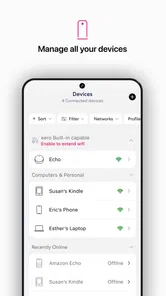
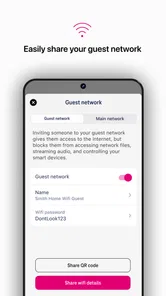
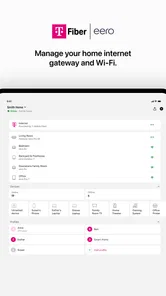
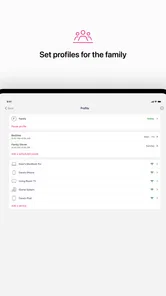
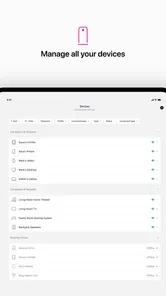
Analysis by Reviewed
Managing home internet can feel simple until the connection drops at the exact moment you need it. That is where T-Mobile Fiber: eero fits in. This free personalization app is built for people using T-Mobile Fiber with compatible eero devices, giving them a phone-based way to manage the equipment that keeps their home network running. I found its value less in flashy extras and more in reducing the need to deal with a separate web interface or guess which box is causing trouble.
The important distinction is that this is not a general-purpose Wi-Fi manager for every router. It is tied to the T-Mobile Fiber and eero setup, so the experience makes the most sense when those are already part of your home internet arrangement. If you are choosing an app for a different router brand, this is not a flexible replacement. If you already use the matching service, however, it gives everyday network tasks a more approachable home on your phone.
Where the experience usually gets stuck
My first impression is that the app is most useful after the initial excitement of installing it has passed. People rarely open a home-network app because they want to browse settings for fun. They open it when a room has weak service, a device will not connect, or they want to check whether the network equipment is behaving normally. That means clarity matters more than a long list of controls, and a simple screen is only helpful if it points me toward the right next step.
The most common point of friction is understanding the relationship between the internet service, the eero hardware, and the app. T-Mobile Fiber is the connection coming into the home. The eero devices distribute that connection around the property. The app is the management layer. When one part is unavailable, opening the app repeatedly will not necessarily solve the problem. I found it useful to think of the app as a control panel, not as the internet connection itself.
That distinction also helps when a phone says it cannot complete an action. A phone may be connected to mobile data rather than the home network. An eero unit may be starting up. Or the service entering the home may be interrupted. These situations can look similar from a user’s point of view, but they call for different checks. The app can help manage the eero side; it cannot turn a service outage into a working connection.
Another small but important issue is patience. Network equipment does not always respond instantly after a cable change or restart. Tapping the same command several times can make the situation harder to read, especially if one request is still being processed. I prefer to make one change, wait for the status to settle, and then check whether the result matches what I expected.
The app’s strong store reception suggests that many users find this focused approach worthwhile. It carries a 4.9 average from around 2.4 thousand ratings, and it has passed 50 thousand installs. Those figures do not mean every home will have a smooth setup, but they do indicate that the basic management experience is landing well with its intended audience.
More From Our News Desk

 Gmail
GmailGmail in a Busy Inbox: Who Benefits Most?
From first account to crowded workday, Gmail earns its place through dependable search and flexible sorting—but its best fit depends on how much inbox maintenance you can tolerate.

 Prime Video
Switching to Prime Video: What Changes in Your Viewing Routine
Prime Video can make a compelling second home for streaming, but switching means learning a different catalog, rental layer, and route from browsing to playback.

 Universal TV Remote Control
Universal TV Remote Control Works Best as a Reliable Backup
A phone remote earns its place through quick setup and reliable habits. Here is how to get more from Universal TV Remote Control—and where its limits show.

 Weather - By Xiaomi
Weather by Xiaomi Review: Clear at a Glance, Less Clear Up Close
Xiaomi’s weather app makes everyday forecasts quick to scan, but its calm surface can leave useful details and recovery paths harder to find than they should be.

 X
XX Under Pressure: Can It Recover When Posting Goes Wrong?
A resilience-focused review of X, examining setup, mistaken posts, interruptions, weak connections, and the gaps that matter when recovery needs to be dependable.

 Clash of Clans
Clash of Clans Is Won Between the Battles
Its raids are quick; its community is a long-term project of coordination, teaching, rivalry, and shared responsibility—with all the friction that entails.
Latest News



Why the phone becomes the troubleshooting tool
Using a phone is convenient because it is usually nearby when a problem occurs. I can stand beside the eero unit, check its cables, and use the app without moving back to a computer. That makes the app particularly practical in homes where the networking equipment is tucked away in a cabinet, hallway, or utility area rather than placed beside a desk.
There is also a useful psychological benefit: the app gives me a single place to begin. Instead of unplugging everything immediately, I can first inspect the app, confirm what appears reachable, and then move to physical checks. This order avoids unnecessary resets. It is a modest workflow improvement, but it matters when other people in the home are working, studying, or streaming.
Still, I would not treat the app as a complete diagnostic instrument. A management screen can show the state of the equipment it can communicate with, but it cannot explain every cause of slow browsing. Congestion outside the home, a problem with a particular device, interference, or a faulty cable may require a different investigation. The app is a sensible first stop, not a guarantee of a final answer.
Setup checks that save time
Before blaming the application, I would check the basics in a deliberate order. First, I would confirm that the phone has a working connection and that I am signed into the account associated with the T-Mobile Fiber service. Next, I would look at the eero hardware itself: power, cable seating, and whether the units appear to be in their normal operating state. These checks sound obvious, but they prevent a surprising amount of wasted time.
When setting up a new phone, I would avoid rushing through the process while moving between Wi-Fi networks. A phone can silently switch to another saved network or mobile data, which makes the result confusing. Staying close to the home equipment and keeping the phone on the intended network gives the app the best chance of communicating with the setup consistently.
The app is free, which removes one barrier to trying it, and its content rating is Everyone. That makes it suitable as a household management tool rather than something limited to a particular age group. The practical limitation is not the price or age rating; it is compatibility. The app is designed around T-Mobile Fiber service and eero devices, so installing it on a home built around unrelated networking equipment would not make much sense.
I also recommend checking the physical arrangement before changing settings. If an eero unit has recently been moved behind furniture, into a closed cabinet, or farther from the rest of the network, the app may appear to be reporting a problem when the real issue is placement. A phone-based control panel cannot compensate for a unit that has been relocated to a poor position. In a larger home, moving hardware back to its previous location can be a more useful test than repeatedly restarting it.
A practical setup routine
Keep the phone near the main eero device and confirm that the phone itself can reach the internet.
Check power and cable connections before changing network settings.
Open the app once and allow the current status to load rather than tapping through several commands at once.
If a change is needed, make one adjustment and wait for the equipment to settle.
Test the original problem on the device that was affected, not only on the phone used for management.
This routine is more valuable than it looks because it separates setup problems from coverage problems. If the phone can use the network but a television or laptop cannot, the issue may belong to that device. If the app cannot communicate and the phone also has no internet access, attention should shift toward the service, cabling, or eero hardware.
One detail I appreciate is that the app does not need to be treated as a permanent background task. I would open it when I need to manage the network, then return to normal phone use. That keeps the workflow simple and avoids turning routine home internet management into another daily obligation.
Recovering a normal workflow after a problem
When something goes wrong, I prefer recovery steps that preserve information. Restarting everything at once may produce a temporary improvement, but it also removes useful clues. A better sequence is to identify whether the issue affects one device, one area of the home, or the entire connection. The app can be part of that process by showing whether the eero side appears available, while direct testing tells me how broad the problem really is.
For a single device, I would first reconnect that device to the network and test another nearby device. If only one product is affected, changing the eero setup may create unnecessary work. For a whole room, I would consider the nearby eero unit and its placement. For the entire home, I would inspect the main connection and service status before focusing on individual devices.
A realistic example is a busy evening when a laptop in the bedroom stops loading pages while a phone in the same room still works. I would not immediately assume that T-Mobile Fiber: eero is failing. I would check whether the laptop is connected to the expected network, move it temporarily closer to the nearest eero device, and compare it with another device in that room. If the phone and another computer work normally, the laptop deserves attention first. The app is useful here because it gives me a place to verify the network arrangement without turning the incident into a full reset.
If the whole home loses access, the recovery path changes. I would check the main eero unit, power, and incoming cable, then wait briefly after any restart. If the app becomes available but internet access does not return, that points me toward the service connection rather than the phone interface. If the hardware does not appear reachable at all, I would concentrate on power, cabling, and the equipment’s physical state.
Another helpful habit is to record what changed immediately before the issue. Was a unit moved? Was a cable replaced? Was a phone updated or connected to a different network? This is especially useful when the app seems normal but a device behaves differently. The cause may be outside the app, and remembering the last change is often faster than exploring every available control.
What not to do first
I would avoid deleting and reinstalling the app as a reflex. Reinstallation can be reasonable when the application itself repeatedly closes or fails to load, but it is unlikely to repair a disconnected cable or a service interruption. It may also add another sign-in step without teaching me anything about the original problem.
I would also avoid changing several network settings at the same time. If the result improves, I will not know which change helped. If it gets worse, I will have to undo multiple decisions. A calm, one-variable-at-a-time approach is less dramatic, but it is much easier to recover from.
The current version is 26.9.1.200056, and the app supports devices running Android 9 or later. That makes the operating-system requirement fairly approachable for many users, but compatibility still depends on the phone and the T-Mobile Fiber eero arrangement working together. Keeping the phone’s operating system and the app current is sensible, while remembering that an update cannot repair a physical network fault.
When the app is not the cause
The most important judgment call is knowing when to stop troubleshooting inside the app. If only one website is slow, the issue may be with that site or the device’s browser. If every device is slow, the problem may be the service entering the home, not the eero management layer. If one room consistently struggles after furniture or hardware has been moved, placement is a stronger suspect than the app.
There are also cases where the usual alternative is better. Someone who wants detailed network analysis, advanced routing controls, or equipment from several manufacturers may prefer a broader networking platform. T-Mobile Fiber: eero is intentionally more focused. That focus is an advantage for a household using the matching service, but it becomes a limitation for anyone trying to build a mixed-brand network or manage unrelated routers from one place.
Likewise, users who rarely change anything about their home network may not gain much from installing a dedicated management app. If the service works reliably and another household member handles the equipment, the app may spend most of its time unused. Its strongest audience is the person who wants a direct way to check and manage the eero setup when something changes.
Privacy and account comfort also deserve a practical mention. Because this app manages home internet equipment, I would install it only on a phone I trust and use the correct service account. I would not hand the phone to a guest and expect the app to function like a general Wi-Fi sharing tool. The safest workflow is to keep management with the household members who are responsible for the network.
Compared with using a browser-based router panel, the app feels more approachable for routine checks. Compared with a generic Wi-Fi analyzer, it is more relevant to managing the eero equipment but less useful for investigating every possible radio or device issue. Compared with calling support for every small question, it gives me a first layer of control. None of those comparisons makes it universally better; they show where its focused design earns its place.
My practical verdict for T-Mobile Fiber households
After using it as a management companion rather than expecting it to solve every internet problem, I see T-Mobile Fiber: eero as a sensible, focused app for the right household. Its free price makes the decision easy, and the Everyone rating keeps it accessible. The developer is eero LLC, and the app’s purpose is clear: manage the eero devices connected to T-Mobile Fiber from a phone.
The best reason to use it is not that it replaces troubleshooting; it gives troubleshooting a sensible starting point. I can check the eero side before moving cables, compare a local device problem with a whole-home outage, and work through recovery without immediately resetting everything. Those habits are more valuable than simply having another app icon on the phone.
I would recommend it to T-Mobile Fiber customers who use eero hardware and want convenient household control, especially people who are often the first to investigate connection problems. It is also a good fit for homes where the networking equipment is physically out of the way and a phone is easier to carry than a laptop.
I would skip it if I do not use the matching T-Mobile Fiber and eero setup, or if I need a vendor-neutral tool for several router brands. I would also avoid expecting it to diagnose service outages, repair damaged cables, or explain why one aging device behaves badly. In those situations, a broader diagnostic tool, direct hardware inspection, or service support may be the better next step.
For everyone else in its intended audience, the app earns its place through clarity and convenience. It does not need to be the answer to every network question. It only needs to help me identify what kind of problem I am facing and choose the next reasonable action. In my experience, that is exactly the role a home-network app should play.
T-Mobile Fiber: eero Frequently Asked Questions
Is T-Mobile Fiber: eero compatible with my phone or tablet?
The app is available for Android devices running Android 9 or later. Before downloading, check your device’s operating-system version in its settings to make sure it meets that requirement. Compatibility with the app does not by itself guarantee access to every feature; you also need an eligible T-Mobile Fiber account and compatible eero equipment to manage a home network.
Who develops T-Mobile Fiber: eero, and is it intended for general eero users?
T-Mobile Fiber: eero is developed by eero LLC and is intended for managing eero devices on T-Mobile Fiber internet service. It is not a general-purpose way to set up internet access for any household, so existing eero customers should check that their service and equipment are compatible before downloading. The app is free, and its age rating is Everyone.
What is T-Mobile Fiber: eero, and what does it do?
T-Mobile Fiber: eero is the companion app for managing compatible eero Wi‑Fi equipment supplied with certain T‑Mobile Fiber plans. From the app, you can set up your eero devices, monitor your home network, view connected devices, run speed tests, and manage basic network settings. Availability of specific features depends on your T‑Mobile Fiber service, eero hardware, and account permissions.
Do I need T-Mobile Fiber and eero hardware to use the app?
Yes. The app is intended for customers with an eligible T‑Mobile Fiber subscription and compatible eero equipment. Installing it alone will not provide internet access or create a working mesh network. During setup, you generally need your T‑Mobile account information, an active internet connection, and access to the eero devices included with or approved for your service. Compatibility can vary by location and plan.
How can I set up my T-Mobile Fiber eero network?
After downloading the app, sign in with the account associated with your T‑Mobile Fiber service and follow the guided installation process. You will typically connect the primary eero gateway to the fiber equipment, power it on, and add additional eero units if available. The app provides step-by-step instructions, but placement, cabling, and activation issues may require help from T‑Mobile support.
Pros
- Simple setup through the eero mobile app
- Mesh Wi‑Fi helps eliminate weak-signal areas
- Automatic updates improve security and performance
- Guest network keeps visitors separate from personal devices
- Parental controls help manage connected-device access
Cons
- Requires compatible eero hardware for full mesh benefits
- Some advanced controls may require a paid subscription
- Performance depends on home layout and Wi‑Fi interference
- Limited usefulness outside T‑Mobile Fiber service areas
- Older devices may not support the fastest available Wi‑Fi speeds