Super HomeScreen
- 342.00
- 4.0
- Installs
- 1.00M
- Price
- Free

Screenshots
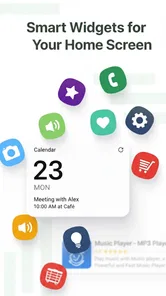
Analysis by Reviewed
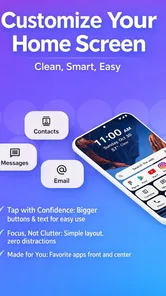
I judge launchers by what happens in the few seconds between unlocking a phone and getting on with something else. Super HomeScreen makes a case for itself by putting useful information and everyday essentials close to the home screen, with speed as its central idea. That focus can make a phone feel less like a collection of app icons and more like a practical starting point. It also means the experience is best suited to people who value a clear, information-led home screen over elaborate visual customization.
As a free personalization app from lighten apps, Super HomeScreen is intended for a broad audience: it carries an Everyone age rating and has reached over a million installs. It holds a 4.1 average from around 4,700 ratings, with 305 written reviews. Those numbers suggest meaningful interest, but they are not a substitute for deciding whether its particular approach fits the way you use your phone. My main takeaway is that its appeal rests on reducing small bits of friction, not on transforming every part of Android.
One useful question before switching is whether your home screen is a place you consult or simply pass through. If you routinely unlock, scan, and leave, a screen designed to give you a quick overview has a clear role. If you unlock only to tap the same messaging or work app, a familiar shortcut may already be doing the job. Thinking about that difference helps set realistic expectations: this is a change to the front door of your phone, not a replacement for the rooms behind it.
A home screen built around quick access
I find that a quick-access home screen is most useful when it helps me decide what to do before I commit to opening an app. In this section, I focus on how that information-led approach can change a routine, and where its value depends on the way you already use your phone.
Putting useful information within reach
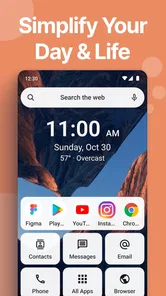
The defining idea is straightforward: make the first screen useful before you open anything. Rather than treating the home screen only as a decorative background for icons, this launcher is organized around seeing essentials at a glance and getting to common tasks quickly. That matters most when you routinely unlock your phone to check something brief, then lock it again.
In practice, this is a different priority from a launcher chosen chiefly for icon packs, elaborate themes, or fine-grained visual control. Super HomeScreen’s emphasis is functional. If you prefer a screen that helps you orient yourself and move on, that is a sensible direction. If your satisfaction comes from carefully arranging every visual detail, you may find the central idea less compelling than a customization-first alternative.
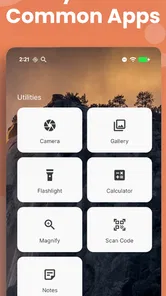
The benefit is not that every interaction disappears; it is that a home screen can make the next step more obvious. A glance can replace an unnecessary app launch, while a clear starting point can reduce the little pauses spent searching through folders. Those gains are modest individually, but they can make the phone feel more direct over the course of a day.
More From Our News Desk
 Instagram
Instagram’s Power Comes From Its Place in Your Phone
A close look at how Instagram turns Meta’s reach, recommendation systems and everyday camera habits into durable platform power—and what that costs users.

 Gmail
GmailGmail in a Busy Inbox: Who Benefits Most?
From first account to crowded workday, Gmail earns its place through dependable search and flexible sorting—but its best fit depends on how much inbox maintenance you can tolerate.

 Prime Video
Switching to Prime Video: What Changes in Your Viewing Routine
Prime Video can make a compelling second home for streaming, but switching means learning a different catalog, rental layer, and route from browsing to playback.

 Universal TV Remote Control
Universal TV Remote Control Works Best as a Reliable Backup
A phone remote earns its place through quick setup and reliable habits. Here is how to get more from Universal TV Remote Control—and where its limits show.

 Weather - By Xiaomi
Weather by Xiaomi Review: Clear at a Glance, Less Clear Up Close
Xiaomi’s weather app makes everyday forecasts quick to scan, but its calm surface can leave useful details and recovery paths harder to find than they should be.

 X
XX Under Pressure: Can It Recover When Posting Goes Wrong?
A resilience-focused review of X, examining setup, mistaken posts, interruptions, weak connections, and the gaps that matter when recovery needs to be dependable.
Latest News



How the approach fits into a daily routine
Consider a typical morning: you pick up your phone to check what needs attention, find the app you need, and then put the phone away before getting ready. A launcher centered on glanceable essentials suits that kind of stop-and-start use better than a screen designed mainly to look striking. It gives the home screen a job beyond holding shortcuts, which is useful when your phone checks are frequent but brief.
A practical way to assess it is to notice what you actually do after unlocking your current phone. If you often open an app only to answer a quick question, an information-focused layout may save a step. If you nearly always head straight to one specific app, your current arrangement of shortcuts may already be just as efficient. The distinction is worth thinking about before changing launchers: a different home screen helps most when it matches a repeated habit.
For a fair trial, I would use the same everyday routine rather than judging it by its first impression. Check whether you can reach the things you use without hunting, whether the screen gives you a helpful overview, and whether you still need to open separate apps for the tasks that matter. This keeps the decision grounded in convenience rather than novelty.
A small experiment makes that trial more useful: pick one recurring check, such as looking over what needs your attention before leaving home, and notice whether the first screen answers it or merely points you toward another app. Then try a different part of the day, when you are in a hurry and less patient with searching. A launcher that feels helpful only while you are deliberately exploring it may not be a meaningful improvement in everyday use.
Where it sits among launcher choices
Compared with the standard launcher that comes with a phone, Super HomeScreen offers a more deliberately information-oriented starting point. The usual launcher may be perfectly adequate if your apps are already arranged well and you rarely need more than a row of familiar shortcuts. Switching makes more sense when the default screen feels like a plain directory and you want it to contribute more to a quick check.
Compared with customization-heavy launchers, the trade-off is emphasis. Those alternatives can be a better fit if your main goal is to shape the screen’s appearance or build a highly personal arrangement. Super HomeScreen is easier to recommend to someone who cares more about an efficient first screen than about spending time tuning its look. Neither approach is universally better; they solve different home-screen frustrations.
It is also worth separating a launcher from the apps it helps you reach. A more useful home screen can make access feel smoother, but it does not replace the underlying apps or guarantee that every task can be completed without opening one. I would choose it to improve the starting point of a routine, not expect it to change how those apps themselves work.
For someone weighing alternatives, I would start with the problem rather than the feature checklist. Keep the standard launcher if the trouble is really that an individual app is slow or confusing; a different starting screen will not fix that. Choose a customization-led launcher if arranging icons and appearance is part of the enjoyment. This one makes the most sense when the repeated annoyance is having to open several places just to get oriented.
Small trade-offs that matter over time
An information-rich first screen can become less useful if it asks you to look at details you do not care about. The core approach is strongest when the things it puts within reach match your habits; otherwise, the extra material risks competing with the shortcuts you actually need. When testing it, pay attention not just to what is visible, but to whether the screen helps you decide what to do next.
There is also a personal trade-off between immediacy and visual freedom. A launcher focused on speed has to make the first screen feel purposeful, but some people enjoy a home screen as a design project. If you like changing layouts often, experimenting with themes, or building a particular aesthetic, a more flexible customization-oriented choice may suit you better. Super HomeScreen is a weaker match if appearance is the main reason you want a new launcher.
Changing launchers can also take a little adjustment even when the new layout is simple. Familiar app placement is part of muscle memory, and the first few unlocks may feel slower until you learn where things are. I would give it enough ordinary use to distinguish genuine friction from the temporary awkwardness of switching. If the screen still makes routine actions harder after that adjustment, returning to the familiar launcher is a reasonable choice.
Another useful test is to compare the number of steps in your own common tasks before and after switching. Do not assume that a busier screen is automatically faster. If a quick check still sends you into the same app, or if you find yourself scanning more than before, the information-first design may not be saving you time personally. The best launcher is the one that reduces friction for your habits, not the one with the most ambitious premise.
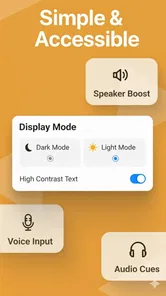
There is a practical comfort question, too: can you read the screen quickly in the conditions where you normally use your phone? A glanceable layout only helps if you can take in what matters without stopping to study it. Try it in your ordinary setting and at your usual pace, rather than treating a quiet setup session as proof that it suits you. If your eyes keep jumping around or you prefer a nearly empty screen, that is meaningful feedback, not a failure to learn the launcher.
Who is most likely to benefit
I would point Super HomeScreen toward people who unlock their phone often for quick checks, prefer practical access over decorative detail, and want the first screen to do more than display app icons. It may also appeal to someone who feels that the standard launcher is too passive but has no interest in turning home-screen setup into a hobby. The strongest fit is a person with repeated, simple phone routines who values a useful overview.
I would be more cautious about recommending it to someone who is already happy with a tidy default screen, opens the same app immediately every time, or wants extensive control over the launcher’s appearance. Those users may see little benefit from changing what already works. If you need a particular visual style or a deeply personalized layout, compare it with launchers whose main strength is customization instead.
For someone uncertain, the decision can be simple: identify one recurring moment when the current home screen slows you down, then see whether Super HomeScreen makes that moment easier. Keep the change only if the improvement is clear in ordinary use, not merely because the layout feels new. That test is more useful than judging a launcher by a single setup session.
It is also a sensible option for people who share a phone routine with family or keep a device for straightforward personal use, provided the launcher’s information-led approach matches what they need to see first. The key is not whether a person is technically confident; it is whether the home screen makes their common next action easier to spot. On the other hand, anyone who depends on a highly specific visual arrangement should compare the available choices before settling in, since a purposeful layout is not the same thing as unlimited control.
A sensible pick when the first screen is the problem
Super HomeScreen is currently at version 3.2.6 and supports Android 8.0 and later, making it relevant to people using a range of Android versions. Its release date was August 28, 2025. For a free app, that makes it straightforward to consider if you want to try a more informative home-screen approach without treating the decision as a major purchase.
My recommendation is specific rather than universal: try it if your home screen feels like an unhelpful stop between unlocking and opening an app. Its focus on quick access and at-a-glance essentials gives it a clear purpose, and that purpose can fit neatly into short, frequent phone checks. I would skip it if your real priority is extensive visual customization or if your existing launcher already gets you where you need to go.
Ultimately, Super HomeScreen is at its best when the home screen itself is the bottleneck. It offers a practical alternative to the familiar icon-first arrangement, while asking you to accept that efficiency matters more than making the launcher a design playground. If that trade feels right for your routine, it is worth trying; if not, a simpler default or a more customizable launcher is likely the better choice.
Before making it your long-term setup, I would also consider how often you expect to change your habits. If your day is built around brief checks and a handful of repeat tasks, the emphasis on a useful first screen has a clear chance to pay off. If your phone use changes constantly and you prefer to reorganize the interface around each new project or mood, a launcher centered on visual flexibility may give you more satisfaction. That distinction is more useful than chasing a universally “best” launcher.
For me, the reason to try it is uncomplicated: a home screen should earn its place in the routine. If this one helps you orient yourself and move on with fewer unnecessary taps, its focused approach is worthwhile. If you still have to search, or simply enjoy shaping every detail yourself, there is no need to force the fit. Choose the setup that makes your own first few seconds with the phone feel easier.
Super HomeScreen Frequently Asked Questions
What is Super HomeScreen, and what can it do?
Super HomeScreen is an Android launcher that changes the way your device’s home screen looks and works. Depending on the version and device, it may let you customize layouts, icons, widgets, wallpapers, and shortcuts, while providing an alternative to the manufacturer’s default launcher. Check the app’s current store listing for its exact features, since available options can vary by release.
Is Super HomeScreen compatible with my Android phone or tablet?
Compatibility depends on the Android version, device manufacturer, and the app’s latest requirements. Before downloading, review the Google Play listing for supported Android versions and any device restrictions. Launchers generally replace the home-screen interface rather than the operating system itself, but some manufacturer-specific features or gestures may behave differently when another launcher is selected.
How do I set Super HomeScreen as my default launcher?
After installing the app, open it and follow any setup prompts. Android may ask you to choose a home app; select Super HomeScreen and, if you want it to open automatically, choose the option to set it as the default. You can usually change this later in your phone’s Default apps or Home app settings. Menu names differ between Android versions and manufacturers.
Does Super HomeScreen require special permissions, and is it safe to use?
A launcher may request permissions or access related to features such as notifications, widgets, or shortcuts, but the requirements depend on the version you install. Review the requested permissions and the developer’s privacy information on the official store before proceeding. Download from a trusted source, and avoid granting access that does not appear necessary for the features you intend to use.
Is Super HomeScreen free, and can I remove it without losing my data?
Check the current store listing for pricing, advertising, and any in-app purchases, as these details can change over time. Removing a launcher normally does not uninstall your other apps, but its home-screen arrangement and launcher-specific settings may not transfer to another launcher. Set a different home app as the default before uninstalling if you want to return to your previous home screen.
Pros
- Lets you personalize your home screen with widgets
- wallpapers
- and icons.
- Offers multiple layout options to suit different tastes and workflows.
- Makes frequently used apps easier to organize and access.
- Visual customization can give an older device a fresh look.
- A useful choice for users who enjoy tailoring their phone’s appearance.
Cons
- Some customization options may require in-app purchases.
- A custom layout can take time to set up just the way you like.
- Widgets and visual effects may use extra battery or memory.
- Compatibility and available features can vary by Android version.
- Changing launchers may require resetting your preferred home-screen setup.