Solid Explorer File Manager
- 6.65K
- 4.4
- Installs
- 10.00M
- Price
- Free

Screenshots

Analysis by Reviewed
I usually notice the value of a file manager when I need to move something important and the phone’s default Files app starts getting in the way. A downloaded document may be buried in a folder, a photo archive may sit on a memory card, and the same project may also exist on a computer or cloud account. Solid Explorer is built for that kind of situation. It is a productivity app from NeatBytes that gives Android users a more deliberate way to browse, organize, copy, move, and inspect files.
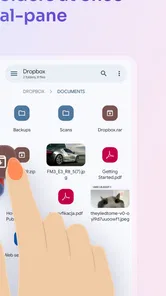
After using it as a working tool rather than simply opening it once, I found its main appeal easy to understand: it makes file handling feel closer to working at a desktop computer, while still fitting a phone or tablet. The dual-pane layout is the center of the experience, but the real benefit comes from how that layout changes everyday tasks. Instead of repeatedly opening folders, going back, and remembering where I was, I can keep a source location visible beside a destination and handle the transfer in one continuous flow.
The app is free to install, suitable for Everyone, and supports devices running Android 6.0 or later. Its current version is 3.5.18. With an average rating of 4.4 from around 158 thousand ratings and over 10 million installs, it is clearly an established choice rather than an obscure utility. Optional in-app purchases range from under a dollar to just under twenty-three dollars per item, so I would treat the free installation as a way to test the workflow before deciding whether the extra functionality is worth paying for.
From a messy download to an organized file
I find that a small file-management habit can prevent the same household headache from returning: agree on a destination before moving shared documents, photos, or downloads. Solid Explorer’s side-by-side browsing makes it easier to compare where an item is now with where everyone expects it to live, so the next question is how to keep each person’s storage boundaries clear.
Starting with the problem, not the folder tree
A realistic example is moving a set of downloaded documents into a folder I can actually find later. I might begin with files in the Downloads directory, while the final destination is a project folder on internal storage, a removable card, or a remote location. With many basic file browsers, the job becomes a sequence of opening and closing folders. Solid Explorer lets me approach it as a source-and-destination task.
When I open the app, the first thing I appreciate is that the interface encourages browsing rather than hiding the storage structure behind broad categories. I can see folders as folders, which matters when I am trying to understand why storage is filling up. A category-based shortcut can be convenient for finding images or videos, but it does not always tell me where those items live or whether I am keeping duplicate copies. This app is more useful when the question is, “Where is this file, and where should it go?”
The two-pane design is especially helpful on a larger phone or tablet, although it can feel compact on a smaller display. I can place Downloads on one side and the intended project folder on the other. That removes one of the most common sources of mistakes: selecting files, navigating away, and then forgetting the exact destination. The dual-pane view is not just a visual feature; it reduces the number of navigation decisions in a transfer.
More From Our News Desk

Weather by Xiaomi Review: Clear at a Glance, Less Clear Up Close

X Under Pressure: Can It Recover When Posting Goes Wrong?

Clash of Clans Is Won Between the Battles

Android Auto Makes the Case for Quieter Car Software

MobiOffice: Transforming Mobile Productivity with Seamless Integration

EA SPORTS FC™ Mobile Soccer: Redefining Mobile Sports Gaming
Selecting carefully before anything moves
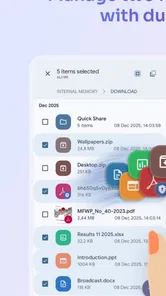
I would not begin by selecting an entire folder unless I had already checked what it contains. A download directory can include temporary files, older versions, and unrelated attachments. Solid Explorer makes more sense when I use it to inspect the contents first, then select only the items that belong together. That extra pause is valuable because file managers generally give me more power than the simplified tools built into many phones.
For a batch of documents, the practical workflow is to select the relevant items, choose whether they should be copied or moved, and then confirm the destination in the second pane. Copying is safer when I am unsure: it leaves the originals available until I have opened the new versions. Moving is quicker for cleanup, but I would reserve it for files I have already checked. This distinction sounds obvious, yet a two-pane manager makes it easier to act decisively, which is useful only when I have made the right decision first.
I also find the folder structure easier to reason about when I create a consistent naming system before transferring files. For example, a project folder can contain separate locations for incoming documents, finished exports, and reference material. The app does not replace that organizational judgment, but it gives me the visibility to apply it without constantly losing my place.
Handling the handoff between storage locations
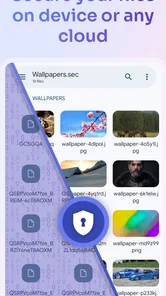
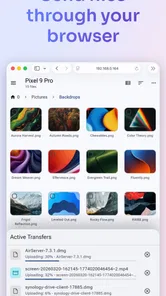
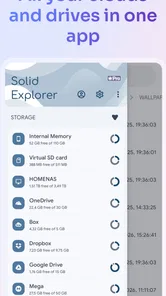
The most convincing use case is a handoff between different kinds of storage. I might copy a document from local storage to a cloud account, move photographs from a memory card into a phone folder, or browse a shared network location while keeping a local destination open. Solid Explorer is designed for local, cloud, and network storage, so it is more capable than a file browser that only exposes the device’s internal folders.
This is where the app feels different from the usual default alternative. A basic file app is often better for someone who only needs to open a recent download, attach a document to an email, or delete a screenshot. Solid Explorer becomes more useful when the task involves two locations, a repeatable folder structure, or a transfer that would otherwise require several disconnected steps.
Still, the handoff is not entirely frictionless. Remote storage can introduce more waiting and more opportunities for a transfer to depend on the connection. I would avoid treating a cloud or network folder as if it were just another local directory. Before deleting the original, I would verify that the destination contains the expected files and that they open correctly. That habit matters more than the convenience of the interface.
Using the app for inspection, not only movement
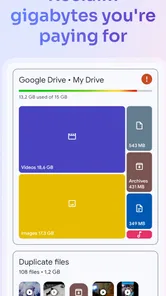
One of the less obvious strengths of a serious file manager is that it helps me investigate storage problems. If my phone feels crowded, I can browse the actual folder structure rather than relying only on broad media categories. That makes it easier to notice old exports, duplicated downloads, forgotten recordings, or folders created by apps I no longer use.
I would use this inspection workflow in stages. First, I identify unusually large or obviously redundant folders. Next, I open individual locations and check whether the files are still needed. Then I copy anything important to a safer destination before removing local clutter. The important trade-off is control: this approach is more informative than pressing a general “clean” button, but it also demands more attention from me.
That makes Solid Explorer a poor match for someone who wants completely automatic maintenance. It is a hands-on tool. Its advantage is that it shows me what I am doing; its weakness is that it expects me to care about the difference between a temporary file, a backup, and the only copy of something valuable.
Working with compressed files and project material
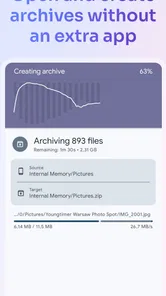
Another useful part of the workflow is dealing with archives. If I receive a compressed project folder, I can inspect it in the same file-management environment instead of immediately sending it to another app. This is convenient when the archive contains many files and I want to place the extracted material directly into an existing folder structure.
I would still be cautious with archives from unknown sources. A file manager can make the contents accessible, but it does not remove the need to think about what I am opening. For ordinary documents, photos, and project files, the integrated approach is efficient. For sensitive or unfamiliar material, I would inspect names and locations before extracting everything.
This is also where the app rewards a tablet or a phone used for work. On a small handset, a dense file tree and a second pane can feel like a lot to take in. On a larger screen, the same design becomes much easier to use because the source, destination, and surrounding folders remain visible at once.
When a file needs a different app
A file manager is the middle of the workflow, not always the final destination. After I organize a document, I may need a word processor to edit it, a media player to view it, or a sharing tool to send it onward. Solid Explorer is valuable because it gets the file to the right place and helps me understand its location, but it does not eliminate those specialist apps.
I also like keeping the handoff deliberate. Rather than opening a file from an ambiguous recent-items list, I can navigate to the organized folder and choose the file from there. That small difference makes future work easier because I am building a location I can return to, not merely opening an item once.
What the completed workflow feels like
At the end of the example, the result is not simply that a document has moved. The source folder is less cluttered, the project folder has a predictable structure, and I know where the next related file should go. That is the real payoff of this app: it turns scattered storage into something I can manage intentionally.
The experience is strongest for people who regularly exchange files between a phone, a computer, removable storage, cloud services, or network locations. It is also useful for anyone who wants more visibility than a simplified file picker provides. Developers, students, photographers, office workers, and people who keep substantial offline media collections can all benefit from that control.
On the other hand, I would not recommend installing it solely to delete a few screenshots every month. If the phone’s built-in file tool already handles occasional downloads and attachments, Solid Explorer may feel more detailed than necessary. The app earns its place when file operations are a recurring part of your routine, not when you need a one-time shortcut.
Where the flow breaks down
The same power that makes the app useful can create friction. A dual-pane interface requires more orientation than a single list, especially during the first few sessions. Folder names, storage locations, and transfer choices are visible, but the user still has to understand them. Someone expecting a photo-gallery experience may find it too technical.
There is also a risk of overconfidence. Because moving and copying can be made so convenient, I may be tempted to perform cleanup quickly. I would always double-check the destination before deleting a source, especially when working with cloud or network storage. A clear interface can prevent navigation mistakes, but it cannot protect me from choosing the wrong operation.
The optional purchase model is another consideration. The app is free to start, which makes testing straightforward, but some users may prefer a completely free tool with no upgrade decision. I would spend time with the free experience first and only pay if the additional capabilities solve a problem I actually have. That is a better approach than assuming every advanced file feature will matter.
Device size also affects the experience. On a compact phone, two panes can make filenames harder to scan and controls less comfortable to use. A single-pane file app may be faster for a quick lookup. On a tablet or a device with a spacious display, the arrangement makes much more sense because the app has room to show context without feeling cramped.
Finally, this is an Android-focused recommendation. It supports Android 6.0 and later, but I would not choose it as a universal answer for someone whose main workflow is built around another mobile platform. The app’s value comes from how it interacts with Android storage and the locations available to that device, so the platform is part of the decision.
My recommendation after using it as a working tool
Solid Explorer is the kind of productivity app I recommend when a phone has become a real working device rather than just a place for quick downloads. NeatBytes has focused the experience on visibility, controlled transfers, and a layout that makes source-to-destination work easier to follow. Its strongest feature is not a flashy shortcut; it is the reduction of uncertainty when I am handling files across several locations.
I would install it if I often move batches of files, maintain project folders, inspect storage, or connect local material with cloud and network locations. I would skip it if I only need to open recent attachments, delete occasional images, or avoid all manual folder management. In those cases, the default file browser is likely simpler.
For my own use, the deciding habit would be verification: copy first when the files matter, check the destination, open a sample, and only then remove the original. Used that way, the app gives me more control without forcing me into a desktop-style routine for every tiny task. If you want your Android storage to behave like an organized workspace rather than a pile of downloads, this is one of the more convincing tools to try.
Its free availability and Everyone age rating make it easy to test, while the broad adoption and 4.4 average suggest that many users find the approach worthwhile. I would judge it by one practical question: do you regularly need to move files between places and remember exactly where they ended up? If the answer is yes, Solid Explorer can make that complete workflow calmer and more reliable. If the answer is no, its extra control may simply become another layer between you and a task your existing file app already handles.
Solid Explorer File Manager Frequently Asked Questions
Can I use Solid Explorer to manage files on a phone or tablet?
Yes. Solid Explorer File Manager is designed for Android phones and tablets, with a dual-pane layout that makes it easier to browse and work with files. You can use it to organize items stored on your device as well as supported remote locations. Its tools are intended to make common file-management tasks more convenient, whether you are sorting documents, photos, downloads, or other content.
What devices and Android versions can run Solid Explorer File Manager?
Solid Explorer File Manager is an Android app for phones and tablets, and it requires Android 6.0 or later. Before downloading, check the operating system on your device and make sure you have enough available storage for the app and the files you plan to manage. Its dual-pane layout is designed to make browsing and moving files more convenient on compatible devices.
Who develops Solid Explorer File Manager, and what is its age rating?
Solid Explorer File Manager is developed by NeatBytes and is rated Everyone, so its content rating is suitable for a general audience. It is a productivity app focused on organizing and accessing files rather than entertainment. If you are setting it up for a child or another family member, you should still review the permissions requested and help them understand which files and connected accounts they choose to access.
What is Solid Explorer File Manager used for?
Solid Explorer File Manager is an Android file management app designed to help you browse, organize, copy, move, rename, delete, and share files stored on your phone or tablet. It also supports archives, cloud storage connections, network locations, and dual-pane browsing, making it useful for managing downloads, documents, photos, videos, and other files in one place.
Is Solid Explorer File Manager free to download and use?
Solid Explorer can generally be downloaded and tried for free, but some features may be available only during a trial period or through an in-app purchase. The premium version unlocks additional tools and removes certain limitations, so users should review the current Google Play listing for pricing, trial terms, and the exact features included before subscribing or buying. In-app purchases range from $0.99 to $22.99 per item, so check the purchase details before confirming.
Pros
- Dual-pane browsing makes moving files between folders quick and convenient.
- Supports cloud storage services
- FTP
- SFTP
- SMB
- and WebDAV connections.
- Built-in archive support handles ZIP
- 7Z
- TAR
- and other common formats.
- Strong search
- sorting
- and filtering tools help locate files efficiently.
- Material Design interface feels clean
- responsive
- and easy to navigate.
Cons
- Some advanced features require purchasing the paid version.
- The many settings may feel overwhelming for first-time file manager users.
- Cloud and network transfers can be slower with large files or weak connections.
- Root access features require technical knowledge and careful permission handling.
- Occasional compatibility issues may occur with unusual archive or network formats.











