Smart Switch App File Transfer
- 0.00
- 0.0
- Installs
- 100.00K
- Price
- Free
Screenshots
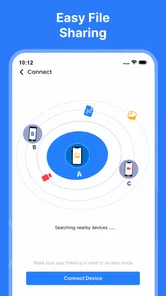
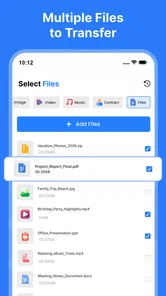
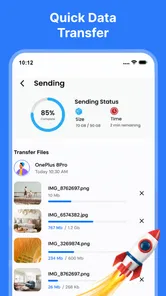
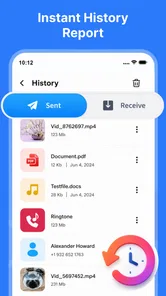
Analysis by Reviewed
Moving to a new phone sounds simple until the old device is full of photos, videos, documents, contacts, and small files that are easy to forget. I have run into that problem more than once: cloud backups take time, cables are not always nearby, and sending items one by one quickly becomes an annoying chore. Smart Switch App File Transfer is built around that particular headache. It is a free productivity app from CoddeX Studio that focuses on moving files, photos, and other personal data between phones.
After using it, my impression is that its value is less about adding another place to store files and more about shortening the awkward transition between two devices. The app is aimed at people who want a direct transfer workflow instead of manually rebuilding their phone. It is available for everyone, supports devices running Android 7.0 or later, and the current version is 1.1.8. Those details make it accessible to many everyday Android users, although the actual experience still depends on the two phones communicating properly.
Smart Switch App File Transfer review
I frame this review around the trust decisions that come with moving personal files, not just the convenience of getting them onto another phone. I’ll look at what the app is meant to transfer, how I’d approach a careful handover, and where I would rely on Android or individual services instead. That distinction helps set realistic expectations before choosing a transfer method.
The recurring problem it tries to remove
The difficult part of changing phones is rarely the handset itself. The difficult part is remembering what needs to follow you. Camera folders, downloaded documents, screenshots, voice recordings, and files received through messaging apps can be scattered across different locations. A normal cloud backup may handle some of this, but it can also require enough online storage, a stable connection, and patience while everything uploads and downloads.
This app takes a more direct approach. Instead of treating the move as a long backup project, I can think of it as a focused handover from one phone to another. That distinction matters when I am setting up a replacement device and want my important personal files available quickly. It is also useful when I am helping a family member, because the process is easier to explain as “choose what you need and transfer it” than as a series of separate backup steps.
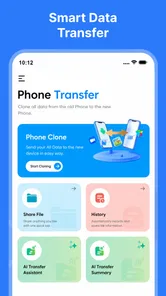
The store summary describes the app as a phone-cloning tool for transferring files, photos, and data between phones. In practice, I would not treat that wording as a promise that every part of a phone can be reproduced exactly. A file-transfer utility is strongest with personal content that can be selected and moved. Apps, account sessions, system preferences, and protected information may still need to be restored through Android or through the original service. That is an important expectation to set before starting.
Its presence in the productivity category feels appropriate. This is not an app I open for entertainment or continuous organization. I use it when a practical job needs finishing, and its success is measured by how much repetitive work it removes. The developer, CoddeX Studio, has kept the concept easy to understand: two phones, a transfer task, and less manual copying.
More From Our News Desk

Weather by Xiaomi Review: Clear at a Glance, Less Clear Up Close

X Under Pressure: Can It Recover When Posting Goes Wrong?

Clash of Clans Is Won Between the Battles

Android Auto Makes the Case for Quieter Car Software

MobiOffice: Transforming Mobile Productivity with Seamless Integration

EA SPORTS FC™ Mobile Soccer: Redefining Mobile Sports Gaming
Getting the first transfer ready
The most useful preparation is not inside the app; it is deciding what should actually move. Before I begin, I check the old phone for folders that matter and remove obvious clutter. Temporary downloads, duplicate videos, and forgotten screenshots can make a transfer unnecessarily large. Cleaning first means the new phone starts with a more manageable library instead of inheriting every old mistake.
I also keep both devices charged and close together. That sounds obvious, but transfer sessions are exactly the kind of task people start while one phone is nearly empty or while they are walking around the house. A stable setup reduces the chance of interruption. I avoid switching away from the transfer process repeatedly, especially when moving a large photo collection or several video files.
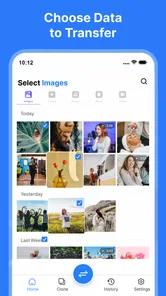
The first setup is most useful when I approach it as a controlled selection rather than pressing through every option automatically. If I only need work documents and recent photos, there is no good reason to move every media folder. Selective transfer saves space and makes it easier to check the result. On the other hand, if the old device is being retired immediately, I would choose more broadly and verify the destination before deleting anything from the source.
One practical tip is to keep the old phone untouched until the new one has been inspected. A transfer may finish without meaning that every item I care about is in the exact folder I expected. I open a few photos, check a document, and look for the folders that were most important to me. Only after that check would I reset or hand over the old phone.
Another useful habit is to separate the transfer into sensible groups when the phone contains a lot of mixed content. Photos and videos are easier to verify as a group, while documents and audio files may deserve their own check. This approach takes a little more attention at the beginning, but it makes troubleshooting much easier if something does not appear correctly.
Where it helps in everyday use
The obvious scenario is replacing a phone. Imagine taking a new device home after work, with the old phone still containing years of family photos and a folder of documents needed the next morning. Rather than sending each item individually or waiting for a complete cloud cycle, I can use the app to organize a direct move, leave both phones together, and then review the destination. The time saved comes from avoiding dozens of small decisions and repeated sharing actions.
It is also useful when a second phone is being prepared for another person. A parent may want familiar photos and documents on a replacement device but may not be comfortable sorting through file managers, cloud folders, and sharing menus. I can prepare the source, transfer only the content they recognize, and then help them check the new phone. That is a better fit than asking them to understand several unrelated backup systems.
A third scenario is temporary device replacement. If my main phone needs repair and I have another compatible phone available, moving essential files can make the spare device more practical. I would still rely on individual apps and account recovery for services that manage their own data, but having personal documents and selected media nearby can make the interruption less disruptive.
The app can also help with a cleaner separation between personal and work material. For example, I might transfer a defined group of project files to a work phone without copying my entire camera roll. That selective workflow is one of the more useful trade-offs here: it requires me to know where my files are, but it avoids the all-or-nothing feeling of a full device migration.
There is a less obvious use case for people who regularly create media on one phone and review it on another. Moving a chosen batch of photos or videos directly can be more convenient than uploading them to a general storage service, waiting for synchronization, and then downloading them again. This works best when the content is already organized and the transfer is treated as a one-time handoff rather than a permanent sync arrangement.
What friction it removes, and what it does not
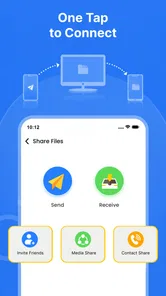
The biggest improvement is the reduction of repetitive handling. Without a transfer tool, I might open a gallery, select files, share them, wait, return to another folder, and repeat the process. That workflow is slow not because any single step is difficult, but because the same steps keep coming back. Smart Switch App File Transfer gives that job a more unified purpose.
It also reduces the need to depend on online storage for a one-off move. That can be helpful when the connection is unreliable or when I do not want to reorganize my cloud account just to move content between two devices. A direct phone-to-phone workflow feels more appropriate for a local handover, particularly when I already have both devices in front of me.
Still, direct transfer is not automatically frictionless. The phones need to cooperate, and a large collection can take patience. If the process is interrupted, I may need to identify what arrived before trying again. This is why I prefer smaller, clearly defined batches for important material. The app removes much of the manual sharing work, but it cannot remove the need for a final check.
Another trade-off is organization. Moving files does not necessarily clean up years of inconsistent naming or duplicated folders. If the old phone is messy, the new phone may inherit that mess. I get the best result when I spend a few minutes preparing the source rather than expecting the transfer itself to act as a file-management system.
For app accounts and service-specific content, I use the original Android restoration options or the service’s own backup process. This app is not the place I would rely on for passwords, logged-in sessions, or data held inside an app’s private storage. That boundary is important: it is a practical companion for personal files, not a replacement for every part of a complete phone migration.
Compatibility, cost, and the practical trade-offs
The app is free to install, which makes it easy to try before committing to a transfer plan. It includes in-app purchases priced at $14.99 per item, so I would pay attention to any purchase prompt and decide whether the free experience already covers my needs. For a one-time move, I would first test the basic workflow with a small group of unimportant files before considering anything extra.
Its age rating is Everyone, and the minimum operating system is Android 7.0. That gives the app a broad starting point for Android households with older devices, though both phones still need to meet the relevant compatibility requirements. I would check the devices before planning a large move, especially if one handset has been out of service for a long time.
The app has passed the 100K-plus install mark, which suggests that it is not an obscure experiment with no audience. I do not take that as proof that every transfer will be perfect, but it does make the utility feel established enough to consider for a normal household move. The current version, 1.1.8, is the version I would use when evaluating the experience today.
Compared with manually sharing files, this app is clearly more convenient for batches. Compared with cloud storage, it is better suited to a direct move when I do not need long-term synchronization. Compared with a manufacturer-specific migration tool, its appeal is that it is not tied in my mind to one particular phone brand. However, a manufacturer’s own migration system may be the better choice when I need deep support for settings, applications, messages, or brand-specific content.
That comparison leads to a simple decision rule. If the main goal is moving photos, documents, and ordinary personal files between two phones, this app is a sensible shortcut. If the goal is recreating the entire old phone with every setting and account exactly as before, I would combine it with the operating system’s restoration tools rather than expect one utility to handle everything.
Who should use it and who should skip it
I would recommend Smart Switch App File Transfer to someone changing phones who wants a straightforward way to move selected personal content. It is particularly suitable for people who dislike cloud-based setup, users helping relatives, and anyone whose files are more important than preserving every system preference. It also makes sense for a temporary move when only essential documents and media need to follow.
I would be more cautious recommending it to someone with a very large, disorganized library who expects a completely automatic migration. The app can simplify the transfer, but it does not remove the responsibility of choosing content and checking the destination. A person who needs business-grade control, detailed audit trails, or guaranteed handling of specialized application data may be better served by a dedicated backup or device-management solution.
I would also skip it as the only migration method when messages, app progress, secure credentials, or account data are the central concern. Those items often belong to separate backup systems. In that situation, the app can still move the visible files, but it should be one part of a broader plan rather than the entire plan.
My verdict after using it
Smart Switch App File Transfer solves a narrow problem well: getting personal files from one phone to another without turning the process into a long sequence of individual shares. Its strongest quality is practical efficiency. It helps me spend less time repeating file selections and more time checking that the new phone is ready.
The best results come from using it deliberately. Prepare the old phone, transfer in sensible groups, keep both devices available, and inspect important content before erasing anything. Those steps are not glamorous, but they are what turn a convenient tool into a reliable part of a phone-change routine.
My recommendation is straightforward: use it for direct file and photo transfers, but pair it with Android or service-specific backups for everything stored inside apps and accounts. For that role, the free productivity app from CoddeX Studio is useful, approachable, and worth trying when the recurring problem is simply moving your personal content with less wasted time.
Smart Switch App File Transfer Frequently Asked Questions
How much does Smart Switch App File Transfer cost, and are there in-app purchases?
Smart Switch App File Transfer is free to download, so you can try its phone-to-phone transfer tools without paying upfront. The app also offers in-app purchases priced at $14.99 per item. Check the purchase details shown in the app before confirming anything, and make sure any optional purchase matches what you want to use.
What Android version do I need to install Smart Switch App File Transfer?
The app requires Android 7.0 or later. Before downloading, check the Android version in your phone’s settings to see whether it meets that requirement. Smart Switch App File Transfer is a productivity app from CoddeX Studio, and its current version is 1.1.8. If your device meets the minimum requirement, you can then check the app’s compatibility with the other phone you plan to use.
What is Smart Switch App File Transfer used for?
Smart Switch App File Transfer is designed to help users move files and personal content between compatible devices. Depending on the version and device, it may support photos, videos, contacts, messages, documents, and other data. It is especially useful when setting up a new phone, creating a backup, or transferring selected files without relying entirely on cloud storage.
Is Smart Switch App File Transfer compatible with both Android and iPhone?
Compatibility depends on the specific Smart Switch version and the devices involved. Samsung Smart Switch is primarily intended for transferring data to Samsung Galaxy devices, while support for sending information from iPhone or other Android phones may vary. Before downloading, check the app listing and your phone’s operating system, model, and required Android or iOS version.
Does the app require an internet connection to transfer files?
Many transfers can be completed directly between devices using a cable, Wi-Fi Direct, or a local wireless connection, so a constant internet connection may not be necessary. However, some features, updates, cloud services, or app downloads can require internet access. For the fastest and most reliable transfer, keep both devices charged and close together during the process.
Pros
- Transfers contacts
- photos
- videos
- and messages with minimal setup.
- Supports moving data between many Android devices and Samsung phones.
- Can transfer content through a cable for faster
- more stable performance.
- Useful for backing up selected phone data before switching devices.
- Simple interface makes the migration process easy for nontechnical users.
Cons
- Some features work only with compatible Samsung devices or software versions.
- Large transfers can take considerable time
- especially over a wireless connection.
- Certain app data
- passwords
- and protected files may not transfer.
- Both devices usually need sufficient battery and free storage to complete transfers.
- Wireless transfers may disconnect if phones move too far apart or lock.











