Sivu - AI Face Photo Video App
- 7.00
- 4.1
- Installs
- 10.00K
- Price
- Free

Screenshots



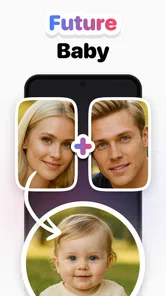

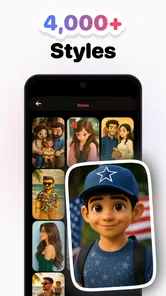
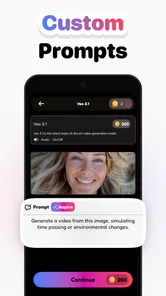

Analysis by Reviewed
I approached Sivu as a quick creative tool rather than a full video editor. Its focus is turning a face photo into a short, trend-oriented video for places such as TikTok, Reels, and Shorts. That narrow purpose is important: if you want to animate one image and get something ready for a social post, the app makes sense; if you expect a complete timeline editor with detailed control over every frame, you may feel limited.
The app sits in the Art & Design category and is developed by MIOPS TEKNOLOJI ANONIM SIRKETI. It is free to install, with optional purchases ranging from $4.99 to $47.99 per item. I would describe it as an accessible experiment for casual creators, especially people who have an interesting portrait but no desire to learn complicated editing software. The Teen content rating also makes it more suitable for older users than for young children.
My overall experience was shaped less by the basic idea and more by the points where a fast creative workflow can become confusing. Photo-based AI tools are usually most enjoyable when the image is prepared well and the user understands what kind of result to expect. They are much less satisfying when a poor source photo, an interrupted generation step, or an unclear purchase boundary is mistaken for a problem with the finished effect.
Where the first attempt can go wrong
The most common stumbling block is choosing a photo that looks good as a still image but gives the animation very little useful information. A sharply framed portrait with a visible face is a better starting point than a distant group photo, a heavily cropped screenshot, or a picture where hair, hands, or accessories cover important facial areas. This is not a promise that every suitable portrait will produce a perfect result; it simply gives the app a cleaner visual basis to work with.
I would also avoid beginning with the most valuable image in your camera roll. Start with a copy or a casual portrait so that the first attempt feels like a test rather than a final production. This makes it easier to compare different source images and notice whether the result is being affected by the photo itself. A neutral expression can be useful for learning the workflow, while a strongly angled face may create a more unpredictable transformation.
Another point of friction is expectation. A short AI-generated clip is not the same thing as recording a person moving naturally. Small changes in expression or motion can look playful and eye-catching, but they may also feel stylized. I see that as part of the appeal for social content, not as a replacement for carefully filmed video. If your goal is a realistic talking-head presentation, a camera app or conventional editor will usually give you more control.
Users can also get stuck by treating the app like a standard editor. The useful question is not “Where is the complete timeline?” but “Which photo can I turn into a short visual idea?” That change in mindset makes the product easier to understand. I would prepare the image first, decide what mood the post should have, and only then open the app. The less time spent searching through an unorganized photo library, the more direct the experiment becomes.
More From Our News Desk

 Gmail
GmailGmail in a Busy Inbox: Who Benefits Most?
From first account to crowded workday, Gmail earns its place through dependable search and flexible sorting—but its best fit depends on how much inbox maintenance you can tolerate.

 Prime Video
Switching to Prime Video: What Changes in Your Viewing Routine
Prime Video can make a compelling second home for streaming, but switching means learning a different catalog, rental layer, and route from browsing to playback.

 Universal TV Remote Control
Universal TV Remote Control Works Best as a Reliable Backup
A phone remote earns its place through quick setup and reliable habits. Here is how to get more from Universal TV Remote Control—and where its limits show.

 Weather - By Xiaomi
Weather by Xiaomi Review: Clear at a Glance, Less Clear Up Close
Xiaomi’s weather app makes everyday forecasts quick to scan, but its calm surface can leave useful details and recovery paths harder to find than they should be.

 X
XX Under Pressure: Can It Recover When Posting Goes Wrong?
A resilience-focused review of X, examining setup, mistaken posts, interruptions, weak connections, and the gaps that matter when recovery needs to be dependable.

 Clash of Clans
Clash of Clans Is Won Between the Battles
Its raids are quick; its community is a long-term project of coordination, teaching, rivalry, and shared responsibility—with all the friction that entails.
Latest News



The free entry point is helpful for testing the concept, but I would not assume that every creative option has the same access conditions. Before confirming an in-app purchase, I would read the wording on the purchase screen carefully and decide whether the result is worth paying for in my own workflow. The fact that the app is free to install does not mean every possible use is free, so this is one place where a few seconds of attention can prevent disappointment.
Choosing a source image that gives the effect a fair chance
For a practical test, I would use a well-lit portrait with one obvious subject, a face that is not extremely small in the frame, and enough surrounding space that the final movement does not feel cramped. I would keep the original file available and avoid repeatedly editing the same image before importing it. Heavy filters, stickers, or aggressive sharpening can make an image look attractive in a gallery while making the visual structure harder to interpret.
A useful trick is to prepare two or three different portraits before starting. One can be front-facing, another can show a slight turn, and a third can have a different background. The comparison tells you more than repeatedly generating from one unsuitable picture. It also helps separate a limitation of the chosen image from the behavior of the app itself.
For a small business owner, this workflow could be practical. Imagine a café owner with a clean portrait of a new seasonal drink beside its creator. Instead of building a full promotional video, the owner could test the portrait as a short social clip, review it privately, and decide whether the animated style fits the café’s tone. The important step is to treat the generated result as a draft for attention, not as the entire marketing plan.
Setup checks that save time
Before blaming a failed import or unfinished result on the app, I would begin with simple checks. The device should meet the stated minimum operating-system requirement of version 9, and the app itself should be updated to its current version, 1.32. These details matter because creative tools often depend on image handling and processing behavior that can change between app releases and operating-system versions.
I would then close other demanding apps, reopen Sivu, and try a single ordinary portrait. This is basic advice, but it is useful because it creates a clean test. If the app works with a simple image after reopening, the original issue may have been temporary rather than permanent. If it fails in exactly the same way with several suitable images, the problem is easier to describe and investigate.
Storage is another sensible check. AI video creation can require room for the original photo, temporary processing files, and the resulting clip. I would keep some free space available rather than starting with a nearly full device. I would also avoid switching repeatedly between apps during processing, especially on an older phone, because interruptions can make a completed-looking workflow feel unreliable.
Connection quality deserves attention too. A tool that creates an AI-based video may need a stable connection during part of the process, and a weak signal can make a request appear frozen. My practical approach would be to retry from a dependable Wi-Fi connection, wait through the processing stage once, and avoid pressing the same action repeatedly. Multiple taps can make it unclear whether one request or several requests are being handled.
Photo access can be a quieter source of confusion. If the chosen image does not appear, I would check the device’s app access settings and confirm that the picture is stored locally and visible in the normal gallery. I would not immediately assume the image is unsupported. A file that is still syncing, hidden in a special folder, or only available through another service may not behave like a regular local photo.
Because Sivu is aimed at short-form social video, I would also decide where the finished clip is going before I begin. A result intended for a vertical feed should be judged differently from one meant for private sharing. If the composition leaves too little room around the face, platform cropping can make it feel tighter than it looked inside the app. Preparing the source with that final viewing context in mind is more effective than trying to fix every framing issue afterward.
What I would check before paying
I would use the free experience to answer three practical questions: Does the visual style suit my photos? Is the processing workflow reliable on my device? Do I actually need more than the available free path offers? Only after answering those questions would I consider an optional purchase. The listed purchase range is broad enough that I would inspect the exact item and terms shown at the moment of purchase rather than making assumptions from the headline price.
This is especially important for someone who only wants one amusing clip. A paid option may make more sense for a creator who has a repeatable series of portraits to produce, while a casual user may be better served by testing one idea and stopping there. I prefer this measured approach because AI effects are easy to enjoy once and harder to justify as a regular tool unless they fit a consistent posting routine.
Recovering a workflow when a result is incomplete
When a generation does not finish, I would avoid changing several things at once. First, I would note whether the problem happened during image selection, processing, saving, or sharing. Then I would retry with the same photo once after reopening the app. If that fails, I would switch to a simpler portrait. This sequence creates useful evidence instead of turning troubleshooting into random experimentation.
If the second image works, I would inspect the original for practical differences: an unusual crop, a very small face, a busy background, or visual obstructions. If neither image works, I would move back to the device checks, including connection, available storage, operating-system compatibility, and the installed app version. This is a better recovery path than repeatedly tapping a button and hoping the outcome changes.
I would also keep the original photo outside the app and save successful results as soon as they are available. That sounds obvious, but it prevents a useful clip from becoming difficult to find after a later retry. For a creator preparing several posts, I would use clear filenames or a dedicated album so that the source portrait and the generated video do not become mixed together.
One non-obvious trade-off is consistency. If you want a series of clips to look related, using portraits with similar framing, lighting, and background will probably make the set feel more intentional than feeding the app completely different images. The individual effects may still vary, but a consistent visual starting point can make a casual AI experiment look like a planned content series.
A second useful workflow is to separate creation from publishing. I would generate the clip, watch it more than once, and check the face, edges, and overall mood before posting. A result that looks amusing in a quick preview may feel distracting when paired with text, music, or a brand message. Keeping that review step outside the excitement of generation helps me decide whether the effect supports the post or merely competes with it.
A third insight concerns audience and context. A playful face animation can work well as a hook, a birthday greeting, a reaction, or a light personal update. It is less suitable when viewers need precise information, a realistic demonstration, or a trustworthy explanation. In those situations, I would use Sivu only for an opening visual, if at all, and rely on ordinary video or a more controlled editor for the important content.
When the app is not the real cause
Not every disappointing result is a technical failure. Sometimes the source image simply asks the tool to make a difficult interpretation. A face partly hidden behind sunglasses, a profile view, several people close together, or a portrait with strong motion blur can all create an outcome that feels strange without meaning the app has stopped working. The right response is often to choose a clearer image rather than repeat the same request.
It is also easy to blame the app when a social platform changes the appearance of the finished clip. Cropping, compression, autoplay behavior, and surrounding captions can make a short video seem less polished than it did during review. I would watch the exported result on the device first, then consider how the intended platform will frame it. Leaving breathing room around the subject is a simple safeguard.
Privacy and consent should be part of the decision as well. I would only use a person’s face when I have a clear reason and permission to turn that image into an animated video. This matters even more when the result is public or when the image belongs to someone who may not expect an AI transformation. The app’s creative convenience does not remove the responsibility attached to the photo.
There is a difference between a tool being easy to start and being suitable for a professional production pipeline. Sivu is attractive when speed and novelty matter more than exact control. A conventional mobile editor is the better choice when I need precise cuts, layered audio, manual transitions, captions placed at exact moments, or a predictable visual identity across many videos. A dedicated camera workflow is better when realism and natural movement are the priority.
I would also skip it if my main interest is editing landscapes, product shots without people, or long-form footage. The app’s identity is tied to the face-photo concept, so using it outside that lane would make the comparison unfair. For those projects, a general Art & Design or video-editing app with manual tools would offer a more appropriate foundation.
My practical verdict after using the workflow
Sivu is best understood as a focused idea generator for short face-photo videos. I like it for quick experiments, social hooks, personal greetings, and creators who want to test an animated portrait without learning a complicated editor. The free installation lowers the barrier to trying it, and the app’s social orientation gives the process a clear purpose instead of presenting an endless collection of unrelated editing controls.
Its limitations are equally clear. The quality of the source portrait matters, the result may feel stylized rather than natural, and users should pay attention to what is included before choosing an optional purchase. Troubleshooting is most effective when handled methodically: use a suitable image, check the device and connection, retry once, then change one variable at a time. That approach prevents ordinary setup friction from becoming an unfair judgment of the creative idea.
The app has reached over ten thousand installs and holds a 4.1 average from around 181 ratings, which suggests a modest but visible user base rather than a tool I would treat as an established replacement for every video editor. Its current version is 1.32, and the release date is July 8, 2025, so I would keep expectations realistic and judge it by its specific job: making a short, attention-grabbing transformation from a face photo.
For someone who asks me whether to try it, my answer is yes if the goal is playful short-form content and the person is comfortable testing images rather than demanding perfect realism. I would recommend preparing a few clean portraits, trying the free route first, and reviewing every result before sharing it. I would not recommend making it the center of a serious editing workflow. Used within its narrow strengths, it can turn an ordinary portrait into a useful social idea; outside those strengths, a standard editor will usually be the more dependable choice.
In the end, I see Sivu as a low-commitment creative shortcut, not a complete production studio. That is a positive distinction when I want a fast visual experiment, but it becomes a drawback when I need detailed editing decisions. If that boundary matches what you want to make, the app is worth exploring. If you need control, realism, or a carefully structured video from beginning to end, I would start elsewhere.
Sivu - AI Face Photo Video App Frequently Asked Questions
What devices and operating systems can run Sivu - AI Face Photo Video App?
Sivu is an app in the Art & Design category, intended for creating AI-powered photo and video content. Its current version is 1.32, and it requires Android 9 or later. Before downloading, check your device’s operating system version and available storage, and make sure you install the app from a trusted app store.
Is Sivu suitable for teenagers?
Sivu has a Teen content rating, so it may be appropriate for some teenage users, but AI face-editing tools still call for thoughtful use. Talk about permission before editing or sharing another person’s face, and consider how realistic effects might be interpreted by viewers. Parents and guardians may also want to review the app’s features and privacy choices with younger users.
What is Sivu - AI Face Photo Video App used for?
Sivu is an AI-powered photo and video editing app designed to transform selfies and existing media into creative face-focused content. Depending on the available tools and templates, you can enhance portraits, apply visual effects, animate images, create face-swap-style edits, or produce short videos for social media. Results can vary based on image quality, lighting, and the selected effect. Its focus on short-form content may appeal to people making videos for platforms such as TikTok, Reels, and Shorts.
Is Sivu - AI Face Photo Video App free to download and use?
The app is free to download, but some of its advanced effects, templates, exports, or processing options can require in-app purchases. Prices range from $4.99 to $47.99 per item, so check the purchase screen carefully before confirming anything. Free features may also include limitations such as watermarks, advertisements, or restricted daily usage.
What photos and videos work best with Sivu?
For the most convincing results, use clear, high-resolution photos or videos in which the face is visible, well lit, and facing the camera. Avoid heavy shadows, extreme angles, sunglasses, crowded backgrounds, or faces partially covered by hair and accessories. When using group images, the app may select the wrong face or produce less consistent results, so reviewing the preview before exporting is recommended.
Pros
- Turns still portraits into engaging short videos with minimal effort.
- Offers creative AI effects for social posts and profile content.
- Simple interface makes basic photo animation easy for beginners.
- Useful for experimenting with different visual styles quickly.
- Can add motion to older photos and otherwise static images.
Cons
- AI results may look unnatural around hair
- hands
- or facial details.
- Some features or exports may require a paid subscription.
- Processing quality can vary depending on the source photo.
- Animated results may not always match the intended facial expression.
- Uploading personal photos may raise privacy concerns for some users.