Screen Guard - Privacy Display
- 240.00
- 3.0
- Installs
- 1.00M
- Price
- Free
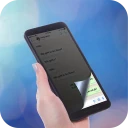
Screenshots
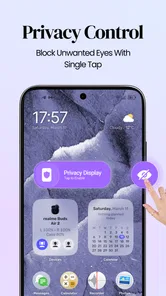
Analysis by Reviewed
I like privacy tools best when they solve a small, awkward problem without making me rethink how I use my phone. Screen Guard is aimed at one of those moments: reading or checking something on your display while other people are close enough to glance over. It is a personalization app from Tech Brain Apps, built around a screen filter rather than a full privacy overhaul. That narrow purpose is useful, but it also sets expectations: it can change how the display looks to people nearby, not make your messages private in every sense.
Privacy in shared spaces, with a few practical limits
I find it useful to decide what counts as a sensitive moment before I open the app or change how my screen looks. That small pause helps me choose between a visual filter, simply turning the phone away, or waiting until I have more space. It also leads to a practical question: how much extra setup is worthwhile when connectivity or an unexpected interruption gets in the way?
What the filter can—and cannot—do
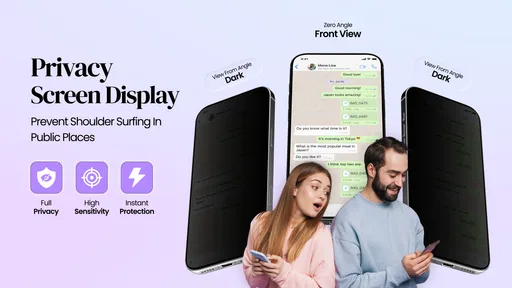
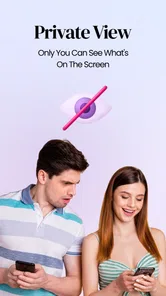
The basic appeal of Screen Guard - Privacy Display is easy to understand. On a crowded train, in a waiting room, or beside a colleague, a display filter may make it less comfortable for someone at an angle to read what is on your phone. That can be handy when you are checking a personal notification or looking at a document in a public place. I would treat it as a small layer of discretion, not a substitute for locking the phone or being careful about what is open.
That distinction matters because a filter changes the viewing experience; it does not decide who can access the device. Someone holding the phone or standing directly in front of it may still see the screen, and the app cannot prevent a notification from appearing while the phone is unattended. For sensitive tasks, I would still use the phone’s own lock and notification controls. The filter is most convincing as a quick visual aid for ordinary shoulder-surfing situations.
Connectivity also shapes how confidently I would rely on an app like this. A privacy filter is most useful at the exact moment you need it, and the ideal experience is one where turning it on or adjusting it does not become a separate task. I would test the setup at home before counting on it in a public place, rather than discovering in a queue that the display effect is difficult to see or inconvenient for my particular screen.
Network-dependent moments and setup expectations
For a tool whose purpose is changing how the screen appears, a live internet connection should not be the first thing I expect to interact with during everyday use. Still, I would not assume that every part of the experience works without connectivity. Installing the app, checking for updates, or encountering any connected content can depend on network access, while the exact behavior of the filter itself should be judged on the device rather than inferred from its short description.
My practical advice is to install and explore it while connected, then try the controls in the places where you expect to use them. That separates setup friction from the moment you need privacy. If the app asks you to configure a visual treatment, do that in advance and check both readability and visibility from an oblique angle. A filter that hides the screen well but makes your own text uncomfortable to read is not a good trade for a long commute or an extended work session.
More From Our News Desk
 Instagram
Instagram’s Power Comes From Its Place in Your Phone
A close look at how Instagram turns Meta’s reach, recommendation systems and everyday camera habits into durable platform power—and what that costs users.

 Gmail
GmailGmail in a Busy Inbox: Who Benefits Most?
From first account to crowded workday, Gmail earns its place through dependable search and flexible sorting—but its best fit depends on how much inbox maintenance you can tolerate.

 Prime Video
Switching to Prime Video: What Changes in Your Viewing Routine
Prime Video can make a compelling second home for streaming, but switching means learning a different catalog, rental layer, and route from browsing to playback.

 Universal TV Remote Control
Universal TV Remote Control Works Best as a Reliable Backup
A phone remote earns its place through quick setup and reliable habits. Here is how to get more from Universal TV Remote Control—and where its limits show.

 Weather - By Xiaomi
Weather by Xiaomi Review: Clear at a Glance, Less Clear Up Close
Xiaomi’s weather app makes everyday forecasts quick to scan, but its calm surface can leave useful details and recovery paths harder to find than they should be.

 X
XX Under Pressure: Can It Recover When Posting Goes Wrong?
A resilience-focused review of X, examining setup, mistaken posts, interruptions, weak connections, and the gaps that matter when recovery needs to be dependable.
Latest News



There is another useful distinction: network access and privacy are not the same question. An app can be used for a privacy-minded purpose without that fact alone proving anything about its data handling. I would avoid entering account details or other sensitive information into any utility unless I had reviewed its current disclosures and permissions. For the screen-privacy task itself, the most important test is whether the visual effect is both useful to people around you and tolerable to you.
Where it fits into a mobile day
The strongest use case is brief, unplanned exposure. Imagine opening a banking notification while standing in a crowded checkout line. You may not want to perform a complicated routine, but a readily available screen treatment could make a nearby glance less revealing. I would turn it on before opening the app with private information, not after a stranger has already had time to read the display.
It may also suit commuters who read messages or personal notes in close quarters. The trade-off is that the more heavily a display is obscured, the more carefully you may need to position the phone or adjust your viewing angle. That makes it less appealing for tasks requiring sustained concentration, such as editing a long document or comparing small details on a map. For those jobs, I would prioritize clear viewing and rely on physical positioning instead.
A non-obvious workflow is to think in terms of “sensitive moments,” not “privacy mode all day.” Before boarding a bus, entering a shared office, or bringing up a personal conversation, decide whether the screen needs extra shielding. Afterward, return to a normal view if the filter makes ordinary use harder. This keeps the privacy measure purposeful and reduces the chance that you will blame the phone for dim or difficult-to-read content when the filter is the cause.
Another useful test is to check more than one kind of screen content. Large text may remain comfortable while small labels, icons, or low-contrast elements become difficult to distinguish. Try a message, a settings page, and a page with fine text before relying on the app. This is not just a comfort check: if you cannot read clearly, you may hold the phone at a more revealing angle or spend longer with it open, undermining the reason you enabled the filter.
I would also judge the result from the position that matters, not only from directly in front of the phone. A quick check with someone sitting beside you can reveal whether the effect changes side visibility enough to be useful while leaving your own view workable. Keep the test casual and use ordinary, non-sensitive content; there is no need to expose private messages just to decide whether the approach suits you.
When the effect fails, and how I would recover
Any screen-level utility can feel unreliable if it behaves differently from one app or situation to another. I would not assume that a filter will be equally effective on every screen, at every brightness, or under every lighting condition. If it seems ineffective, first check whether the filter is actually active and whether the display remains readable to you. Then compare the view from a modest angle in a controlled setting rather than relying on a quick impression in a busy place.
If the screen becomes uncomfortable, my first response would be to disable or reduce the effect, return to the content only when I can see it properly, and use a simpler privacy measure for that task: turn the phone away, move to a less exposed spot, or close the sensitive screen. A privacy aid should not trap you in a bad viewing state. I would also avoid making an important payment or reading a time-critical instruction while experimenting with a new setting.
Before an update or a change in phone setup, it is sensible to check that the app still behaves as expected. Screen Guard is currently at version 3.0.9 and requires Android 8.0 or later, so compatibility is a straightforward first check for Android users. If you use a different mobile platform, make sure you are looking at an appropriate edition rather than assuming that the Android app’s behavior carries over.
Recovery should also include returning to the phone’s normal display if the app is no longer needed. Leaving a privacy effect active can make later troubleshooting confusing: text may look washed out, colors may seem unusual, or a screen may appear harder to view, when the filter is simply still enabled. A deliberate on-and-off habit is more dependable than treating the tool as an invisible permanent shield.
If the app or its visual effect stops behaving as you expect, I would first return the display to its usual state and close any sensitive screen rather than keep troubleshooting with private content open. Then I would check the basic setup again in a calm place. That order is useful because it separates an urgent need to protect what is visible from the slower question of whether a setting or connection issue is responsible.
Cost, audience, and alternatives
The app is free to install, with in-app purchases listed from $3.49 to $49.99 per item. I would try the basic experience carefully before spending money, especially because the value depends on how comfortable the effect is on your own device and in your usual settings. The listed age rating is Everyone, which makes it broadly accessible, though anyone setting it up for a child should still check the phone’s own privacy and screen-time controls rather than relying on a display filter.
Screen Guard has an average rating of 3.0 from around 12,000 ratings, alongside roughly 240 written reviews and more than a million installs. Those figures suggest that many people have tried it, but the middling average is a reason to approach it as a practical experiment instead of a guaranteed fix. I would pay attention to whether it does the one thing I need—make casual side glances less useful—rather than judging it by the size of its audience.
Compared with the usual alternatives, this kind of app is more direct than simply lowering brightness or turning on a system-wide dark theme: those changes affect the look of the screen but are not designed specifically to limit side viewing. A physical privacy screen protector can provide a more persistent barrier, but it is a hardware choice that stays on the device and may affect viewing even when privacy is not needed. Screen Guard is better suited to someone who wants a reversible, situational option; a person who needs dependable protection throughout the day may prefer a hardware filter and careful notification settings.
I would skip it if you expect complete secrecy, need a filter that never affects your own readability, or cannot tolerate extra steps when opening the phone. It is also not the right answer for someone trying to protect a device from access by another person: a strong passcode, a locked screen, and thoughtful notification previews address different risks. The app’s value is in adding a visual obstacle to casual viewing, not in replacing those safeguards.
It is especially worth considering for someone who checks personal material in public only now and then and wants a reversible option to try before committing to a protector. It is a weaker fit if your day involves constant screen sharing, frequent close reading, or phone use where even a small change in visibility would be distracting. In those cases, adjusting where you sit and what appears on the lock screen may be simpler than managing an added display treatment.
One small habit can make the choice easier: decide what you want to protect before opening the screen. A private message viewed briefly on a bus calls for a different response from a long work session on a document. For the first, a situational filter may be worth testing; for the second, clear text and a less exposed seat may be the better compromise. This keeps the tool from becoming an automatic setting that solves one concern while creating another.
My connectivity verdict
For me, Screen Guard makes the most sense as a small, situational privacy aid that I would prepare before heading into a crowded or shared environment. Its success depends less on a dramatic promise than on a few practical checks: confirm it works on your phone, see whether the display remains comfortable, and know how to switch back when the effect gets in the way. Network access is relevant to installation and upkeep, but I would not build a privacy routine around assumptions about offline behavior; I would test the actual experience on the device.
My recommendation is cautious but positive for people who want a reversible screen filter for brief public moments. Tech Brain Apps has made a focused personalization app, and that focus is both its appeal and its limitation. If you are willing to test the effect before using it for anything sensitive, the free entry point makes it easy to judge for yourself. If you need robust privacy or uninterrupted readability, a privacy screen protector and the phone’s built-in security tools are the more dependable combination.
Ultimately, I would treat Screen Guard - Privacy Display as a convenience to evaluate, not a promise to depend on. A quick, private screen check in a shared place is where it has the clearest role; anything requiring strong confidentiality still calls for the phone’s security settings and sensible handling. If that modest boundary matches what you need, trying the filter thoughtfully is a reasonable next step.
Screen Guard - Privacy Display Frequently Asked Questions
What does Screen Guard - Privacy Display do?
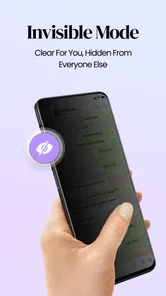
Screen Guard - Privacy Display is designed to make it harder for people nearby to read your phone screen by applying a privacy-style visual filter or overlay. This can be useful when checking messages, browsing, or entering information in public places. Its effect and available controls may vary by device and app version, so review the in-app description and settings to understand exactly how the display changes.
Does the app physically protect my screen or secure my data?
No. Despite the name, Screen Guard - Privacy Display is a software-based display tool, not a physical screen protector. It does not prevent scratches, cracks, or other hardware damage, and a visual privacy effect should not be treated as encryption or a security guarantee. Avoid relying on it to conceal passwords or sensitive information from someone who can access your device directly.
Will Screen Guard - Privacy Display work with every app and phone?
Compatibility depends on your Android or iOS device, operating-system version, and the permissions the app requires. Display overlays may behave differently across manufacturers and can sometimes be restricted while other apps are open. Before downloading, check the store listing for supported platforms and requirements; after installation, test the effect with the apps and screen orientation you commonly use.
What permissions might the app request, and are they necessary?
A privacy display app may need permission to appear over other apps or to adjust display-related settings so its filter can remain visible. The exact permissions depend on the version and platform. Read each permission prompt carefully and grant only what is needed for the features you intend to use. If a request seems unrelated, consult the app’s privacy policy and store listing before proceeding.
Is Screen Guard - Privacy Display free, and are there ads or in-app purchases?
Pricing, advertising, and optional purchases can change between releases or differ by region, so check the current Google Play or Apple App Store listing before installing. The listing should explain whether the download is free, whether premium features are offered, and whether ads or subscriptions apply. Review those details in advance if you prefer an ad-free experience or want to avoid recurring charges.
Pros
- Helps keep on-screen content less visible to people nearby.
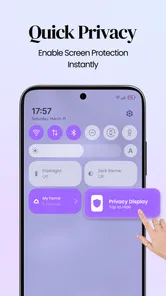
- Quick access makes it convenient to toggle privacy when needed.
- Useful for checking sensitive information in public places.
- Can reduce glare and improve screen comfort in some conditions.
- A simple concept that does not require changing how you use apps.
Cons
- Privacy filters may make the display look dimmer or less clear.
- Effectiveness can vary with screen size
- brightness
- and viewing angle.
- It cannot prevent screenshots or protect data from malicious apps.
- May need repeated adjustment to suit different lighting conditions.
- Some features or settings may be limited by device compatibility.