RoughAnimator - animation app
- 844.00
- 4.5
- Installs
- 50.00K
- Price
- $7.99
Screenshots
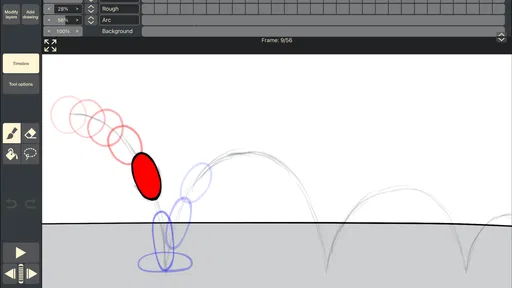
Analysis by Reviewed
RoughAnimator makes most sense when you want to draw movement one frame at a time, rather than have an app animate things for you. I like that hands-on approach: it encourages you to think about how a pose changes, where a character is headed, and which drawings need to be adjusted. It is a focused creative tool from WeirdHat, not a general-purpose design app, and that distinction matters when deciding whether its workflow fits you.
As an animation app in the art and design category, it has a 4.4 average from around 2.9 thousand ratings, with more than 50 thousand installs. It costs $7.99, is rated for Everyone, and its current version is 4.21; the app first appeared on October 15, 2014. Those details frame it as a paid, established option rather than a casual free sketchpad. For me, the real question is whether you want the control of drawing the in-between moments yourself.
A drawing-first workflow that rewards planning
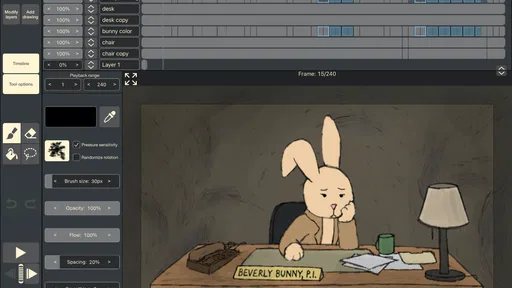
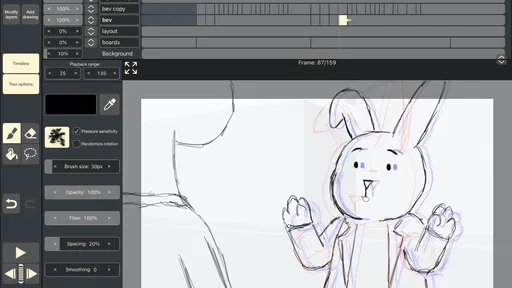
Have you ever wanted to bring your doodles to life? Well, let me tell you about this neat little app I stumbled upon called RoughAnimator. It's a nifty animation app that lets you create frame-by-frame animations right on your smartphone or tablet. Whether you're a seasoned animator or just someone who loves to sketch, this app is a game-changer.
Diving into the World of Animation
The first thing that struck me about RoughAnimator was its user-friendly interface. I mean, I'm no tech wizard, but navigating through the app was a breeze. You can literally start animating within minutes of opening the app. It's like having a mini animation studio in your pocket! The app supports both Android and iOS, so no worries about compatibility here.
Features that Stand Out
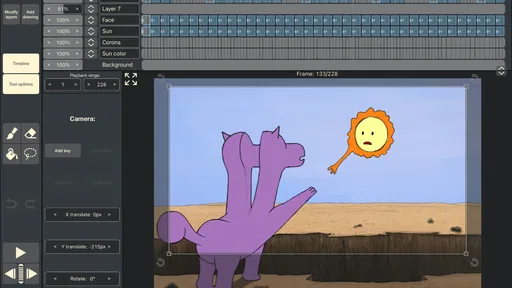
One of my favorite features is the ability to use multiple layers. This is fantastic if you want to add depth to your animations, like moving backgrounds or dynamic characters. Plus, you can easily adjust the speed of your animations, which is perfect for tweaking those little details until they’re just right.
Another cool aspect is the pressure-sensitive drawing tools. If you’re using a stylus, this feature is a godsend. It allows for a more natural drawing experience, similar to sketching on paper. And for those of us who love a good soundtrack, you can even add audio tracks to your animations. Imagine syncing up your animations with your favorite tunes!
Small workflow choices make a big difference
For a short walk cycle or a bouncing ball, I’d start with a few clear poses, then add the connecting drawings and use playback to judge the rhythm. That is often more useful than polishing every frame immediately: motion can look stiff even when each individual drawing is neat. A rough pass lets you catch timing problems early, before you spend effort refining lines that may need to move.
More From Our News Desk

 Gmail
GmailGmail in a Busy Inbox: Who Benefits Most?
From first account to crowded workday, Gmail earns its place through dependable search and flexible sorting—but its best fit depends on how much inbox maintenance you can tolerate.

 Prime Video
Switching to Prime Video: What Changes in Your Viewing Routine
Prime Video can make a compelling second home for streaming, but switching means learning a different catalog, rental layer, and route from browsing to playback.

 Universal TV Remote Control
Universal TV Remote Control Works Best as a Reliable Backup
A phone remote earns its place through quick setup and reliable habits. Here is how to get more from Universal TV Remote Control—and where its limits show.

 Weather - By Xiaomi
Weather by Xiaomi Review: Clear at a Glance, Less Clear Up Close
Xiaomi’s weather app makes everyday forecasts quick to scan, but its calm surface can leave useful details and recovery paths harder to find than they should be.

 X
XX Under Pressure: Can It Recover When Posting Goes Wrong?
A resilience-focused review of X, examining setup, mistaken posts, interruptions, weak connections, and the gaps that matter when recovery needs to be dependable.

 Clash of Clans
Clash of Clans Is Won Between the Battles
Its raids are quick; its community is a long-term project of coordination, teaching, rivalry, and shared responsibility—with all the friction that entails.
Latest News



Layers are especially useful when the subject and background need different treatment. I’d keep a mostly static background separate from a moving figure, so a change to the character does not mean redrawing the whole scene. The trade-off is that extra layers need organization; a simple test animation is a good place to settle on a naming habit before a longer project becomes difficult to navigate.
Audio can help you judge timing, but I would treat it as a guide rather than a shortcut to perfect synchronization. Try marking the moments where a sound or beat should land, then review the movement at different playback speeds. Pressure-sensitive drawing is most valuable with a compatible stylus; if you draw with a finger, the animation workflow can still be useful, but you should not expect the same pencil-like control.
Where it differs from other creative apps
Compared with a conventional drawing app, this one is built around sequences of drawings, so it is better suited to testing motion than making a single finished illustration. Compared with template-driven motion graphics tools, it gives you more direct control over the artwork, but asks you to create the movement yourself. That makes it a stronger fit for hand-drawn character tests, expressive loops, and learning animation principles than for quickly assembling polished titles or effects.
A realistic way to use it is to sketch an idea during a break, make a few key poses, and check whether the action reads before committing to a longer sequence. On a tablet, that can feel like a compact animation desk; on a phone, the smaller drawing area may make detailed frames less comfortable. Either way, I would keep an early project deliberately short. It is easier to learn the rhythm of drawing, playback, and revision on a tiny experiment than on an ambitious scene.
Making a small project easier to finish
One practical habit is to decide what the animation is meant to communicate before drawing every pose. If the subject is a character turning to look at something, the important question is whether the turn reads clearly, not whether every frame has finished linework. I would sketch the starting pose, the moment the direction changes, and the final pose first. Then I would play those drawings and add only the transitions that the movement needs. This keeps a simple experiment focused and gives you a clearer sense of how much work the idea actually requires.
For a loop, pay attention to the point where the last drawing returns to the first. A walk cycle can feel uneven if the body appears to jump at that join, even when the individual poses look convincing. I’d check the loop repeatedly at its intended speed and adjust the drawings around the seam before adding details. That small review step can save time because a loop is judged as a repeating action, not as a set of isolated pictures.
It also helps to decide early whether a background should move. If it does not need to, keeping it separate from the character can reduce unnecessary redraws and make revisions less intimidating. If the scene itself moves, plan for that movement rather than treating the background as an afterthought. In either case, the benefit of layers depends on keeping their purpose clear; adding layers without a plan can make a modest project harder to manage rather than easier.
Features that Stand Out
One of my favorite features is the ability to use multiple layers. This is fantastic if you want to add depth to your animations, like moving backgrounds or dynamic characters. Plus, you can easily adjust the speed of your animations, which is perfect for tweaking those little details until they’re just right.
Another cool aspect is the pressure-sensitive drawing tools. If you’re using a stylus, this feature is a godsend. It allows for a more natural drawing experience, similar to sketching on paper. And for those of us who love a good soundtrack, you can even add audio tracks to your animations. Imagine syncing up your animations with your favorite tunes!
Who will enjoy the hands-on approach
For someone who has been curious about animation but does not want to begin with a complex desktop setup, the appeal is immediate: you can try drawing motion directly on a mobile device. Beginners can use it to understand spacing and timing, while experienced artists may appreciate having a place to rough out an idea away from a desk. The current version is 4.21, and the minimum operating-system requirement is 10, so check that your device meets it before buying.
I would skip it if your main goal is to make a static illustration, apply automatic movement to a photo, or produce finished motion graphics with minimal drawing. Those jobs call for a different kind of app. I would also think twice if you dislike repeating and revising drawings: frame-by-frame work is rewarding precisely because you control each pose, but that control takes patience. The $7.99 price is easiest to justify if you expect to return to animation, rather than only wanting to test one quick idea.
A useful fit for learning, not every animation task
I think the most satisfying beginner projects here are small enough to finish in a sitting or two: a blinking expression, a bouncing object, or a short gesture with a clear start and end. Each gives you a different lesson. A blink is about timing and a readable change in expression; a bounce makes spacing and speed easier to notice; a gesture asks whether the pose communicates without relying on detail. Starting with one of these is more useful than trying to draw a complicated scene before you know how you like to revise.
For an artist who already draws, the app can also work as a sketchbook for motion rather than a place to produce a final film. I would use it to test whether a character’s movement feels natural, then decide what needs more attention. That distinction matters: an animation can be informative and enjoyable even when the drawings remain rough. If your priority is polished compositing, elaborate effects, or building a finished motion-graphics package, a more specialized tool will likely be a better match.
There is a real device trade-off, too. A phone makes it easy to capture an idea while you are away from your desk, but drawing repeated frames in a limited space can feel cramped, especially if the action depends on small details. A tablet gives your hand more room and is the more comfortable choice for longer sessions. I would not let the convenience of mobile access persuade me that every project will be equally comfortable on every screen.
Why You Should Try It
Now, I know what you're thinking: "I'm not an artist, can I still use this app?" Absolutely! RoughAnimator is perfect for anyone, regardless of skill level. It’s more about having fun and experimenting with your creativity. Plus, watching your drawings come to life is immensely satisfying.
Even if you’re a complete beginner, there are plenty of tutorials and resources online to help you get started. And trust me, once you see your first animation in motion, you'll be hooked.
All in all, if you’ve ever been curious about animation and want a simple yet powerful tool to create your own animations, give RoughAnimator a shot. It’s a fantastic way to unleash your creativity and maybe even discover a new hobby.
What to consider before settling into a workflow
A common question is whether the app makes sense without a stylus. You can still explore frame-by-frame animation with finger drawing, but the experience is less natural if you want fine lines or expressive pressure changes. I’d treat a stylus as a worthwhile comfort improvement for regular drawing, not as a requirement for learning the basic ideas. If you are unsure whether you will enjoy animation, a short finger-drawn test can help you decide before investing in more equipment.
Another decision is whether to work with sound from the beginning. I would first make the action readable without audio, then use an audio track when rhythm or a particular cue matters. That order keeps the drawings from depending on a sound that may distract from unclear movement. For a simple loop or character study, sound may add little; for a gesture intended to land on a beat or spoken cue, it can make reviewing timing more purposeful.
The paid price is best judged against how you expect to use the app, rather than against the number of features in a general drawing program. If you regularly want to draw motion and revisit projects, paying for a focused tool can be more sensible than trying to bend an illustration app into an animation workflow. If you only want one quick experiment, or expect an app to generate movement for you, I would hold off and choose a different option. The value is tied to the willingness to draw, watch, and revise.
My recommendation
My verdict is that RoughAnimator is most appealing when you want a practical place to learn by making, not just browsing tools. Begin with a tiny loop, separate the moving subject from any fixed background, and use playback to spot awkward timing before you refine the drawings. If that cycle of sketching, reviewing, and correcting sounds enjoyable, this paid app is worth considering. If you want one-click animation or a polished graphic without drawing each frame, I’d choose a different approach.
RoughAnimator - animation app Frequently Asked Questions
Is RoughAnimator available for my device?
RoughAnimator is an animation app for Android and iOS, so it can suit people who want to draw and animate on a mobile device. On Android, it requires version 10 or later. Its mobile focus makes it practical for working on hand-drawn animation away from a desktop, whether you are sketching ideas or developing a more complete project.
What is RoughAnimator and who is it suitable for?
RoughAnimator is a comprehensive animation app designed for artists, filmmakers, and anyone interested in creating frame-by-frame animations. It's suitable for both beginners and professionals seeking a tool that offers a wide range of features for detailed animation work on Android and iOS devices. The app's user-friendly interface makes it accessible for novices, while its robust features cater to seasoned animators.
What features does RoughAnimator offer for animation creation?
RoughAnimator provides a plethora of features including frame-by-frame drawing, onion skinning, and customizable brushes. Users can import audio for lip-syncing, and the app supports multiple layers for complex animations. It also allows exporting in various formats like GIF, QuickTime video, and image sequences, making it versatile for different animation needs.
Is RoughAnimator suitable for professional animation projects?
Yes, RoughAnimator is well-suited for professional animation projects. It offers high-quality tools that professionals require for creating detailed animations. The app supports full HD resolution and provides advanced features like timeline control, which are essential for intricate animation projects. This makes it a reliable choice for professionals in the animation industry.
Can I use RoughAnimator on multiple devices?
RoughAnimator is available on both Android and iOS platforms, allowing users to work on their projects across multiple devices. However, it does not support cloud sync, so users need to manually transfer files between devices. This flexibility is beneficial for users who like to work on their animations on-the-go.
Pros
- User-friendly interface for beginners
- Wide range of animation tools
- Supports multiple layers
- Export to various formats
- Frequent updates and improvements
Cons
- Complex features can be overwhelming
- No free version available
- Limited audio support
- Occasional performance lags
- Requires significant device storage