Roku Screen Mirror & Cast TV
- 1.06K
- 4.1
- Installs
- 1.00M
- Price
- Free
Screenshots
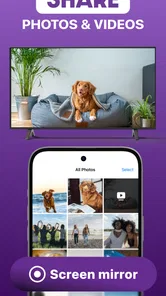
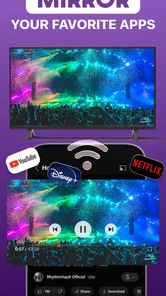
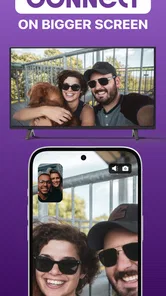
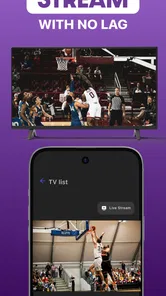
Analysis by Reviewed
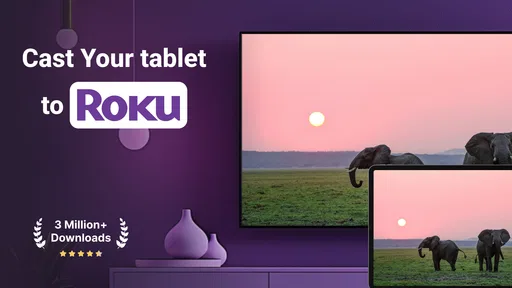
Getting something from a phone onto a Roku TV should be a simple task, but it often turns into a small troubleshooting session. A photo is trapped in a camera roll, a web video is open in the wrong browser tab, or someone wants to show a document to the room without passing a phone around. Roku Screen Mirror & Cast TV is designed to remove that repeated inconvenience by putting screen mirroring, photo sharing, and web video casting in one productivity-focused app.
I found its value less in being an exciting app and more in the minutes it can save during ordinary situations. It is free to install, aimed at everyone, and developed by AirBeamTV BV. The app has built a sizeable audience, with over a million installs and an average rating of 4.1 from around twenty-six thousand ratings. Those figures suggest a useful, established tool, although they do not guarantee that every Roku and phone combination will behave identically.
What the app is really useful for
The name makes the main purpose clear: this is a Roku screen-mirroring and casting utility for Android devices. Instead of relying only on the built-in sharing route in a particular phone or on the casting button inside a particular video service, it gives me a more direct place to begin. I can approach the task from the content I already have in front of me rather than first figuring out which system feature supports it.
That distinction matters because mirroring and casting are not quite the same thing. Mirroring shows the phone’s display on the television, which is useful for photos, websites, presentations, and apps that do not provide their own cast control. Casting a web video is more focused: the television receives the video while the phone acts as the controller. In practice, choosing the right method can make the experience smoother. I would mirror a page or photo collection, but I would try web video casting when I want the phone available for other tasks.
The app belongs in the productivity category rather than the entertainment category because its strongest role is practical. It helps me share information with other people, make a larger display out of a phone, and avoid awkward workarounds. The free entry point makes it easy to test with a particular Roku TV before deciding whether it deserves a regular place on the phone.
It is also worth setting expectations correctly. This is not a replacement for a Roku remote, a media library, or every native casting system. Its job is narrower and more useful: connect the phone’s content or a compatible web video with the Roku display. If I already use a service with excellent native Roku support, opening that service on the television may remain the cleaner option.
The first setup should be treated as a compatibility check
My advice is to test the connection before the moment when everyone is waiting to see a photo or presentation. Put the phone and Roku on the same home network, open the app, and look for the television from the available device choices. The important thing is not to rush past this stage. If the TV does not appear, repeatedly tapping the cast control is unlikely to solve the underlying network problem.
More From Our News Desk

Weather by Xiaomi Review: Clear at a Glance, Less Clear Up Close

X Under Pressure: Can It Recover When Posting Goes Wrong?

Clash of Clans Is Won Between the Battles

Android Auto Makes the Case for Quieter Car Software

MobiOffice: Transforming Mobile Productivity with Seamless Integration

EA SPORTS FC™ Mobile Soccer: Redefining Mobile Sports Gaming
A quick test with a non-sensitive photo is a sensible first step. It confirms that the television is visible, that the connection can be established, and that the image appears as expected. After that, try a short web video rather than beginning with a long presentation or an important meeting. This sequence separates basic discovery issues from content-specific problems and gives me a clearer idea of how reliable the setup is in my own home.
The app runs on Android with a minimum operating-system requirement of version 10, so older phones may not be suitable. On a compatible device, I would also keep the phone awake during the first test and avoid switching between several network connections. A phone using mobile data while the Roku remains on home Wi-Fi is a common source of confusion, even when both devices are physically close.
Once the connection works, the useful habit is to decide whether I need the entire phone display or only a piece of content. Full mirroring is flexible, but it also exposes notifications, accidental taps, and changes in orientation. For a private photo review that may not matter. For a group setting, I would enable a quiet notification environment and prepare the content before starting the mirror session.
The current version is 3.46, and the app is available at no upfront cost. There are in-app purchases ranging from $5.49 to $39.99 per item, so the free installation should be viewed as a chance to evaluate the workflow, not as a promise that every capability will remain unrestricted. I would test the exact action I need before paying, particularly if my main reason for installing it is web video casting rather than occasional photo sharing.
Everyday situations where the saved time is obvious
One realistic example is a family gathering. Someone asks to see holiday photos, but the pictures are on one person’s phone and the television is already available. Instead of sending selected images through a messaging app or passing the handset around, I can start a mirror session and let everyone look at the larger screen. The practical advantage is not image quality alone; it is avoiding the extra steps of exporting, uploading, and finding the photos again.
There is a small but important workflow improvement here: prepare the album first, then begin mirroring. Starting the session before opening the album can expose unrelated screens while I search. With the photos arranged in advance, the television becomes a shared viewing surface rather than a live broadcast of every phone action.
Another use is showing a web page to a colleague or friend. A phone screen is fine for reading alone, but it is poor when two or three people need to inspect a map, an article, a product page, or a booking detail. Mirroring lets everyone see the same page without crowding around the handset. I would still zoom and scroll carefully because a page designed for a narrow display may look awkward when enlarged.
Web video casting is useful when the video is found in a browser rather than inside an app with an obvious television button. This is where the utility can remove a particularly annoying detour. Instead of searching for the same page again on the Roku, I can begin with the link already open on the phone and send the video toward the TV when the page supports the casting workflow.
I would not assume that every web page behaves like a dedicated streaming service. A page may contain several videos, advertisements, embedded players, or controls that do not cooperate equally well. If a video refuses to cast, mirroring the browser is the practical fallback, although that keeps the phone display involved and may be less comfortable for long viewing.
The app can also help with informal work presentations. I can open a slide deck, spreadsheet, or document on the phone and use the Roku TV as a larger shared display. This is most useful for a quick discussion rather than a formal presentation. Small text, dense tables, and phone-shaped layouts can become difficult to read at television distance, so I would use it to support conversation, not as a substitute for a proper presentation setup.
For remote assistance, mirroring can make it easier to demonstrate a phone setting or walk a family member through an app. The larger screen gives both people a common view. However, I would stop the session before opening banking, private messages, password managers, or other sensitive screens. A convenient display connection should not become an accidental broadcast of personal information.
Where the friction disappears, and where it remains
The biggest improvement is having one recognizable starting point. Without a dedicated utility, I may need to remember whether the phone calls the feature screen cast, smart view, wireless display, or something else. I may also need to distinguish between a Roku-specific option and a service-specific cast button. This app reduces that mental overhead by focusing the task around the Roku television.
It is especially helpful for people who do not want to learn several different sharing methods. A parent showing pictures, a student displaying a web reference, or a visitor trying to share a video can understand the basic goal quickly: open the app, find the Roku, and choose the kind of content to share. That simplicity is more valuable than a long feature list when the task happens only occasionally.
There is also a useful separation between photo streaming and full-screen mirroring. Photos usually need a clean, stable presentation rather than every movement on the phone. A web video may benefit from casting instead of mirroring because the phone remains less tied up. Learning to choose among these routes is one of the less obvious ways to get better results from the app.
Reliability still depends on the home network. A busy wireless connection, a weak signal near the television, or devices that have shifted between networks can interrupt discovery or playback. The app cannot remove those physical limitations. When a connection fails, I would first check that both devices are on the same network, wake the Roku, close and reopen the app, and then retry with a simple photo.
Mirroring also brings the normal weaknesses of mirroring: notifications can appear, orientation changes can be distracting, and the phone may become difficult to use for anything else. Long sessions can be less comfortable than using the Roku’s own apps. If I am watching a full film or a frequently used streaming service, the native Roku version is generally the better choice because it avoids keeping the phone involved.
Another trade-off is control. A phone is convenient for selecting content, but it is not always a perfect replacement for a television interface. Scrolling a mobile web page while it is displayed across the room can feel imprecise, and some pages are simply not designed for a large screen. I get the best results when the phone is used to prepare and launch content, then left alone as much as possible.
The purchase model deserves attention as well. Since the app is free to download but includes paid items, I would not assume that occasional use and heavy use offer the same value. Someone who only shares a photo once every few months may be satisfied with the free experience. Someone who depends on repeated casting for work or regular viewing should examine what is included before committing to a purchase, then compare that cost with the convenience of the native Roku alternatives already available.
Who should use it, and who should choose another route
I think this app is a good fit for Android users with a Roku TV who regularly need to show phone content to other people. It is particularly practical for photos, browser pages, short demonstrations, and web videos that are inconvenient to locate again on the television. It also suits households where different people use different phones and nobody wants to memorize a device-specific screen-sharing process.
It is less compelling for someone who mainly watches established streaming services that already run directly on Roku. In that situation, using the Roku remote or the service’s native app is usually simpler and more stable for extended viewing. I would also look elsewhere if I needed advanced presentation controls, dependable business conferencing, or a carefully managed private display for sensitive work.
iPhone users should choose a solution designed for their own device ecosystem rather than assuming the Android experience will translate directly. Likewise, owners of older Android phones should check the operating-system requirement before planning around the app. The best purchase decision comes from matching the tool to a specific recurring problem, not from installing it simply because the television supports Roku.
For occasional use, I would keep a short routine: connect both devices to the same network, prepare the content, silence notifications, test with a photo or brief video, and only then start the group session. This takes less time than improvising when an audience is already waiting. It also makes it easier to tell whether a failure comes from the content, the network, or the television connection.
My verdict after using it as a practical Roku companion
Roku Screen Mirror & Cast TV succeeds when the problem is not “how do I watch television?” but “how do I get this particular thing from my phone onto the television right now?” Its value is measured in avoided searching, fewer cables, and less passing a phone from person to person. The combination of screen mirroring, photo sharing, and web video casting makes it more flexible than relying on a single app’s built-in cast button.
My recommendation is positive for Android households that often share phone content on a Roku screen. Start with the free version, test the exact photo or web video workflow you care about, and pay attention to how your own network behaves. Keep the native Roku apps for long viewing, and use this utility when the phone is the natural place where the content already exists.
AirBeamTV BV has made a focused productivity app rather than an all-purpose television replacement. That focus is its strength: it addresses a recurring, ordinary annoyance without asking me to reorganize my media collection. It is not frictionless in every situation, and network conditions or mobile web pages can still complicate the process, but when I need a quick bridge between an Android phone and a Roku TV, it is a useful one to have ready.
Roku Screen Mirror & Cast TV Frequently Asked Questions
Can I use Roku Screen Mirror & Cast TV to show a presentation or photos on a larger screen?
Yes. The app is designed to cast photos and other supported media, as well as mirror your phone screen to a Roku device. That can be useful for sharing personal pictures, viewing compatible videos, or displaying a presentation on a TV. Connect your phone and Roku to the same Wi‑Fi network, then select the Roku and choose the content or screen-mirroring option.
Does Roku Screen Mirror & Cast TV work with an iPhone as well as an Android phone?
The app is intended for mobile-to-Roku casting, but the experience can differ between iPhone and Android. On iPhone, compatibility may depend on whether the Roku hardware supports AirPlay or another method offered by the app. Android devices generally provide broader screen-mirroring support. Check your phone and Roku setup before downloading, since device compatibility affects which features are available.
Is Roku Screen Mirror & Cast TV free to download, and are there in-app purchases?
The app is free to download, so you can try it without paying upfront. It also offers in-app purchases, with items ranging from around $5 to $40. Check the purchase details in the app before confirming anything, especially if you only need occasional casting and want to understand which features are available without a purchase.
What should I check before installing Roku Screen Mirror & Cast TV?
Roku Screen Mirror & Cast TV is a productivity app from AirBeamTV BV. It is intended for a general audience and requires Android 10 or later. Before downloading, check that your phone meets this system requirement and that you have a Roku device you want to connect to. The app’s main purpose is screen mirroring and casting to Roku.
What is Roku Screen Mirror & Cast TV, and how does it work?
Roku Screen Mirror & Cast TV is designed to send photos, videos, music, or your mobile device’s entire screen to a compatible Roku streaming player or Roku TV. After installing the app, you generally connect your phone and Roku device to the same Wi‑Fi network, select the Roku receiver, and choose whether to mirror the screen or cast supported media directly.
Pros
- Supports screen mirroring from compatible Android devices to Roku TVs.
- Can cast photos
- videos
- and music to a larger screen.
- Useful for presentations
- family viewing
- and sharing content.
- Setup is generally simple when both devices use the same Wi-Fi network.
- Works with many Roku TV models and Roku streaming players.
Cons
- Requires a stable shared Wi-Fi connection for reliable performance.
- Some features may require a premium subscription or in-app purchase.
- Mirroring quality depends on your phone
- Roku model
- and network speed.
- May show noticeable delay when mirroring games or interactive apps.
- Compatibility with DRM-protected content can be limited.











