Polaris Office: Edit&View, PDF
- 13.65K
- 3.5
- Installs
- 50.00M
- Price
- Free

Screenshots
Analysis by Reviewed
I opened Polaris Office expecting a mobile document viewer, but it is more useful to think of it as a compact office workspace for an Android phone or tablet. It brings word-processing, spreadsheet, presentation, PDF, TXT, and ZIP-file handling into one productivity app, which is convenient when a document arrives through email or messaging and I do not want to switch between several separate tools.
My first impression was practical rather than exciting: this is an app built around getting a file open, making a sensible change, and sending it on. That sounds simple, but it matters on a phone. A mobile office suite succeeds when it removes small obstacles, such as wondering which app can open a file or whether a document will remain readable after an edit. Polaris Office aims to cover those everyday moments in one place.
What to expect before you start
Polaris Office is a free productivity app from Polaris Office Corp. It has been available since February 24, 2014, and its long presence is reflected in its broad reach: the app has passed 50 million installs and sits at a 3.5 average from around 620 thousand ratings. Those figures suggest a widely used tool, but they also tell me to keep expectations realistic. This is a general-purpose mobile office rather than a perfect replacement for a full desktop suite.
The app is suitable for Everyone, and it supports devices running Android 7.0 or later. The current version is 9.9.20. The basic download is free, while optional in-app purchases range from $0.99 to $189.99 per item. I would pay attention to the upgrade screens during use, especially if I only need occasional document edits and do not want to commit to an extra expense.
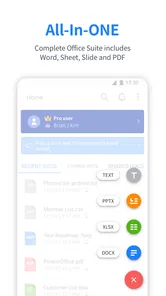
The main attraction is the range of formats. I can use it for a text document, a spreadsheet, a slide deck, a PDF, a plain TXT file, or a ZIP archive without treating each file as a separate project. That is particularly helpful for students, freelancers, office workers, and anyone who receives attachments on a phone. Instead of asking whether a file belongs in one specialized app or another, I can begin with Polaris Office and see what kind of work is possible.
There is an important distinction between viewing and editing. Opening a file on a phone is usually easy; making a careful edit is where mobile software is tested. A small correction in a paragraph is a comfortable task. Reworking a long report, building a complicated spreadsheet, or aligning a detailed presentation can feel cramped and slower than working on a computer. I see this app as a strong companion for quick work and review, not as my first choice for every major document project.
Who will get the most from it
I would recommend it to someone who needs one familiar place for mixed office files. It is also a sensible choice for people who often work away from a desk and need to inspect an attachment before deciding what to do with it. A student checking a handout, a manager reviewing a presentation, or a small-business owner correcting a quote can all benefit from having several file types under one roof.
More From Our News Desk

Weather by Xiaomi Review: Clear at a Glance, Less Clear Up Close

X Under Pressure: Can It Recover When Posting Goes Wrong?

Clash of Clans Is Won Between the Battles

Android Auto Makes the Case for Quieter Car Software

MobiOffice: Transforming Mobile Productivity with Seamless Integration

EA SPORTS FC™ Mobile Soccer: Redefining Mobile Sports Gaming
On the other hand, I would hesitate to recommend it as the only office tool for a person who creates large spreadsheets every day or depends on highly precise page layout. A desktop office program gives more room for menus, formulas, formatting controls, and side-by-side comparison. A dedicated PDF editor may also be better when PDF-specific work is the main purpose rather than one part of a broader workflow.
Getting set up without overthinking it
After installing the app, I would begin with a small file rather than an important contract or a final school submission. This gives me a safe way to learn how Polaris Office presents documents, where editing controls appear, and how saving behaves on my device. Starting with a short TXT file or a simple document makes the first few minutes less confusing than opening a complex presentation immediately.
The first useful habit is to keep the original file untouched until I am satisfied with the result. When I receive an attachment, I would open it, read enough to understand its purpose, and then decide whether I need to edit it or simply view it. If the change is minor, I would work from a copy with a clear name. That small step prevents the common mobile mistake of overwriting the version someone else sent.
I also recommend learning the difference between the app’s file-opening experience and the editing experience. A document can look fine in reading mode but become more demanding once I place the cursor, select text, or adjust a cell. On a phone, the keyboard can cover part of the page, so I would rotate the device when a paragraph or table becomes difficult to inspect. This is not a Polaris Office feature so much as a practical way to make its mobile interface easier to use.
For a first-time user, the most reassuring setup is a short personal workflow: open a file, make one harmless change, save it under a new name, close it, and open it again. That sequence answers the questions that matter most at the beginning. I learn whether the file is easy to find, whether the edit remained in place, and whether the document still looks usable after reopening.
My first meaningful success
The best first task is not creating a long document from a blank page. I would choose a real but low-risk job, such as correcting a meeting time in a text document, checking a few figures in a spreadsheet, or reviewing a PDF before sending feedback. These tasks show the app’s value quickly because they connect the tool to something I actually need to finish.
For example, imagine I am on the way to a meeting and receive a document with an outdated address. I can open the attachment in Polaris Office, locate the relevant line, make the correction, save a separate copy, and check the result before sharing it. The benefit is not that the phone suddenly becomes a laptop. The benefit is that a small interruption does not have to wait until I return to a desk.
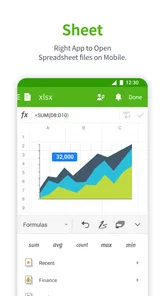
With a spreadsheet, I would begin by checking a few cells rather than attempting a full financial model. Mobile editing is most comfortable when the goal is narrow and visible. I can verify a value, correct a typo, or inspect a row while keeping the scope under control. If the sheet contains many columns, I would avoid making assumptions based on a quick glance and would zoom or rotate the screen before changing anything important.
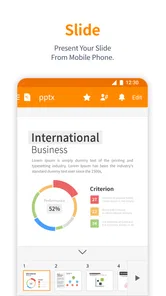
Presentations need a similar approach. I would use the app first to review slide content and make a small wording adjustment. Detailed slide design can become fiddly on a touch screen, particularly when several objects are close together. The app is more convincing as a way to keep a presentation moving while away from a computer than as my preferred environment for designing an entire deck.
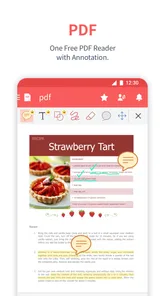
PDF handling is valuable in a different way. A PDF is often the final form of a document, so the immediate need may be to read it, check a page, or confirm that information appears correctly. I would use Polaris Office as a convenient first stop for that inspection. If my work depends on specialized PDF operations, I would compare the available tools with a dedicated PDF application before making it central to my workflow.
Small workflows that make the app more useful
One less obvious strength is the mixed-file workflow. A ZIP archive can contain several related documents, and having ZIP support in the same office environment means I can begin by examining the package instead of searching for another utility. I would still keep the process organized: identify the files I need, work on the relevant document, and avoid making changes to every item simply because they are available.
Another useful approach is to treat the app as a triage tool. When several attachments arrive, I can open each one, decide which needs a response, and reserve detailed editing for the files that genuinely require it. This is more efficient than opening every file in a different application. It also reduces the chance of losing track of which version is the current one.
I would use TXT files for quick notes or lightweight text that does not need elaborate formatting. That is a good way to keep the first task simple and understand the basic rhythm of opening, changing, and saving. Once that feels comfortable, I would move to a document or PDF instead of trying to learn every format at once.
A further tip is to separate review from creation. On a phone, reviewing a document can be quick because I am looking for a specific issue. Creating a polished report requires more decisions about structure, spacing, and presentation. Polaris Office can support both activities, but my expectations would be different. I would use it confidently for short creation tasks and mobile revisions, while saving intensive layout work for a larger screen.
Where first-time users may get confused
The biggest source of friction is the difference between a familiar office format and a comfortable mobile editing experience. A Word-style document may open successfully, yet selecting an exact word with a finger can take patience. Tables can require horizontal movement, and a slide that looks balanced on a computer may be harder to judge on a small display. I would not interpret that as a file failure; it is usually a sign that the task needs a slower, more deliberate approach.
Another point to watch is saving. I prefer to use a new filename whenever the original came from another person. This makes the workflow safer and also helps me identify the edited version later. If I am working on several attachments, meaningful names are more useful than relying on memory. The app can open many kinds of files, but organization still depends on the person using it.
Users may also wonder whether the free version is enough. My answer is: it depends on the job. For occasional viewing and modest edits, the free starting point makes the app easy to try. If I use it heavily, I would read each purchase screen carefully and decide whether the added value matches my needs. The presence of optional purchases does not automatically make the app unsuitable, but it means I would not assume every part of the experience is included at no cost.
The rating of 3.5 is another reason I would approach it as a practical tool rather than a flawless one. A rating like that can reflect different expectations: some people want a quick viewer, while others expect a complete desktop office suite in their pocket. In my judgment, the app makes the most sense when I define the task clearly and accept that detailed work may be less comfortable on mobile.
Compatibility is worth considering before an important deadline. If a document contains complicated formatting, embedded elements, or a carefully arranged presentation, I would open the edited copy on the device or computer where it will ultimately be used. A quick final check is especially important for reports, applications, invoices, and school work. This habit is more reliable than assuming that an ordinary-looking edit has left every page exactly as intended.
How it compares with familiar alternatives
Compared with using separate word, spreadsheet, presentation, PDF, and archive apps, Polaris Office is simpler at the starting point because it gathers those jobs together. I do not need to decide which specialist tool should handle an attachment before I can inspect it. That convenience is its clearest advantage.
Compared with a full desktop office suite, the trade-off is control. A computer offers a larger working area and generally makes complex formatting, formula work, and slide arrangement easier to inspect. I would choose Polaris Office when mobility and format coverage matter more than maximum precision.
Compared with a dedicated PDF application, Polaris Office has a broader purpose but may not feel as focused for people whose entire workflow revolves around PDFs. The same is true for heavy spreadsheet work: a specialist spreadsheet tool can be preferable when advanced analysis is the main activity. The right choice depends on whether I need one versatile office companion or the deepest possible tool for one format.
For someone already committed to another office ecosystem, switching may not be worthwhile simply because Polaris Office opens common files. Its appeal is strongest for users who value a single mobile workspace, receive varied attachments, or want a straightforward backup option when their usual computer is unavailable.
The next step after the first successful edit
Once I have completed a small task successfully, I would build a repeatable routine around it. I would use the app to review incoming files, make limited corrections, save clearly named copies, and perform a final visual check. This turns the application from something I installed “just in case” into a dependable part of a mobile workflow.
I would also decide in advance which jobs belong on the phone and which should wait for a computer. Quick corrections, document checks, short notes, and attachment triage fit naturally on a mobile screen. Long reports, intricate spreadsheets, and design-heavy presentations deserve more space. Knowing that boundary is the difference between finding the app useful and becoming frustrated with it.
My final view is positive but measured. Polaris Office is a capable free starting point for people who want broad office-file support in one Android productivity app. The combination of documents, spreadsheets, presentations, PDFs, TXT files, and ZIP archives is genuinely convenient, especially when an everyday task arrives unexpectedly. I would recommend trying it with a low-risk file, learning the save-and-reopen routine, and judging it by the work you actually need to do.
My recommendation is simple: use Polaris Office as a flexible mobile office companion, not as a promise that every desktop task will feel equally comfortable on a phone. If that matches your expectations, it can save time and reduce app switching. If your work depends on advanced formatting or specialist PDF and spreadsheet controls, a dedicated alternative may serve you better. For first-time users, the path to success is reassuringly short: open one file, make one useful change, save a separate copy, and confirm the result before moving on.
Polaris Office: Edit&View, PDF Frequently Asked Questions
Can I use Polaris Office to create new documents, or is it only for viewing files?
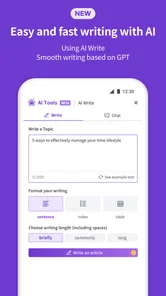
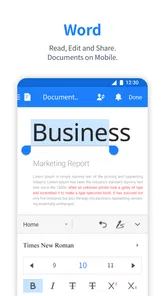
Polaris Office is a mobile productivity suite for viewing, creating, and editing common office documents, including Word, Excel, PowerPoint, and PDF files. It can be useful when you need to start a document or make changes while away from a computer, as well as when you simply need to review an attachment. The available tools may vary by file type and plan.
Is Polaris Office intended for beginners or experienced office users?
Polaris Office is aimed at both everyday users and professionals who work with documents on a phone or tablet. Its focus on familiar office file types makes it approachable for routine tasks such as reviewing attachments, editing text, and checking spreadsheets or presentations. People with more specialized workflows should try their usual files first, since complex formatting and advanced requirements can affect how suitable a mobile app feels.
Does Polaris Office work on older phones and tablets?
Polaris Office is available for Android devices running version 7.0 or later, so it may suit users with older hardware as long as the operating system meets that requirement. It is a productivity app for working with documents on mobile, but the experience can depend on the device and the size or complexity of the files. Check your operating system before downloading.
What file types can I open with Polaris Office?
Polaris Office is presented as a mobile office app for Word, Excel, PowerPoint, PDF, and TXT files, and it also includes support for ZIP files. That range makes it useful for opening common work documents and compressed files from a phone or tablet. If you regularly rely on a less common format or specialized formatting, test a sample file before making it part of your workflow.
What is Polaris Office: Edit&View, PDF used for?
Polaris Office is a mobile productivity suite for viewing, creating, and editing common office documents, including Word, Excel, PowerPoint, and PDF files. During testing, it proved useful for opening attachments, making quick text or spreadsheet changes, reviewing presentations, and managing documents from a phone or tablet without needing a desktop computer. Its tools are aimed at both everyday users and professionals who work with files while traveling.
Pros
- Supports multiple document
- spreadsheet
- and presentation formats.
- Includes useful PDF viewing and annotation tools.
- Cloud syncing makes files accessible across different devices.
- Offers templates that speed up common office tasks.
- Mobile interface is suitable for quick edits on the go.
Cons
- Some advanced features require a premium subscription.
- Ads may appear for users on the free plan.
- Large files can feel slower on older smartphones.
- Formatting may change when opening complex Microsoft files.
- Offline access and cloud features may depend on account setup.











