Pinwheel Caregiver
- 110.00
- 3.5
- Installs
- 10.00K
- Price
- Free

Screenshots
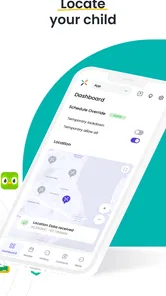
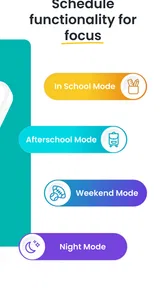
Analysis by Reviewed
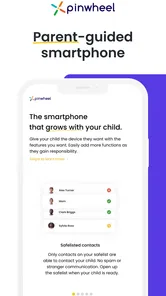
Managing a child’s first smartphone is rarely a one-time setup job. The useful part is not simply choosing a device; it is keeping the phone aligned with the rules your family has agreed on while still leaving enough room for independence. That is where Pinwheel Caregiver fits. I see it as the companion app for adults who manage a child’s Pinwheel smartphone, rather than as a general parental-control tool for every kind of phone.
After spending time with the app, my impression is practical rather than flashy. It gives the caregiver a separate place to handle the child’s phone, which is more comfortable than trying to make every change on the child’s handset. The experience makes the most sense when a family already uses Pinwheel hardware and wants a repeatable routine for supervision. If you are looking for a universal monitoring service that works across unrelated devices, this is probably not the right starting point.
How the everyday caregiver workflow feels
The basic workflow is straightforward: the adult opens the portal, selects the child’s Pinwheel smartphone, reviews the available controls, and makes the change that is needed. That separation matters. A child can use the phone normally while the caregiver handles management from their own device, avoiding the awkward moment of borrowing the phone every time a setting needs attention.
I would begin with a short family setup session rather than changing everything at once. Decide which contacts the child needs, which communication habits are acceptable, and what the phone is meant to do during school, bedtime, travel, or emergencies. Then use the caregiver portal to support those decisions. The app works best as part of a clear agreement, not as a substitute for one.
A realistic example is a school-night adjustment. Before bedtime, I would check the child’s phone from the caregiver side, confirm that the intended communication setup is still in place, and avoid making several unrelated changes at the same time. In the morning, the adult can review the arrangement again if the family’s routine changes. That small habit is more reliable than repeatedly improvising rules when a problem appears.
The important distinction is between managing a phone and supervising a child. Pinwheel Caregiver helps with the first task. It can make the adult’s side of the arrangement more organized, but it does not remove the need to explain why a rule exists or when a child can ask for an exception. I found that this makes the app especially suitable for families gradually teaching responsible phone use.
The app is free, carries an Everyone content rating, and comes from Pinwheel.com. It belongs in the parenting category, and its purpose is narrow enough that new users should understand the relationship between the app and the Pinwheel smartphone before installing it. The caregiver app is not the phone itself; it is the management layer around that phone.
More From Our News Desk

 Gmail
GmailGmail in a Busy Inbox: Who Benefits Most?
From first account to crowded workday, Gmail earns its place through dependable search and flexible sorting—but its best fit depends on how much inbox maintenance you can tolerate.

 Prime Video
Switching to Prime Video: What Changes in Your Viewing Routine
Prime Video can make a compelling second home for streaming, but switching means learning a different catalog, rental layer, and route from browsing to playback.

 Universal TV Remote Control
Universal TV Remote Control Works Best as a Reliable Backup
A phone remote earns its place through quick setup and reliable habits. Here is how to get more from Universal TV Remote Control—and where its limits show.

 Weather - By Xiaomi
Weather by Xiaomi Review: Clear at a Glance, Less Clear Up Close
Xiaomi’s weather app makes everyday forecasts quick to scan, but its calm surface can leave useful details and recovery paths harder to find than they should be.

 X
XX Under Pressure: Can It Recover When Posting Goes Wrong?
A resilience-focused review of X, examining setup, mistaken posts, interruptions, weak connections, and the gaps that matter when recovery needs to be dependable.

 Clash of Clans
Clash of Clans Is Won Between the Battles
Its raids are quick; its community is a long-term project of coordination, teaching, rivalry, and shared responsibility—with all the friction that entails.
Latest News



Start with the device relationship
Before judging the controls, I would make sure the caregiver account and the child’s Pinwheel phone are connected in the way the service expects. This is the first place where confusion can waste time. A management app may appear empty or less useful if the adult is signed into the wrong account or looking for a device that has not been associated correctly.
For that reason, I recommend keeping the first session calm and private. Have the child’s phone nearby, use the same account details consistently, and test one simple management action before building a complicated routine. This is a better approach than changing multiple options and then trying to work out which one produced an unexpected result.
Experienced caregivers will also benefit from agreeing on a naming habit for devices or profiles when more than one child is involved. Even a simple, recognizable label can reduce mistakes when the adult is tired or in a hurry. That is not a glamorous feature, but it is the kind of small discipline that makes remote management safer.
Settings worth checking before daily use
Once the connection is working, I would review the available controls slowly and group them by purpose. Think in terms of communication, everyday access, and family routines rather than opening every screen without a plan. This makes it easier to remember what was changed and why.
The first useful check is whether the child’s phone reflects the family’s intended contact arrangement. A child who has a phone for safety may need a smaller, carefully considered communication circle than a teenager who is learning to manage more relationships. The right setup depends on age and trust, so I would not treat the most restrictive arrangement as automatically best.
Next, look at how the phone fits into predictable moments. School hours, meals, homework, and sleep are different situations, and a rule that works for one may be irritating in another. If the caregiver portal supports the relevant controls for the Pinwheel phone, use them as part of a schedule you can explain to the child. If the family cannot describe the rule in ordinary language, the setting may be too complicated to maintain.
One of my strongest practical tips is to record the reason for a meaningful change outside the app, perhaps in a shared family note. The portal is for managing the phone, but a short note such as “changed after school routine” helps adults stay consistent. It also prevents a second caregiver from undoing a setting simply because they do not know why it was chosen.
Another useful habit is to check the child’s experience after making a change. A setting can look sensible from the adult side but create friction when the child actually needs to contact someone or complete a normal task. I would make one adjustment, ask the child to try the relevant action, and then decide whether the arrangement is practical. That test-and-review loop is more valuable than assuming the first configuration is perfect.
The current version is 1.7.9, and the app supports Android 7.0 and later. That makes it accessible to people using older Android devices, although I would still keep the caregiver phone updated when possible. Compatibility is only one part of reliability; the adult also needs a phone that can open the portal comfortably and a routine for checking it when changes matter.
Faster patterns for repeatable management
The biggest improvement comes from turning occasional management into a short checklist. I would check the phone at the same moments each day or week, depending on the child’s age and the family’s needs. A predictable review is less intrusive than constant checking and less likely to become a forgotten chore.
A good pattern is to separate urgent changes from routine reviews. If the child needs an immediate communication adjustment, handle that directly instead of waiting for the normal check-in. For ordinary maintenance, use a fixed time when the adult is not distracted. This reduces accidental changes and makes it easier to notice whether the setup still matches real life.
Families with two caregivers should also divide responsibility clearly. One adult can own the regular review while the other knows how to make an urgent change. That arrangement avoids the common problem where both adults assume the other person is watching the settings. The portal becomes much more useful when it is part of a shared process rather than a private dashboard that only one person understands.
I would also avoid changing settings in response to every small disagreement. If a child forgets a rule once, a conversation may be more appropriate than a technical restriction. Use the app for stable boundaries and practical safety decisions, not as a remote replacement for parenting. This is where the product’s narrow purpose becomes a strength: it encourages the adult to think about phone management specifically, instead of promising to solve every family conflict.
There is a useful trade-off between convenience and independence. A caregiver can make the phone easier to supervise by keeping control centralized, but too much adult intervention may prevent the child from learning how to make sensible choices. I would gradually involve the child in reviewing the arrangement, explaining what can change and what requires permission. The right endpoint is not maximum control; it is a phone routine the child can eventually handle with less help.
Another advanced but simple technique is to use a change window. Rather than making adjustments randomly throughout the day, choose a regular time to review requests and discuss them. This gives the child a clear way to ask for an exception and gives the adult space to consider it. It also keeps the caregiver portal from becoming a source of constant notifications or anxiety, even though the app itself is designed for management.
Where the app’s limits become important
Pinwheel Caregiver is not a universal solution for households with mixed devices. Its value depends on the child using a Pinwheel smartphone, so families comparing it with broad parental-control services should first decide whether device-specific management is what they want. A cross-platform service may be more convenient if children use different phone brands or if parents need one dashboard for several unrelated systems.
It is also not the best choice for someone who wants a large, all-purpose family safety suite. The app’s identity is focused: it manages the child’s Pinwheel phone. That focus can make the experience easier to understand, but it also means I would not install it expecting it to replace every communication, education, or household scheduling tool.
Caregivers should be prepared for occasional friction when a child’s needs change faster than the family’s rules. A younger child may need tight boundaries, while an older child may need more flexibility within the same phone arrangement. The portal can support management, but the adult still has to decide when a restriction has become outdated. No setting can make that judgment automatically.
There is also a human limitation that is easy to overlook: remote control can create false confidence. Seeing a management screen may make an adult feel that everything is under control, while the child may still be struggling with peer pressure, distraction, or confusion about expectations. I would pair the app with regular conversations and occasional hands-on checks of how the child actually uses the phone.
The public response is mixed, with a 3.5 average from 223 ratings and 109 written reviews. I would read that as a reason to set expectations carefully rather than as a simple verdict. A focused caregiver portal can be very useful when the Pinwheel setup matches your family, but the experience will feel less compelling if you expected a broad, highly automated parental-control platform.
Who should use it, and who should skip it?
I would recommend it to a parent or guardian who already has a Pinwheel smartphone in the family and wants a dedicated way to manage it from the adult side. It is particularly appealing when the goal is a gradual introduction to phone ownership: the child gets a usable device, while the caregiver retains a structured role in setting boundaries and reviewing changes.
It can also suit families that value repeatable habits over constant surveillance. The app gives the adult a place to manage the phone, but the best results come from combining that access with clear rules, scheduled check-ins, and conversations about growing independence. In that context, it feels like a practical part of a parenting system rather than a magic monitoring button.
I would skip it if the child does not use a Pinwheel smartphone, if the household needs one tool across several unrelated devices, or if the main requirement is extensive activity reporting across every app and service. I would also look elsewhere if the family wants a completely hands-off system. This product still requires adult judgment, and that is central to both its usefulness and its limits.
Compared with ordinary parental-control alternatives, its strongest advantage is the focused relationship between caregiver and Pinwheel phone. A general service may offer broader device coverage, but it can also introduce more menus, account layers, and compatibility questions. Pinwheel Caregiver is the more logical choice when the family has committed to the Pinwheel ecosystem and wants management that stays close to that device.
For a family using different platforms, the opposite may be true. A wider service can reduce the need to learn separate tools, even if it is less tailored to the Pinwheel experience. I would make that decision based on the devices in the home, not on feature lists alone. The most impressive control set is not helpful if it does not fit the phones your children actually carry.
My final view after building a routine around it
My overall opinion is that Pinwheel Caregiver is most successful when treated as a calm, focused management companion. It does not need to overwhelm the adult with a maze of options to be useful. Its real value is giving caregivers a separate place to guide a child’s Pinwheel smartphone while the family develops consistent expectations.
The best way to use it is to start small, test each important change, keep caregivers coordinated, and review the arrangement as the child grows. Those habits make more difference than repeatedly opening the app without a plan. I especially like the idea of combining a short scheduled review with a clear process for urgent requests, because it balances supervision with the child’s need for normal phone use.
Pinwheel.com released the app on May 26, 2021, and it remains a free parenting app for Android users on version 7.0 or later. With over ten thousand installs, it has found a modest audience rather than becoming a universal household standard. That feels consistent with the product itself: it is a specific tool for a specific phone relationship.
My recommendation is simple: choose it when your family uses a Pinwheel smartphone and wants deliberate caregiver involvement, not when you need a platform-neutral monitoring suite. Used with clear conversations and repeatable routines, it can make phone management less chaotic. Used as a substitute for trust, communication, or adult judgment, it will feel limited. For the right household, that focused approach is exactly the point.
Pinwheel Caregiver Frequently Asked Questions
What should I check before installing Pinwheel Caregiver?
Pinwheel Caregiver is a free parenting app from Pinwheel.com, released on May 26, 2021. It is rated for Everyone and requires Android 7.0 or later. Before installing, consider whether you have a Pinwheel phone and caregiver account, since the app is designed to manage a child’s Pinwheel smartphone rather than serve as a general-purpose phone-management tool.
What is Pinwheel Caregiver, and who is it designed for?
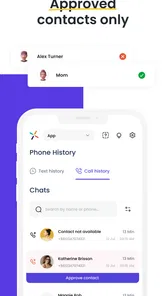
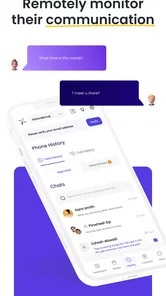
Pinwheel Caregiver is a companion app intended to help approved caregivers manage and support a Pinwheel phone user, typically a child, older adult, or someone who benefits from a more controlled mobile experience. Depending on the account setup, caregivers may be able to review activity, manage contacts and applications, adjust device settings, and support safer communication without needing constant physical access to the phone.
Does Pinwheel Caregiver let me control apps, contacts, and phone settings remotely?
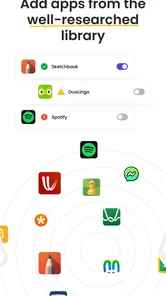
The app is built around caregiver management, but the exact controls available can depend on the Pinwheel device, subscription, account permissions, and current software version. In general, caregivers may manage approved contacts, applications, communication features, and selected safety settings remotely. Before downloading, check the official Pinwheel documentation to confirm which controls are supported for your specific phone and plan.
Is Pinwheel Caregiver suitable for children and family safety management?
Pinwheel Caregiver can be useful for families that want a structured phone experience rather than unrestricted smartphone access. Caregivers can typically help limit distractions, approve communication options, and encourage safer usage habits. It should not be treated as a complete replacement for conversations, supervision, or emergency planning, and families should explain monitoring rules clearly to the phone user.
Does Pinwheel Caregiver require a Pinwheel phone or paid subscription?
Pinwheel Caregiver is primarily intended to work with the Pinwheel ecosystem, so access may require a compatible Pinwheel phone, an active account, and in some cases a service subscription. Features are not necessarily available on every Android or iOS device, and availability can vary by plan. Review the current compatibility and pricing information before installing to avoid unexpected limitations.
Pros
- Simple interface makes essential caregiver tasks easy to find.
- Medication reminders can help support consistent daily routines.
- Useful for coordinating care between family members and helpers.
- Clear updates may reduce the need for frequent phone calls.
- Designed with older adults and caregivers in mind.
Cons
- Some features may require a compatible Pinwheel phone or service.
- Caregivers and users may need time to learn the app together.
- Limited usefulness if family members do not actively participate.
- Sharing care information raises privacy and account-security concerns.
- Dependence on internet access can affect timely updates and alerts.