

Photo Collage - Frame & Editor
- 32.00
- 4.4
- Installs
- 100.00K
- Price
- Free

Screenshots
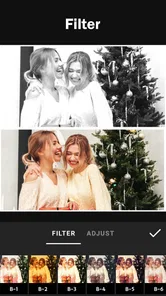
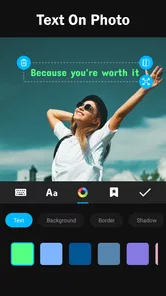
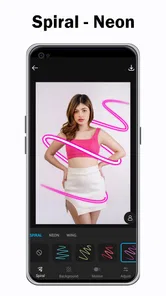
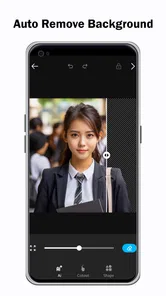
Analysis by Reviewed
I like collage apps when they remove the small bits of friction between choosing photos and sharing something that looks intentional. Photo Collage - Frame & Editor takes that straightforward route: it is a free photography app from Azura Mobile Apps for arranging pictures into a single shareable design, with editing tools built around the same process. I found it most appealing for quick personal projects rather than serious photo retouching.
The app is listed for Everyone and works on Android 8.0 or newer, which makes it relevant to people using older phones as well as newer devices. It has reached over 100 thousand installs and holds a 4.4 average from around 964 ratings. Those figures suggest a healthy level of interest, but they do not replace hands-on judgement, especially when the main question is whether an app remains comfortable during repeated editing.
How Photo Collage - Frame & Editor feels in everyday use
My first impression is that the app is designed around a quick visual result. Instead of treating each image as a separate editing project, I approach it as a small layout task: select a group of photos, arrange them, adjust the appearance, and prepare the finished collage for sharing. That makes it a natural fit for birthdays, weekend trips, family updates, simple mood boards, and social posts where several images tell the story better than one.
The important distinction is that this is not the same as a full desktop-style design tool. I would not open it expecting advanced layer management, detailed masking, or the precision of a dedicated professional editor. Its value is in combining several ordinary photos into one composition without making me move between a photo editor, a design app, and a sharing screen.
The store summary presents it as a way to boost creativity through collage, editing, and sharing. In practice, I think the strongest part of that promise is the reduced number of steps. A focused collage workflow can be more useful than a large collection of unrelated tools, particularly when I am working from a phone and want to finish before the moment has passed.
Speed expectations before you start a project
For a small collage, I expect the app to feel reasonably direct because the task itself is compact: choose images, make layout decisions, and export or share. The experience should be quickest when I begin with a clear idea, such as a four-photo travel recap or a simple before-and-after comparison. The less time I spend browsing without a plan, the more the app feels like a practical shortcut.
There is also a useful mental trick here: decide the story of the collage before selecting every picture. If the goal is to show a meal, a place, and the people who were there, I can choose one strong image for each role instead of filling the canvas with similar shots. This is not a flashy feature, but it makes the editor feel faster because I am making fewer revisions.
More From Our News Desk
 Instagram
Instagram’s Power Comes From Its Place in Your Phone
A close look at how Instagram turns Meta’s reach, recommendation systems and everyday camera habits into durable platform power—and what that costs users.

 Gmail
GmailGmail in a Busy Inbox: Who Benefits Most?
From first account to crowded workday, Gmail earns its place through dependable search and flexible sorting—but its best fit depends on how much inbox maintenance you can tolerate.

 Prime Video
Switching to Prime Video: What Changes in Your Viewing Routine
Prime Video can make a compelling second home for streaming, but switching means learning a different catalog, rental layer, and route from browsing to playback.

 Universal TV Remote Control
Universal TV Remote Control Works Best as a Reliable Backup
A phone remote earns its place through quick setup and reliable habits. Here is how to get more from Universal TV Remote Control—and where its limits show.

 Weather - By Xiaomi
Weather by Xiaomi Review: Clear at a Glance, Less Clear Up Close
Xiaomi’s weather app makes everyday forecasts quick to scan, but its calm surface can leave useful details and recovery paths harder to find than they should be.

 X
XX Under Pressure: Can It Recover When Posting Goes Wrong?
A resilience-focused review of X, examining setup, mistaken posts, interruptions, weak connections, and the gaps that matter when recovery needs to be dependable.
Latest News



On a newer phone, a modest collage should generally be a lighter task than editing a long video or applying complex effects to a large batch of images. Still, I would avoid assuming that every project will behave identically. Image resolution, the number of photos, available storage, and the phone’s remaining memory can all influence how comfortable editing feels, even when the app itself is well designed.
What happens when the project becomes demanding
The heavier moments are likely to come when I combine many high-resolution photos, change the arrangement repeatedly, or move between editing and sharing several times. A collage is visually simple, but the app still has to load source images, keep the working composition available, and prepare a final file. On a device with limited free space or older hardware, those steps may feel less immediate than they do on a recent model.
My practical advice is to build the layout in stages. I start with the photos that must appear, establish the main arrangement, and only then spend time refining the look. That workflow reduces unnecessary reprocessing and makes it easier to identify which image is causing a composition problem. It also prevents a common mistake: adding too many nearly identical photos and then trying to rescue the design with more adjustments.
For event coverage, I would create several small collages instead of forcing every image from the day into one crowded frame. A compact set of themed results is easier to view and share, and it gives the editor less work at once. This is one of the clearest trade-offs with a phone-based collage app: convenience is strongest when the project stays focused.
Reliability and recovering from an interrupted edit
Reliability matters more to me in a creative app than an impressive list of tools. If I am preparing a collage before sending it to friends, I need a workflow that does not leave me unsure whether the final image was actually produced. I pay attention to whether the app returns sensibly after switching away, whether the selected images remain available, and whether the final sharing step is clear.
I would still treat an unfinished collage as temporary until it has been saved or shared successfully. Phone calls, low memory, accidental gestures, and operating-system interruptions can affect any mobile editor. The safest habit is to finish one meaningful stage at a time and save the result before experimenting with a completely different arrangement.
If an edit is interrupted, I would first reopen the project and check whether the composition is still present before rebuilding anything. If the result is missing, recreating a smaller version from the original photos is usually less frustrating than trying to reproduce an elaborate design from memory. That is another reason I prefer a simple, deliberate layout: recovery is easier when the creative process is understandable.
The app comes from Azura Mobile Apps and is currently at version 1.2.3. That gives me a useful reference point when judging compatibility, but I would still keep the operating-system requirement in mind. An app can be perfectly suitable for one phone and feel less comfortable on another with the same Android version if storage or memory conditions differ.
Device limits that can change the experience
Because the minimum supported system is Android 8.0, people with older compatible devices can consider it without needing a recent phone. That does not mean every older device will offer the same smoothness. A phone with limited free storage may take longer to load large photos, while a device with modest memory may be more sensitive to switching between the gallery, the editor, and another app.
I would also be careful with the source material. Photos captured by a modern camera can be much larger than images saved from messaging apps or social networks. If a project starts feeling cumbersome, selecting a smaller set of images is the first adjustment I would make. Keeping the original photos untouched and working from copies is sensible when the pictures matter, particularly for family events or irreplaceable travel memories.
Battery use is difficult to judge from the app’s basic identity alone, but long editing sessions naturally ask more of a phone than a quick single-image adjustment. Bright screens, repeated previews, and switching between apps can all contribute to drain. For a short collage, I would not treat that as a major concern; for a large album project, I would work near a charger and avoid unnecessary background activity.
There is also a screen-size consideration. On a small phone, fine spacing and alignment can be harder to judge, especially when several images are packed together. A larger display makes visual balancing easier, but the app remains more convenient than a desktop editor when speed and portability matter more than pixel-level control.
Three workflows where it makes sense
The first is a quick family update. After a day out, I can choose one photo of the location, one candid moment, and one detail shot, then turn them into a single image instead of sending a long sequence. The collage gives the recipient context without requiring them to open every picture separately.
The second is a comparison layout. When I want to show a room before and after cleaning, a meal at different stages, or a small craft project from start to finish, placing the images together makes the change easier to understand. The key is to use consistent framing; if every picture is taken from a completely different angle, the editor cannot solve the storytelling problem by itself.
The third is a lightweight planning board. I can gather outfit ideas, decoration references, or travel snapshots into one visual note. This is where the app can be more convenient than a general photo gallery, because the finished arrangement is easier to revisit and share as a single reference.
A less obvious use is creating a private record of an ongoing project. For example, I could make a monthly collage of a garden, a renovation, or a handmade item. Keeping the same number of images and a similar structure each time makes changes easier to spot. The app is not a dedicated journaling system, but its collage format can support that habit without demanding much setup.
Editing choices that improve the final result
The biggest improvement usually comes from selection, not decoration. I would rather use a few photos with different roles than fill every space with similar faces or repeated scenery. A strong main image should have room to breathe, while supporting images can provide detail. This approach makes the result look intentional even when the project takes only a few minutes.
Pay attention to visual direction as well. If several subjects are looking or moving toward one side, arranging them so that they face into the center can make the collage feel calmer. If every subject points outward, the design may feel scattered. This kind of decision is easy to overlook on a phone, but it has more impact than adding another decorative adjustment.
I also recommend checking the composition at the size where it will actually be viewed. A collage that looks balanced when zoomed in may lose important faces or text when displayed as a small social image. Before sharing, I would inspect the complete result rather than judging only the individual cells.
Another useful habit is to keep a clean version before making a more playful variation. One restrained layout can serve as the dependable record, while a second version can experiment with stronger visual choices. That gives me room to be creative without losing the practical image I originally wanted.
How it compares with the usual alternatives
The obvious alternative is the built-in gallery editor. That may be enough for a quick crop or filter, but a dedicated collage app is more appropriate when the arrangement of several photos is the main goal. I would choose the gallery for a one-photo correction and this app when the story depends on relationships between images.
General design platforms are stronger when I need text-heavy posters, brand consistency, precise positioning, or a broader collection of layout elements. They can be better for business announcements and polished promotional graphics. Photo Collage - Frame & Editor makes more sense when the source material is personal photography and I want a shorter path to a finished visual.
Professional photo editors remain the better choice for detailed retouching, color correction, raw-image work, or selective edits that must affect only part of a picture. This app is not where I would spend time correcting a difficult exposure or preparing a carefully printed portfolio. Its advantage is focus, not depth.
There is a trade-off with free access as well. The app can be installed without an upfront purchase, while optional in-app items range from $2.49 to $7.99 each. I would explore the basic workflow first and decide whether the available free experience already covers my needs. Someone who wants every design option immediately should consider that optional spending before committing to a large project.
Who should use it, and who should skip it
I would recommend this photography app to casual creators, families, students, travelers, and anyone who regularly wants to combine a handful of pictures into one easy-to-share image. It is particularly suitable for people who find full design software intimidating but still want more control than a plain gallery view provides.
It is also a sensible choice for an older compatible Android phone when the owner wants a focused collage tool rather than an all-purpose creative suite. The free entry point lowers the risk of trying it, and the Everyone rating makes it suitable for a broad audience, including simple family projects.
I would skip it if my main purpose were professional retouching, complex typography, detailed brand templates, or high-volume production. I would also look elsewhere if I needed a desktop-like editing environment with extensive control over every element. In those cases, the convenience of a focused mobile collage workflow would not compensate for the missing depth.
My performance verdict after weighing convenience and limits
My overall view is favorable, with realistic expectations. Photo Collage - Frame & Editor is best understood as a focused way to turn several photos into one coherent result, not as a replacement for a professional image editor. Its likely speed advantage comes from keeping the task narrow, while its potential weak points appear when projects become crowded, source images are very large, or the phone has little room to work.
The current 4.4 average and more than 100 thousand installs make it an easy app to consider, but the real reason I would suggest trying it is practical: it addresses a common phone-photo problem without asking me to learn a complicated design system. I can use it for a quick memory, a comparison, or a small visual reference and then move on.
My recommendation is to begin with a small, purposeful collage, keep the original photos safe, and judge the app on the kind of work you actually do. If that workflow feels comfortable, the optional purchases can be considered later rather than assumed. For fast, personal photo arrangements, this is a useful companion; for precision editing and demanding design work, a more advanced alternative will still be the better fit.
Photo Collage - Frame & Editor Frequently Asked Questions
Who develops Photo Collage - Frame & Editor, and what devices can install it?
Photo Collage - Frame & Editor is a photography app developed by Azura Mobile Apps. It is available for Android devices running version 8.0 or later, so checking your device’s operating system before downloading can help avoid compatibility issues. The app is free to download, and its content rating is Everyone, making it suitable for a broad audience.
What is Photo Collage - Frame & Editor used for?
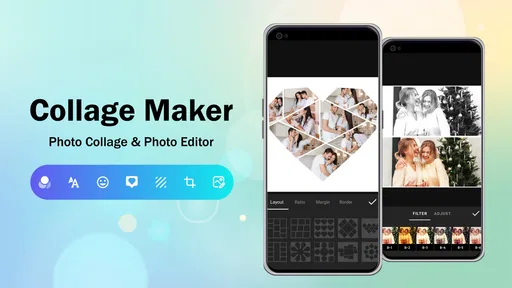
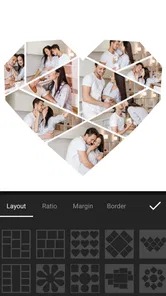
Photo Collage - Frame & Editor is designed for creating collages from multiple pictures in one project. During testing, the app provided tools for arranging photos in grid layouts, applying frames, adjusting images, and adding creative finishing touches. It can be useful for social media posts, family memories, travel albums, invitations, or simple image compositions without requiring advanced photo-editing knowledge.
Does Photo Collage - Frame & Editor include templates, frames, and editing tools?
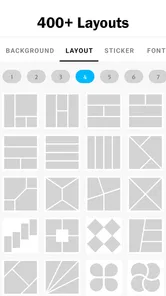
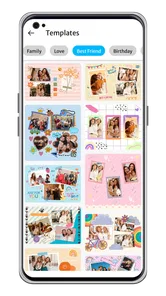
Yes, the app focuses on combining layout templates with frames and basic editing features. Users can generally select a collage structure, import images, reposition or crop them, and customize the overall appearance. Depending on the version installed and the device, available designs, stickers, backgrounds, filters, text options, and other effects may vary, so checking the current app listing is recommended before downloading.
Is Photo Collage - Frame & Editor free to download and use?
The application can typically be downloaded without an upfront charge, but free access may not include every design or feature. Some versions may display advertisements or offer optional in-app purchases for premium templates, effects, tools, or an ad-free experience. Before confirming a purchase, review the pricing, subscription terms, and cancellation information shown in the Google Play Store or Apple App Store. In-app purchases are listed at $2.49–$7.99 per item.
Can I save and share collages created with the app?
After finishing a project, users can normally save the resulting collage to the device and share it through supported applications such as messaging services, email, or social media. Export quality and available file formats can depend on the app version, phone, and selected settings. It is worth checking the requested storage or photo permissions if the app cannot save the finished image correctly.
Pros
- Offers many collage layouts for different photo combinations.
- Includes decorative frames
- stickers
- and backgrounds for customization.
- Simple editing tools make quick adjustments easy for beginners.
- Supports adding text to personalize collages and social posts.
- Useful for creating greeting cards
- memories
- and photo montages.
Cons
- Some designs and editing elements may require in-app purchases.
- Advertisements can interrupt editing
- especially in the free version.
- Advanced photo retouching features are relatively limited.
- Large collages may take longer to save on older devices.
- Export quality and available formats may vary by device.










