Photo App - AI Photo Enhancer
- 318.00
- 4.5
- Installs
- 10.00M
- Price
- Free

Screenshots
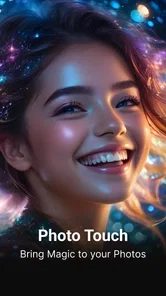
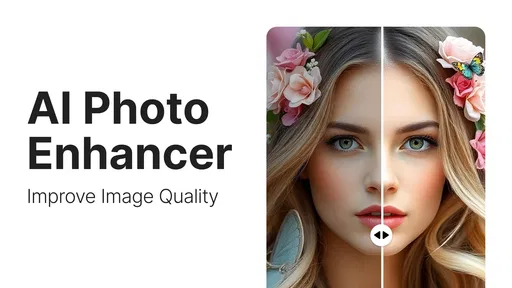
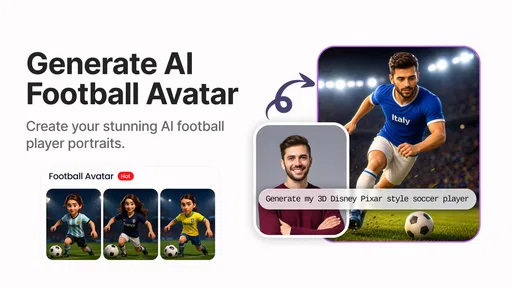
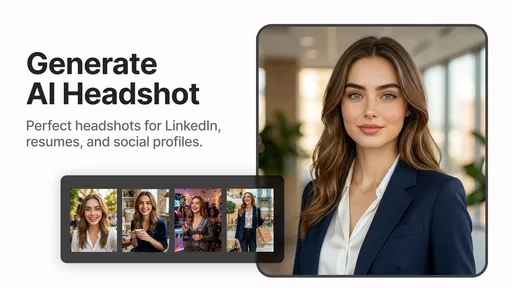
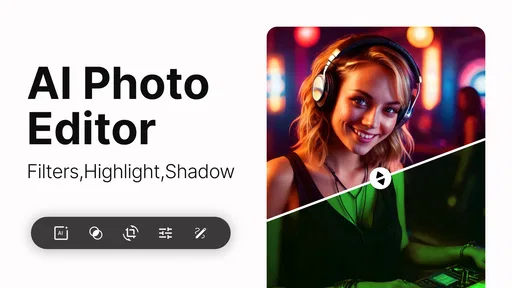
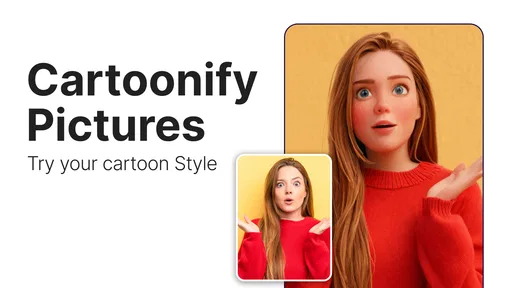
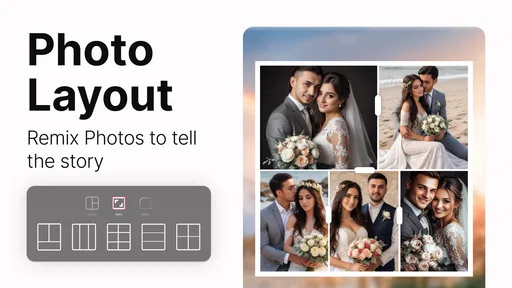
Analysis by Reviewed
I usually turn to a photo enhancer when I have a picture I want to keep or share but don’t want to spend ages editing. Photo App - AI Photo Enhancer is aimed at that quick rescue job: it’s an art and design app from HyperSoft AI - Apps Lab, and its focus is making ordinary photos easier to improve without requiring an editing background. I’d think of it as a convenient first stop, not a replacement for careful, hands-on retouching.
Start with the photo you actually need
The best starting point is a copy of the image you’re comfortable experimenting with. That matters with any automatic editor: an AI enhancement can make a soft or faded picture more presentable, but it can also change the character of a face, texture, or fine detail. I’d keep the original untouched, especially if the image has sentimental value or will be used for something important.
A realistic example is finding an old family photo on your phone before sharing it in a group chat. Rather than opening a desktop editor and learning a stack of controls, you can try an automatic pass, check whether the details look more legible, and decide if the result still feels like the same moment. For a quick share, that low-effort workflow is the main appeal.
Before editing, I’d also decide what “better” means for this particular photo. A small, soft picture intended for a chat may only need to look clearer on a phone screen, while a portrait that will be printed deserves more cautious checking. That simple distinction helps set a realistic target: enhancement can improve how an image reads, but it should not be mistaken for recovering a perfectly accurate version of an event or person.
From first pass to finished image
Right out of the gate, Photo App - AI Photo Enhancer impresses with its intuitive interface. You don’t need a degree in photography to navigate through its features. The app leverages advanced AI technology to enhance your photos automatically. It’s like having a professional editor in your pocket, ready to tweak brightness, contrast, and sharpness with just a few taps.
A practical editing flow
I’d begin with one image rather than a whole folder. That gives you a chance to judge the look before applying a similar treatment elsewhere. Check faces, edges, and busy backgrounds at a closer view; a result that looks crisp as a small thumbnail may reveal odd textures when enlarged. If the image is already clear, a lighter touch is often preferable to making every detail look artificially sharp.
One of the features I absolutely love is the batch processing. Got a bunch of vacation photos you want to polish up? No problem! You can enhance multiple images at once, saving you tons of time. The app also offers a variety of filters that can give your photos that extra pop. Whether you’re going for a vintage look or something more modern, the options are plentiful.
More From Our News Desk

 Gmail
GmailGmail in a Busy Inbox: Who Benefits Most?
From first account to crowded workday, Gmail earns its place through dependable search and flexible sorting—but its best fit depends on how much inbox maintenance you can tolerate.

 Prime Video
Switching to Prime Video: What Changes in Your Viewing Routine
Prime Video can make a compelling second home for streaming, but switching means learning a different catalog, rental layer, and route from browsing to playback.

 Universal TV Remote Control
Universal TV Remote Control Works Best as a Reliable Backup
A phone remote earns its place through quick setup and reliable habits. Here is how to get more from Universal TV Remote Control—and where its limits show.

 Weather - By Xiaomi
Weather by Xiaomi Review: Clear at a Glance, Less Clear Up Close
Xiaomi’s weather app makes everyday forecasts quick to scan, but its calm surface can leave useful details and recovery paths harder to find than they should be.

 X
XX Under Pressure: Can It Recover When Posting Goes Wrong?
A resilience-focused review of X, examining setup, mistaken posts, interruptions, weak connections, and the gaps that matter when recovery needs to be dependable.

 Clash of Clans
Clash of Clans Is Won Between the Battles
Its raids are quick; its community is a long-term project of coordination, teaching, rivalry, and shared responsibility—with all the friction that entails.
Latest News



Batch editing is most useful when the pictures have similar lighting and quality, such as several shots from the same outing. I wouldn’t assume one pass suits a mixed album: indoor portraits, sunny landscapes, and night scenes can need different treatment. A sensible workflow is to group similar images, review a sample first, then inspect the rest before sharing. That small check helps avoid turning a time-saving shortcut into a batch of inconsistent edits.
There’s another useful trade-off in that workflow: efficiency is not the same as consistency. If I’m preparing several pictures for a family album, I’d use batch processing to get them into roughly the same place, then check each face and background individually. For a set that needs a carefully matched visual style, I’d rather make deliberate adjustments in a manual editor than trust an automated pass to treat every scene alike.
Making room for the subject
Another standout feature is the ability to remove unwanted objects from your photos. I tested it out on a picture with a photobombing stranger in the background, and the results were impressive. It’s not perfect, but it gets the job done better than most apps I’ve tried. Plus, who doesn’t love a clean and clutter-free photo?
Object removal is a useful finishing step when the distraction is small and the surrounding background is fairly simple. It is a weaker fit when an object overlaps a face, a patterned wall, or a distinctive edge: filling that space convincingly is harder, and a visible patch can draw more attention than the original distraction. I’d compare the edited image with the untouched one before deciding which tells the moment better.
I’d be particularly conservative with removal when a photo records something that matters to someone else as well as to me. For a casual snapshot, cleaning up a minor background distraction can make the subject easier to see. For a documentary image, a family record, or anything that might be treated as evidence, changing the scene risks altering what the picture communicates. In those cases, I’d keep the untouched file as the version I share or store.
What happens after the edit
Using the app is a breeze. The developers have clearly put a lot of thought into the user experience. Navigating through the different tools feels seamless, and I didn’t encounter any major bugs or crashes during my time with it. The app runs smoothly, even when processing high-resolution images, which is a big plus in my book.
Once I’m happy with an edit, I’d treat the result as a new version and keep the source photo available. That makes it easier to undo a choice later, compare alternatives, or hand the image off to another editor without losing the starting point. For a post that needs precise cropping, careful color matching, or a consistent look across a project, a dedicated manual editor is still the better next step; this app makes more sense for quick improvements than detailed control.
That handoff is worth planning before you begin, especially if the image will be used in more than one place. I’d first save or retain the untouched photo, use the enhancement for the immediate task, and then move the result into a regular editor only if it needs a crop, text, or a specific layout. This avoids asking one simple enhancer to do every job and gives me a clean fallback if its interpretation of detail does not suit the final use.
The app also offers in-app tutorials for beginners. These are super helpful if you’re new to photo editing or if you want to make the most out of the app’s features. It’s like having a little guide showing you the ropes, which I think is a great touch.
For someone new to editing, I’d use the tutorials as a way to learn the app’s own workflow, not as a reason to assume every result is automatically right. A quick habit that helps is comparing the before and after at the same viewing size, then checking the important part of the image close up. That makes it easier to spot when a smoother or sharper finish has started to look less natural.
Who will get the most from it
I’d recommend it to casual photographers, people sorting old snapshots, and anyone who wants a quick enhancement without learning a complex editing suite. The audience is broad: it has a 4.6 average from around 76,000 ratings and has been installed over 10 million times. It’s free to start, though optional in-app purchases range from $0.99 to $19.99 per item, so I’d check the purchase choices before committing to anything.
It’s a sensible fit for the person who takes pictures on a phone, notices that one meaningful shot is a little dull or soft, and wants to try a straightforward improvement before sending it to friends. Someone sorting a set of holiday memories may also appreciate the faster first pass, particularly when the aim is a presentable album rather than a professional portfolio. The app’s appeal is practical: it lowers the effort between spotting a photo’s flaw and seeing whether an automatic treatment helps.
I’d also consider how often you edit before deciding whether the free starting point is enough. If you only need occasional touch-ups, there’s little reason to commit to an optional purchase before trying the everyday workflow. If you expect to use it regularly, take a moment to review the purchase choices in the app and decide whether the available options make sense for your habits. I wouldn’t buy anything just because a single photo needs rescuing.
On the other hand, I’d skip it if you need predictable, pixel-level edits for client work, restoration that must preserve every original detail, or precise control over a series of images. The age rating is Everyone 10+, and the app is on version 1.0.8.7, with Android 7.0 as the minimum operating system. Those details make it easier to judge basic compatibility, but they don’t change the main question: whether an automatic result gives you enough control for your particular photo.
It is also a less suitable choice if your main goal is designing a finished graphic rather than improving a photograph. A photo enhancer can be a useful first step for an image that will later go into a card, a post, or a collage, but layout and typography call for a design tool. In the same way, a photographer who wants to control each adjustment directly will usually be happier in a conventional editor, where the slower process offers more deliberate choices.
Where the convenience has limits
AI enhancement is a shortcut, not a guarantee that a poor source will become a faithful, high-detail image. If a face is badly blurred or important information is missing, sharpening can make edges more visible without restoring what the camera never captured. For documents, evidence, or images where accuracy matters more than appearance, I would avoid relying on an automated makeover as the final version.
Compared with a standard photo editor, the appeal here is a quicker route from selecting a picture to trying an improved version; the trade-off is less reason to expect fine-grained control. Compared with leaving the photo alone, the app can help when softness or clutter is genuinely distracting, but extra processing can also make a natural image look overworked. I’d use it selectively rather than sending every camera roll image through the same treatment.
That comparison also helps answer whether it should replace the other editing apps on your phone. I see it as a different tool: choose an automatic enhancer when you want a quick attempt at making a single photo more usable, and turn to a general-purpose editor when you need to choose exactly how color, crop, or detail changes. If the original already looks good, doing nothing may be the best edit. The fastest workflow is not always the one that applies the most effects.
One practical way to avoid overdoing it is to make the decision at the scale where the photo will actually be seen. A picture meant for a small message preview does not need the same scrutiny as one you plan to print or enlarge. If the processing introduces an unnatural face or texture at the size that matters, I’d choose the original or a lighter treatment rather than trying to hide the issue with another filter.
My take after the workflow
In a sea of photo editing apps, Photo App - AI Photo Enhancer stands out for its ease of use and powerful features. Whether you’re enhancing selfies or editing landscape shots, this app has got your back. While it doesn’t replace the need for a professional editor in certain scenarios, it comes pretty darn close for day-to-day photo enhancement needs.
So, if you're looking to up your photo game without diving into complex software, give this app a whirl. You might just find that it becomes your go-to tool for all things photography. Happy editing!
My practical recommendation is to try it on a photo whose original you can keep, with one clear goal in mind: make the subject easier to see, reduce a distracting flaw, or prepare a quick share. Then check the face and background, decide whether the result still feels true to the moment, and stop if further processing starts to look artificial. That makes the app most useful as a low-friction first step, while leaving you free to use a more controlled editor—or no edit at all—when the picture calls for it.
Photo App - AI Photo Enhancer Frequently Asked Questions
Who develops Photo App - AI Photo Enhancer, and what kind of app is it?
Photo App - AI Photo Enhancer is an Art & Design app developed by HyperSoft AI - Apps Lab. Its main purpose is to improve image quality using AI, with a particular focus on restoring and unblurring old photos. If you are considering a download, that gives you a quick sense of its creative focus and the kind of photo-editing task it is intended to help with.
Is Photo App - AI Photo Enhancer suitable for someone new to photo editing?
The app is intended to make photo enhancement approachable by using AI to improve images, rather than requiring users to adjust every setting manually. That can be appealing if you want a straightforward way to work on a picture. If you enjoy controlling each editing adjustment yourself, compare its available tools with your preferred editing workflow before deciding.
What photo editing experience should I expect from Photo App - AI Photo Enhancer?
Photo App - AI Photo Enhancer is an app in the Art & Design category, developed by HyperSoft AI - Apps Lab. Its focus is improving image quality with AI, including restoring and unblurring old photos. It may suit someone looking for an approachable way to enhance pictures, while users who want detailed manual control over every editing adjustment may prefer to compare its tools with their usual editing workflow.
What is Photo App - AI Photo Enhancer and what does it do?
Photo App - AI Photo Enhancer is an advanced photo editing application designed to enhance your images using artificial intelligence. It offers a suite of powerful tools that can automatically improve photo quality by adjusting brightness, contrast, and clarity, and even remove unwanted objects. It's suitable for both professional photographers and casual users seeking to enhance their photos effortlessly.
Can Photo App - AI Photo Enhancer restore old or blurry pictures?
Restoring and unblurring old photos is a central part of the app’s stated purpose, alongside improving photo quality with AI. It may be worth trying if you have an older image or one that looks unclear and want an automated enhancement approach. The result will depend on the image you choose, so it is sensible to review the edited picture before deciding how you want to use it.
Pros
- Enhances photo quality automatically
- User-friendly interface for easy use
- Supports various image formats
- Fast processing time
- Integrates with social media platforms
Cons
- Limited free features available
- Requires internet for full functionality
- Occasional ads in free version
- High storage usage for HD images
- Subscription needed for premium tools