PDF Viewer: Read, Scan & Edit
- 9.00
- 4.4
- Installs
- 100.00K
- Price
- Free
Screenshots
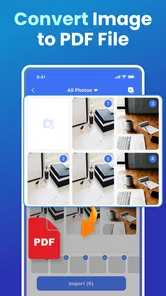
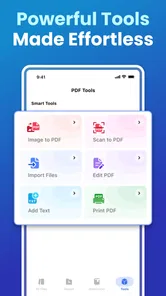
Analysis by Reviewed
I started using PDF Viewer: Read, Scan & Edit with a simple goal: make everyday document handling less scattered. Instead of opening one app to find a file, another to read it, and a third to deal with a scanned page, I wanted a more direct place to work with PDFs. This free productivity app from OCEAN FEATHER TECHNOLOGY INC is built around that practical need, and its straightforward focus is its main appeal.
My experience is best summed up this way: it is a useful choice when your document routine is mostly about opening, checking, scanning, and making modest changes to PDF files. It is not the kind of tool I would choose for complex publishing work or a demanding office workflow, but it can fit neatly into a phone or tablet routine where speed and convenience matter more than a long list of specialist controls.
The app is available to users of Android 8.0 and later, carries an Everyone age rating, and is currently on version 1.1.1. It has reached over 100 thousand installs and holds a 4.4 average from 187 ratings, which gives it a reasonable level of early user interest. Those figures do not replace personal testing, but they do suggest that the basic document-viewing idea is connecting with people.
From scattered documents to a calmer daily workflow
I’ve found that a calmer document routine starts before I open a PDF: I decide what needs attention, what belongs in reference, and what can be archived. That simple sorting habit keeps a viewer from becoming another inbox, and it makes the next step clearer when a scan or attachment arrives. Next, I’ll look at how that approach works in the everyday moments when documents tend to pile up.
What the workflow looks like before opening the app
PDF problems rarely begin with the PDF itself. They usually begin with a messy process around it. A file may arrive through email, a messaging app, cloud storage, or a download folder. A photographed receipt may sit in the gallery beside holiday pictures. A form may be saved with an unhelpful filename and then become difficult to identify later. When I approach documents this way, even a simple reading task takes longer than it should.
This is where I see the app fitting into a sustainable productivity system. It is not enough to have a viewer installed; the useful habit is to give document tasks a predictable home. I can receive a file, open it in the viewer, check that it is the correct version, and decide what needs to happen next. That small sequence reduces the temptation to leave important files buried in random conversations or downloads.
The practical advantage is especially clear for short tasks. If I need to check a booking confirmation, read a school notice, review an invoice, or look over a form before sending it onward, I do not need a full desktop setup. A focused mobile PDF tool makes those moments less disruptive. I can deal with the document when it arrives instead of creating a growing backlog.
More From Our News Desk

Weather by Xiaomi Review: Clear at a Glance, Less Clear Up Close

X Under Pressure: Can It Recover When Posting Goes Wrong?

Clash of Clans Is Won Between the Battles

Android Auto Makes the Case for Quieter Car Software

MobiOffice: Transforming Mobile Productivity with Seamless Integration

EA SPORTS FC™ Mobile Soccer: Redefining Mobile Sports Gaming
There is also a useful mental distinction between reading and editing. I prefer to open a file first and understand what it contains before changing anything. That sounds obvious, but it prevents a common mistake: editing the wrong copy because several similar files are stored in different places. The app works well as the first checkpoint in that process because document viewing is its central purpose rather than an incidental feature.
Capturing paper information without creating a second mess
The scanning side is most useful when I treat it as a capture step, not as permanent storage. Imagine a realistic weekday situation: I receive a paper receipt after a repair, photograph it, and need to keep the information for later. The valuable routine is to scan it, inspect the resulting document, give it a meaningful name, and place it where I will actually find it. Scanning alone is only half the job.
I would use a consistent naming habit such as the organization, document type, and month. That is more helpful than leaving several files with camera-generated names. It also makes the app part of a broader system rather than a temporary inbox. When a document is captured, I want to know whether it still needs attention, has been recorded, or can be archived.
One non-obvious trade-off is that scanning from a phone can be faster than searching for a physical sheet, but it can also encourage over-collection. I would not scan every scrap of paper automatically. For documents that matter, such as receipts, signed pages, or reference notes, the effort is worthwhile. For material I will never revisit, scanning simply creates another digital item to manage.
After scanning, I recommend checking every page before considering the task complete. A cropped edge, a shadow across a line, or a page captured at an angle can make a document frustrating later. The viewer gives me a chance to catch those problems while the original paper is still nearby. That verification step is more valuable than rushing to build a large archive.
Organizing documents around decisions, not just storage
Good organization is less about having many folders and more about making the next action obvious. I find it helpful to separate documents into a few practical groups: items that need a response, items kept for reference, and items that can be archived. The exact folder names are less important than using the same logic every time I open a new PDF.
For example, a form that needs a signature should not be treated like a finished receipt. A contract I am still reviewing should remain visible in my active work area, while an old statement can move into reference storage. This approach prevents the app from becoming another place where unfinished tasks disappear.
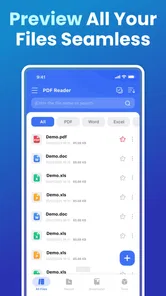
The viewer is also useful for a quick quality check before sharing. I look at the first page, scroll through the whole file, and confirm that the pages appear in the expected order. That is a small but important habit when a document has been scanned or assembled from several sources. Sending an incomplete PDF is an avoidable error, and a short review on the phone can catch it.
I would also avoid treating the app as the only copy of an important document. A PDF viewer can help me open and process a file, but my long-term system should still include a sensible storage location and a backup approach. The app is strongest as the working surface for documents, not as a substitute for thinking about where valuable records belong.
A repeatable routine that keeps document work under control
The most sustainable routine I found is short enough to repeat. When a PDF arrives, I open it promptly, identify its purpose, and decide whether it needs action. If it is a paper document, I scan it and inspect the result. If it is already digital, I read it before deciding whether to edit, share, or file it. The final step is to place it in a recognizable location rather than leaving it in the app’s recent list.
I like handling documents in small batches instead of interrupting every task immediately. A few minutes at the end of the day can be enough to review newly captured files, rename them, and remove duplicates. This works particularly well for receipts and administrative paperwork, where each individual item is easy but the accumulation becomes stressful.
Another useful habit is to keep the original paper temporarily when the scan is important. I would only discard it after checking that the digital copy is readable and complete. This is not a feature claim about the app; it is a sensible workflow safeguard. The viewer helps with the inspection, while the decision about what to retain belongs to the user.
For study or work, I would use the app as a reading checkpoint before taking notes elsewhere. First I confirm that the file is the correct version. Then I read it without immediately switching between several tools. If I need to extract tasks, I write those tasks into my normal planning system instead of assuming that the PDF itself will remind me. That separation keeps documents and commitments from becoming confused.
The same principle applies to editing. I would make only the changes needed for the immediate purpose, then reopen or review the result before sharing it. A repeatable review step matters because a file that looks fine in an editor can still have an accidental omission, an unreadable scan, or an unexpected page order.
Where the experience can slow down
The app’s focused nature is both its strength and its limitation. It is attractive for people who mainly need a practical PDF viewer with scanning and editing in the same general workflow. However, users who expect a complete document-management suite may find themselves needing other tools for more advanced work. I would not choose it as my only solution for elaborate forms, extensive collaboration, or professional publishing tasks.
Editing on a phone also has natural friction. A touchscreen is convenient for quick corrections and document handling, but it is less comfortable than a larger screen for long sessions. If I needed to compare several pages, make detailed changes, or work through a lengthy agreement, I would prefer a tablet or desktop environment. The app makes mobile work more accessible, but it does not remove the limits of mobile input.
Scanning introduces another failure point: the quality of the source. A blurry photograph, poor lighting, folded paper, or faint print can undermine the result before the app has much chance to help. I get better outcomes when I place the page on a contrasting, flat surface, hold the phone steadily, and review the complete scan immediately. The best workflow is not “scan and forget”; it is “scan, inspect, then file.”
File confusion is another realistic risk. If I download several versions of the same document, the app can help me view them, but it cannot replace a naming and filing habit. I need to identify the final version myself. For that reason, I would be cautious about using vague names such as “document” or “new PDF.” A clear filename is a small investment that saves time every time I search later.
There is also a difference between reading a document and understanding its legal or financial meaning. The app can support the reading process, but it is not a reason to rush through important material. For contracts, medical paperwork, or financial records, I would use the viewer for access and inspection while taking the time to verify the content independently.
How it compares with the usual alternatives
Many phones already include a basic way to open PDF files, so someone who only reads an occasional attachment may not need another app. The difference here is the attempt to bring viewing, scanning, and editing into one productivity-oriented place. That combination is more useful when documents arrive from several sources or when paper and digital files regularly mix.
Cloud-drive viewers are convenient when all my files already live in one service, especially if I need to collaborate or maintain a shared workspace. I would choose that route for team-based document control. I prefer this app for a more direct personal workflow where the immediate task is opening or processing a document without turning it into a larger collaboration project.
Dedicated scanner apps may offer a deeper scanning experience, while full office suites can be better for demanding editing and business workflows. The advantage of this PDF tool is balance: it aims to cover common document moments without requiring me to build a complicated collection of specialist apps. The trade-off is that a specialist alternative may be better once my needs become narrow, technical, or collaborative.
For someone who already has a polished document system, adding another viewer could create duplication. I would adopt it when it removes a genuine point of friction, such as repeatedly moving scans between apps or struggling to preview files on a phone. If it merely duplicates a tool I already use comfortably, the extra app may not improve the routine.
Who should make it part of their routine?
I think the best candidates are students, freelancers, families handling paperwork, and anyone who regularly receives PDFs but does not want a heavyweight office environment. It is especially suitable for people who need to inspect documents on the move, capture occasional paper records, and keep small administrative tasks from piling up.
It can also help users who are beginning to build a digital filing habit. The app provides a practical place to start, but the real benefit comes from pairing it with clear names, a small number of storage categories, and a regular review time. Without those habits, even a useful viewer can become another crowded shelf.
I would skip it if my main requirement is advanced document production, deep collaboration, or extensive desktop-style editing. In those cases, a full office suite, a specialized scanner, or a cloud document platform may be a better match. I would also think twice if I only open a PDF once in a while and my phone’s existing viewer already handles that job comfortably.
For everyone else, the free price makes it easy to test without committing money, and the Everyone rating keeps it broadly accessible. The developer, OCEAN FEATHER TECHNOLOGY INC, has positioned it around a clear everyday need rather than an overly complicated promise. I appreciate that focus because document productivity often improves through fewer steps, not more buttons.
After using it as part of a document routine, my recommendation is measured but positive. PDF Viewer: Read, Scan & Edit is most valuable when I use it as a reliable checkpoint: capture or open a document, inspect it carefully, make the necessary adjustment, and file it with a clear next step. It will not replace every specialized PDF or office tool, and mobile editing still has limits, but it offers a sensible way to bring common document tasks closer together.
If your current process involves forgotten downloads, scattered scans, and repeated app switching, this is worth trying. If your documents are already organized and your needs are highly advanced, its simplicity may feel restrictive. For everyday PDF handling, though, I find the app practical, approachable, and easiest to recommend when it becomes part of a repeatable system rather than a place where files are merely opened and forgotten.
PDF Viewer: Read, Scan & Edit Frequently Asked Questions
Which devices and operating systems can run PDF Viewer: Read, Scan & Edit?
PDF Viewer: Read, Scan & Edit is an app for mobile devices, and its minimum operating system requirement is version 8.0. Before downloading, check your device’s software version and available storage so installation and document handling go smoothly. The app is developed by OCEAN FEATHER TECHNOLOGY INC and is categorized as a productivity tool for viewing and processing documents.
What is PDF Viewer: Read, Scan & Edit used for?
PDF Viewer: Read, Scan & Edit is designed as an all-in-one document tool for opening, reading, scanning, organizing, and making basic edits to PDF files. During use, the app is particularly helpful for viewing documents on a phone, scanning paper pages into digital files, adding annotations, and managing PDFs without needing a computer. Its usefulness may vary depending on the device and the features available in the selected plan.
Can I scan paper documents and save them as PDF files?
Yes, the app is intended to let users scan physical documents with a phone or tablet camera and convert the captured pages into digital PDF files. Before scanning important paperwork, check the camera permissions and make sure the document is placed on a flat, well-lit surface. Scan quality can depend on lighting, camera resolution, page alignment, and whether the document contains small text or complex layouts.
Does PDF Viewer: Read, Scan & Edit allow PDF editing and annotations?
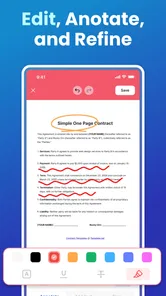
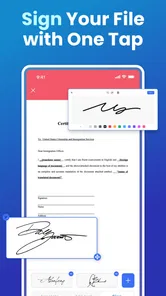
The app provides tools for working with PDF content beyond simple reading, such as adding notes, highlighting text, drawing, signing, or making other supported adjustments. However, mobile PDF editors commonly have limitations compared with full desktop software, especially for changing existing text or rearranging complicated layouts. Review the available editing tools and any premium restrictions before relying on it for professional documents.
Is PDF Viewer: Read, Scan & Edit free to download and use?
The application is free to download, but some functions can require in-app purchases, a subscription, or an upgraded version. Features such as advanced editing, document conversion, cloud services, unlimited scans, or removing advertisements may not be included in the basic experience. Always check the current store listing for pricing, trial terms, renewal conditions, and cancellation instructions before subscribing.
Pros
- Opens PDFs quickly
- even when switching between several documents.
- Search results are easy to locate within long files.
- Supports sharing documents directly from the viewing screen.
- Recent files make it simple to resume unfinished reading.
- Useful zoom controls improve readability on smaller phone screens.
Cons
- Some editing tools may require a premium subscription.
- Large scanned PDFs can take longer to load on older devices.
- The interface may feel crowded when many tools are displayed.
- OCR accuracy can vary with blurry or poorly formatted scans.
- Frequent prompts to try paid features may interrupt casual use.











