PDF Toolkit - Reader
- 40.00
- 4.5
- Installs
- 500.00K
- Price
- Free
Screenshots
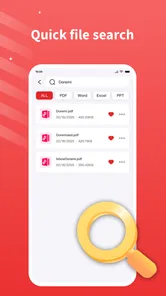
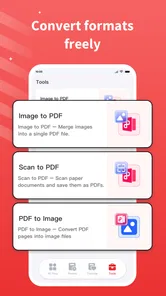
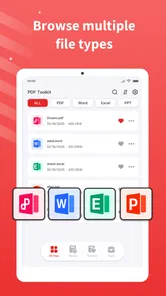
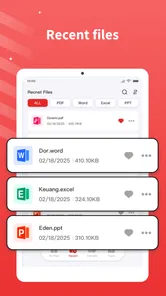
Analysis by Reviewed
I approached PDF Toolkit - Reader as a practical productivity app rather than a full document-management suite. Its job is straightforward: help me read documents and convert file formats from one place. That focus makes it easy to understand, but it also means the important question is not whether it can replace every PDF tool. The better question is whether its simple workflow fits the way you handle documents on a phone or tablet.
In my experience, the app makes the most sense for people who regularly receive PDFs, need to inspect them quickly, and occasionally convert files without opening a desktop program. It is free, aimed at Everyone, and developed by Limetech. The current release is version 1.0.8, and it supports devices running Android 7.0 or later. Those details make it accessible to a wide range of Android users, including people using older phones that cannot run some newer productivity tools.
The app has already attracted over 500 thousand installs and holds a 4.5 average from around 2.8 thousand ratings. I see that as a useful sign of practical appeal, although it is not a reason to hand over every document automatically. With document utilities, trust depends on the choices you make before opening a sensitive file, not just on popularity. I would use it confidently for ordinary reading and conversion, while taking a more careful approach with identity documents, contracts, medical records, or confidential work material.
What the reading and conversion workflow feels like
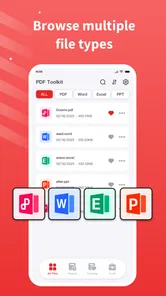
The strongest part of this app is its clear purpose. Instead of presenting itself as a large office platform, it concentrates on two common tasks: viewing documents and changing file formats. That is useful when I need to open a PDF on the move, check whether a page looks correct, or prepare a file for someone who uses a different format.
A typical everyday situation is receiving a document in a messaging app while away from a computer. I can open it with a PDF reader, check the pages, and decide whether conversion is necessary. If the recipient needs another format, a toolkit built around reading and conversion is more convenient than searching for a separate application for each step. The value is not dramatic; it is the small reduction in friction between receiving a file and doing something useful with it.
I also find this kind of app helpful for temporary tasks. For example, I might download a form, inspect its instructions, and convert a copy so I can continue working with it elsewhere. A dedicated productivity utility can be less distracting than a broad office app filled with editing, collaboration, templates, and account features I do not need for a single document.
That simplicity has a trade-off. Reading and conversion are not the same as advanced document editing. If your main requirement is to create complicated layouts, manage tracked changes, sign documents with a formal workflow, or collaborate with a team, a full office suite will usually be the better choice. I would not install this expecting it to become a complete replacement for desktop document software.
More From Our News Desk

Weather by Xiaomi Review: Clear at a Glance, Less Clear Up Close

X Under Pressure: Can It Recover When Posting Goes Wrong?

Clash of Clans Is Won Between the Battles

Android Auto Makes the Case for Quieter Car Software

MobiOffice: Transforming Mobile Productivity with Seamless Integration

EA SPORTS FC™ Mobile Soccer: Redefining Mobile Sports Gaming
Why a focused toolkit can be useful
There is a practical difference between a reader that happens to support another task and a toolkit that puts reading and conversion at the center. When I am dealing with a file that needs to be understood before it is changed, reading first is the safer order. It lets me inspect the original rather than converting blindly and discovering later that the result is incomplete or poorly arranged.
My preferred workflow is to keep the original untouched, open it for a visual check, and treat the converted file as a separate working copy. That habit matters because format conversion can affect page breaks, fonts, spacing, images, or selectable text. Even when the conversion appears successful, I would still review the output before sending it to another person.
A second useful habit is to convert only what is needed. If a document contains private pages that do not belong in the final file, I would first create a clean working version or remove unnecessary material using a tool designed for that purpose. I would not assume that a conversion step automatically solves document cleanup. The app is most useful when I give it a clearly prepared file and then verify the result.
The third insight is that conversion is often a compatibility decision, not an editing decision. A recipient may need a different format simply because of the software available on their device. In that situation, the toolkit can be convenient. But if the document needs meaningful content changes, I would move to an editor after conversion instead of forcing a reader-oriented tool to do work outside its natural role.
Where it fits beside familiar alternatives
Compared with a standard PDF reader, PDF Toolkit - Reader is more appealing when conversion is part of the same task. A basic reader may be perfectly adequate for opening, scrolling, and searching documents, but it can leave me looking for another app as soon as I need a different file format. The toolkit is therefore a better fit for occasional format changes.
Compared with cloud-based document services, a dedicated mobile utility may feel more direct because the task begins with a file already on the device. Cloud services can be stronger for sharing, simultaneous editing, version history, and access across several devices. I would choose those alternatives when collaboration is central. I would choose this app when I want a compact document utility rather than a workspace.
Compared with a full office suite, the decision depends on the document’s next step. If I need to rewrite paragraphs, build a spreadsheet, prepare a presentation, or coordinate with colleagues, the broader suite wins. If I need to read a PDF and handle a conversion without opening a large ecosystem, this app has a more focused purpose.
That distinction also helps avoid disappointment. The app should be judged as a reader and converter, not as a replacement for every document application. Its usefulness comes from reducing the number of separate steps for a narrow but common job.
Trust begins with visible choices
Document apps deserve more careful attention than casual entertainment apps because users may open files containing names, addresses, signatures, financial information, or internal business material. I do not treat a clean interface as proof that an app is safe, and I do not treat a high rating as proof of a particular data practice. Before using any document utility, I look for the choices it presents around file access, sharing, accounts, and storage.
For this app, I would pay attention to what happens when I select a document. Does the file picker let me choose one file instead of exposing an entire folder? Is there a clear difference between opening a local file and sending it to an online conversion process? Can I cancel a conversion before it starts? These are the moments where user control matters most.
I would also check whether an account is requested and whether the app lets me complete ordinary reading without signing in. An account can be useful for synchronization, but it should not be assumed to be necessary for a simple local reading task. If the app presents an optional sign-in, I would postpone it until I understand what benefit it provides.
The same caution applies to sharing. After creating a converted copy, I would confirm the destination before using the Android share action. A document can be sent to a messaging contact, cloud folder, or email address with only a few taps, so I prefer to review the filename and recipient rather than sharing immediately from the conversion screen.
The safest workflow is the one that keeps me in control of the original, the destination, and the final copy. That is a general document habit, but it is especially important in an app whose main purpose involves moving files between formats and locations.
Sensitive documents need a slower workflow
I would separate low-risk and high-risk use. A public instruction sheet, a travel itinerary, or a product manual is a reasonable document for testing the app. A passport scan, tax record, employment agreement, or health report deserves more caution. For sensitive material, I would first check the app’s visible permission prompts and privacy explanations, then decide whether a local alternative is more appropriate.
I would avoid using a sensitive file as my first test. Starting with a harmless document lets me learn how selection, conversion, saving, and sharing work without exposing information unnecessarily. It also gives me a chance to see whether the output is readable and whether the app communicates clearly at each step.
File organization matters as well. I recommend using a clearly named working copy and keeping the original in a separate folder. After conversion, I would open the new file and inspect every page, especially tables, images, signatures, and unusual fonts. If the result is going to another person, I would not rely on the presence of a completed message or a saved filename alone; I would confirm that the actual output opens correctly.
Another overlooked point is cleanup. Temporary copies can remain in downloads or document folders long after the task is complete. Once I have confirmed the final version, I would remove unnecessary duplicates through the device’s file manager. This is not a special feature claim about the app; it is a sensible way to reduce the number of places where a private document remains accessible.
Who will appreciate it most
I think the app is best suited to students, freelancers, travelers, and everyday Android users who read PDFs frequently but do not need a full office environment. It can also suit someone with an older compatible phone who wants a free utility instead of paying for a desktop-oriented workflow.
Students may find it useful when course materials arrive as PDFs but need to be moved into another format for a particular assignment workflow. Freelancers may appreciate having a quick way to inspect client documents while away from a computer. Travelers can use a reader for tickets, confirmations, and instructions, although I would still keep important travel documents available through a second trusted method rather than relying on one app.
It is less suitable for teams that need shared editing, approval stages, audit trails, or carefully managed access. It is also not my first choice for someone whose main need is annotation-heavy study, professional signing, or complex page rearrangement. In those cases, a specialized application is likely to provide more control even if it feels less convenient for basic conversion.
People who dislike checking output files may also find the app frustrating. Conversion is not a one-tap guarantee that every detail will remain identical. The more complicated the source document, the more important it becomes to inspect the result. If you only want to read PDFs and never convert them, a simpler reader may be enough.
Practical questions I would ask before installing
One question is whether the app is free to start using. It is listed as free, which removes the usual purchase barrier. I would still review any screens presented during setup or conversion so I understand whether a particular action has conditions attached. Free access is useful, but it does not replace checking what the app asks me to do with a file.
Another question is whether an older Android device can run it. The minimum requirement is Android 7.0, so users on that release or a newer one meet the stated operating-system requirement. Performance can still vary with the size and complexity of a document, which is why I would test a representative file rather than assuming every PDF will behave identically.
Users also commonly wonder whether they need an account. I would look for an account prompt and distinguish optional services from the basic reading workflow. If reading a local document works without registration, I would keep the process that way unless synchronization or another clearly explained function makes an account worthwhile.
A further question is whether a converted file should be trusted without inspection. My answer is no. I would always reopen the result, check page order, compare important sections with the original, and confirm that images or tables have not shifted. This is particularly important before submitting a form or sending a document professionally.
Finally, I would ask whether the app is the right tool for confidential files. My cautious answer is that the choice depends on the permissions, storage behavior, and user controls shown on the device and in the app’s privacy materials. For ordinary documents, it is a convenient option. For highly sensitive material, I would choose the workflow that gives me the clearest local control and the fewest unnecessary transfers.
My measured verdict
PDF Toolkit - Reader succeeds when I treat it as a focused Android productivity utility. It brings document reading and format conversion into one place, costs nothing to begin using, supports a broad range of older Android devices, and has earned a strong response from its user base. I especially like the idea of reading the source before converting it, then checking the result instead of assuming the process is perfect.
Its limitations are just as important. I would not expect advanced editing, collaboration, formal document administration, or specialist signing features from a tool centered on reading and conversion. I would also avoid rushing sensitive documents through it before reviewing the visible permission and sharing choices. The app can reduce friction, but it cannot remove the responsibility of deciding where a file goes and whether the converted copy is accurate.
My recommendation is therefore selective rather than automatic. If you want a free way to open PDFs and handle occasional conversions on Android, this is a sensible app to try. Start with an ordinary file, learn the workflow, keep originals separate, and inspect every converted copy. If your documents demand team collaboration, deep editing, or strict confidentiality controls, I would look at a more specialized alternative instead.
For the right user, Limetech’s app is useful precisely because it does not need to be an entire office suite to solve a common problem. I would keep it as a practical option for everyday document handling, while using a more controlled or feature-rich tool whenever the file’s sensitivity or complexity makes convenience secondary.
PDF Toolkit - Reader Frequently Asked Questions
What devices and operating systems can I use PDF Toolkit - Reader on?
PDF Toolkit - Reader is a mobile productivity app from Limetech. It is available for devices running Android 7.0 or later, making it an option for many Android phones and tablets. Before downloading, check that your device meets this minimum requirement and use the appropriate app store for your platform.
What is PDF Toolkit - Reader used for?
PDF Toolkit - Reader is designed for opening, reading, and managing PDF documents on a mobile device. After testing the app, its main purpose is convenient document access rather than replacing a full desktop editor. It can be useful for viewing manuals, forms, receipts, ebooks, and work files, especially when you need a straightforward way to find and read PDFs while traveling or away from a computer.
Can PDF Toolkit - Reader edit or convert PDF files?
The available tools may vary depending on the app version and platform, so users should check the feature list shown on the download page before installing. PDF Toolkit - Reader primarily focuses on reading and handling PDF documents, while advanced functions such as editing text, converting files, signing documents, or rearranging pages may be limited, require an additional tool, or be available only through a premium option.
Is PDF Toolkit - Reader free to download and use?
The application may be available to download without an upfront charge, but free access does not always mean that every feature is included. Some versions of PDF Toolkit - Reader can contain advertising, optional purchases, or subscription-based tools. Before downloading, review the store listing carefully for pricing, trial conditions, and renewal information, particularly if you need advanced PDF management features for regular work.
Does PDF Toolkit - Reader work offline?
A PDF reader generally allows documents already stored on your phone to be opened without an internet connection, and PDF Toolkit - Reader can be useful in situations where mobile data or Wi-Fi is unavailable. However, downloading files, synchronizing documents, opening cloud locations, displaying advertisements, or using online processing tools may still require internet access. Offline behavior can also differ between Android and iOS versions.
Pros
- Opens PDFs quickly
- even when switching between several documents.
- Useful search tool helps locate words or phrases in lengthy files.
- Supports convenient zooming for reading small text on mobile screens.
- Simple interface makes basic PDF tasks easy for first-time users.
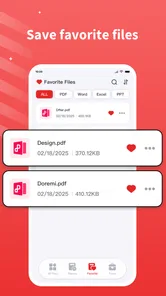
- Documents can be organized for faster access later.
Cons
- Some advanced tools may require a premium upgrade or subscription.
- Large PDF files can take longer to load on older devices.
- Editing options may be limited compared with full desktop PDF software.
- The app may display advertisements in the free version.
- Privacy details should be checked before uploading sensitive documents.











