PDF Toolbox
- 15.00
- 4.4
- Installs
- 500.00K
- Price
- Free
Screenshots
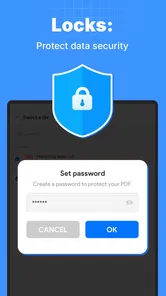
Analysis by Reviewed
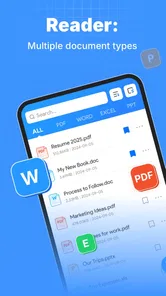
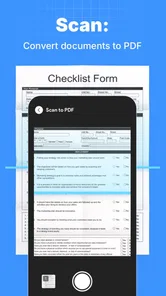
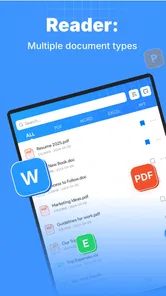
PDF Toolbox is the kind of productivity app I reach for when a document is technically readable but unpleasant to work through. Its purpose is straightforward: make PDFs easier to read, scan, and annotate on a phone. After spending time with it, I found the appeal less about replacing a full desktop document suite and more about making small, practical PDF tasks feel manageable when I am away from a computer.
That distinction matters. A mobile PDF tool can be useful without trying to become an office workstation. PDF Toolbox, developed by wydevteam, sits in that lighter space. It is free, aimed at Everyone, and available for devices running Android 7.0 or later. The current release is version 1.0.9, and the app has passed the half-million-install mark with an average score of 4.4 from roughly 4.9K ratings. Those figures suggest that it has found a real audience, although I would still judge it by the way it fits a particular reading and annotation routine rather than by popularity alone.
Where PDF Toolbox fits in everyday PDF work
My first impression is that this is best understood as a focused document companion. I would use it for reading a form before filling it out, marking a page in a study document, checking a work attachment, or adding visual notes to a reference file. I would not approach it expecting the broad document-management depth of a desktop PDF editor or the collaboration features of a cloud office platform.
The difference becomes clear in ordinary use. On a computer, I can keep a PDF beside email, a browser, and a spreadsheet, then move between them quickly. On a phone, the main challenge is often not the document itself but the screen size, touch controls, and interruptions. A tool designed around reading, scanning, and annotation has a more realistic goal: reduce the friction between opening a document and understanding what deserves attention.
That makes it particularly suitable for students, commuters, field workers, renters handling forms, and anyone who receives PDFs but does not want to open a laptop for every small task. It is also useful for people who mainly consume documents and occasionally need to mark them. If your work depends on complex page production, detailed layout editing, or a large archive with advanced organization, I would choose a more specialized alternative.
Reading on a small screen without losing the thread
Reading a long PDF on a phone is rarely comfortable by default. Pages may be designed for printing, with wide margins, small text, and tables that demand constant zooming. PDF Toolbox is most valuable when it helps turn that awkward process into a deliberate one. I found that the right approach is to use it as a focused reading space rather than trying to treat every document like a normal web page.
For example, when reviewing instructions, I would first scan the page visually, then zoom only where the wording or a table needed closer attention. That sounds simple, but it avoids a common mobile mistake: zooming in too far and losing awareness of where a paragraph sits in the document. The app’s reading-oriented purpose makes this kind of two-stage workflow feel natural.
More From Our News Desk

Weather by Xiaomi Review: Clear at a Glance, Less Clear Up Close

X Under Pressure: Can It Recover When Posting Goes Wrong?

Clash of Clans Is Won Between the Battles

Android Auto Makes the Case for Quieter Car Software

MobiOffice: Transforming Mobile Productivity with Seamless Integration

EA SPORTS FC™ Mobile Soccer: Redefining Mobile Sports Gaming
It is also a good fit for documents that need visual checking rather than deep editing. A lease, travel document, school handout, product manual, or application form can be inspected page by page, with annotations added at the point where a question appears. I prefer this to writing reminders in a separate notes app because the note remains attached to the relevant document context.
Annotation is most useful when it changes the next action
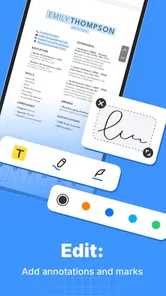
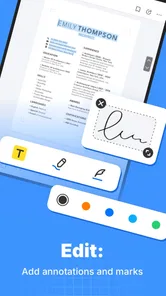
Marking a PDF is easy to overdo. If every line receives a highlight, the annotation layer stops helping. My practical advice is to annotate with a later action in mind: highlight a deadline, circle a missing field, underline a definition, or add a short note beside a question that must be answered elsewhere.
This is one of the less obvious strengths of a mobile annotation tool. The value is not simply adding marks; it is reducing the memory burden between reading and acting. When I review a document during a short break, I can leave a visible trail that tells me what needs follow-up. That is more reliable than trusting myself to remember the page after closing the file.
There is a trade-off, though. Touch-based annotation is convenient, but it is not as precise as using a mouse or stylus on a larger display. Small text, dense tables, and tightly spaced form fields can make accurate placement slower. I would use the app confidently for emphasis and short notes, but I would be cautious about relying on a phone for meticulous document design.
Connectivity, mobile situations, and recovery
When I use a PDF on the move, the connection can shape the job as much as the document itself: a file may need to arrive before I can read or mark it. I find it helpful to separate those stages and get important files onto the phone ahead of time, especially before a commute or appointment. That preparation leads naturally to the next question: how to keep a short mobile session useful when interruptions happen.
When the network becomes part of the experience
PDF work on a phone often begins outside the app. A document may arrive through email, messaging, a work portal, or cloud storage, and each of those steps can depend on connectivity. That means the smoothness of the overall experience is shaped not only by PDF Toolbox but also by how reliably the file reaches the device and remains available to open.
I would plan around that reality instead of assuming that every document workflow will behave the same way on a strong connection and a weak one. If I know I will need a file during travel or in a building with unreliable reception, I would open it before leaving dependable coverage and make sure the relevant document is ready for use. This is a sensible precaution for any mobile PDF workflow, and it prevents the app from being blamed for a problem that actually begins with file access.
The app’s connectivity story should therefore be judged in moments rather than with a simple online-or-offline label. Opening a document already available on the phone is a different situation from retrieving a large attachment, moving between cloud services, or sharing an annotated result. I would keep those stages separate in my expectations: first obtain the file, then read and mark it, then handle any later transfer or sharing step.
Useful in short mobile sessions
PDF Toolbox makes the most sense when the phone is the available computer. Imagine receiving a ten-page insurance form while waiting for an appointment. I would open the document, scan for sections that need clarification, mark the relevant fields, and leave a note beside anything that requires information from another person. That is a realistic use case because the goal is not to complete an entire administrative process in one sitting; it is to make useful progress without carrying the task mentally.
A student could use the same approach with lecture material. During a bus ride, the student might identify definitions, mark confusing diagrams, and add questions for later study. A technician could inspect a manual at a job site and annotate the page that needs attention. A renter could review a move-in checklist and mark items to photograph. In each case, the app serves as a bridge between passive reading and a concrete next step.
I also like the possibility of using annotations as a temporary decision layer. Before sending a document to someone else, I can mark the parts that need discussion, then remove or revise those marks once the issue is resolved. That is more disciplined than keeping a growing list of vague reminders, although it requires care when a clean final copy is needed.
What happens when a document does not behave perfectly
Every PDF is not equally friendly to mobile handling. A file can contain unusual fonts, complicated layouts, scanned pages, or tables designed for a wide screen. When a document looks crowded or difficult to navigate, I would not immediately conclude that the app is at fault. The format itself may be the limiting factor, especially when the original file was created for printing rather than touch screens.
My recovery method is simple. I start with the page that matters most instead of trying to inspect the entire document at once. I enlarge only the relevant area, read the surrounding context, and add a short annotation that records the issue. If the file came from a network source, I also retry the transfer separately rather than repeatedly reopening the app. Separating file retrieval from document handling makes it easier to identify where the failure occurred.
For important paperwork, I would keep the original untouched and treat the annotated copy as a working version. This is a useful habit because annotations are meant to support review, not replace the source. It also gives me a recovery path if I later decide that a mark was too broad, a note was unclear, or the document needs to be shared in a cleaner state.
Another practical limitation is the phone’s physical interface. If I need to add many detailed notes, compare multiple pages side by side, or inspect tiny technical drawings, I would move to a tablet or computer. PDF Toolbox can make a phone more capable, but it cannot remove the constraints of a small display. Knowing when to switch devices is part of using it well.
Being careful with data and connections
PDFs often contain personal, financial, academic, or workplace information, so I treat connectivity as a privacy and reliability consideration even when the task appears routine. I avoid opening sensitive documents casually on an unstable public connection, and I think about where the file came from before working on it. The app may be free, but that does not make every document safe to share or every network suitable for confidential work.
A data-conscious workflow also means avoiding unnecessary transfers. If I only need to inspect a file, I do not send it through several services or create multiple copies without a reason. I keep the working process narrow: obtain the document, review it, annotate only what matters, and share the result only with the intended recipient. This reduces confusion as well as data use.
Large documents deserve extra planning. A lengthy scan or image-heavy file can take longer to retrieve and may be less pleasant to handle on a limited connection. When I have a choice, I prepare the document before the mobile session begins and avoid starting an important review when the network is already struggling. This is especially relevant for people who use metered mobile data or regularly work in places with inconsistent coverage.
I would also be cautious with sensitive annotations. A note added to a document can reveal more than the original page, particularly if it includes personal comments or internal decisions. Before sharing an annotated file, I review every mark as if it were part of the document itself. That small check is easy to skip on a phone and can prevent an embarrassing mistake.
How it compares with familiar alternatives
Compared with a basic file viewer, PDF Toolbox is more purposeful for people who need to do something with what they read. A simple viewer may be enough for occasional reading, but it can feel limited when the task involves marking passages, flagging questions, or creating a visible review trail. The advantage here is not that every PDF task becomes advanced; it is that reading and annotation belong to the same mobile workflow.
Compared with a full desktop editor, the trade-off goes the other way. Desktop software is usually the better choice for precise layout work, extensive revisions, complex forms, and high-volume document administration. I would not replace that kind of tool with PDF Toolbox. Instead, I see the app as the option for quick interpretation and lightweight action when a larger setup would be excessive.
Cloud-based office platforms may be stronger when several people need to collaborate continuously, especially around shared files and comments. Their advantage is coordination. PDF Toolbox is more appealing when the task is personal and focused: read this document, identify the important parts, and leave useful marks without opening a broad productivity suite.
That comparison also explains who should skip it. If you rarely read PDFs, a standard viewer may already cover your needs. If you routinely edit contracts at a professional level, manage document versions for a team, or depend on advanced export and conversion tools, a dedicated paid editor may justify its extra complexity. The free price is attractive, but free does not mean it is the best fit for every workflow.
Small habits that make the app more effective
I found three habits especially useful. First, I annotate by purpose rather than emotion. A highlight should identify something important, while a note should explain what I need to do about it. This keeps the document readable later instead of turning it into a wall of color.
Second, I review the document once after marking it. That second pass catches notes placed on the wrong page, highlights that cover too much text, and questions that no longer make sense after reading the surrounding section. On a phone, this check is quick and saves time when the file is eventually shared.
Third, I separate temporary review from final presentation. During an initial pass, I may add rough reminders and questions. Before sending the file onward, I remove anything that was only for my own process. This turns the app from a simple markup surface into a more controlled two-stage workflow: understand first, communicate second.
A fourth habit is to prepare around connectivity. I obtain the document before the urgent moment, avoid unnecessary re-downloads, and do not confuse a network interruption with a document problem. That approach makes the experience feel much more dependable, particularly when I am working from a phone rather than a stable desk setup.
My connectivity verdict
PDF Toolbox works best when I need a practical PDF workspace on a mobile device and the task is centered on reading, scanning, and annotation. Its free availability and Everyone age rating make it easy to try, while support for Android 7.0 or later keeps it accessible to many older phones. The app’s strongest quality is focus: it addresses the awkward middle ground between merely viewing a document and opening a heavyweight editor.
Its limitations are equally important. A small screen still makes detailed work slower, connectivity can affect the steps before and after document handling, and demanding professional editing belongs on a larger or more specialized platform. I would not choose it as my only tool for complex document production or collaborative office work.
For the right reader, though, it is a sensible recommendation. I would suggest it to anyone who regularly receives PDFs on a phone and wants a clearer way to inspect them, mark important passages, and turn reading into follow-up actions. If that describes your routine, PDF Toolbox is a focused, low-friction addition to a mobile productivity setup. Just prepare important files ahead of unreliable connections, keep sensitive documents under control, and switch to a larger tool when precision matters more than convenience.
PDF Toolbox Frequently Asked Questions
Will PDF Toolbox work on my phone or tablet?
PDF Toolbox is a mobile productivity app for working with documents on Android or iOS. Its minimum operating system requirement is Android 7.0, so check your device’s software version before installing. The app is rated for Everyone, making it broadly suitable for general audiences. If you use an iPhone or iPad, review the relevant store page to ensure your specific device and operating-system version are supported.
What is PDF Toolbox and what can I do with it?
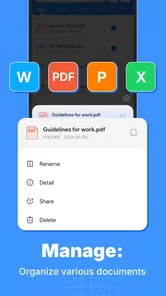
PDF Toolbox is a mobile utility designed to help users manage and work with PDF documents from an Android or iOS device. Its store summary describes it as a way to make documents easier to read, scan, and annotate. Depending on the version and available tools, you can typically use it to view, merge, split, compress, convert, rotate, or organize PDF files. It is useful for everyday document tasks when you need a convenient alternative to using a desktop computer.
Is PDF Toolbox free to download and use?
PDF Toolbox is free to download. Some features can still be limited or reserved for a premium subscription or one-time purchase, so check the current store listing for information about advertisements, in-app purchases, trial periods, and feature restrictions. Pricing and included tools may also vary between Android and iOS versions, so reviewing the payment details is recommended before relying on a particular tool.
Can PDF Toolbox work with files stored on my phone or in cloud services?
PDF Toolbox generally allows users to select PDF documents from local device storage and, depending on the platform, import files through the system share menu or connected cloud services. Access can vary according to the operating system and the app version. You should also review the permissions requested during setup and confirm that the app supports the storage provider you normally use.
Does PDF Toolbox protect my documents and personal information?
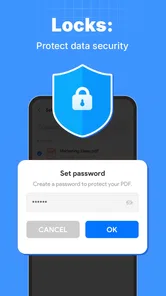
PDF Toolbox may need access to files, photos, or storage so it can open and process documents. The exact handling of your files depends on the developer’s privacy policy and whether processing takes place directly on the device or through online servers. Avoid uploading confidential documents until you have checked the app’s privacy information, data practices, encryption claims, and account requirements.
Pros
- Combines several PDF tools in one lightweight app.
- Supports quick file conversion and basic document management.
- Simple interface makes common tasks easy to find.
- Useful for occasional edits without needing a desktop computer.
- Can reduce the need to install multiple separate PDF apps.
Cons
- Advanced editing options may be limited compared with desktop software.
- Some features may require a premium upgrade or contain ads.
- Large files can take longer to process on older devices.
- Privacy depends on how uploaded or processed documents are handled.
- Formatting may change slightly during certain conversions.











