PDF Scanner App: Document Scan
- 41.00
- 4.2
- Installs
- 500.00K
- Price
- Free
Screenshots
Analysis by Reviewed
I use my phone as a temporary desk more often than I would like: a form arrives on paper, a receipt needs saving, or someone asks me to send a signed page as a PDF. PDF Scanner App: Document Scan is built for exactly that kind of moment. It is a productivity app from SmartSoft Apps that turns camera captures into PDF or JPG files and gives me a practical way to send or share them.
After spending time with it, I see it as a focused document tool rather than a complete office suite. Its appeal is simple: it puts scanning, file conversion, and sharing in one place. That makes it useful for students, renters, freelancers, parents, and anyone who occasionally needs a clean digital copy without reaching for a desktop scanner.
The app is free to install, is suitable for Everyone, and works on Android versions starting with 7.0. Its current version is 2.05. SmartSoft Apps has built an audience of over 500 thousand installs, while its average score sits at 4.2 from around 3.3 thousand ratings. Those figures suggest a reasonably established tool, although they do not remove the need to check whether its workflow matches the way you handle documents.
Scanning a page without turning it into a project
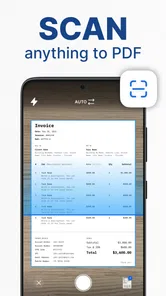
The first thing I noticed is how naturally the app fits a quick capture routine. I can point the phone at a page, create a digital copy, choose a document format, and then share it. That short path matters more than a long list of advanced controls when the goal is simply to send paperwork before moving on with the day.
A useful habit is to prepare the page before opening the camera. I place it on a flat, contrasting surface, move nearby objects out of the frame, and use even light rather than relying on a harsh lamp directly above the paper. The app can help turn a camera image into a document, but it cannot fix a page hidden under shadows or badly folded at the edges. Good capture technique still has the biggest effect on readability.
For a single sheet, the workflow feels especially appropriate. Imagine receiving a school permission form at breakfast and needing to return it by email before leaving home. I would place the form on the table, capture it, save it as a PDF, and share it immediately. That is a much more sensible use than photographing the page, opening a separate conversion tool, renaming the image, and then searching for the correct attachment.
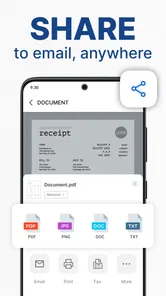
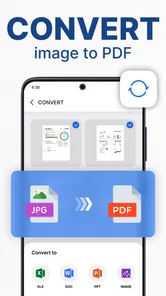
The option to work with JPG as well as PDF also changes the best choice depending on the recipient. A JPG can be convenient when someone only needs to view an image in a chat or message. A PDF is generally the better choice for forms, invoices, applications, and multi-page paperwork because it feels like a finished document rather than a loose camera photo.
More From Our News Desk

Weather by Xiaomi Review: Clear at a Glance, Less Clear Up Close

X Under Pressure: Can It Recover When Posting Goes Wrong?

Clash of Clans Is Won Between the Battles

Android Auto Makes the Case for Quieter Car Software

MobiOffice: Transforming Mobile Productivity with Seamless Integration

EA SPORTS FC™ Mobile Soccer: Redefining Mobile Sports Gaming
Where the simple workflow helps most
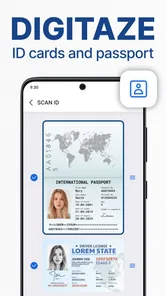
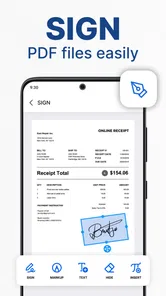
I find this kind of scanner most valuable when the document starts on paper but ends in a digital conversation. A landlord may request a copy of identification, a client may need a signed page, or a university office may ask for a completed form. In each case, the important benefit is not artistic image quality; it is reducing the number of steps between paper and a shareable file.
It is also handy for keeping personal records. I could scan a warranty, a receipt, or a service document soon after receiving it, then avoid carrying the original around. The practical tip here is to use a consistent naming habit immediately after scanning. Names such as “utility bill,” “insurance form,” or “course receipt” are far easier to find later than a camera-style filename.
For several related pages, I would capture them as one document when they belong together rather than creating a separate file for every page. That keeps an application or agreement easier to send and less confusing for the person receiving it. Before sharing, I would open the finished file and check the page order, orientation, and legibility. A quick review prevents the common mistake of sending an incomplete or upside-down document.
What I would not expect from it
This is where I keep my expectations realistic. A scanning app is not automatically the same thing as a full document-management system. The core promise here is capture and conversion into PDF or JPG, not a replacement for every office task. If I needed extensive editing, complex filing, collaborative review, or a large archive with elaborate search, I would compare it with a broader productivity platform instead of assuming this app covers everything.
I would also avoid treating a phone scan as a perfect substitute for a professional scanner in every situation. Fine print, faint pencil marks, glossy pages, and tightly bound books can still be challenging. A phone is convenient, but the result depends on lighting, focus, page position, and the condition of the original. For official paperwork, I always inspect the final file at a comfortable zoom before sending it.
Another trade-off is that convenience can encourage careless storage. Scanning a document is quick, but a growing folder of unnamed files becomes difficult to manage. My preferred workflow is capture, rename, check, and share or archive straight away. That small discipline makes the app more useful than simply pressing the camera button and leaving every file for later.
Free access and the paid-value question
The app is free, which makes it easy to try without committing money first. That matters for occasional users who might scan only a few pages each month. For that audience, the free entry point is the main value: I can test the capture-to-share routine and decide whether it saves enough time in my own situation.
There are in-app purchases ranging from $4.99 to $45.99 per item. I would not treat those amounts as an automatic recommendation to upgrade. Their value depends on what the paid options unlock in the version available to me and how often I scan. Someone who only needs a signed form once in a while may find the free access sufficient, while a person handling paperwork every day may judge the paid choices differently.
My advice is to use the free experience first and identify the exact point where it either solves the problem or creates friction. If the basic scan, export, and sharing routine already handles your documents, paying may not add meaningful value for you. If repeated work makes a paid option genuinely useful, then the decision should be based on that specific improvement rather than on the presence of a purchase button.
This distinction is important because a free app can still be expensive in time if its workflow does not suit you, while a paid feature can be reasonable when it removes a repeated annoyance. I would especially consider frequency: an occasional household user and a freelancer sending paperwork several times a week are not evaluating the same product.
Small habits that improve the result
My first practical tip is to scan near a window or under broad, even light, while keeping the phone parallel to the page. Tilting the phone can make a rectangular sheet look distorted, and mixed lighting can create uneven patches that are distracting in a PDF. I also leave a little space around the paper during capture so the edges are not accidentally clipped.
The second is to separate capture from sending. I scan all pages first, inspect them, and only then share the document. This is safer than sending each page immediately, especially when a form has a back side or an attachment. It also gives me a chance to notice a blurry page before the recipient does.
The third is to choose the output format according to the task, not personal habit. For a single image meant for a quick message, JPG may be enough. For a contract, application, or group of pages, PDF is usually more orderly. Keeping that distinction in mind avoids creating a collection of image files that the recipient must assemble manually.
A fourth useful habit is to make a private quality check part of the routine. I look for missing corners, unreadable small text, glare, and pages captured in the wrong order. If the document contains information I would not want exposed, I also verify the recipient and the selected sharing destination before tapping send. The app makes sharing convenient, so a careful final check is worthwhile.
How it compares with familiar alternatives
The obvious alternative is the phone’s regular camera. That works when I only need a visual record, but it leaves more work afterward: cropping, choosing a format, organizing pages, and preparing something that looks like a document. This app is more suitable when the final result needs to be sent as paperwork rather than stored as an ordinary photograph.
Another alternative is a multifunction printer or dedicated scanner. That route can produce consistent results and may be preferable for a large batch, archival work, or pages with very small text. The downside is access and setup. A phone-based scanner wins when I am away from home, when the printer is occupied, or when the document is needed immediately.
Cloud storage and office apps can also handle document images, but they may be broader than necessary for a quick scan. I would choose a more comprehensive office tool if I needed editing, shared folders, or a long-term document workflow. I would choose this app when the job is narrower: capture a paper page, convert it, and send it without building a larger system around it.
That comparison explains both its strength and its limit. It is focused enough to be approachable, but users looking for a full archive or advanced document processing should not confuse a focused scanner with an all-purpose office environment.
Who will get the most from it
I think the best match is someone who regularly receives paper but does not own or want to maintain a scanner. Students can use it for forms and class paperwork, renters can keep copies of agreements and receipts, and independent workers can return signed pages while away from a desk. Families may also appreciate having a quick way to digitize school notices or household documents.
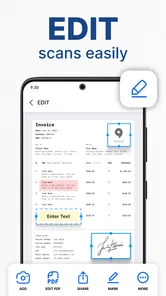
It is less compelling for someone who already has a dependable scanner and a carefully organized desktop workflow. It may also be the wrong choice for a person who expects powerful text editing, extensive annotation, or sophisticated document storage. In those situations, a dedicated office or document-management tool is likely to be a better fit, even if it takes longer to learn.
Privacy-conscious users should make their own sharing decisions carefully. I would avoid scanning sensitive documents casually, review where the resulting file is going, and keep only the copies I actually need. The convenience of having a document ready to send should not replace ordinary caution with personal paperwork.
Device compatibility is reasonably broad because the app supports Android 7.0 and later. That makes it relevant to people who keep an older phone rather than upgrading frequently. Still, the practical experience will depend on the phone’s camera, screen, storage, and lighting conditions, so an older supported device may not produce the same results as a newer one.
My buy-or-skip verdict
I would recommend trying PDF Scanner App: Document Scan if you want a straightforward way to turn occasional paper documents into files you can send. The free starting point lowers the risk, and the combination of PDF and JPG output fits common everyday requests. I especially like it for one-off forms, receipts, signed pages, and small groups of related documents.
I would skip it if your needs are closer to professional archiving, heavy batch scanning, advanced editing, or a fully managed office library. In those cases, a dedicated scanner or broader document platform may justify its extra complexity. I would also skip any paid purchase until the free workflow shows me a problem that the upgrade would actually solve.
Overall, SmartSoft Apps has made a practical productivity tool for the gap between paper and digital sharing. It does not need to become the center of my entire document life to be useful. When I remember to prepare the page well, check the final file, name it clearly, and choose PDF or JPG for the right reason, it saves real effort. Its strongest value is convenience without forcing an occasional user into a complicated office system.
PDF Scanner App: Document Scan Frequently Asked Questions
Is PDF Scanner App: Document Scan compatible with my phone or tablet?
PDF Scanner App: Document Scan is available for Android devices running version 7.0 or later. It is a productivity app from SmartSoft Apps, intended for turning a mobile device into a document-scanning tool. Before downloading, check your device’s operating-system version in its settings so you can confirm compatibility. The app is free to download, with optional in-app purchases.
Who is PDF Scanner App: Document Scan suitable for?
The app is aimed at people who want to digitize everyday paperwork using a phone or tablet, including students, office workers, and anyone who needs to keep documents handy. Its content rating is Everyone, and its straightforward scanning purpose may suit occasional as well as regular use. It has an average rating of 4.2 from around 3,300 ratings, giving prospective users a sense of its broader reception.
What is PDF Scanner App: Document Scan used for?
PDF Scanner App: Document Scan is designed to turn your phone or tablet into a portable document scanner. After testing it, we found it useful for capturing receipts, contracts, notes, forms, business cards, and other paper documents. The app can automatically detect page edges, improve readability, and save scans as digital files that are easier to store, share, or print.
Does PDF Scanner App: Document Scan create high-quality PDF files?
Yes, the app can create PDF documents from photos or scanned pages, with quality depending on your device camera, lighting, and the selected scan settings. In our experience, clear, well-lit pages produced the best results. It also offers image enhancement tools to improve contrast and reduce shadows, although very small text or badly folded pages may still require manual correction.
Can I scan multiple pages and combine them into one document?
PDF Scanner App: Document Scan supports multi-page scanning, which is particularly helpful when digitizing reports, school assignments, invoices, or signed agreements. You can capture several pages in sequence, review them, rearrange their order, and save them together as one PDF. This avoids creating separate files for every page and makes sharing complete documents much more convenient.
Pros
- Quickly scans documents
- receipts
- and notes using the phone camera.
- Automatic edge detection helps create cleaner
- more professional-looking scans.
- Supports multi-page documents for convenient file organization.
- Useful PDF sharing options make sending scans simple and fast.
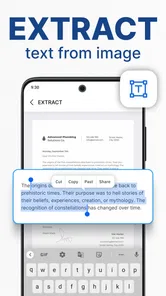
- OCR features can help extract text from scanned documents.
Cons
- Scan quality depends heavily on lighting and camera performance.
- Some advanced tools may require a premium subscription.
- OCR accuracy can vary with handwriting
- fonts
- and image clarity.
- Large multi-page scans may use considerable device storage.
- Privacy terms should be checked before uploading sensitive documents.











