PDF Reader: PDF Editor, Viewer
- 11.00
- 3.1
- Installs
- 100.00K
- Price
- Free
Screenshots
Analysis by Reviewed
When a document lands on my phone at the wrong moment, I want to check it, make a small change, or pass it along without opening a laptop. PDF Reader: PDF Editor is aimed at that practical gap: it’s a free productivity app from AI Photo Simple for working with PDF files on the go. I’d consider it for everyday document chores, not as a full replacement for a desktop PDF suite.
A good fit for quick document errands
I’d be most comfortable recommending this app to someone who handles occasional forms, receipts, handouts, or work documents on a phone and wants more options than simply opening a file. It may suit a student checking a class handout, a freelancer preparing a basic attachment, or anyone who needs to gather a few paper pages into a digital document while away from a scanner.
It is a less natural fit for people who spend much of the day revising contracts, annotating long reports, or coordinating document changes with a team. Those tasks benefit from a larger workspace and more specialized controls. Before installing, it helps to ask whether your usual job is a quick mobile handoff or sustained document work; this app’s appeal is strongest in the first case.
From a document landing on your phone to a usable file
I look at a phone PDF tool as part of a chain: a file arrives, I need to understand it, perhaps adjust it, and then pass it on in a form someone else can use. This section follows that chain rather than treating each feature as an isolated button. I’ll start with the moment the document appears, then move through the choices that shape a reliable handoff.
Starting with the file you already have
The most useful way to think about PDF Reader: PDF Editor is as a place to handle a PDF after it has arrived, rather than as a document system that organizes every part of your working life. A file might come from an email, a download, or a message. The first task is simply getting to the right document and reading it comfortably enough to decide what needs doing.
That makes the app relevant to ordinary situations: checking a form before a meeting, reviewing a handout while commuting, or finding a page in a document when you’re away from a computer. Its focus is the PDF itself. If your main need is to read and carry out common document actions in one mobile app, that focus is useful; if you’re looking for a broader office workspace, you may want something more comprehensive.
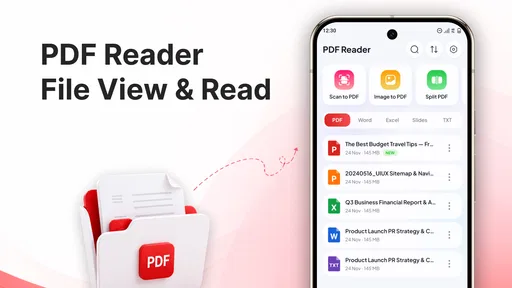
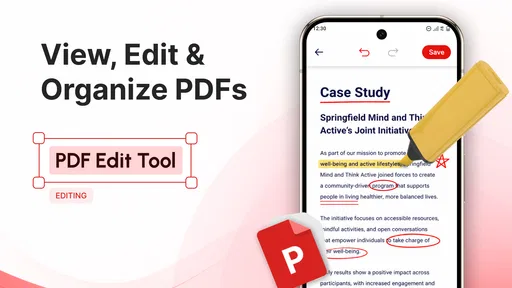
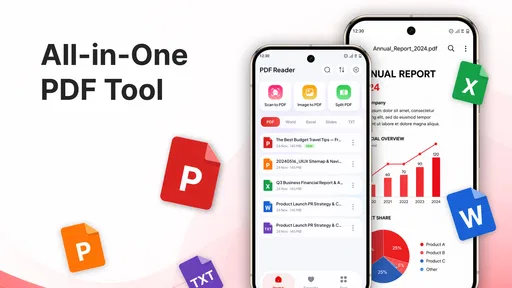
In my experience, the key question with any phone-based PDF tool is not just whether it opens a file, but whether it helps you move from “I’ve received this” to “I can use or share this” without making the task harder. This app brings viewing, editing, scanning, merging, and conversion into that general workflow. Those are distinct jobs, though, and the best results come from treating each as a separate step rather than expecting one tap to solve everything.
More From Our News Desk

Weather by Xiaomi Review: Clear at a Glance, Less Clear Up Close

X Under Pressure: Can It Recover When Posting Goes Wrong?

Clash of Clans Is Won Between the Battles

Android Auto Makes the Case for Quieter Car Software

MobiOffice: Transforming Mobile Productivity with Seamless Integration

EA SPORTS FC™ Mobile Soccer: Redefining Mobile Sports Gaming
Reading first, then deciding what to change
I’d start by checking the whole document before editing or converting it. That small habit prevents a common mobile mistake: changing a page or exporting a file before noticing that the original contains another section, a signature area, or an instruction that affects how it should be handled. When you’re using a compact screen, it’s especially worth pausing to inspect the document’s structure before acting.
For a short file, reading on a phone is often the fastest option. Longer reports and dense layouts are a different story. A mobile reader can be convenient for a quick check, but if you need to compare several pages side by side, examine fine print, or make careful revisions, a larger screen is generally easier. I’d use this app to triage and handle straightforward tasks, then move to a computer when accuracy depends on seeing more at once.
The app’s average rating is 3.1 from 361 ratings, a mixed signal rather than a clear endorsement. I’d take that as a reason to test it against a real, low-stakes document before making it part of an important routine. That is a sensible approach for any PDF tool, since file layouts and editing needs can vary considerably.
Making a small edit without losing the original
Once I know what a file contains, editing is the natural next step if the change is modest. I’d keep the untouched source separate from any revised copy. That gives me a fallback if the change alters the layout or the result isn’t suitable for sending. It’s a simple workflow safeguard, but it matters more on a phone, where file names and folders can be easy to mix up.
For example, imagine a colleague sends a PDF form that needs a minor correction before it goes back. I’d open it, inspect the relevant page, make the required adjustment, and then review the result rather than assuming the edit looks right because the action completed. If the document is legally important, heavily formatted, or requires precise changes across many pages, I’d prefer a dedicated desktop editor. Mobile editing is best when convenience outweighs the need for a wide, detailed workspace.
One useful trade-off is deciding whether to edit the existing file or create a new version. Keeping a distinct revised copy makes it easier to explain which document is current when it passes between people. It also avoids overwriting the version you received, which can be valuable when someone later asks what changed. I would make that choice deliberately before sending anything on.
Scanning paper and combining separate pages
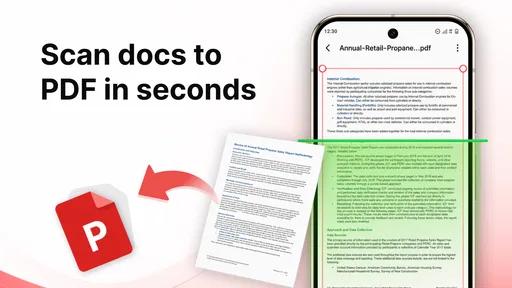
The scan and merge functions make the app potentially useful when a task begins with paper rather than an existing PDF. A practical sequence is to capture the pages you need, check that the resulting document is readable, and only then combine it with related material. This is more reliable than scanning a stack quickly and assuming every page will be in the right order.
A realistic example is collecting a signed page and a supporting receipt after an appointment. I’d scan each item, inspect the edges and text, then merge them into a single file if the recipient needs one attachment. The important detail is the review between steps: a crooked or unclear scan can become harder to fix after it has been combined with several other pages. Checking page order at the merge stage also prevents a recipient from having to guess how the documents fit together.
Scanning on a phone is convenient, but it doesn’t automatically make paper look like a clean digital original. Poor lighting, a curved page, or small printed text can make a scan less useful. If the document must be sharply legible or is being used for a formal process, I’d take extra care with the capture and inspect the finished PDF at a readable size before relying on it.
Converting and handing the file to someone else
Conversion is most helpful when the next person or service needs a different file format. I’d treat it as a handoff step, not just a finish button: choose the output that suits the recipient, inspect the converted result, and keep the PDF source until I know the new version is acceptable. Conversion can change layout or make content less convenient to edit, so checking the result is part of the task.
For instance, if I need to share material with someone who can’t work comfortably with a PDF, conversion may make the document easier to use. But if exact page appearance matters, keeping the PDF as the main copy is the safer choice. Similarly, merging is helpful when a recipient wants related pages together, while separate files may be clearer when the documents have different purposes or need to be reviewed independently.
This is where the app’s all-in-one approach can save a little friction: reading, making a change, scanning another page, or preparing a combined document can happen within the same general tool. Still, the handoff itself deserves attention. Before sharing, I’d confirm that the file opens, the pages are in order, and the version I’m sending is the one I intend. The recipient experiences the outcome, not the steps that produced it.
Where this workflow can break down
The main limitation is that a mobile PDF workflow is not automatically comfortable just because several document tasks are available in one app. Small screens make detailed review and careful editing less pleasant, and scanning depends on the condition of the paper and the way it is captured. For complex forms, intensive annotation, or exact layout work, I’d choose a more specialized tool or use a computer.
I’d also avoid treating conversion as a guaranteed shortcut. A converted document should be checked before it replaces the original, particularly if it contains tables, unusual formatting, or content where page layout matters. Likewise, combining files is only helpful if the new order makes sense to the person receiving them. A quick review at these points is more useful than rushing through the workflow and having to repeat it later.
People who mainly need cloud collaboration, extensive markup, or advanced control over document structure may find a specialist PDF editor a better fit. Someone who only wants to read PDFs may prefer a simpler reader. This app makes more sense when you expect to move between several basic tasks—viewing, editing, scanning, merging, and converting—and value having them together on a phone.
How it compares with a basic reader or desktop editor
A basic PDF reader is the cleaner choice if all you do is open files and look something up. It can keep the experience focused, without asking you to navigate broader document tools you rarely use. This app’s advantage is the possibility of moving from reading to a practical change, a scan, or a combined file in the same mobile workflow. That convenience matters most when the task is small enough to finish comfortably on a phone.
A desktop editor remains the better tool when a document needs exact formatting, repeated revisions, or close comparison across pages. I’d also choose a more specialized option when collaboration and detailed markup are central to the job. The trade-off is not simply more features versus fewer: it is whether the time saved by handling a quick errand on mobile outweighs the extra care needed to inspect the outcome on a small screen.
Who I’d recommend it to
I’d suggest trying PDF Reader: PDF Editor if you often receive PDFs while away from a desk and need to do more than open them. It has over 100 thousand installs, is free, and is rated for Everyone. The current version is 1.3, and it supports Android 7.0 or later. Those details make it accessible to a broad range of Android users, while the mixed rating is a reminder to judge it by your own documents and routine.
It is less compelling for someone whose work depends on precise, repeated editing or whose documents must retain exact formatting through every change. In those cases, I’d use a desktop editor for the main work and keep a phone app for quick checks or simple handoffs. If you only need occasional reading, there may be no reason to adopt a tool with a broader set of document actions.
A low-risk way to decide
My practical recommendation is to test it with a harmless file first: open it, try the kind of edit or scan you expect to use, and inspect the output before sharing. That gives you a clear sense of whether the mobile workflow suits your documents. For everyday PDF errands, the appeal is having several useful steps close at hand; the trade-off is that careful review still falls on you, especially when the final file matters.
I’d make that trial more useful by choosing a document similar to the ones I expect to handle, rather than a perfectly simple sample. A short form can reveal whether the reading and editing flow feels manageable, while a paper page can show whether my usual lighting and workspace produce a readable scan. I would keep the test file low-stakes and avoid using sensitive material until I’m comfortable with the steps involved.
One practical question is whether I should use the app for every PDF once it is installed. I wouldn’t. I’d keep it as an option for tasks that benefit from editing, scanning, merging, or conversion, and use a simpler reader when I only need to check a page. That selective approach avoids turning a quick look-up into a larger workflow and makes it easier to notice when a job has outgrown what is comfortable on a phone.
For a handoff, I’d also consider what the recipient needs to do next. If they only need to read the document, preserving the PDF may be clearest; if they need a different format or one attachment containing several related pages, conversion or merging may help. Either choice should follow the recipient’s task, not just the availability of a button. That small distinction can prevent an otherwise tidy file from being inconvenient at the other end.
Overall, I see this as a practical Android utility for occasional, mixed PDF chores rather than a specialist editor. AI Photo Simple’s app can make a useful bridge between receiving a file and sending a usable version onward, especially when I’m away from my computer. I’d still keep the original, check every changed or converted result, and switch to a larger-screen tool when precision matters. If that balance matches your routine, it is worth a careful trial.
PDF Reader: PDF Editor, Viewer Frequently Asked Questions
What can you do with PDF Reader: PDF Editor, Viewer?
PDF Reader: PDF Editor, Viewer is designed to help you open and read PDF files, navigate through pages, and use available tools to work with documents. Depending on the version and device, editing options may include adding notes, highlighting text, or making other changes. Check the app listing and in-app menus to confirm which features are available, since tools and limits can vary.
Can you edit PDFs and save the changes?
The app’s name indicates that it includes PDF editing features, but the exact tools may differ by version. Before relying on it for a particular task, look for the relevant options in the editor and confirm whether changes can be saved, exported, or shared as a new PDF. Keep an untouched copy of important documents, especially before testing edits or annotations.
Does PDF Reader: PDF Editor, Viewer work offline?
Reading a PDF already stored on your phone will generally not require an internet connection, although some app functions may depend on connectivity. Features such as downloading files, syncing, cloud storage, sharing, or viewing online documents can require internet access. If you need to use the app while travelling or without reliable service, open your documents beforehand and test the tools you plan to use.
Is PDF Reader: PDF Editor, Viewer free to download and use?
The app may be available to download without an upfront charge, but that does not necessarily mean every feature is free. Some versions of PDF apps offer optional subscriptions, in-app purchases, advertisements, or limits on particular tools. Review the current store listing and the pricing information shown inside the app before starting a trial or confirming a purchase, and check cancellation terms if applicable.
How do you open files safely, and what permissions should you check?
You can typically choose a PDF from your device’s file manager or use the app’s document browser, though the available import methods depend on your phone and app version. Grant only the permissions needed to access files you select, and review the app’s privacy information before importing confidential documents. Avoid opening files from untrusted sources, and verify that a saved or shared copy contains the intended changes.
Pros
- Opens PDFs quickly for straightforward reading and review.
- Offers annotation tools for highlighting and adding notes.
- Includes search to help locate text in longer documents.
- Supports sharing PDFs directly from the app.
- Provides a convenient way to manage documents on a mobile device.
Cons
- Editing options may be limited compared with desktop PDF software.
- Some advanced tools may require a paid upgrade.
- Large PDFs can take longer to load on older devices.
- The interface may feel crowded when many tools are displayed.
- Document features and performance may vary by device and PDF format.











