PDF Pro : Reader&Editor
- 30.00
- 3.8
- Installs
- 500.00K
- Price
- Free
Screenshots
Analysis by Reviewed
PDF Pro is the kind of productivity app I’d try when I need to open a document quickly on my phone and don’t want to hunt for a separate reader for every file type. Its focus is practical: bringing familiar office documents into one place for reading. That makes it appealing for everyday handoffs, such as checking a PDF someone sent or opening a spreadsheet while away from a computer. I’d approach it as a convenient viewer first, rather than assuming it can replace a full desktop office suite.
The app is free, rated for Everyone, and developed by FENGMAIJI. It has an average rating of 3.8 from around a thousand ratings, with 30 written reviews and over 500,000 installs. Those figures suggest that many people are willing to give it a try, while the rating is a useful reminder to keep expectations measured. The current version is 1.0.4, and it runs on Android 8.0 or later.
What to expect from a document-first app
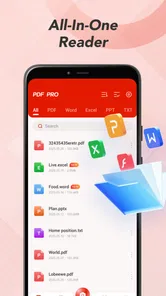
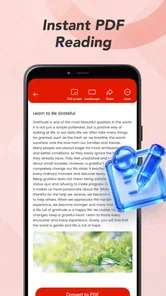
The main reason I’d install PDF Pro is to deal with several common document formats without switching between specialized apps. It is presented as an office-document reader, covering PDF, DOCX, XLSX, PPT and TXT files. In practice, that range is useful when documents arrive from different people or services and you mainly need to read them on a phone.
There is a meaningful distinction between being able to open a format and being able to work on it extensively. A phone-sized screen is comfortable for checking a page, reviewing a few rows, or reading a presentation on the go. It is less suited to comparing a long spreadsheet or making careful changes to a complex document. I’d treat this app as a convenient mobile document viewer, and keep a dedicated editor available for work where layout, formulas or collaboration matter.
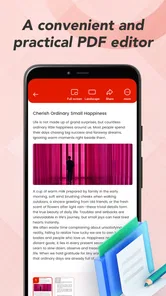
The name includes “Reader&Editor,” but I would not install it on the assumption that every file type offers the same editing options. The clearest promise is broad document viewing; the experience with any particular file can depend on its format and complexity. If your immediate goal is simply to inspect a document, that distinction should not get in the way. If you need advanced editing, it is worth testing your own typical file before relying on it for a deadline.
For a first-time user, the path to a useful result should be straightforward: install the app, locate a document already on the device or available through the phone’s file picker, open it, and check whether the page or content is legible. That small test tells you more than a long list of format names. It also lets you judge whether the app suits the way you actually read documents, rather than the way you imagine you might use it.
Choosing the right first document
I’d begin with a familiar, low-stakes file rather than the largest or most important document in my inbox. A short PDF, plain text note or simple office file makes it easier to see how the app handles basic reading. If it opens cleanly and the content is easy to follow, try a more varied document next. That sequence helps separate a one-off file problem from a mismatch between the app and your everyday needs.
More From Our News Desk

Weather by Xiaomi Review: Clear at a Glance, Less Clear Up Close

X Under Pressure: Can It Recover When Posting Goes Wrong?

Clash of Clans Is Won Between the Battles

Android Auto Makes the Case for Quieter Car Software

MobiOffice: Transforming Mobile Productivity with Seamless Integration

EA SPORTS FC™ Mobile Soccer: Redefining Mobile Sports Gaming
A useful test is a document you already know well. When you recognize the page order, headings or key figures, you can spot if anything looks misplaced or difficult to read. This is especially helpful with spreadsheets and presentations, where a narrow display can change how much you see at once. For important documents, I would still check the result against the original in the tool that created it.
Getting from install to a first success
Once it is installed, keep the first task simple: open one file and find a specific piece of information. For example, if a colleague sends a PDF agenda, locate the meeting time; if you receive a spreadsheet, check a particular row or heading. A clear target turns “the file opened” into a real test of whether the app is useful.
If the document is attached to a message or stored in another app, use the phone’s ordinary file-opening options and choose PDF Pro if it appears as a suitable app. If the file is already saved locally, browse to it from the app’s document access flow. The exact route can vary by phone and where the file lives, so I would not assume every document is automatically gathered into one library. Knowing where the original file is saved makes the first attempt less frustrating.
One practical habit is to keep a small set of representative files for testing: a PDF with several pages, a short DOCX, a basic XLSX, a PPT presentation and a TXT file. This is not busywork; it reveals whether your own mix of documents is a good fit. It also avoids discovering a limitation for the first time when someone is waiting for an answer.
For a quick reading task, avoid judging the app by whether it behaves like a computer program. On a phone, the useful question is whether you can get to the relevant content without unnecessary detours. If you can open the file, scan it comfortably and return to your task, PDF Pro has succeeded at the job I’d initially give it.
Small-screen trade-offs worth knowing
Document reading on a phone always involves a compromise between seeing the whole page and making the text large enough to read. A PDF designed for printing may require zooming and moving around, while a spreadsheet can be harder to scan when columns extend beyond the screen. These are not unique defects of this app, but they shape whether a mobile viewer is the right tool for a particular document.
My tip is to use the phone for targeted checks, not as the default place to audit a dense spreadsheet or proofread a carefully formatted report. If you need to confirm one figure or read a short section, a viewer is convenient. If you need to compare columns, preserve exact layout or revise multiple passages, a larger screen and a purpose-built editor are safer choices.
Common confusion: viewing is not the same as editing
The word “editor” can lead to an understandable expectation that every document can be changed in every way. I would separate three jobs: opening a file, reviewing its contents and making substantial edits. A broad reader can be handy for the first two, but the third often requires features and controls that are easier to use in a dedicated office app. Before depending on PDF Pro for changes, test the exact kind of edit you need on a copy of a nonessential file.
Another common snag is assuming that a file is missing because it does not immediately appear in an app’s main view. Documents may be in a downloads folder, attached to a message, or stored in a cloud service rather than saved locally. Start from the place where you received the file and use the system’s open or share route if needed. This is a general Android file-handling step, not a reason to assume the document has been imported automatically.
File names can also be misleading. A document may have a familiar extension yet contain unusual formatting, embedded content or a layout that was never designed for a small screen. If one file does not display as expected, try another known-good document before deciding that the entire app is unsuitable. For work-critical files, verify important details in the original application whenever possible.
Where it fits among the usual alternatives
Compared with installing one dedicated app for PDFs and another for office documents, a multi-format reader offers a simpler starting point. That is its strongest practical appeal: fewer app switches when your task is to inspect different kinds of files. Compared with established office suites, though, a focused viewer may not be the better choice for composing documents, editing complex layouts or handling collaborative work. The right comparison depends on whether you mostly read or regularly create and revise files.
If you already use an office suite that opens everything you receive, adding another reader may not make your routine simpler. If you often encounter files in several formats and want a separate place to inspect them, PDF Pro is easier to justify. I’d also keep the original editing app for any document whose appearance or calculations must remain exact. A second reader can be a useful fallback, but it should not become the only verification step for important work.
Its Productivity classification makes sense because the value is in reducing friction around everyday documents, not in offering entertainment or a specialized business workflow. The app’s free price lowers the commitment involved in trying it, but “free” does not automatically make it the right fit. The best reason to keep it is that it handles the documents you actually receive in a way that feels comfortable on your device.
Who should try it, and who should choose something else
I’d recommend giving it a try if you are a student checking handouts, a traveler reviewing a saved itinerary, or someone who needs to inspect occasional office files without opening a full editing suite. It may also suit people who receive documents from several sources and want one general-purpose reader to test first. The age rating of Everyone makes it broadly accessible, though children should still follow a parent or guardian’s guidance when using a phone.
I would skip it as a primary work tool if your day depends on advanced document editing, precise spreadsheet analysis, formatting control or a shared review process. In those cases, the app that created the file—or a full-featured office suite—is likely to provide a more dependable workflow. I would also look elsewhere if your device runs an Android version older than 8.0, since this release requires Android 8.0 or later.
After the first successful opening, the sensible next step is to test one file from each format you genuinely use, then decide whether the app saves time compared with your current setup. Avoid moving all your document habits over at once. Keep familiar tools in place for editing and use this reader where it proves convenient. That small, deliberate trial is a better way to judge a mobile utility than expecting it to replace every office app immediately.
My overall view: PDF Pro is worth considering as a free, multi-format reader for quick checks and everyday access to documents. I like the idea of having PDFs and common office files within reach in one app, but I would judge it by how well it handles your own files, not by the breadth of its format list alone. If your goal is to read on the move, start with a simple document and see how quickly you find what you need. If your goal is serious editing, keep a dedicated office suite in the picture.
A practical way to decide
After trying it, ask yourself three questions: Did the file open from the place where you received it? Could you read the part you needed without fighting the screen? And did you need to make changes beyond what a viewer comfortably supports? If the first two answers are yes and the last is no, PDF Pro may earn a place on your phone. If not, you have learned that quickly without rebuilding your workflow around it.
That is the kind of modest success I want from a mobile document app: a file arrives, I can inspect it, and I can get back to what I was doing. PDF Pro is most convincing in that role. Keep your expectations centered on convenient reading, test your own formats, and choose a full office tool whenever precision editing matters more than quick access.
PDF Pro : Reader&Editor Frequently Asked Questions
What is PDF Pro: Reader&Editor used for?
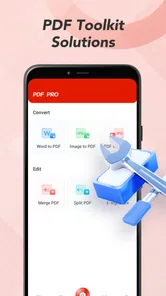
PDF Pro: Reader&Editor is designed to help you open and read PDF files, as well as make common changes to them. Depending on the tools available in the version you install, you may be able to annotate pages, add highlights or notes, fill out forms, and manage documents. It can be useful for studying, reviewing work files, or handling everyday PDFs on a mobile device.
Can I edit the text and images inside a PDF with PDF Pro: Reader&Editor?
The word “Editor” can cover different levels of editing, so it is worth checking the app’s current feature list before relying on it for a specific task. Many mobile PDF apps support annotations, signatures, form filling, or page organization, while changing existing text and images may be limited or require a paid feature. Try a copy of your document first, and verify that the saved result looks right.
Is PDF Pro: Reader&Editor free to download and use?
The app may be available to download without an upfront charge, but that does not necessarily mean every tool is free. Some PDF apps place advanced editing, conversion, cloud storage, or other features behind in-app purchases or a subscription, and may also show ads. Check the store listing for pricing, trial terms, and renewal details before subscribing, since availability and plans can vary by platform and region.
Can I use PDF Pro: Reader&Editor without an internet connection?
Reading a PDF that is already saved on your device will often work offline, and basic actions may be available without a connection. However, features that depend on cloud services, online conversion, account syncing, or downloading files may require internet access. If you need the app while traveling or away from Wi-Fi, open your documents in advance and test the tools you plan to use before going offline.
Are my PDFs private and secure when I use PDF Pro: Reader&Editor?
Privacy depends on how the app handles files, permissions, analytics, and any online services it uses. Review the developer’s privacy policy and the app-store privacy information, especially if you plan to work with contracts, financial records, or other sensitive documents. Grant only permissions that make sense for your needs, and be cautious about uploading confidential PDFs to cloud or conversion features unless you understand how those files are processed.
Pros
- Opens and reads PDF documents in a dedicated viewer.
- Includes tools for annotating and marking up documents.
- Can help organize PDFs for easier access.
- Useful for reviewing documents without printing them.
- Combines reading and editing features in one app.
Cons
- Editing tools may take time to learn.
- Some advanced features may require a paid upgrade.
- Large PDFs can be slower to open or navigate.
- Annotations may not appear as intended in every PDF viewer.
- A small screen can make detailed edits less convenient.











