PDF Pro: Edit, Sign & Fill PDF
- 1.41K
- 4.1
- Installs
- 10.00M
- Price
- Free
Screenshots
Analysis by Reviewed
PDF tasks rarely become difficult because the document itself is complicated. The trouble usually starts when I need to do something small at the wrong moment: sign a form while away from my computer, add a note to a work document, fill in a blank field, or make a quick correction before sending a file. Opening a full desktop editor can feel excessive, while switching between separate viewers, annotation tools, scanners, and signing apps creates its own mess. That is the recurring problem PDF Pro: Edit, Sign & Fill PDF tries to remove by putting several everyday PDF jobs in one mobile productivity app.
After using it as a general-purpose PDF workspace, I found its main appeal fairly simple: it reduces the number of times I have to stop what I am doing and search for another tool. The app comes from PDF Office Lab and is free to install, with optional in-app purchases ranging from $1.99 to $149.99 per item. That makes it approachable for occasional use, although the paid options are worth considering carefully if you only need a basic reader and a signature now and then.
How PDF Pro fits into real mobile document work
The app is aimed at people who handle PDFs on a phone or tablet rather than treating mobile editing as a replacement for a full office computer. Its store summary focuses on signing, annotating, and editing in one place, and that description matches the way I found it most useful: as a quick intervention tool. I would open a document, make a focused change, save or share it, and move on instead of building an entire document workflow around the app.
That distinction matters. A mobile PDF editor can be excellent for finishing a form, marking a page for someone else, or adding a handwritten signature. It is less comfortable when the job involves extensive rewriting, complex page design, or precise layout work across a long document. PDF Pro is strongest when speed and convenience matter more than desktop-level control.
The app has a 4.1 average from around 111 thousand ratings, with roughly 1,400 written reviews and over 10 million installs. Those figures suggest that it has found a broad audience, but they do not guarantee that every workflow will feel equally smooth. PDF editing is unusually dependent on the source file: a clean, digitally generated document behaves differently from a scanned page, a protected form, or a file with unusual fonts and spacing.
The first setup I would recommend
My advice is to begin with a harmless sample document rather than an important contract or application form. Open a file that contains ordinary text, a blank area, and perhaps a page that needs a note. This gives you a quick feel for how the app handles navigation, selection, annotations, and saving before a deadline is involved.
I would also decide where finished files should go before editing anything important. Mobile PDF work becomes confusing when there are several versions with names such as “document final” and “document final two.” A simple habit helps: keep the original untouched, edit a copy, and rename the completed file with a clear purpose. That is not a glamorous feature, but it prevents the most common mistake in quick document work—sending the wrong version.
More From Our News Desk

Weather by Xiaomi Review: Clear at a Glance, Less Clear Up Close

X Under Pressure: Can It Recover When Posting Goes Wrong?

Clash of Clans Is Won Between the Battles

Android Auto Makes the Case for Quieter Car Software

MobiOffice: Transforming Mobile Productivity with Seamless Integration

EA SPORTS FC™ Mobile Soccer: Redefining Mobile Sports Gaming
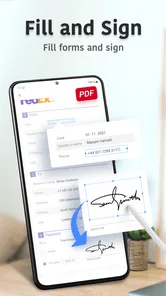
When I use the app for signatures, I treat the signature as the final step rather than the first. I read through the document, add notes or fill the required areas, check every page, and only then sign. This order is especially useful on a smaller screen, where it is easy to overlook a field below the visible portion of a page. The app can save time, but it cannot replace a careful final review.
New users may also wonder whether the free installation is enough for their needs. It is a sensible way to test the basic workflow, but the presence of paid items means that some capabilities or extended use may lead to a purchase prompt. I would not pay immediately just because the app combines several tools. First, I would confirm that the exact task I need—editing, filling, annotating, or signing—works comfortably on my device.
A realistic form-filling scenario
Imagine receiving a school permission form or a service document by email while you are away from your computer. You download the PDF, open it in the app, and identify the fields that need attention. Instead of printing the page, writing on it, scanning it, and sending it back, you can work directly on the digital copy. If the document only needs a few entries and a signature, this is where the time saving becomes noticeable.
The best practice is to zoom in before entering information into small boxes, then zoom back out to check alignment. On a phone, text that looks correctly placed at one scale can appear too close to a border at another. I also check the completed page from top to bottom before sharing it. The app makes the mechanical part quicker, but the quality of the result still depends on this visual check.
This workflow is useful for parents, freelancers, renters, students, and anyone who receives occasional paperwork electronically. It is less suitable for a form that requires extensive calculation, complex tables, or a large amount of typed content. In those cases, a desktop PDF editor or the original form-filling system may be more reliable and less tiring.
Annotations that communicate instead of cluttering
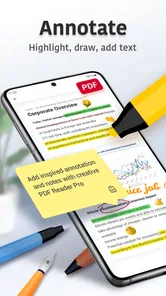
Annotation tools are most valuable when they help another person understand what needs attention. I prefer using a small number of highlights, short notes, or marks placed directly beside the relevant passage. Covering a page with colors and freehand strokes may feel productive, but it can make the document harder to review, especially when it is shared with someone who needs to act on it quickly.
A useful workflow is to annotate while reading, then make a second pass only for cleanup. During the first pass, I capture questions and corrections without interrupting my train of thought. During the second, I remove unnecessary marks and check that each note points clearly to the right text. This turns the app from a simple markup surface into a practical review tool for drafts, instructions, invoices, and study material.
There is also a trade-off between handwriting and typed notes. Handwritten marks can be faster when I am using a larger screen or need to circle something naturally. Typed notes are usually easier for another person to read and search through later. I would choose based on the recipient, not just on which tool feels quickest in the moment.
Editing without disturbing the whole document
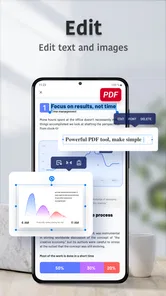
Small edits are where a mobile PDF editor can be genuinely convenient. Correcting a short phrase, adding information, or adjusting a document before sharing it is much easier when I do not need to move to a computer. I see this as “surgical editing”: change only what is necessary, inspect the surrounding layout, and avoid turning a quick correction into a complete redesign.
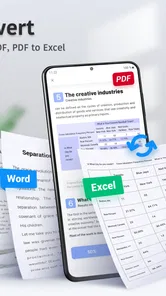
PDF files are not always as flexible as ordinary word-processing documents. Text may be positioned as individual elements, spacing can behave unexpectedly, and scanned pages may not contain editable text at all. Because of that, I would not choose this app for rewriting a long report or rebuilding a brochure. For those jobs, a word processor or a full desktop publishing workflow gives better control over margins, styles, and page flow.
The practical advantage is that the app keeps editing close to the document itself. I do not have to export a file to another format merely to make a modest adjustment and then worry about whether the conversion changed the layout. Still, I always inspect the saved result, particularly when the document contains tables, signatures, or text close to page edges.
Where the time savings are most convincing
The app removes friction in three places. First, it brings common actions together, so I spend less time deciding which tool to open. Second, it supports a mobile-first workflow for documents that arrive when I am not at a desk. Third, it makes the final handoff more direct: review the PDF, make the needed change, and prepare the completed copy without a chain of separate utilities.
That convenience is more valuable for repeated small tasks than for one large project. A property manager checking several forms, a consultant marking client documents, or a student reviewing reading material may benefit from having the same set of actions available in one app. Someone who edits a PDF once every few months may find a basic viewer and a dedicated signing tool sufficient.
I also like the idea of keeping annotations and edits within the same working session. Moving between apps can introduce duplicate files, confusing exports, and accidental sharing of an unfinished version. A single workspace does not eliminate those risks, but it reduces the number of handoffs where mistakes can happen.
What can still slow you down
The first limitation is the phone screen itself. Even a capable PDF app cannot make a dense document comfortable to read on a small display. Frequent zooming and panning can become tiring, and precise placement takes patience. A tablet is a better match for lengthy review sessions, while a computer remains preferable for large-scale editing.
The second limitation is that “all-in-one” convenience does not mean every tool is equally deep. A dedicated annotation app may offer a more refined reading experience, and a desktop editor may provide finer control over text, images, page structure, and document properties. PDF Pro makes sense when I value having the essential actions together, not when I need the most specialized version of each action.
There is also the question of paid access. The app is listed as free, but optional purchases can reach $149.99 per item. I would treat that as a reason to inspect the purchase screen and understand what I am unlocking before confirming anything. For casual users, the right choice may be to stay with the free experience if it covers their occasional needs. For frequent document work, paying can be reasonable only when the saved time genuinely outweighs the cost.
Compatibility is another practical consideration. The current version is 7.4.3 and the app supports devices running Android 5.0 or later, which makes it accessible to a wide range of Android hardware. Even so, performance and comfort can vary with screen size, available storage, and the complexity of the PDF. I would test a representative file rather than assuming that a simple form predicts how a large scanned document will behave.
Who should use it, and who should choose something else
I would recommend PDF Pro to people who regularly receive PDFs on their phone and need to complete practical tasks without returning to a computer. It is particularly appealing if your routine includes a mixture of PDF signing, filling, marking, and modest editing. The value comes from reducing interruptions: fewer app switches, fewer exports, and fewer moments when a document has to wait until you reach a desk.
It is also a good fit for users who want one familiar place for occasional paperwork rather than learning several specialized apps. The Everyone content rating makes it suitable for a broad audience, including everyday personal and school-related document tasks. I would still encourage younger users to understand what they are signing and where a completed document is being shared, since convenience should not replace judgment.
I would skip it if your main requirement is professional page production, extensive text rewriting, or highly exact layout control. In that situation, a full desktop editor is the better option. I would also look elsewhere if you only need to read PDFs and never annotate, fill, or sign them; a lightweight reader may feel simpler. And if your work depends on a particular advanced form system, I would test that exact form before making this app part of a routine.
My final view after using it as a mobile PDF toolbox
PDF Pro succeeds when the problem is not “How do I redesign this document?” but “How do I finish this PDF right now?” Its combination of editing, signing, filling, and annotation can turn a scattered mobile task into a short, manageable workflow. I found the strongest benefit in small but consequential jobs: returning a completed form, marking a document for review, or making a last-minute correction before sending.
It is not a substitute for every desktop PDF solution, and the phone interface imposes real limits on long or intricate documents. The optional purchase range also means I would evaluate my usage before spending money. Still, the free starting point makes it easy to see whether the workflow suits you, and the app’s broad adoption—more than 10 million installs—shows that this style of mobile document handling is useful to many people.
My recommendation is straightforward: install it if you want a practical PDF workspace for everyday paperwork and value time saved over specialized depth. Keep the original file, test important documents before deadlines, zoom in for precise fields, and inspect the finished copy before sharing. Used with those habits, PDF Pro: Edit, Sign & Fill PDF is a convenient productivity companion rather than an overpromised replacement for a full office setup.
PDF Pro: Edit, Sign & Fill PDF Frequently Asked Questions
Can PDF Pro open and manage PDF files from different sources?
PDF Pro is designed to work with PDF documents on a mobile device, making it useful when you need to handle files as part of everyday productivity tasks. You can use it for common document activities such as viewing, editing, signing, and filling PDFs. Your experience with an individual file may depend on how it was created and the tools needed to work with it.
Can I share a completed PDF with someone else?
PDF Pro is intended to help users manage PDF files as well as work on their contents, and sharing can be part of a typical document workflow. After editing, filling, or signing a file, review it to make sure the changes appear as expected before sending it. Take care when sharing documents that contain personal, financial, or other sensitive information.
Can I use PDF Pro on an older Android device?
PDF Pro is a mobile productivity app for working with PDF documents, and it supports Android devices running version 5.0 or later. If your device meets that requirement, you can consider it for everyday tasks such as viewing, editing, signing, and filling PDFs. Check that your device has enough available storage and that its operating system is up to date before installing.
What can PDF Pro: Edit, Sign & Fill PDF do?
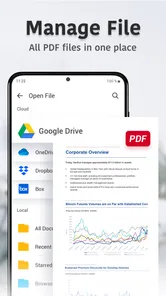
PDF Pro is designed as an all-in-one document tool for viewing, editing, signing, filling out, and managing PDF files on a mobile device. Its main appeal is the ability to handle common document tasks without switching between several apps. Depending on the version and subscription, features may include text or annotation tools, form filling, electronic signatures, page organization, sharing, and cloud-based file access.
Can I edit existing text and images inside a PDF?
The app supports PDF editing, but users should understand that editing a PDF is different from editing a Word document. Basic tools generally focus on adding text, highlighting, drawing, commenting, and inserting signatures or form information. More advanced changes to original text, images, fonts, or page layouts may be restricted to premium features, and results can depend on how the original PDF was created.
Pros
- Quickly adds signatures
- initials
- and annotations to documents.
- Supports filling common PDF forms directly on a mobile device.
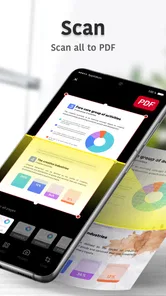
- Scans paper documents into PDFs using the device camera.
- Useful cloud integration for accessing files across multiple devices.
- Clean interface makes basic PDF tasks easy for most users.
Cons
- Many advanced editing tools require a paid subscription.
- Large scanned documents can take noticeable storage space.
- OCR accuracy may vary with poor lighting or unusual fonts.
- Some features depend on an active internet connection.
- Complex layouts can be difficult to edit precisely on a phone.











