PDF Photos & PDF Reader
- 51.00
- 3.4
- Installs
- 500.00K
- Price
- Free
Screenshots
Analysis by Reviewed
PDF Photos & PDF Reader looks useful for a familiar, slightly annoying problem: documents and images arrive in different formats, but you just need to open them, check what they say, and get on with your day. I’d consider it for a phone that has become a catch-all for forms, scans, and office files. The real test, though, is not whether it feels handy on the first afternoon; it’s whether it earns a place in your routine after the initial cleanup is over.
A practical test before it becomes a habit
If I were deciding whether to keep a general reader, I’d test the awkward files as well as the easy ones: a long PDF with small text, a photo of a page taken at an angle, and an office document with several pages. That helps reveal a useful distinction. A file can technically open yet still be inconvenient to read, and those are the moments that decide whether I reach for the app again.
I’d also try opening files from the places I actually receive them, such as a message or an email attachment, rather than moving everything into a new collection first. The fewer extra steps between receiving a document and checking it, the more likely a mobile reader is to become part of a real routine. If opening a file means repeatedly searching through folders, the app may not solve the friction that matters most.
Handy when a document lands in your lap
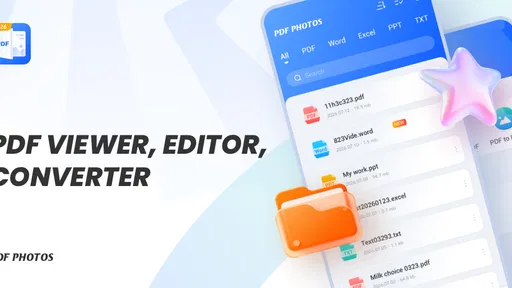
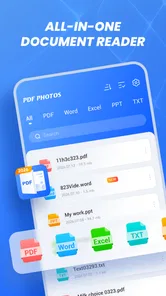
In my view, the strongest reason to try this productivity app is its broad, practical remit. It is presented as a way to handle PDFs, photos, and mainstream office documents rather than as a specialist tool for one kind of file. That makes it a plausible option when you want one place to start instead of guessing which app will open the item you just received.
Imagine a relative sends a photo of a paper form, a colleague shares an office document, and a service provider emails a PDF. With this app on hand, you have a single candidate to try for all three. That does not guarantee every file will behave identically, but it can simplify the first step: open the app, locate the item, and see whether it is readable enough to use.
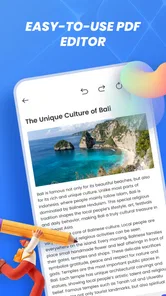
The distinction matters. A general reader can save time when the alternative is installing separate viewers or hunting through a crowded app drawer. It is less compelling if your work depends on advanced editing, team collaboration, or precise document production. I would treat it first as a convenient mobile document desk, not assume it replaces a full office suite or a dedicated PDF editor.
What feels useful in the first week
The first-week appeal is easy to understand: a mixed pile of files becomes less intimidating when one app is meant to cover several common formats. The name, PDF Photos & PDF Reader, signals that combination clearly, and the short description points to the same everyday mix. If you often receive files through messages or email and mainly need to inspect them, the idea is immediately relevant.
More From Our News Desk

Weather by Xiaomi Review: Clear at a Glance, Less Clear Up Close

X Under Pressure: Can It Recover When Posting Goes Wrong?

Clash of Clans Is Won Between the Battles

Android Auto Makes the Case for Quieter Car Software

MobiOffice: Transforming Mobile Productivity with Seamless Integration

EA SPORTS FC™ Mobile Soccer: Redefining Mobile Sports Gaming
For a sensible trial, I would use a few real documents rather than judging it from a single test file. Open a PDF you need to read, a photo you need to inspect, and an office document you already know how to view elsewhere. Pay attention to whether the text is comfortable on your phone, whether you can find the right file without fuss, and whether switching between formats feels straightforward. Those small details determine whether a utility becomes a habit.
One useful workflow is to make the app your first stop, not your only tool. When a file arrives, try opening it there; if it needs careful editing or specialist formatting, move to a purpose-built alternative. This keeps the convenience of a general reader without expecting it to do a job it may not be designed for. For occasional document checks, that division of labor is often more realistic than trying to make one mobile app handle everything.
Does it keep earning space?
PDF Photos & PDF Reader is a free app from Journey of the Shield, and it sits in a crowded field of document viewers and office tools. It has a 3.4 average from 875 ratings, while 500K+ installs suggest that many people have at least given it a try. I read those figures as context, not a guarantee: broad adoption can make an app worth testing, but your own file-opening routine is what should decide whether it stays.
Its recurring value depends on how often your phone is where documents arrive. If you regularly need to check a receipt, reference a form, or view a work file away from a computer, a multi-format app can be useful month after month. If you open such files only a few times a year, the convenience may be real but too occasional to justify keeping another icon within easy reach.
That is the key trade-off against the usual alternatives. A phone’s built-in file viewer may already cover the formats you use most, and a familiar office suite is usually the safer choice for editing documents rather than merely reading them. A dedicated PDF app is often a better fit when PDF-specific tools are central to your work. This app’s case is strongest in the middle: you want one general-purpose place to try common documents without turning your phone into a full editing workstation.
I would make the decision after a week of normal use, not after importing an entire archive. Keep it if it saves you repeated searching or avoids switching between viewers. If it merely duplicates the built-in tools you already reach for, uninstalling it is a reasonable outcome. The fact that it is free lowers the cost of trying it, but does not eliminate the clutter cost of keeping an app that rarely helps.
Keeping the document habit manageable
The maintenance burden for a document utility is less about daily upkeep and more about keeping your files findable. A practical habit is to open documents from the place they arrive, then decide where the lasting copy belongs instead of treating the reader as a filing system by default. For example, after reviewing a travel confirmation, keep the original in the folder or service where you normally store important travel details. That reduces the chance of later wondering which app contains the version you need.
For a phone full of photos and office files, a quick naming routine can help more than another layer of organization: use recognizable names for documents you expect to revisit, and avoid leaving several near-identical copies scattered around. This advice is especially relevant when a general reader makes it easy to open many formats but does not, by itself, solve the separate problem of document filing. Viewing and organizing are related tasks, not the same task.
I would also avoid making a new app the sole home for something important until you understand your own workflow. Keep an original copy in a place you can recognize, and use the reader as a way to access it. That modest precaution is useful with any mobile document app: it gives you convenience without tying your confidence in a file to one interface or one device.
Where fatigue can set in
The most likely source of fatigue is overlap. Many phones already have a way to preview photos and PDFs, while people who work with office files may already rely on a preferred suite. If this app does not make the handoff between those everyday file types noticeably easier for you, it can become one more place to look rather than a shortcut. I would not keep it just because its purpose sounds broad.
There is also a difference between being able to open a document and being able to work on it. Anyone who needs detailed edits, dependable formatting, or a carefully controlled export should test those exact tasks before relying on a general reader. A form that only needs checking is a much easier case than a document that must be revised and sent back looking exactly right. For the latter, a specialist editor or the office app used to create the file is the more sensible choice.
Some users may also find a broad tool less reassuring than separate, familiar apps. If you prefer a dedicated PDF workflow and keep photos in a gallery, combining those jobs may not improve your routine. The app is best judged by what it removes from your process—extra searches, unnecessary app switching, or hesitation about which viewer to try—not by how many kinds of files its name suggests.
For an initial test, use a file that matters but is not time-critical, then compare the experience with your usual viewer. Check whether the document is legible, whether the page layout remains useful on a small screen, and whether you can return to the file later without retracing your steps. This is a more revealing trial than opening a random sample and assuming all documents will behave the same way.
Who should keep it—and who should move on
The app is aimed at people who want a practical document reader on a phone, especially those who encounter PDFs, images, and office files in the same week. It is rated Everyone, and version 1.0.4 is listed for Android 8.0 and above. Those details make it relevant to a broad range of Android users, though the best reason to install it remains a recurring need to check mixed documents on mobile.
I would recommend trying it if you often receive files on your phone and want a straightforward first place to open them. I would skip it if your built-in viewer already handles your routine, if you need advanced PDF editing, or if your main task is creating and revising office documents. In those cases, a dedicated specialist or the suite you already trust is likely to be more comfortable.
Small routines that make mixed files easier
A useful habit for people who deal with paperwork on the move is to separate “read now” from “keep for later.” If a document only needs a quick check, open it, note what matters, and leave the original in its familiar source. If it will matter again, give it a clear filename and place it with related records. That approach avoids turning a reader into a catch-all archive and makes a later search less dependent on remembering which app you used.
For a realistic example, imagine checking a booking confirmation while standing in a queue, then later needing the address from it. The benefit of a general reader is not just opening the PDF in that moment; it is whether the file remains easy to find when you need the detail again. I’d test that second step during the first week, because quick access today is only useful if it does not create a scavenger hunt tomorrow.
My long-term verdict
My long-term verdict is deliberately practical: PDF Photos & PDF Reader earns space when it saves a small amount of friction repeatedly. Its broad format focus gives it a credible role as a mobile first-stop for everyday documents, but that convenience has to show up in your own week-to-week use. Try it with the kinds of files you actually receive, keep it if it makes retrieval and reading easier, and let it go if it only duplicates tools you already use. That is a better measure of lasting value than novelty alone.
PDF Photos & PDF Reader Frequently Asked Questions
What is PDF Photos & PDF Reader used for?
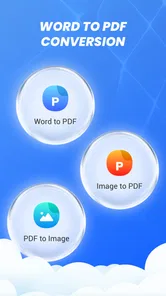
PDF Photos & PDF Reader is designed to help you open and read PDF documents, as well as turn photos or images into PDF files. It may be useful for organizing scanned pages, sharing image-based documents, or keeping receipts and notes in a format that is easy to view on different devices. Available tools and supported file types can vary by app version.
How can I convert photos into a PDF with this app?
Typically, you select one or more photos from your device, arrange them in the order you want, and use the app’s PDF creation option to combine them into a document. Before saving, check the page order and image orientation, since these affect the finished file. The exact steps and options, such as page sizing or margins, may differ between versions.
Can I use PDF Photos & PDF Reader without an internet connection?
Reading a PDF or creating one from photos stored on your device may work offline, which is convenient when traveling or when you have limited connectivity. However, features involving online storage, sharing services, account access, or advertisements may require an internet connection. If offline access is important, test the specific tools you need before relying on the app away from a network.
Is PDF Photos & PDF Reader free, and does it include ads or in-app purchases?
The app’s price, advertising, and optional purchases can depend on the platform, region, and current release. Check its Google Play or Apple App Store listing for the latest details before downloading, including whether premium features or subscriptions are offered. Also review the purchase terms carefully: an app described as free may still include ads, paid upgrades, or limits on certain tools.
Are my photos and PDF documents private when I use the app?
The handling of your files depends on the app’s permissions, privacy policy, and the features you choose to use. Check the store listing and the developer’s privacy information to see whether files are processed on your device or sent to an online service. Grant only permissions that make sense for the tools you use, and avoid importing sensitive documents unless you are comfortable with the stated practices.
Pros
- Quickly combines multiple photos into a single PDF.
- Lets you adjust page size and orientation before exporting.
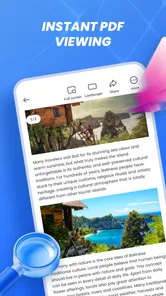
- Includes a built-in viewer for checking PDFs without another app.
- Simple controls make basic PDF creation easy to learn.
- Useful for turning scanned receipts and notes into shareable files.
Cons
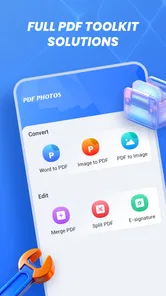
- Advanced editing features are limited compared with dedicated PDF editors.
- Large photo collections can take longer to process.
- Image-heavy PDFs may use substantial storage space.
- Export settings may require trial and error for unusual layouts.
- Some features or an ad-free experience may require payment.











