NexFrame: AI Video Maker
- 0.00
- 0.0
- Installs
- 10.00K
- Price
- Free
Screenshots

Analysis by Reviewed
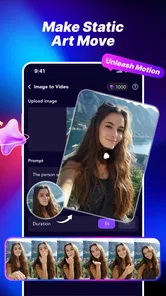
Turning a still image into something that feels alive is the entire appeal of NexFrame: AI Video Maker. I approached it as an art and design app rather than a full video editor, and that distinction matters. Its main promise is quick photo-to-video creation with a single tap, supported by creative templates that help shape the result without asking me to build an animation from scratch.
That makes it interesting for people who regularly have good photos but little time, patience, or technical confidence. A travel picture, a product shot, a portrait, or an illustration can become a short visual post instead of remaining buried in the camera roll. The experience is intentionally immediate. I choose an image, explore a visual direction, and let the app handle the transformation.
At the same time, I would not approach it expecting the control of a traditional editor. The strength here is turning a simple starting point into an expressive result quickly. The compromise is that speed and automation leave less room for precise decisions. If you enjoy adjusting every movement, timing detail, and transition yourself, this is likely to feel limited. If your priority is getting from photo to shareable idea with minimal friction, the concept is much more convincing.
One-tap animation is the real reason to try it
The most important capability is not simply exporting a video. It is the reduction of creative effort between a still image and a moving visual. In ordinary editing apps, I would normally need to import an image, place it on a timeline, add motion, choose transitions, adjust duration, and then decide whether the result feels intentional. NexFrame focuses on skipping much of that setup.
That approach changes the role of the app. It is less like a miniature production suite and more like a fast visual idea generator. The photo remains the starting point, while the AI treatment and template choice provide the movement and mood. For casual creators, that can be more useful than a long list of advanced controls that never get opened.
I found the template concept especially important because a blank creative tool can be surprisingly intimidating. A set of ready-made directions gives me somewhere to begin. Instead of asking, “What animation should I design?” I can ask, “Which treatment fits this image?” That is a smaller and more practical decision, particularly when I am making content on a phone.
The result will depend heavily on the source photo. A clear subject with a strong composition gives the transformation something obvious to work with. A cluttered image or a picture with several competing subjects may produce a less focused visual impression. This is one of the first useful lessons with an AI image-to-video tool: the app can reinterpret a photo, but it cannot fully repair a weak idea underneath it.
More From Our News Desk

 Gmail
GmailGmail in a Busy Inbox: Who Benefits Most?
From first account to crowded workday, Gmail earns its place through dependable search and flexible sorting—but its best fit depends on how much inbox maintenance you can tolerate.

 Prime Video
Switching to Prime Video: What Changes in Your Viewing Routine
Prime Video can make a compelling second home for streaming, but switching means learning a different catalog, rental layer, and route from browsing to playback.

 Universal TV Remote Control
Universal TV Remote Control Works Best as a Reliable Backup
A phone remote earns its place through quick setup and reliable habits. Here is how to get more from Universal TV Remote Control—and where its limits show.

 Weather - By Xiaomi
Weather by Xiaomi Review: Clear at a Glance, Less Clear Up Close
Xiaomi’s weather app makes everyday forecasts quick to scan, but its calm surface can leave useful details and recovery paths harder to find than they should be.

 X
XX Under Pressure: Can It Recover When Posting Goes Wrong?
A resilience-focused review of X, examining setup, mistaken posts, interruptions, weak connections, and the gaps that matter when recovery needs to be dependable.

 Clash of Clans
Clash of Clans Is Won Between the Battles
Its raids are quick; its community is a long-term project of coordination, teaching, rivalry, and shared responsibility—with all the friction that entails.
Latest News



For that reason, I would select the image before opening the creative options. I look for a photo with one clear point of attention, enough empty space around it, and a mood that matches the template I have in mind. This small preparation step is more valuable than repeatedly trying random effects. It also helps keep the final result from feeling like a generic filter placed over an unrelated picture.
What the template approach changes
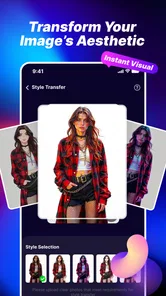
Templates are not only shortcuts; they also act as creative constraints. That can be a benefit when I want a coherent style quickly, but it can become restrictive when I have a very specific visual concept. The best use is to treat them as starting points rather than expecting each one to fit every image equally well.
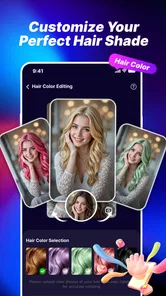
For example, a dramatic treatment may suit a portrait with strong lighting but overwhelm a quiet landscape. A playful direction may work for a casual social post but feel inappropriate for a polished product image. I get better results when I choose the template based on the image’s existing character instead of choosing the most eye-catching option in isolation.
This is also where the app differs from conventional alternatives. A standard mobile editor gives me more direct control and usually rewards careful manual work. NexFrame is more appealing when the creative decision is about selecting a direction, not constructing every frame. Neither approach is automatically better. They serve different moods and different amounts of available time.
How the workflow feels in everyday use
The basic workflow is easy to understand: start with a photo, apply an AI video treatment, and use a template to guide the visual outcome. I appreciate that the central action is not buried beneath a complex timeline. Someone who has never edited video can understand the purpose almost immediately.
That simplicity is useful when I am working from a phone and want to make something in a few spare minutes. I do not need to prepare a project with multiple media layers before seeing whether an idea has potential. The app encourages experimentation because the entry cost is low. I can try a different image or creative direction without feeling that I have wasted a long editing session.
One practical workflow I would recommend is to create several variations from the same source photo, then compare them for tone rather than judging the first result alone. The first treatment may be technically attractive but emotionally wrong. A second option might preserve the subject’s character better. This is a subtle advantage of fast generation: it makes comparison possible, provided I avoid treating the first output as final.
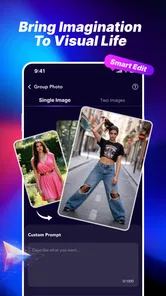
Another useful habit is to prepare a small group of images with a shared purpose. For a social post, I might choose three photos from the same event and test whether one visual direction gives them a consistent feel. For a small creative project, I could begin with images that already share color or subject matter. The app is more effective when I use it to develop a visual set rather than asking one random photo to carry the entire idea.
The one-tap promise also has a hidden trade-off. Fewer visible steps mean fewer opportunities to correct the process manually. If the generated movement does not suit the subject, I cannot rely on detailed keyframe editing to rescue every part of it. I would then switch templates, change the source image, or accept that the particular photo is not a good candidate.
That is not a flaw for the intended quick workflow, but it is important to understand before committing to a larger project. I would not use this as my only tool for a carefully scripted video, a presentation requiring exact timing, or a sequence where every visual beat must match a plan. A conventional editor remains the better choice in those situations.
A realistic phone scenario
Imagine I have just returned from a weekend trip. I have a favorite street photo, but it looks ordinary when posted as a still image. I can use NexFrame to test a few creative treatments and turn that single photograph into a short visual that feels more suitable for a story or status update. The point is not to replace a full travel film; it is to give one memorable moment more presence.
In that scenario, the app saves me from opening a desktop editor or learning a complicated mobile timeline. I can make the visual while the memory is still fresh, choose the treatment that matches the atmosphere, and move on. That convenience is the strongest argument for the app in my view. It turns a small creative impulse into something I can actually finish.
The same workflow can help a small online seller present a product image with more energy, although I would keep the source clean and uncluttered. It can also help an illustrator preview how a still artwork might feel when presented with motion. For a personal project, the app offers a low-pressure way to explore movement before investing in a more demanding production process.
For portraits, I would be more selective. A face is visually sensitive, and an automated treatment can change the mood of an image in ways that are more noticeable than with a landscape or object. I would compare variations carefully and avoid using a dramatic template merely because it produces more movement. The best result is often the one that supports the person in the photo instead of competing with them.
Where the convenience has limits
The biggest limitation is the same feature that makes the app approachable: automation. One tap is convenient because it removes work, but it also removes control. I cannot assume that every photo will receive a result that matches my intention. The app is strongest when I am open to interpretation and weakest when I already know exactly how the video should look.
Creative templates can also make outputs feel visually familiar if I use them without adapting my source material. I would avoid applying the same treatment to every image in my library. A better approach is to vary the source photos, select templates with a clear reason, and keep only the versions that add something to the original image. Fast creation should not become automatic repetition.
There is also a question of audience. A quick AI-generated visual may be perfect for a casual post, a mood board, or a private experiment. It may be less suitable for a client deliverable where originality, repeatability, and exact brand direction matter. In professional design work, I would want more predictable controls and a clearer production pipeline than this kind of one-tap experience generally provides.
People who dislike AI-assisted transformations should probably skip it as well. The app’s appeal comes from letting an automated system reinterpret a photo. If I want every movement to be authored manually, the central convenience will not feel like a benefit. A traditional animation or video editor would give me a more satisfying process, even if it takes considerably longer.
The mature audience label is worth taking seriously too. The app is marked for adults aged seventeen and over, so I would not treat it as a general children’s creativity tool. Parents looking for a simple animation app for younger users should choose something with an age designation that fits their situation rather than assuming that a photo-based workflow is automatically appropriate.
Cost is another part of the decision. The app is free to install, but optional in-app purchases range from about two dollars to nearly one hundred dollars per item. I would therefore explore the free experience first and decide whether the workflow genuinely fits my needs before paying for anything. The wide range means that casual users and heavier creators may encounter very different spending considerations.
That pricing structure makes it especially important to understand my own usage pattern. If I only want an occasional animated photo, I should be cautious about buying more than I need. If I plan to use the app repeatedly for a personal content routine, I would still evaluate the value of the specific purchase rather than assuming that faster creation automatically justifies a higher cost.
How it compares with familiar alternatives
Compared with a standard video editor, NexFrame is quicker to start and easier to approach, but it offers less hands-on authorship. A timeline-based app is better for trimming, layering, arranging multiple clips, and matching movement to music or narration. NexFrame is better when one photo is the main material and the goal is a creative transformation rather than a complete edited production.
Compared with a slideshow maker, it is more focused on giving a single image a sense of motion and style instead of simply placing photos in sequence. That makes it a more interesting choice for a standalone visual, while a slideshow tool remains more appropriate for a family album, event recap, or multi-image story.
Compared with manual animation software, the difference is even clearer. Manual tools reward patience and precision. NexFrame rewards curiosity and speed. I would use the latter to discover a direction, then move to a more controlled editor if the idea grew into something that needed exact execution.
This combination can work well in practice. The app does not have to replace every other tool. It can function as the first creative pass: I use it to see whether a still image benefits from movement, then decide whether the concept deserves more detailed work elsewhere. That workflow avoids spending an hour manually animating an idea that was never visually strong.
Who will get the most from the app
I think NexFrame is best for casual creators, social media users, photographers, illustrators, and small sellers who want to make a still image feel more active without learning a full editing system. It is also useful for anyone who often has ideas but abandons them because the production process seems too long.
Its current version is 1.0.0, and the app works on Android devices running version 7.0 or later. That makes the technical entry point fairly approachable for compatible users, though the quality of the experience will still depend on the phone, the source image, and the complexity of the chosen treatment. I would keep expectations focused on quick creative output rather than professional post-production.
The developer is Psk extra, and the app has passed the early stage of being used by more than ten thousand people. I see that as enough to make it worth exploring, while still treating it as a relatively focused tool rather than a mature replacement for every app in the art and design category.
I would recommend it to a friend who says, “I have photos, but I do not know what to do with them.” The one-tap workflow gives that person an approachable experiment. I would not recommend it to a friend who needs exact control, a dependable multi-scene editing process, or a tool designed around detailed professional delivery.
My most practical advice is to begin with strong images, test more than one template, and judge whether the motion supports the subject. Do not choose a treatment only because it looks impressive in a preview. Ask whether it makes the photo clearer, more atmospheric, or more memorable. That question separates a useful transformation from a distracting effect.
I would also keep the first session deliberately small. Try one portrait, one landscape, and one object or product image. This quickly reveals which kinds of source material suit the app’s automated approach. If the results consistently feel like a natural extension of the photos, the app may earn a regular place in your creative routine. If every result feels unpredictable, a manual editor will probably serve you better.
Overall, I see NexFrame as a focused tool with a clear purpose: it lowers the effort needed to turn a photo into a short AI-assisted video. It is free to begin, aimed at a mature audience, and supported by templates that make experimentation less intimidating. The in-app purchase range means I would approach upgrades carefully, but the basic idea remains appealing for quick personal content.
My recommendation is simple: try it when speed and visual experimentation matter more than detailed control. It is not the app I would choose for a complete video project, but it is the one I would open when a single photo deserves a little movement and I want to discover a result before committing to a longer edit.
NexFrame: AI Video Maker Frequently Asked Questions
What devices and operating systems can run NexFrame: AI Video Maker?
NexFrame: AI Video Maker is an Android app with a minimum operating system requirement of Android 7.0. Before downloading, check that your device meets this requirement and has enough available storage for the app and the photos or videos you plan to work with. The app is listed as version 1.0.0, so keeping it updated can help you access its current features.
Who develops NexFrame, and is it suitable for younger users?
NexFrame is developed by Psk extra and is categorized under Art & Design. Its content rating is Mature 17+, so it is intended for adults rather than younger children. If you are considering it for a shared family device, take that age rating into account before installing, and review any generated content yourself when appropriate.
What is NexFrame: AI Video Maker used for?
NexFrame: AI Video Maker is designed to help users create short videos with artificial intelligence, even without advanced editing experience. It can assist with generating visual content, combining images or clips, adding text, and preparing videos for social media. It may be useful for creators, marketers, small businesses, and anyone who wants to produce content more quickly from a mobile device.
Does NexFrame create complete videos automatically with AI?
NexFrame can automate parts of the video-making process, but the exact level of automation may depend on the selected tool, template, prompt, and app version. Users should still review the generated result, including timing, captions, transitions, music, and visual accuracy. AI-generated content may occasionally require manual adjustments before it is ready to publish or share.
Is NexFrame: AI Video Maker free to download and use?
NexFrame is free to download, while in-app purchases are available and range from $1.99 to $99.99 per item. Some features may therefore involve additional costs. Before creating multiple projects, check the purchase details shown in the app and consider whether any paid options fit your needs. The free download does not necessarily mean every feature is included at no charge.
Pros
- Turns text prompts into short videos with minimal editing effort.
- Offers AI-generated visuals suitable for social media content.
- Useful templates help speed up video creation for beginners.
- Simple interface makes basic editing easy to learn.
- Can help creators produce ideas without filming or advanced tools.
Cons
- AI results may look inconsistent or differ from the original prompt.
- Advanced features may require a subscription or in-app purchases.
- Video generation can take time
- especially for complex requests.
- Export options may be limited by resolution
- format
- or watermark.
- Results depend heavily on the quality and clarity of your input.