MyCareLink Heart™
- 1.24K
- 3.6
- Installs
- 100.00K
- Price
- Free
Screenshots

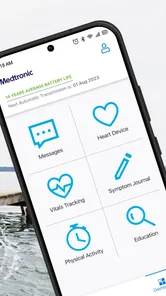
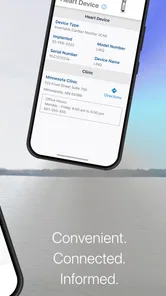
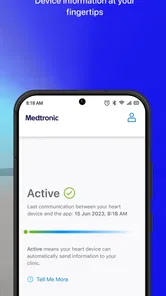
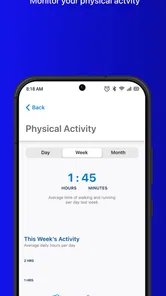
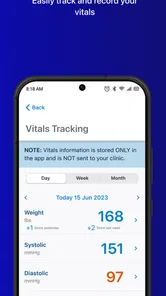
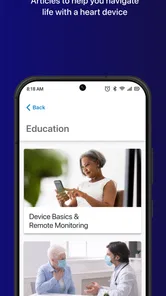
Analysis by Reviewed
Living with an implanted heart device can make routine monitoring feel more complicated than it should. MyCareLink Heart™ is designed to reduce one part of that burden by sending heart device information to a clinic automatically. In my experience, its value is less about browsing a rich health dashboard and more about making remote follow-up fit quietly into everyday life.
This is a medical app from Medtronic, Inc., aimed at people whose care team uses compatible remote monitoring. It is free to use and rated for Everyone, but that does not mean it is useful for every phone owner: its purpose depends on your implanted device, your clinic’s monitoring process, and whether your phone meets the required operating-system level. I would treat it as a companion to clinical follow-up, not as a general heart-health app or an emergency tool.
Where the experience usually gets stuck
The first thing I would make clear to a friend is that this app is not a replacement for contacting a clinic. Its central job is communication between a supported heart device and the medical team. That distinction matters because a person may open it expecting live readings, symptom interpretation, or an instant diagnosis. Those are not the reasons to install it.
The most common friction is likely to happen before the first successful transmission. A user may have the right app but not the right combination of device, clinic enrollment, phone, and connection conditions. If the app does not appear to do anything after installation, repeatedly tapping the screen is unlikely to solve the underlying issue. The better approach is to check the complete monitoring arrangement step by step.
Another point that can confuse people is the meaning of a successful-looking app session. Seeing the application open does not necessarily mean that the clinic has received the information it needs. Conversely, a delay in visible status does not automatically mean that the implanted device has stopped working. The app is one link in a chain, and the phone, connection, account setup, and clinical system all matter.
I also would not use this app as a substitute for noticing symptoms. If you feel faint, have chest pain, severe shortness of breath, or another urgent change, waiting for remote monitoring is the wrong workflow. Contact emergency services or follow the urgent-care instructions given by your medical team. Remote transmission is for scheduled clinical review, not immediate reassurance.
What to check before blaming the app
Start with compatibility. MyCareLink Heart is a focused tool, so installation alone does not establish that it can monitor your particular implanted heart device. Your clinic is the best place to confirm whether you are enrolled in the relevant monitoring program and whether this app is the intended method for your care.
More From Our News Desk
 Instagram
Instagram’s Power Comes From Its Place in Your Phone
A close look at how Instagram turns Meta’s reach, recommendation systems and everyday camera habits into durable platform power—and what that costs users.

 Gmail
GmailGmail in a Busy Inbox: Who Benefits Most?
From first account to crowded workday, Gmail earns its place through dependable search and flexible sorting—but its best fit depends on how much inbox maintenance you can tolerate.

 Prime Video
Switching to Prime Video: What Changes in Your Viewing Routine
Prime Video can make a compelling second home for streaming, but switching means learning a different catalog, rental layer, and route from browsing to playback.

 Universal TV Remote Control
Universal TV Remote Control Works Best as a Reliable Backup
A phone remote earns its place through quick setup and reliable habits. Here is how to get more from Universal TV Remote Control—and where its limits show.

 Weather - By Xiaomi
Weather by Xiaomi Review: Clear at a Glance, Less Clear Up Close
Xiaomi’s weather app makes everyday forecasts quick to scan, but its calm surface can leave useful details and recovery paths harder to find than they should be.

 X
XX Under Pressure: Can It Recover When Posting Goes Wrong?
A resilience-focused review of X, examining setup, mistaken posts, interruptions, weak connections, and the gaps that matter when recovery needs to be dependable.
Latest News



Next, check the phone itself. The current version is 4.3.2 and requires at least iOS or Android 11, so an older phone may be the real obstacle. If the operating system is below that level, troubleshooting inside the app will not change the result. I would also make sure there is enough free storage for normal app operation and that the phone is not operating under an unusually restrictive battery-saving mode.
Connection quality deserves a simple test. If the first attempt happens in a basement, an area with unreliable mobile service, or on a congested public network, move to a place where the phone normally connects well. A stable home connection is usually a more sensible starting point than repeatedly retrying while travelling.
Keep the phone near you during the initial setup and follow the clinic’s instructions rather than improvising. This is one of the less obvious practical points: remote monitoring is not just an app-installation task. The person who prescribed or arranged the monitoring service may need to complete an enrollment step, explain when transmissions occur, or confirm what a particular status means.
It is also worth checking that you are using the intended patient account and phone. Families sometimes share devices, and a person may accidentally start setup under another household member’s profile or use a replacement phone without completing the expected transition. In a medical context, that kind of mix-up is more important than a minor interface annoyance.
A calmer setup routine
I recommend doing the first setup when you have time to read each instruction, not immediately before leaving for an appointment. Keep your clinic’s contact details available, charge the phone, and close activities that might interrupt you. The goal is to create one clean test rather than several rushed attempts that leave you unsure which step failed.
After installation, read the on-screen wording carefully. If the app asks you to confirm information, do not guess. Entering approximate details may create more confusion later, especially when a clinic is trying to match a transmission to the correct patient record. If something does not match what your care team told you, pause and contact them instead of repeatedly creating new attempts.
For an older phone, the operating-system requirement is a practical decision point. Updating may help if the manufacturer still supports the device, but an update can also affect storage, battery life, or other apps. If the phone cannot meet the requirement, using a supported replacement or asking the clinic about another approved monitoring route is more sensible than relying on unofficial workarounds.
Once the app is ready, I would perform a basic check at a normal location where you expect to use the phone. Avoid treating a single quiet period as proof that something is wrong. The useful question is whether the complete process eventually reports the expected result or whether the clinic confirms receipt.
Recovering when a transmission seems to fail
When a transmission appears stuck, begin with the least disruptive checks. Confirm that the phone is powered on, has a connection, and is not in a mode that blocks normal background activity. Open the app normally and look for its current instruction rather than immediately deleting it. Restarting the phone can clear a temporary connection problem, but it should be viewed as a basic reset, not a medical solution.
If the issue continues, record what you observed: the approximate time, the message shown, whether the phone was connected, and whether the problem happened once or repeatedly. This small habit makes a call to the clinic much more productive. Saying “it did not work” gives the support person little to work with; describing the sequence helps them distinguish setup trouble from a monitoring-system issue.
I would avoid uninstalling the app as a first response. Removing it may erase useful local context or force you through setup again, while the original issue could be an enrollment mismatch or a clinic-side matter. Reinstallation can be reasonable when instructed by official support, but in a medical monitoring workflow it is better to ask before taking a step that changes the setup.
The same caution applies to changing phones. If your old phone is being replaced, do not assume that installing the app on the new device automatically transfers every part of the monitoring arrangement. Keep the old phone available until the clinic confirms that the new one is ready, if that is practical and safe. This is a useful trade-off: a little extra patience can prevent a gap in remote communication.
Notifications can also mislead users. A quiet phone does not necessarily mean that no monitoring is occurring, and one notification does not necessarily provide a clinical interpretation. Treat messages as instructions about the app process. For medical meaning, rely on your care team rather than trying to infer results from a status label.
When the app is not the cause
Remote monitoring depends on more than the application. A clinic may be handling enrollment, reviewing information later, or contacting you through a separate process. If the app appears functional but your care team says nothing has arrived, that is a reason to contact the clinic and ask them to check the monitoring path. It is not proof that your implanted device has failed.
Likewise, if you are experiencing symptoms, an apparently successful transmission should not reassure you into delaying help. The app is not designed to replace emergency assessment. I consider this the most important limitation because the convenience of automatic communication can create a false sense that every health concern is being watched in real time.
There is also a difference between a phone problem and a device problem. A dead battery, poor connection, unsupported operating system, or interrupted setup can prevent communication without saying anything about the condition of the implanted device. Only qualified medical professionals can interpret device information and decide what action is needed.
Privacy and household habits deserve practical attention too. Because this is a medical application, I would use it on a personal phone when possible and keep the device protected with the normal security settings you already trust. I would not hand the phone to someone else during setup unless I was comfortable with them seeing the relevant information. These are ordinary precautions, but they matter more when an app is connected to clinical care.
How it compares with ordinary alternatives
Compared with a general heart-rate or fitness app, MyCareLink Heart serves a completely different purpose. Fitness tools often emphasize exercise trends, pulse readings, or lifestyle goals. This app is focused on sending information from a supported heart device to a clinic. If you want workout graphs or everyday wellness coaching, a fitness application may be a better fit; if your clinic has directed you to use Medtronic’s remote monitoring process, those alternatives do not perform the same job.
Compared with manual clinic visits, automatic remote communication can reduce the need to treat every routine check as an in-person task. That is the strongest reason to use it. The trade-off is that you become responsible for keeping the phone usable, completing setup correctly, and responding to instructions. A traditional appointment may feel clearer to someone who prefers face-to-face explanations, while remote monitoring is more convenient for people who can manage the technology reliably.
It is also different from calling the clinic whenever you want reassurance. A phone call lets you explain symptoms and ask questions, but it does not replace the structured device-monitoring workflow. The two methods work best together: the app handles its intended transmissions, and the clinic remains the place for interpretation, treatment decisions, and urgent guidance.
Who will benefit most from it
I think this app is most useful for a patient who has been specifically directed to use it, owns a compatible phone, and wants routine device information sent without making every monitoring step a separate errand. It can be especially practical for someone who travels between home and appointments, provided the phone and connection remain dependable and the clinic has explained the expected process.
It may also help a family member who assists with technology, but I would keep the patient involved in the medical side of the arrangement. A relative can help charge the phone, check a connection, or read setup instructions, yet symptoms and clinical questions should still be communicated accurately to the care team.
I would skip it as a general download if you do not have a relevant Medtronic monitoring arrangement. I would also hesitate if your phone cannot meet the operating-system requirement, if you rarely keep a phone charged, or if you expect an app that provides instant medical answers. In those situations, asking the clinic about an approved alternative is more useful than forcing this particular workflow.
My practical verdict
MyCareLink Heart is a specialized medical app with a narrow purpose, and that narrowness is both its strength and its limitation. It does not need to entertain me or offer a broad collection of health tools. Its usefulness comes from making the transfer of heart device information part of a manageable phone routine.
The experience is best when the clinic has already explained the monitoring arrangement and the phone meets the technical requirements. The experience becomes frustrating when users mistake installation for enrollment, interpret a status as a diagnosis, or keep retrying without checking the connection and account details. The key is to treat the app as one link in a clinical workflow, not as an independent medical monitor.
With an average rating of 3.5 from around 2.8 thousand ratings and more than 100 thousand installs, it has a meaningful user base while still showing that the experience is not effortless for everyone. It has been available since January 25, 2019, and remains free, which lowers the barrier to trying the approved monitoring route. Still, free does not mean frictionless: compatibility, enrollment, phone reliability, and clinic support determine whether it actually helps.
For the right patient, I would recommend installing it only after confirming the setup with the care team, then testing it patiently in a reliable location. For anyone seeking general heart tracking, emergency advice, or a replacement for medical appointments, I would choose a different kind of tool—or, for urgent symptoms, direct medical help. Used within its proper boundaries, this app can quietly remove some of the routine work from remote device follow-up, which is a worthwhile benefit.
MyCareLink Heart™ Frequently Asked Questions
Does MyCareLink Heart™ cost anything to download?
MyCareLink Heart™ is free to download, so there is no app purchase price to consider before installing it. It is a medical app from Medtronic, Inc., intended for patients using compatible Medtronic heart devices. Keep in mind that using the app may rely on your phone’s internet or mobile-data connection, so any charges related to your phone plan are separate from the app itself.
Who should use MyCareLink Heart™?
MyCareLink Heart™ is intended for people with a compatible implanted Medtronic cardiac device whose clinic uses remote monitoring. It is not a general heart-health or fitness app, and downloading it alone does not establish monitoring with a clinic. Ask your healthcare team whether your particular device and care plan are supported before getting started, so you know how the app fits into your follow-up routine.
What is MyCareLink Heart™ used for?
MyCareLink Heart™ is a patient monitoring app designed to work with compatible Medtronic cardiac devices, such as certain pacemakers and implantable defibrillators. It helps transmit device information to a healthcare team, often through a supported smartphone or compatible monitor. The app is intended for routine remote follow-up and does not replace scheduled appointments, in-person examinations, or emergency medical care.
Is MyCareLink Heart™ compatible with every pacemaker or smartphone?
No. Compatibility depends on the specific Medtronic implanted heart device, the patient’s region, the app version, and the smartphone model and operating system. Before downloading, users should check the official compatibility information and confirm with their clinic or Medtronic representative that their device supports the app. A compatible phone, Bluetooth connection, internet access, and appropriate permissions may also be required. The app requires iOS 11 or later on Apple devices, so checking the phone’s system version is an important first step.
Does the app continuously monitor my heart or provide emergency alerts?
MyCareLink Heart™ is primarily intended to collect and send information from a compatible implanted cardiac device for remote clinical review. It should not be treated as a live heart monitor, a diagnostic tool, or a replacement for emergency services. Transmission timing and alerts can vary according to device settings and clinic procedures. If you experience chest pain, severe shortness of breath, fainting, or another emergency symptom, contact local emergency services immediately.
Pros
- Tracks compatible heart devices remotely from your smartphone.
- Can help identify possible device issues between clinic visits.
- Designed for convenient home monitoring without extra bedside equipment.
- Supports communication with the care team when alerts require attention.
- May reduce unnecessary in-person follow-up appointments.
Cons
- Works only with supported implanted heart devices and eligible patients.
- Requires a compatible smartphone
- app permissions
- and reliable internet access.
- Background connectivity and notifications may increase battery usage.
- Not intended for emergency monitoring or immediate medical advice.
- Setup and pairing can be confusing without guidance from the clinic.