Music Player: offline music
- 6.00
- 4.3
- Installs
- 100.00K
- Price
- Free

Screenshots

Analysis by Reviewed
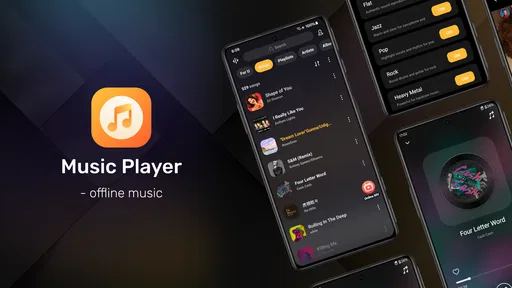
I like the idea behind Music Player: offline music: a straightforward way to listen to audio files already on your device, without making a streaming service the centre of the experience. That can be a welcome change when I want a familiar album on a commute, need music where reception is unreliable, or simply prefer to play files I already have. The app is free, and its focus is clear from the start: local music rather than an online catalogue.
My main reservation is that an offline player is only as convenient as the handoff between your music files and the app. If tracks are stored somewhere unexpected, use inconsistent tags, or have not finished copying to the device, getting to the music you want may take more patience than pressing play in a streaming app. I’d consider this a practical choice for people who already manage their own audio, not a replacement for every kind of music service.
When finding your music takes longer than expected
With a local player, the first useful question is not “What should I stream?” but “Where are my files, and can the player see them?” That distinction matters if you have recently moved music from a computer, downloaded files into a folder you do not normally use, or restored an older collection. Before troubleshooting the player itself, I’d check that the audio files are actually on the device and that I know which folder contains them.
Music Player: offline music is a Music & Audio app from ICC Tech, and its simple purpose is appealing if you want a dedicated place for offline listening. But a short store description cannot tell me how every person’s library is arranged, and I would not assume that a new player will automatically make a disorganized collection feel tidy. Track names, artist information, and album groupings are only as useful as the information attached to the files and the way the app presents it.
If a song is missing, I would try a small, controlled check rather than repeatedly reinstalling the app. Confirm the track plays from the device’s file manager or another player, then look at its location and filename. If it is in a folder you have just added or copied, close and reopen the player and give it a moment to catch up. This is a sensible first workflow for any offline library, not proof of a special scanning feature.
There is also a practical difference between a library that is technically available and one that is easy to browse. A handful of albums with clear titles is simple to manage; a large collection with duplicate filenames or missing artist tags can make selection slower. I’d clean up the most-used albums first rather than trying to perfect every file before listening. That small effort can pay off when you want to choose a record quickly on the way out the door.
Start with the files, then judge the player
When setting up an offline player, I find it helpful to test a few familiar tracks before moving an entire collection. Choose songs from different folders and check whether they appear and play as expected. If only one track is absent, the issue may be its file location, condition, or format rather than the whole library. If nothing appears, check that the music is stored locally and that the app has the access it needs on your device.
More From Our News Desk

 Gmail
GmailGmail in a Busy Inbox: Who Benefits Most?
From first account to crowded workday, Gmail earns its place through dependable search and flexible sorting—but its best fit depends on how much inbox maintenance you can tolerate.

 Prime Video
Switching to Prime Video: What Changes in Your Viewing Routine
Prime Video can make a compelling second home for streaming, but switching means learning a different catalog, rental layer, and route from browsing to playback.

 Universal TV Remote Control
Universal TV Remote Control Works Best as a Reliable Backup
A phone remote earns its place through quick setup and reliable habits. Here is how to get more from Universal TV Remote Control—and where its limits show.

 Weather - By Xiaomi
Weather by Xiaomi Review: Clear at a Glance, Less Clear Up Close
Xiaomi’s weather app makes everyday forecasts quick to scan, but its calm surface can leave useful details and recovery paths harder to find than they should be.

 X
XX Under Pressure: Can It Recover When Posting Goes Wrong?
A resilience-focused review of X, examining setup, mistaken posts, interruptions, weak connections, and the gaps that matter when recovery needs to be dependable.

 Clash of Clans
Clash of Clans Is Won Between the Battles
Its raids are quick; its community is a long-term project of coordination, teaching, rivalry, and shared responsibility—with all the friction that entails.
Latest News



That last point is worth handling carefully. Android settings and permission prompts can differ by device and software version, so I would follow the prompts the phone actually shows rather than relying on instructions written for another model. If access has been denied, review the app’s permissions in system settings and allow only what is needed for local audio use. I would not treat a missing song as a reason to grant unrelated permissions.
The app is free, rated for Everyone, and has an average rating of 4.4 from around 900 ratings. Those details suggest that plenty of people have tried it, but a rating cannot predict whether its handling of your particular files will suit you. I put more weight on a quick test with the albums I listen to most: can I locate them, start playback, and return to them without fuss?
It is also sensible to check the basics before judging sound or playback. Make sure the phone is not muted, the volume is set appropriately, and audio is not being sent to a different connected device. If one song plays quietly while the rest sound normal, compare it with another file before changing system settings. A local player cannot make a poorly recorded or unusually quiet source file sound identical to a mastered track.
A reliable routine for everyday listening
One useful habit is to keep a small “ready to play” group of albums in a known folder. That does not require a special feature: it is simply a way to reduce searching when you are leaving home. I might put a few commute albums together, confirm they appear in the player, and then avoid changing their location until I have finished listening. This is especially helpful after transferring music, when files can be scattered between downloads, music folders, and storage locations.
For a longer trip, I would test the whole routine while still at home: open the app, find the intended album, play a track, and check that the phone’s output is going where I expect. That catches basic problems before a train tunnel or a weak-signal stretch makes it harder to diagnose. Offline playback is most valuable when you have already confirmed that the files are local and playable; the word “offline” does not by itself guarantee that every file-transfer or device issue is solved.
If playback stops or the app seems to lose its place, I would first reopen the track and see whether the problem repeats. Then I’d test another file and, if possible, another audio app. If several apps struggle with the same track, the source file or storage location becomes a more likely explanation. If only this player has trouble, restarting it and checking for an available app update are reasonable next steps before changing or deleting a music library.
Be cautious about clearing app data or removing files as an early fix. Depending on how your phone stores music, deleting or moving the wrong item can make the library harder to restore. I prefer to keep an original copy of important tracks and make one change at a time. That way, if a folder move or settings adjustment causes a new problem, I can reverse it without guessing what changed.
Knowing when the phone or file is the real issue
Not every playback problem begins inside the music player. A Bluetooth speaker may be disconnected, headphones may be plugged in imperfectly, or another audio destination may have taken over. For a quick check, play a familiar track through the phone’s built-in speaker, then try your usual headphones. If the output changes, you have narrowed down the cause without touching your library.
Storage can be another source of friction. A file that was meant to be copied locally may still be in a temporary or cloud-managed location, or a transfer may have ended before it finished. I’d open the file from its current location and check that it plays without relying on a network connection. This simple test is particularly useful before travelling: it separates genuinely local music from files that only appear available while online.
File organization also affects search and browsing. Two tracks with the same filename can be hard to distinguish, while inconsistent artist names may split what should feel like one collection. If the player’s display looks confusing, tidy the tags or filenames in a small batch and check the result. I would not rename hundreds of files all at once; a few test tracks make it easier to see whether the change improves navigation.
Music Player: offline music runs on Android 7.0 or later, and the current release is version 1.0.0. If the app does not install or behave properly, I’d check the device’s Android version and whether the installation completed cleanly before assuming the music files are at fault. The app has reached over 100,000 installs, but broad adoption does not remove the ordinary differences in storage settings and audio routing between Android devices.
How it fits beside streaming and other players
Compared with a streaming service, an offline file player is strongest when you already own or have downloaded the music files and want to listen without depending on a catalogue or connection. It is not the better choice if you mainly discover new releases, want instant access to a vast online library, or expect recommendations to assemble your listening for you. In those cases, a streaming app is more convenient because discovery and playback are part of the same service.
Compared with a phone’s built-in music app, the case for trying this one is straightforward: you may prefer a separate player focused on local listening. Whether it improves your daily routine depends on how quickly it handles your collection and whether its browsing suits you. I would install it alongside an existing player, test the same few albums in both, and keep the one that gets me to the right track with less effort. There is little reason to switch a well-organized library just for the sake of switching.
The developer, ICC Tech, has released this app at version 1.0.0, so I would approach it with practical expectations: test the core routine rather than assume that every convenience found in a mature streaming platform is part of the experience. Its free price makes that trial easy to justify, but the useful measure is still whether it plays your files reliably and makes them easy enough to reach.
Who I’d recommend it to
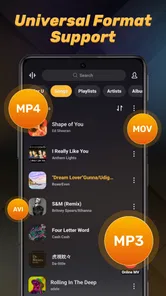
I’d recommend giving it a try if your listening is built around local MP3s, you want a simple offline option, and you are comfortable checking folders when music does not appear immediately. It can be a good fit for a commuter who keeps a few albums on the phone, a listener with a carefully maintained collection, or someone who wants music available in places where mobile coverage is unreliable. The age rating is Everyone, which makes it suitable for a broad audience, though an adult should still manage a child’s files and device settings as they normally would.
I would skip it if your music is mostly inside a subscription service, if you depend on extensive discovery tools, or if you do not want to manage local files at all. It is also not an ideal fix for a library that is missing, damaged, or stored only online. In those situations, sorting out the source or choosing a service that keeps music and discovery together is likely to save time.
My practical verdict is that Music Player: offline music is worth a low-risk trial for people who know what they want to hear and keep those tracks on their Android device. Its appeal is not that it replaces every music app; it is that a focused local player can make a personal collection easier to use without asking you to build your listening around streaming. I’d start with a few known tracks, check the file and audio-output basics, and keep it only if that everyday routine feels smoother.
Music Player: offline music Frequently Asked Questions
What is Music Player: Offline Music, and what can it do?
Music Player: Offline Music is designed for listening to audio files stored on your device, rather than requiring a music-streaming subscription. Depending on the version and your device, it may let you browse tracks by song, album, artist, or folder, create playlists, and control playback from the lock screen or notification panel. Available tools can vary, so check the app listing and permissions before installing.
Can I listen to music without an internet connection?
Yes, the app is intended for playing music that is already available on your phone or tablet, so internet access is generally not needed for playback. It does not necessarily provide songs to download, however: you may need to transfer audio files to your device or obtain them through another service. Some optional features, advertisements, or updates may still use an internet connection.
Does Music Player: Offline Music include songs or let me download music?
Do not assume that the app comes with a music library or offers downloads from online services. An offline player typically scans compatible audio files already saved on your device and organizes them for playback. Before downloading, review the app description to confirm supported file types and any import options. Make sure you have the right to store and play the music files you add.
Is Music Player: Offline Music free, and does it contain ads or in-app purchases?
Pricing and monetization can differ between app versions, regions, and platforms. The app may be free to install while displaying advertisements or offering optional purchases, such as an ad-free experience or additional features. Check the current Google Play or App Store listing for the latest details, including subscription terms if any. Review purchase prompts carefully, particularly if the device is shared with children.
What permissions does the app need, and is it available for Android and iOS?
A local music player needs access to audio files or media storage so it can find and play tracks; the exact permission name depends on your operating system. Grant only the access needed for the features you use, and consult the privacy information in the store listing if you have concerns. Availability, device compatibility, and features may differ between Android and iOS, so check your platform’s listing before downloading.
Pros
- Plays music without an internet connection.
- Keeps playback available when mobile data or Wi-Fi is limited.
- Useful for listening in places with unreliable coverage.
- Does not require streaming to play songs stored on your device.
- A practical option for keeping offline listening simple.
Cons
- You need to add music files to your device first.
- The available music depends on your personal library.
- Downloaded or streamed tracks from other services may not be accessible.
- Audio playback can use battery during long listening sessions.
- Features and file support may vary by device and app version.