Movify: AI Video Generator
- 0.00
- 0.0
- Installs
- 50.00K
- Price
- Free

Screenshots
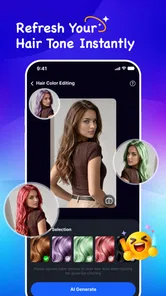
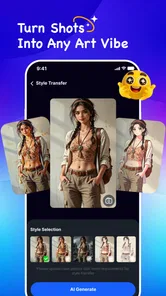
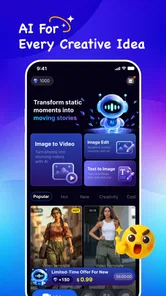
Analysis by Reviewed
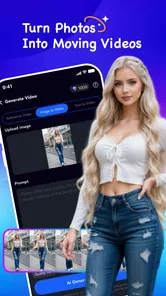
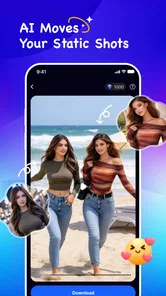
I spent time with Movify: AI Video Generator to see whether its promise of turning still images into more lively visual content holds up for everyday creative work. It sits in the Art & Design category and comes from botiix, with a focus on AI-assisted photo animation, image improvement, and effects rather than traditional timeline editing. That distinction matters: I would approach it as a quick creative tool, not as a replacement for a full video editor.
The app is free to install, which makes trying the basic experience relatively easy. It also carries a Mature 17+ content rating, so it is not aimed at children or every family device. The current release is version 1.0.1, and it runs on Android 7.0 or later. Those details make it accessible to many older Android phones, although the quality of the experience will still depend heavily on the device, the source image, and the complexity of the requested result.
How Movify fits into an AI creative workflow
The most useful way to understand Movify is as a bridge between a finished photograph and a short piece of visual content. Instead of opening a conventional editor, arranging clips, adding keyframes, and manually building motion, I can start from an image and explore an AI-generated treatment. That is appealing when the goal is a social post, a visual greeting, a mood piece, or a more eye-catching version of a photo that would otherwise remain static.
Its three main areas of value are easy to separate. Photo-to-video work gives a still image a sense of movement or progression. Image enhancement is intended to make an existing picture more presentable before using it creatively. Effects add a more noticeable stylistic layer. In practice, these functions make the app feel closer to a rapid idea generator than to a precision production suite.
That difference also explains where I found the app most convincing. Movify is useful when speed and experimentation matter more than exact control. If I already know every transition, duration, crop, and visual adjustment I want, a conventional editor remains the better fit. If I have one decent image and want to see several possible directions without building everything by hand, the AI approach becomes much more attractive.
What the free starting point really means
The app itself is free, but that should not be confused with every creative option being free forever. Movify includes in-app purchases ranging from $1.99 to $99.99 per item. That is a wide spread, so I would not make a purchase based only on the fact that installation costs nothing. The practical question is whether the free access already covers the type of output you need, and whether a paid item solves a recurring problem rather than simply unlocking a one-time novelty.
I appreciate that a free entry point lets a curious user test the workflow before committing money. For occasional personal projects, that may be enough. Someone who only wants to animate a few travel photos or create an occasional visual message can assess the results first. A frequent creator needs to be more careful, because repeated purchases can change the value calculation quickly, especially when a traditional editor offers more predictable control through a single known payment model.
More From Our News Desk

 Gmail
GmailGmail in a Busy Inbox: Who Benefits Most?
From first account to crowded workday, Gmail earns its place through dependable search and flexible sorting—but its best fit depends on how much inbox maintenance you can tolerate.

 Prime Video
Switching to Prime Video: What Changes in Your Viewing Routine
Prime Video can make a compelling second home for streaming, but switching means learning a different catalog, rental layer, and route from browsing to playback.

 Universal TV Remote Control
Universal TV Remote Control Works Best as a Reliable Backup
A phone remote earns its place through quick setup and reliable habits. Here is how to get more from Universal TV Remote Control—and where its limits show.

 Weather - By Xiaomi
Weather by Xiaomi Review: Clear at a Glance, Less Clear Up Close
Xiaomi’s weather app makes everyday forecasts quick to scan, but its calm surface can leave useful details and recovery paths harder to find than they should be.

 X
XX Under Pressure: Can It Recover When Posting Goes Wrong?
A resilience-focused review of X, examining setup, mistaken posts, interruptions, weak connections, and the gaps that matter when recovery needs to be dependable.

 Clash of Clans
Clash of Clans Is Won Between the Battles
Its raids are quick; its community is a long-term project of coordination, teaching, rivalry, and shared responsibility—with all the friction that entails.
Latest News



Because the purchase range reaches from a small amount to a much larger one, I would treat paid value as highly dependent on actual usage. A person who needs one polished result may judge a purchase differently from someone producing content every week. The app is therefore best evaluated in two stages: first test whether its image-to-video style suits you, then decide whether the paid options save enough time or improve the result enough to justify spending.
Where the creative value appears
The strongest benefit is reducing the distance between an idea and a shareable visual. A normal photo editor can improve color, crop a subject, or add a filter, but it does not automatically answer the question, “What if this image moved?” A standard video editor can answer that question, but usually asks me to make more decisions manually. Movify is aimed at that middle ground, where I want a result quickly and am willing to let AI make part of the creative interpretation.
For example, imagine I have a portrait from a birthday gathering. Rather than sending the same still image again, I can use it as the starting point for a short visual experiment, then compare the result with the original. The value is not necessarily professional polish; it is the ability to make a familiar image feel new without learning a complicated editing workflow.
Another useful scenario is preparing a small set of product or portfolio images. Enhancement can help create a cleaner starting point, while effects can give selected images a consistent visual mood. I would still inspect every result carefully, because AI treatment can draw attention to the wrong part of a picture. A restrained effect on one strong image may be more effective than applying an aggressive style to an entire collection.
The app can also help when I am stuck creatively. Instead of searching for a template or staring at an empty video timeline, I can use an existing photo as a prompt for experimentation. That is a less obvious strength: Movify can function as a visual brainstorming tool even when I do not intend to use the first generated result. Seeing an image interpreted in motion can suggest a better crop, a different subject, or a new direction for a later project.
Practical habits that improve the results
I would begin with a clean, uncomplicated source image. A clear subject, reasonable lighting, and enough separation from the background give an AI tool more useful material to work with. Starting with a heavily compressed screenshot, a crowded group photo, or an image with important details near the edges makes it harder to judge whether the result is genuinely good or simply unusual.
A second habit is to keep the original file untouched. I would enhance or stylize a copy rather than overwrite the source. This matters because an effect that looks interesting on a phone screen may feel excessive later, and an enhancement that helps one use case may not suit another. Keeping the original also makes it easier to compare the AI result with the unedited image instead of relying on memory.
My third tip is to judge the output at the size where it will actually be viewed. A dramatic effect can look impressive when previewed alone but become distracting in a feed surrounded by other content. Conversely, a subtle improvement may seem underwhelming in the editor while working well in a small social post. Movify is more useful when I evaluate the finished image or clip as communication, not only as a technical demonstration.
I would also avoid processing every image in the same way. The enhancement function is most valuable when it addresses a real weakness in the source, while creative effects are better reserved for images that benefit from a deliberate mood. This selective workflow makes the app feel less like a button that must be pressed and more like a tool I can use with judgment.
Tradeoffs compared with familiar alternatives
Compared with a normal photo editor, Movify offers a more direct route from still image to moving visual. The tradeoff is control. Traditional editing tools usually let me decide exactly how an image changes, while an AI-driven result may be faster but less predictable. If consistency across a professional set is essential, I would prefer a workflow where every adjustment can be repeated precisely.
Compared with a full video editor, Movify should be quicker for image-led projects but narrower for complex storytelling. A timeline editor is better when I need multiple clips, carefully timed audio, captions, layered graphics, or exact transitions. Movify makes more sense when the image itself is the main subject and I want AI to handle part of the transformation.
Compared with social media templates, it may offer a more personal starting point because the source is my own photograph rather than a fixed layout. Templates are often better when I need a predictable format immediately. Movify is more interesting when I want the image to remain central and do not want the result to look like a standard preset.
There is also a quality tradeoff in handing creative decisions to automation. AI can produce a surprising result, but surprise is not the same as accuracy. Faces, hands, text inside images, and small background details deserve particular attention. I would never assume that an attractive preview is ready to publish without checking those areas and comparing the result with the original.
Device age is another consideration. Android 7.0 compatibility is helpful for reach, but compatibility does not guarantee identical performance on every phone. Image and video processing can be demanding, so users of older or less powerful hardware should expect the experience to be more comfortable with modest projects than with ambitious, high-detail experiments. I would keep the workflow simple if the app feels slow or the device becomes warm.
Who is likely to get the most from it
Movify is a good match for casual creators who have photos they want to reuse in a more engaging format. It also suits people who enjoy testing visual styles but do not want to learn the mechanics of keyframes and layered editing. Small business owners, hobby photographers, and social users may find value in turning a single image into something that feels more active, provided they are comfortable reviewing AI output rather than expecting perfect automation.
It is particularly useful for someone who often starts with images instead of video. If your camera roll is full of portraits, travel scenes, artwork, or objects you have made, the app gives those stills another possible life. The enhancement tools can help with preparation, while effects can support a specific mood. The best results will come from users who choose images intentionally instead of uploading everything and accepting the first result.
I would recommend caution for professional editors who need frame-level precision, repeatable brand treatment, or a complete production environment. The app may be a useful idea generator inside that workflow, but I would not make it the only tool. It is also not the right choice for someone who wants a conventional editor with transparent manual controls, or for anyone who dislikes reviewing automated changes closely.
The Mature 17+ rating is relevant for households too. Parents choosing creative software for younger users should pay attention to that rating rather than assuming that an Art & Design label makes the app suitable for every age group. The rating does not change the creative usefulness for adults, but it does affect who should be given access.
Questions I would consider before spending
The first question is whether the free experience is enough for my actual project. I would install Movify, try it with several different kinds of images, and compare the results with what I can make in the editor already on my phone. If the output is only interesting once or twice, paying may not add much value. If it repeatedly saves time and produces a style I cannot easily create elsewhere, the case becomes stronger.
The second question is whether I need control or inspiration. For exact timing, detailed composition, and predictable revisions, I would choose a traditional video or photo editor. For rapid experimentation from a single image, Movify is the more natural option. Knowing which of those two needs comes first prevents disappointment.
The third question concerns the purchase model. Since individual in-app purchases range from $1.99 to $99.99, I would check the specific item and its usefulness before buying rather than assuming that every paid option has the same value. A small, occasional creative project may justify a limited purchase, while regular production requires a more careful comparison with other tools I already use.
Finally, I would ask whether the app fits my publishing standards. If I need a result that can be revised repeatedly, matched across many assets, and approved by other people, automation may create extra review work. If I mainly need a quick visual for personal sharing, the same flexibility can feel liberating.
My verdict on Movify
My overall impression is that Movify has a clear purpose: it makes still images more open to experimentation by combining enhancement, effects, and AI-assisted photo-to-video creation in one Android app. Its free installation lowers the barrier to trying that approach, while the in-app purchase range means I would evaluate paid value carefully rather than treating the app as entirely free.
I would recommend it to adults who want quick, image-based creative results and are happy to inspect the output with a critical eye. The most valuable workflow is not simply pressing an effect button; it is choosing a strong source image, keeping an untouched original, testing a restrained treatment, and judging the result in its intended setting. Those habits make the app more useful and reduce the risk of mistaking novelty for quality.
I would skip it if my priority is a full editing suite, exact repeatability, or a completely manual process. For those needs, a conventional photo or video editor will remain the safer choice. But for turning an ordinary image into a starting point for a short visual idea, Movify is worth trying before deciding whether any paid option earns a place in your regular workflow. With over 10K installs, it has begun reaching the audience it is designed for, and its current version gives curious Android users a straightforward way to test AI-led visual creation without committing to a traditional production setup.
Movify: AI Video Generator Frequently Asked Questions
What age group is Movify: AI Video Generator intended for?
Movify is rated Mature 17+, so it may not be suitable for younger users. Parents and guardians should consider that rating before allowing a teenager to install or use it, and should check the app’s content and available features together. The age rating is separate from the creative purpose of the app: Movify is an Art & Design app focused on AI-powered visual creation.
What is Movify: AI Video Generator, and what can it do?
Movify: AI Video Generator is an AI-powered mobile app designed to turn written prompts, images, or creative ideas into short videos. It can help users create social media clips, animated visuals, promotional content, and experimental scenes without advanced editing skills. Before downloading, keep in mind that the final result depends heavily on the quality of your prompt, source image, selected style, and the app’s available generation options.
Is Movify: AI Video Generator free to use?
Movify is free to download, but some features can require in-app purchases. The available purchases range from $1.99 to $99.99 per item, so check the purchase details in the app before confirming anything. AI video generation can involve paid options, and the costs may depend on the feature you choose. Review the current purchase terms carefully if you plan to use the app regularly.
Does Movify create complete videos automatically, or can users edit the results?
Movify is mainly focused on AI-assisted video creation, but the amount of manual control may vary depending on the version and device. Users can typically provide prompts, upload visual material, choose a style, and generate a clip, while some workflows may include options for adjusting scenes, motion, duration, or output format. It should not necessarily replace a full professional video editor for detailed timelines, advanced audio mixing, or frame-by-frame control.
What kind of phone, internet connection, and permissions does Movify require?
Movify supports devices running Android 7.0 or later. AI video generation is commonly processed online, so a stable internet connection may be useful, and sufficient free storage can help when working with visual files. The app could request access to photos, videos, the camera, or notifications depending on the features you use. Review each permission carefully, allow only what is necessary, and avoid generating large projects over mobile data if your plan has limited bandwidth.
Pros
- Creates videos from text prompts with minimal editing experience required.
- AI-generated visuals can help turn simple ideas into engaging content quickly.
- Useful for social media creators
- marketers
- and short-form video projects.
- Automates parts of the creative process
- saving time on manual production.
- A convenient mobile workflow for creating content while away from a computer.
Cons
- AI results may vary widely depending on how clearly the prompt is written.
- Generated scenes can include visual glitches
- odd movements
- or inconsistent details.
- Advanced exports and features may require a subscription or in-app purchases.
- Video generation can consume significant time
- data
- and device battery.
- Creative control is more limited than with a full-featured video editor.