Mobile Printer-Print Documents
- 17.00
- 4.2
- Installs
- 100.00K
- Price
- Free
Screenshots
Analysis by Reviewed
Printing from a phone sounds simple until a document is buried in an email, a photo is cropped badly, or the printer you need is not recognized at the right moment. Mobile Printer-Print Documents is built for that awkward gap between finding a file on a mobile device and getting a usable paper copy. I approached it as a productivity tool rather than a novelty: the real question is whether it can make printing part of a repeatable routine instead of another small emergency.
In my experience, the app makes the most sense for people who regularly handle documents away from a desk. That includes students, home workers, parents preparing forms, small-office users, and anyone who occasionally needs a physical copy while relying mainly on a phone. It is a free Android app from EZTech Global Limited, with optional purchases ranging from $5.99 to $34.99 per item. Its age rating is Everyone, so the basic idea is accessible even if the best fit depends more on your printer habits than on technical skill.
Turning a rushed print job into a usable workflow
I use a rushed print job as a test of whether a phone-based workflow is genuinely helpful: the goal is not merely to send a file, but to avoid choosing the wrong copy or wasting paper. In this section, I focus on the small decisions that make the process more dependable, then look at how a quick check can prevent a minor mistake from becoming a stack of unusable pages.
What usually happens before opening a mobile printer app
Without a dedicated printing workflow, I tend to see the same chain of small problems. A file arrives through email or messaging, I download it, forget where it went, open a different copy, and only notice the wrong page or orientation after sending it to print. Photos create a separate issue because a picture that looks fine on a phone may not fit the paper in a sensible way.
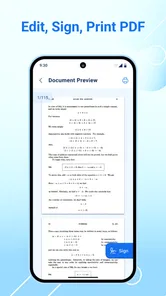
This app is useful when it becomes the middle step between collecting a document and sending it out. Instead of treating printing as an isolated tap, I would use it after deciding what the document is, whether it needs editing, and whether a paper copy is genuinely necessary. That distinction matters for a sustainable productivity system: printing only the final, relevant version saves paper and prevents the familiar pile of near-identical drafts.
The app is not a replacement for thinking through the document first. It cannot make a messy file meaningful, and a mobile screen is still a poor place to discover every layout problem. My practical advice is to review the file at a comfortable zoom, check the page count, and make sure the copy you selected is the final one before connecting to a printer. The few seconds spent there are more valuable than repeatedly reprinting.
Capturing documents without losing track of them
The strongest use case is the moment when a document exists on the phone but not yet in a form that is easy to handle. I would keep a simple temporary folder or naming habit for items waiting to be printed: something like “print today,” followed by a clear description. That is not a feature claim about the app; it is a workflow choice that makes the app more dependable because the selection stage becomes deliberate.
More From Our News Desk

Weather by Xiaomi Review: Clear at a Glance, Less Clear Up Close

X Under Pressure: Can It Recover When Posting Goes Wrong?

Clash of Clans Is Won Between the Battles

Android Auto Makes the Case for Quieter Car Software

MobiOffice: Transforming Mobile Productivity with Seamless Integration

EA SPORTS FC™ Mobile Soccer: Redefining Mobile Sports Gaming
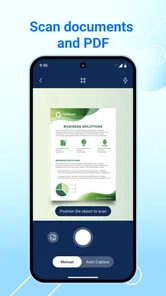
For a photographed page, I would first check whether the edges are visible and whether shadows or glare make the text hard to read. A printer will faithfully reproduce those flaws. When the source is a screenshot, I would also verify that small text has enough resolution. Mobile printing is convenient, but convenience does not improve a weak source image. The best results come from treating the phone as a document inbox and preparing files before they reach the print screen.
One useful habit is to separate “reference” documents from “action” documents. A receipt you only need to inspect may stay digital, while a signed form, travel document, classroom worksheet, or delivery label may justify paper. This small decision prevents the app from encouraging unnecessary printing. I found that the tool works better when it supports a clear rule: print because paper helps the next action, not simply because printing is available.
Building a repeatable routine around Mobile Printer-Print Documents
A reliable routine can be as short as four stages. First, gather the file in one place. Second, inspect the content and orientation. Third, choose the intended printer and paper outcome. Fourth, confirm the physical result before leaving the printer. The app occupies the third stage, but its value depends on the first, second, and fourth being handled with equal care.
For a home worker, a realistic example would be preparing a meeting handout from a phone while away from a laptop. I would download the final document, open it to check the first and last pages, send it through the app, and then compare the printed copy with the screen before making several more copies. If the first sheet is wrong, stopping there avoids wasting the rest of the paper. That “single-check copy” habit is one of the most useful improvements I would recommend.
For a parent handling school paperwork, the routine is slightly different. I would keep the original digital file untouched, create a clearly named copy for printing, and avoid editing the original by accident. For a small business, I would use the same principle for invoices or forms: one source file, one print-ready copy, and a quick physical check. The app can reduce friction, but it should not become the only place where important documents are organized.
It is also worth deciding when not to print. If the recipient accepts a digital document, sending the file may be faster and more sustainable. If a document needs professional color accuracy, binding, or large-format output, a dedicated print service or desktop setup may be better. Mobile Printer-Print Documents is most convincing for ordinary, immediate jobs where access and speed matter more than advanced production control.
Where the experience can become frustrating
The main weakness of mobile printing is that several parts of the process sit outside the app. The phone, operating system, printer, network, file format, and paper all have to cooperate. A problem can look like an app failure even when the printer is offline, the phone is connected to another network, or the selected file is not suitable for the intended output.
That is why I would not judge the app only by how quickly it reaches the print action. A good workflow includes a short troubleshooting order. I would first confirm that the printer is powered on and ready, then check the phone’s connection, then reopen the file, and only after that retry the print request. Repeating the same tap without checking the setup usually creates confusion rather than progress.
File selection is another possible friction point. Phones often contain several visually similar downloads, especially when messaging apps rename attachments. Before printing, I would open the chosen item rather than trusting its filename alone. This is particularly important for forms with revisions. The app can make access easier, but it cannot know which version you intended.
Paper size and orientation deserve attention too. A document designed for one layout may print with awkward margins or unexpected page breaks when the physical setup differs. I would use the first page as a test whenever the document matters, and I would avoid assuming that a phone preview tells the whole story. This is a practical trade-off: mobile printing saves a trip to a computer, but it rewards users who slow down for a final visual check.
Privacy and practical handling of sensitive files
Printing from a phone often involves personal information: identification documents, school records, invoices, travel details, or medical paperwork. I would avoid leaving those files in a shared print queue or forgetting the pages in a tray. The app makes the phone a convenient control point, which also means the user should be intentional about what is selected and where the paper ends up.
My approach would be to print sensitive items only when I am close enough to collect them immediately. I would also remove temporary duplicates from the phone when they are no longer needed, while keeping the original in the storage location I normally use for important records. This is not about making the app complicated; it is about recognizing that a digital-to-paper workflow creates a second copy that needs the same care as the first.
For shared households or workplaces, a simple naming convention helps prevent mistakes. A file name that includes the person, purpose, and date is more useful than a generic download label. I would not rely on memory when several documents are waiting. Clear organization is a small investment that improves both privacy and printing accuracy.
How it compares with the usual alternatives
The usual alternative is the printer’s own companion app. That option can be a better choice when you use one printer brand exclusively and need brand-specific controls or maintenance tools. A manufacturer app may also feel more predictable when the printer has unusual paper handling or specialized output modes. I would choose that route for a fixed home-office setup where the printer is the center of the workflow.
Another alternative is printing through a computer. Desktop software remains preferable for long reports, careful layout work, bulk jobs, and documents that need detailed review. A larger display makes it easier to catch page breaks and formatting problems. Mobile Printer-Print Documents is more appealing when the phone already holds the file and moving it to a computer would add unnecessary steps.
Cloud storage and email forwarding are useful when the goal is to move a file between devices, but they do not by themselves solve the final printing step. This app fits the narrower moment when the document is ready and the user wants to act from the phone. That focus is its advantage, although it also means users seeking document management, editing, or advanced publishing should look beyond it.
I would also distinguish it from a scanning or note-taking app. Those tools may be better for capturing information, organizing research, or creating a searchable archive. Here, the sensible workflow is to prepare elsewhere and use the printer app as the bridge to paper. Expecting it to serve as a complete document office would lead to disappointment.
What the current release suggests for everyday users
The app is currently at version 1.1.6, and its presence on Android devices with a minimum operating system of 7.0 makes it accessible to people who are not using a recent phone. That is helpful for households that keep an older device as a practical home-office tool. I would still test the complete path with an unimportant document first, because compatibility in a real setup depends on more than the phone’s age.
Its average rating is 4.2 from around 250 ratings, with 17 written reviews, and the app has passed 100K installs. Those figures suggest that it has attracted meaningful use without making it a universal solution. I read that as a reason to approach it positively but realistically: it is established enough to try, yet individual printer and network conditions still matter more than popularity when deciding whether it will suit your setup.
The free entry point is useful for occasional printing, but the optional purchases are something I would consider before building a workflow around it. If you print only once in a while, the basic experience may be all you need. If you expect regular use, check what the paid items change in your own version before assuming they are necessary. The sensible choice is to begin with a low-stakes document and decide whether the app earns a permanent place in your routine.
Who should adopt it, and who should skip it
I would recommend this app to someone who often has the right file on a phone but does not want to open a laptop just to produce a paper copy. It is especially suitable for quick household tasks, occasional remote work, school forms, simple office documents, and situations where the phone is already the most convenient source. The Everyone age rating also makes it approachable for mixed-device households, provided an adult handles sensitive paperwork responsibly.
I would be more cautious for users who need exact color matching, high-volume printing, professional finishing, complex page layout, or a detailed archive of documents. Those needs point toward desktop publishing tools, a printer manufacturer’s software, or a professional print service. I would also skip it if your main goal is scanning, editing, or managing a large document library; printing is the center of this experience, not an incidental option.
For the best results, I would start with a short personal checklist: use a clearly named final file, inspect the first and last pages, confirm the printer before sending, print one test copy for important jobs, and collect sensitive pages immediately. These steps address the real failure points more effectively than simply searching for a faster print button.
My final assessment after fitting it into a productivity system
Mobile Printer-Print Documents is most valuable when it removes one unnecessary device change from a task. It does not replace good document habits, and it is not the right tool for demanding print production, but it can make ordinary phone-to-paper jobs feel more direct. I like it best as a focused bridge: prepare the document carefully, use the app to send it, and verify the physical result before moving on.
My recommendation is therefore practical rather than unconditional. Try it if your everyday work already begins on Android and ends with occasional paper, especially when a computer feels excessive. Keep the first few jobs simple, learn where your own printer setup tends to fail, and use the app alongside a clear file organization routine. When those pieces are in place, Mobile Printer-Print Documents becomes a useful part of a calmer, less wasteful productivity system rather than just another utility sitting on the phone.
Mobile Printer-Print Documents Frequently Asked Questions
What devices and operating systems can I use with Mobile Printer-Print Documents?
Mobile Printer-Print Documents is a productivity app from EZTech Global Limited for printing from a mobile device. Its minimum operating system requirement is version 7.0, so check your device’s software version before downloading. The app is free to install, and it is rated for Everyone. Keeping your phone’s operating system up to date can also help avoid compatibility issues.
Is Mobile Printer-Print Documents free to download, and are there paid features?
The app is free to download, but it also offers in-app purchases priced from $5.99 to $34.99 per item. Those purchases may be relevant if you want access to paid features, so review the purchase options in the app before committing. The app has a 4.2 average from 252 ratings, which can give you a general sense of how other users have responded.
What is Mobile Printer-Print Documents used for?
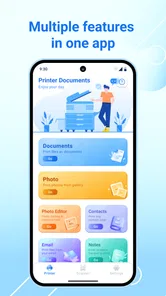
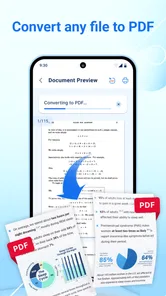
Mobile Printer-Print Documents is designed to help you print files directly from an Android or iOS device. It can be useful for printing documents, photos, PDFs, notes, and other supported content without first transferring everything to a computer. Before downloading, check whether your printer model and phone operating system are compatible with the app.
Does Mobile Printer-Print Documents work with every printer?
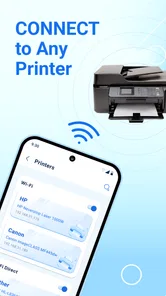
The app may support many wireless printers, but compatibility is not guaranteed for every brand or model. In most cases, the phone and printer need to be connected to the same Wi-Fi network, although some printers may use Wi-Fi Direct or another connection method. Review the supported printer list and connection requirements before installing.
Can I print PDFs, photos, and documents from cloud storage?
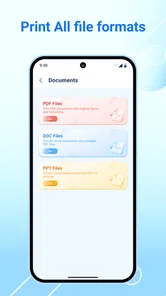
The app is generally intended for common printing tasks such as PDFs, office documents, images, and files saved on your mobile device. Depending on the version and operating system, it may also allow access to cloud services or sharing from other applications. File support can vary, so confirm that your preferred formats and storage locations are supported.
Pros
- Print documents and photos directly from your mobile device.
- Supports convenient wireless printing without transferring files to a computer.
- Simple interface makes basic printing tasks easy to start.
- Useful for printing PDFs
- images
- and other common file types.
- Can save time when printing on the go or away from a desktop.
Cons
- Printer compatibility may vary depending on the device and connection method.
- Some advanced printing options may require a paid upgrade.
- Wireless setup can be frustrating if the printer is not detected quickly.
- Print quality and speed depend largely on the connected printer.
- The app may request access to files
- photos
- or nearby devices.











