

Layers - AI Photo Editor
- 51.00
- 4.2
- Installs
- 100.00K
- Price
- Free

Screenshots
Analysis by Reviewed
Layers - AI Photo Editor is the kind of photography app I reach for when a normal edit feels too limited but a full desktop editor feels like far too much work. It combines retouching, collage work, beauty adjustments, playful hair effects, and layer-based editing in one mobile workspace. I found that mix useful because it covers both quick social images and more deliberate compositions without forcing me to switch between several separate apps.
What makes it interesting is not simply the number of editing tools. The real question is how comfortably those tools fit into everyday mobile use, especially when some of the more advanced AI-style work may depend on a connection. A quick edit can be effortless when everything loads properly, but a weak signal can change the experience quickly. My overall impression is positive, with an important qualification: this is best for creative, casual, and portrait-focused editing rather than for photographers who need exact professional controls.
How the editor feels in real mobile use
The app comes from HITDEV AI and sits in the photography category. It is free to install, with optional in-app purchases ranging from $5.99 to $39.99 per item. That makes it easy to try before deciding whether the extra tools are worthwhile, although I would still pay attention to which functions are available without an upgrade before starting a large project.
The first thing I noticed is that the concept is broader than a standard beauty editor. Retouching is useful for small corrections, while collage creation gives the app a reason to stay installed even when I am not editing portraits. The hair-focused effects add a more playful angle, and layers make it possible to build an image in stages instead of applying every change directly to one flattened picture.
That layer approach is especially helpful when I am experimenting. I can think of a collage as a stack: a background first, a main photo above it, then decorative elements or additional images. If one part looks wrong, the sensible workflow is to adjust that part instead of rebuilding the entire image. This is a small but important difference from basic editors that only offer a sequence of filters and sliders.
I would not describe the interface as a replacement for a desktop graphics program. The appeal is speed and accessibility. On a phone, I can make a presentable result without learning masks, complex selection methods, or an intimidating timeline. The trade-off is that users seeking pixel-level control may eventually find the mobile layout restrictive.
Where a connection changes the experience
Connectivity matters most when I move beyond simple adjustments and start using the app’s more intelligent or creative functions. A regular crop or basic touch-up feels like a quick local action from the user’s point of view, while AI-oriented processing can involve loading, waiting, or communicating with a service. I would therefore avoid beginning an important edit at the exact moment I am about to lose reception.
More From Our News Desk

 Gmail
GmailGmail in a Busy Inbox: Who Benefits Most?
From first account to crowded workday, Gmail earns its place through dependable search and flexible sorting—but its best fit depends on how much inbox maintenance you can tolerate.

 Prime Video
Switching to Prime Video: What Changes in Your Viewing Routine
Prime Video can make a compelling second home for streaming, but switching means learning a different catalog, rental layer, and route from browsing to playback.

 Universal TV Remote Control
Universal TV Remote Control Works Best as a Reliable Backup
A phone remote earns its place through quick setup and reliable habits. Here is how to get more from Universal TV Remote Control—and where its limits show.

 Weather - By Xiaomi
Weather by Xiaomi Review: Clear at a Glance, Less Clear Up Close
Xiaomi’s weather app makes everyday forecasts quick to scan, but its calm surface can leave useful details and recovery paths harder to find than they should be.

 X
XX Under Pressure: Can It Recover When Posting Goes Wrong?
A resilience-focused review of X, examining setup, mistaken posts, interruptions, weak connections, and the gaps that matter when recovery needs to be dependable.

 Clash of Clans
Clash of Clans Is Won Between the Battles
Its raids are quick; its community is a long-term project of coordination, teaching, rivalry, and shared responsibility—with all the friction that entails.
Latest News



This is particularly relevant while travelling. Imagine taking several portraits during a day out, then trying to create a polished collage on a train or in a crowded venue. If the connection is unstable, the editing session may feel less predictable than it did at home. My practical advice is to open the app and test the specific effect you intend to use before committing to a long workflow. That simple check can prevent a finished composition from being delayed when you need it most.
Connectivity also affects patience. When an effect is visually complex, I am more willing to wait if I know the result is being generated or processed. But when a basic screen takes too long to appear, the delay feels more frustrating because the task should be immediate. This distinction matters: the app is most enjoyable when I treat its AI tools as creative steps rather than instant replacements for every ordinary edit.
For people who regularly work in places with unreliable service, I would keep expectations modest. The app may still be useful for the parts of the workflow that open and respond normally, but I would not build a time-sensitive project around an untested connection. A conventional editor with dependable local controls may be the safer choice for a quick airport, campsite, or commuting session.
Portrait retouching without making faces look artificial
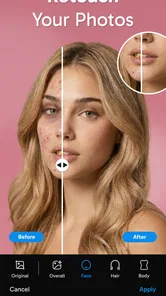
The retouching and beauty tools are aimed at quick improvements, not at making every face look identical. In my experience, the best results come from restraint. Small corrections can clean up a portrait while preserving expression, skin texture, and the details that make the photo feel like a real moment. Heavy adjustments are tempting because they create an obvious before-and-after effect, but they can also make the image look overly processed.
A useful workflow is to finish the composition first and refine the face afterward. If I retouch before deciding how the photo will appear in a collage, I may over-edit an image that ends up occupying only a small portion of the final design. Working in layers encourages this kind of separation: composition first, appearance second, final balance last.
The beauty-editor angle will suit users preparing profile pictures, party photos, casual portraits, or posts for social platforms. It is less appropriate when accurate skin tone, texture, or product appearance matters. Someone selling cosmetics, documenting a skincare result, or preparing a professional headshot may prefer a tool with more controlled color and retouching options.
The hair effects are a different proposition. I see them as entertainment and experimentation rather than a reliable preview of a real haircut or color. They can be useful for trying out a visual idea with friends, but I would not treat an edited result as a precise prediction of how a salon change will look. Lighting, hair texture, and the original angle can all affect whether the effect feels convincing.
Layers are more useful when you plan the edit
The short store description is simply “Layers,” and that focus makes sense once I start building a collage rather than applying one filter. Layers give me a way to keep separate visual elements independent. That is valuable for invitations, mood boards, comparison images, and social posts where several pictures need to coexist without losing control over their arrangement.
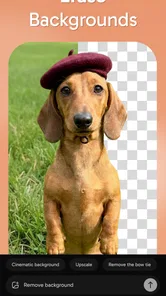
One non-obvious benefit is easier revision. If a background competes with the subject, I can work on that visual level instead of damaging the main portrait. If a decorative element makes the image feel crowded, I can remove or reposition it without undoing unrelated retouching. This is the kind of flexibility that basic one-tap editors usually do not provide.
I recommend naming the intended purpose of each layer mentally before adding more elements. For example, I might keep one image as the focal subject, another as a supporting detail, and a separate visual treatment as decoration. Without that discipline, a collage can become cluttered quickly, especially on a small phone screen where overlapping objects are harder to select accurately.
Another practical tip is to check the result at two sizes. Zooming in helps me catch rough edges and distracting retouching, while zooming out shows whether the main subject still reads clearly. A design that looks impressive close up can lose its hierarchy when viewed as a small thumbnail. This matters if the finished image is intended for a profile picture or a feed where people will see it briefly.
Everyday scenarios where it earns a place
One realistic use is a birthday collage made directly after a gathering. I can choose a few portraits, arrange them into a simple composition, soften minor distractions, and add a playful hair effect to one image for a humorous variation. The value is not that the app replaces a professional design suite; it is that the complete idea can happen on the same phone that captured the photos.
Another scenario is preparing several versions of one portrait. I might make a natural edit for a profile, a more colorful composition for a social post, and a playful version for friends. Keeping the images in separate layers makes experimentation less risky than repeatedly overwriting the original picture. I would still preserve the untouched original outside the editing session, because creative tools encourage trying changes that I may later regret.
The app also makes sense for users who want a visual comparison. A before-and-after skincare image, hairstyle experiment, or travel collage can be arranged more clearly when each photo remains an independent element. The important trade-off is honesty: retouching can improve presentation, but it should not turn a comparison into a misleading result.
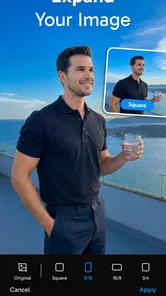
For a small business owner, the app could help create quick promotional graphics from product photos, especially when the goal is a simple collage rather than a carefully color-managed advertisement. I would be cautious with brand work that requires exact dimensions, consistent typography, or precise color reproduction. In those cases, a dedicated design application is likely to offer better control.
What happens when an edit goes wrong
Mobile editing is vulnerable to interruptions. A call, a low battery warning, a sudden connection change, or an app restart can break concentration even when the creative idea is sound. My safest approach is to save or export meaningful stages rather than waiting until the entire collage is perfect. That is particularly important for a project built from several layers, because recreating the arrangement can take more time than expected.
I also prefer testing a new effect on a duplicate or less important image first. This is useful for AI-style transformations and hair effects, where the result may be more dramatic than I intended. A test lets me judge the visual direction before spending time on detailed retouching. It also gives me a better sense of how the original lighting and pose influence the outcome.
If an effect stalls, I would not repeatedly tap the same control. I would first wait briefly, then return to the previous screen and reopen the task if the interface allows it. If the connection is the likely problem, switching to a more stable network before trying again is more sensible than generating multiple uncertain attempts. These habits are basic, but they reduce duplicate work and help avoid confusion about which version is current.
There is also a quality-recovery issue. Sometimes an edit technically succeeds but looks too strong. Instead of stacking another correction on top, I would step back to the original layer or reduce the intensity of the most recent change. Layer-based editing is most valuable when used as a safety net, not merely as a way to add more visual elements.
Using it carefully when data and battery matter
Because connectivity can shape AI-assisted editing, I would use the app thoughtfully on a limited mobile plan. Previewing or repeatedly regenerating effects may be less data-conscious than making a single decision and moving on. I would prepare the photos first, select the crop and general arrangement, and only then apply the effect I actually want to keep.
This workflow has another advantage: it reduces wasted processing. There is little value in applying a complicated transformation to a photo that later gets removed from the collage. Building the basic layout before experimenting with the most demanding creative step keeps both the session and the final result more organized.
Battery use is worth considering during longer collage sessions. A bright screen, repeated previews, and network activity can make a phone feel less comfortable to use over time. I would avoid starting a large project when the battery is already low, particularly if I am away from a charger and need the phone for navigation or communication afterward.
Privacy is another reason to be selective about what I edit. Portraits can be personal, and AI-oriented processing deserves the same care I would apply to any service that handles an image. I would avoid uploading sensitive documents, private identification images, or photos of other people without their permission. That is not a criticism unique to this app; it is a sensible boundary whenever creative editing involves connected processing.
Who should use it and who should look elsewhere
I think this app is a good match for someone who wants one approachable place for AI photo editing, portrait retouching, playful hair effects, and layered collages. It is especially appealing if switching between several narrowly focused apps feels inconvenient. The free entry point makes experimentation straightforward, while the broader toolset gives casual users room to move beyond ordinary filters.
It is also a reasonable choice for social-media users who value speed over technical precision. A phone-based workflow can be more important than perfect control when the goal is to create something attractive during a lunch break, after an event, or while travelling. The app’s strengths show up when the desired result is expressive and personal rather than formally exact.
I would skip it if my main requirement were professional color management, detailed masking, advanced typography, or a dependable desktop-style production process. A dedicated photo editor is better for photographers who need precise adjustments, while a design-focused app is more suitable for branded layouts and repeatable templates. A basic gallery editor may also be preferable when I only need to crop, rotate, or correct exposure quickly.
The in-app purchase range is another reason to decide based on actual use rather than the feature list alone. If I only make occasional collages, the free experience may be enough. If I rely on the creative tools regularly, I would compare the value of the paid items with the cost and learning curve of a more specialized editor. The right choice depends on whether convenience matters more than maximum control.
Compatibility, maturity, and day-to-day confidence
Layers - AI Photo Editor is marked for Everyone, which fits its accessible photography focus. It runs from Android 7.1 onward, so it is not limited to only the newest phones. Still, compatibility on paper does not guarantee the same smoothness on every device. Older hardware may feel less comfortable during complex previews or larger collage sessions than a recent phone.
The current version is 1.0.5, and I view that as a sign to keep expectations practical. The app already presents a clear idea, but early versions can still have rough edges in navigation, processing consistency, or how gracefully they handle unusual images. I would keep important originals backed up and avoid treating a mobile editing session as the only copy of valuable photos.
Its public reception is encouraging without making it a guaranteed fit: it holds a 4.2 average from around 3.4 thousand ratings, with over 100 thousand installs. Those figures suggest real interest and a generally favorable response, but they do not remove the need to test the workflow on my own phone. Photography apps can feel very different depending on screen size, storage, connection quality, and the type of images I normally edit.
My connectivity verdict
After using it as a mobile creative tool, I see connectivity as the main factor that separates a smooth session from a frustrating one. When the connection is steady, the combination of retouching, collage building, hair effects, and layers feels flexible and fun. When the network is uncertain, I would limit myself to the parts of the workflow that respond reliably and postpone important AI-assisted experiments.
My best method is simple: prepare the photos first, make a rough layered composition, test one effect, and save a useful version before exploring further. That approach keeps the app from becoming dependent on a single successful attempt. It also makes the creative process easier to recover if an effect fails or the connection drops at the wrong time.
In the end, I would recommend it to friends who want a friendly, expressive photo editor rather than a technical replacement for desktop software. The strongest reason to try it is the combination of layers and playful portrait tools in a mobile workflow, while the main caution is to plan around connectivity and avoid assuming every advanced step will feel instant. For casual portraits, social collages, and quick visual experiments, it is a worthwhile free app to explore, provided I keep realistic expectations about control, recovery, and connected processing.
Layers - AI Photo Editor Frequently Asked Questions
Who develops Layers - AI Photo Editor, and what kind of app is it?
Layers - AI Photo Editor is a photography app developed by HITDEV AI. Its focus is making photo editing more approachable, with a store summary highlighting easy retouching, an AI photo collage maker, beauty editing, and fun hairstyle features. If you are looking for a mobile tool that brings several creative editing ideas together, those are the main areas the app is presented around.
Is Layers - AI Photo Editor suitable for beginners?
The app is presented as an easy-to-use photo editor, so it may suit people who want to make creative changes without relying on a complex desktop editing workflow. Its focus on retouching, beauty edits, collages, and hairstyle effects gives casual users several kinds of edits to explore. As with any editor, the results and ease of use depend on the tools available in the app and how they fit your needs.
What is Layers - AI Photo Editor, and what can it do?
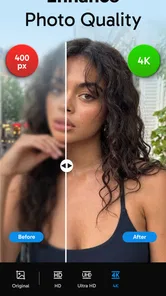
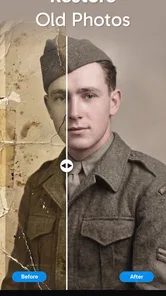
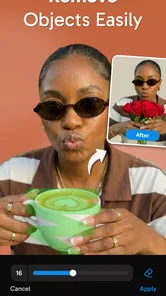
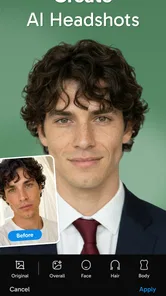
Layers - AI Photo Editor is designed to help users enhance, retouch, and creatively transform images with artificial intelligence. Depending on the available tools and subscription plan, you may be able to remove unwanted objects, improve image quality, change backgrounds, apply artistic effects, and make other edits using automated controls. It is aimed at users who want faster results than traditional, manual photo-editing software usually provides.
Is Layers - AI Photo Editor free to download and use?
Layers is free to download, though in-app purchases range from around six dollars to around forty dollars per item. Some advanced editing tools, export options, filters, or AI features may require a purchase. Before paying, review the price and terms shown in the app, including any recurring charges or cancellation conditions. Free access may also include limitations such as watermarks, restricted credits, advertisements, or a smaller selection of available tools.
Does Layers - AI Photo Editor require an internet connection?
Many AI-powered photo editors process images through cloud-based servers, so an internet connection may be necessary for features such as background generation, object removal, image enhancement, or creative transformations. Basic functions might work offline, but availability can vary by version and device. If you plan to edit while traveling or using mobile data, review the app’s permissions and consider possible upload times and data consumption.
Pros
- AI tools make complex edits accessible to beginners.
- Supports creative layering for more precise image compositions.
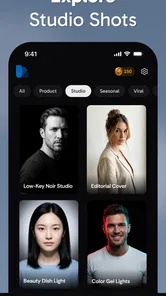
- Useful templates can speed up social media content creation.
- Non-destructive editing lets you experiment without losing the original.
- Export options make it easy to share finished images on multiple platforms.
Cons
- Some advanced AI features may require a paid subscription.
- Results can vary depending on image quality and subject complexity.
- Layer-heavy projects may feel demanding on older devices.
- The interface may take time to learn for users new to layer editing.
- High-resolution exports can use considerable storage space.











