Launcher 10
- 855.00
- 3.8
- Installs
- 1.00M
- Price
- Free
Screenshots
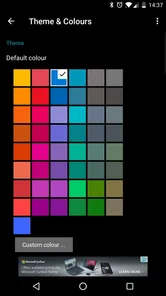
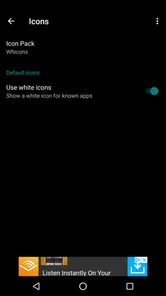
Analysis by Reviewed
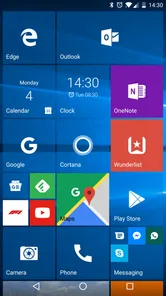
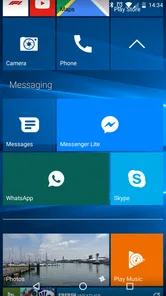
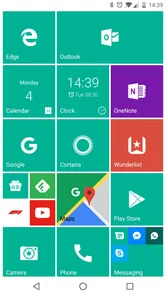
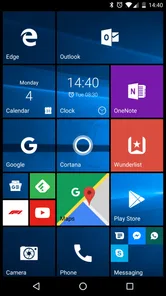
I installed Launcher 10 expecting a simple visual change, but it quickly became clear that this is really an attempt to rethink how an Android home screen works. Instead of arranging familiar icons in a conventional grid, it gives the phone a Windows Phone-style layout built around tiles, color, and quick visual scanning. That makes it interesting for anyone who wants their Android device to feel less ordinary, especially if standard launchers have started to look repetitive.
My experience was positive overall, but not effortless. The interface is fast and highly adjustable, while the tile-based design asks you to change habits rather than merely choose a new wallpaper. I found that the app works best when I treated the home screen as a practical dashboard: a small number of important apps in easy reach, with less-used tools kept out of the way. If you want a familiar Android launcher with almost no learning curve, this may feel unusual. If you enjoy customizing your phone and want a distinctive layout, it is much more compelling.
What makes this launcher different from a normal Android home screen
Launcher 10 comes from nfwebdev and belongs to the personalization category. It is free to install, carries an Everyone age rating, and has attracted over one million installs. Those figures suggest that the concept has found a substantial audience, although its average rating of 3.8 shows that the unusual design will not suit every Android user.
The first thing I noticed was the emphasis on tiles rather than a conventional page of icons. A tile can occupy more visual space, which makes important applications easier to recognize at a glance. This is useful when I want to reach a messaging app, calendar, map, or music player without searching through a dense grid. The trade-off is that the screen can become visually busy if every application receives a large tile.
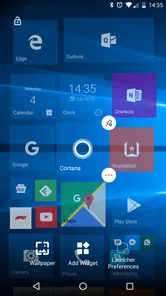
That trade-off is central to the whole experience. A typical Android launcher usually gives me a dock, icons, widgets, and several pages that behave in familiar ways. Launcher 10 encourages a more deliberate arrangement. I had to think about which apps deserved prominent placement and which could remain in the app list. Once I made those decisions, the home screen felt more personal than a default layout, but getting there required some patience.
The app has been available since April 29, 2016, and its current version is 2.8.19. It supports Android 6.0 and later, so it is aimed at a broad range of devices rather than only the newest phones. That older compatibility is useful if you are customizing a second phone or keeping an older Android device in daily service. At the same time, the experience can vary depending on the phone manufacturer, screen size, and Android version.
Setting up a layout that remains usable
My advice is to begin with restraint. I first placed only the applications I use repeatedly, then adjusted the tile sizes and spacing before adding anything else. This prevented the home screen from turning into a wall of colored blocks. The launcher is at its best when the visual style helps me locate something quickly, not when customization becomes the goal by itself.
More From Our News Desk
 Instagram
Instagram’s Power Comes From Its Place in Your Phone
A close look at how Instagram turns Meta’s reach, recommendation systems and everyday camera habits into durable platform power—and what that costs users.

 Gmail
GmailGmail in a Busy Inbox: Who Benefits Most?
From first account to crowded workday, Gmail earns its place through dependable search and flexible sorting—but its best fit depends on how much inbox maintenance you can tolerate.

 Prime Video
Switching to Prime Video: What Changes in Your Viewing Routine
Prime Video can make a compelling second home for streaming, but switching means learning a different catalog, rental layer, and route from browsing to playback.

 Universal TV Remote Control
Universal TV Remote Control Works Best as a Reliable Backup
A phone remote earns its place through quick setup and reliable habits. Here is how to get more from Universal TV Remote Control—and where its limits show.

 Weather - By Xiaomi
Weather by Xiaomi Review: Clear at a Glance, Less Clear Up Close
Xiaomi’s weather app makes everyday forecasts quick to scan, but its calm surface can leave useful details and recovery paths harder to find than they should be.

 X
XX Under Pressure: Can It Recover When Posting Goes Wrong?
A resilience-focused review of X, examining setup, mistaken posts, interruptions, weak connections, and the gaps that matter when recovery needs to be dependable.
Latest News



A useful workflow is to separate apps by frequency rather than by broad category. For example, the applications I open several times a day can sit on the main screen, while banking, travel, shopping, and occasional work tools can stay in the app list. This approach makes the tile layout feel faster than a standard grid because I am not constantly navigating through pages of icons.
I also found that consistency matters more here than in a conventional launcher. If every tile uses a different color or size, recognition becomes harder. Choosing a small visual pattern for related apps makes the screen easier to scan. This is one of the less obvious strengths of the design: customization is not only decoration; it can become a visual filing system when I keep it organized.
Speed, movement, and everyday handling
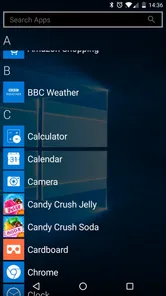
The store describes it as fast, and in normal use I found the interface responsive enough for routine navigation. Opening the app list, returning home, and moving between the main areas felt direct. The launcher does not seem designed around elaborate animation, so the experience is more about quick access than spectacle.
That simplicity helps on devices where I do not want a heavy visual layer. It also makes the launcher suitable for people who prefer a clear, purposeful home screen. However, speed is not the only factor in comfort. A layout that looks efficient on a large display may require more careful placement on a smaller one, and larger tiles can reduce how much information fits on screen at once.
One realistic example is a morning commute. I can place transit, weather, calendar, music, and messaging where my thumb naturally reaches them, then leave less urgent apps elsewhere. The benefit is not that the phone performs a new task; it is that the arrangement reduces the small delays of finding familiar tools. On a busy day, that kind of consistency matters more than a dramatic visual effect.
Trust, controls, and the moments that deserve attention
When I review a launcher, I pay attention to more than appearance because a launcher sits close to many parts of daily phone use. It can become the first screen I see, the place where I open applications, and the layer through which I organize personal information. With Launcher 10, I would make the decision based on the controls and choices visible during setup and use, rather than assuming that a different design automatically means better privacy or worse privacy.
The developer is nfwebdev, and the app has a large enough user base to show that it is not an obscure experiment. Still, popularity alone is not a privacy guarantee. I would inspect the permissions Android presents during installation and later use, and I would read any available privacy information before granting access that feels unrelated to the launcher’s role. That is especially important if the phone contains work accounts, financial apps, or private conversations.
There are also practical trust questions that are easy to overlook. A launcher may become deeply integrated into the daily routine, so I would check how comfortable I am with making it the default home application and how easily I can switch back to the phone’s original launcher. I would also confirm that I know where Android’s app permission controls are located. These steps are not specific to one brand of phone, but they are particularly sensible when replacing a system component used every time the device is unlocked.
The app includes optional in-app purchases ranging from forty-nine cents to six dollars and forty-nine cents per item. I appreciate knowing that the basic download is free, but I would still review purchase screens carefully before confirming anything. A free launcher can be perfectly useful without spending money, while optional upgrades may appeal to people who want deeper customization. The important point is to decide based on the controls shown in the app, not on the assumption that every visual option must be unlocked.
Data-sensitive moments can occur when a launcher is given access to the application list, notification-related information, contacts, or other Android features. I am not treating any particular permission as proof of a problem, and I would not grant access automatically. My approach is simple: if Android asks for a permission, I pause, read the explanation, and decide whether the requested access makes sense for the feature I am trying to use. If I do not need that feature, I leave the permission disabled.
This is also where user agency matters. Android’s settings allow me to review and change permissions later, and I would use those controls rather than treating the first setup screen as a permanent decision. If a feature behaves differently without an optional permission, that gives me useful information about whether the convenience is worth the access. A launcher should make it easy for me to choose a visual arrangement without pressuring me into enabling every available integration.
Who will enjoy the tile approach
I think Launcher 10 is a strong fit for people who are tired of standard icon grids and want their phone to feel visibly different. It is also useful for anyone who thinks spatial organization is easier than scanning rows of tiny icons. The tile layout can make frequently used apps more recognizable, particularly when I give each area a clear purpose.
It may appeal to former Windows Phone users who miss that style, although I would not install it solely for nostalgia without being willing to adapt to Android’s own behavior underneath. The app changes the launcher layer, not the entire operating system. Some system menus, notification behavior, and application interfaces will still look and behave like Android, so the result is a visual reinterpretation rather than a complete platform transformation.
It can also work well on a spare device used for a narrow purpose. On a phone dedicated to navigation, communication, or media, the tile layout can put the essential tools in view and keep distractions away. This is one of the best use cases because the launcher’s ability to prioritize a small set of apps becomes more valuable when the device has a clear role.
Who should choose a different launcher
I would skip it if I want a completely conventional Android experience or if I rely heavily on a manufacturer’s home-screen features. Switching launchers can change familiar gestures, widget behavior, icon placement, and the way I reach the app drawer. Even when the new layout is attractive, those small differences can become frustrating if I need the phone to behave exactly as it did before.
I would also be cautious if visual customization tends to become a time sink. Launcher 10 offers enough flexibility to encourage repeated rearranging, and that can distract from the practical purpose of a home screen. Someone who wants to set up a phone once and never adjust it may prefer a simpler launcher with fewer design decisions.
Users who depend on highly specialized widgets should test their important workflows before fully committing. A launcher can support Android applications while still presenting widgets or shortcuts differently from the default environment. I would not move every icon and widget at once. I would set it as the home app, test the calendar, music controls, communication tools, and any accessibility shortcuts I use, then decide whether the change is worth keeping.
How it compares with familiar alternatives
Compared with the launcher already installed on an Android phone, Launcher 10 offers a much stronger visual identity and a more structured tile system. The default option usually wins for familiarity, manufacturer integration, and minimal setup. Launcher 10 wins when I want the home screen to express a clear design choice and help me group important apps visually.
Compared with a highly traditional third-party launcher, it is less about reproducing a desktop-style grid with endless icon adjustments and more about changing the basic rhythm of navigation. That makes it easier to recognize at a glance, but it can feel restrictive if I prefer tiny icons, many pages, or a dense information layout. In other words, the choice is not simply between more customization and less customization; it is between different kinds of customization.
The average rating of 3.8 from around fourteen thousand ratings reflects that divide. I read it as a sign that the app has a clear audience but also meaningful compatibility and preference differences. Its roughly eight hundred fifty reviews add context to the public reception, yet I would still test it on my own phone because launcher behavior depends heavily on the device and on personal habits.
Practical checks before making it permanent
Before using it as my everyday launcher, I would take a few sensible steps. I would remember the name of the phone’s original launcher, check how to restore it in Android settings, and avoid deleting or rearranging anything until I know the new layout works. I would also test the back button, home gesture, app search, notifications, widgets, and any shortcuts I use several times a day.
I would keep the first layout deliberately small. A main screen with essential apps is easier to evaluate than a fully decorated design. After a day or two, I could see which tiles genuinely save time and which ones only make the screen look impressive. That test reveals whether the launcher is improving my routine or merely giving me another customization project.
For privacy-conscious users, the same trial period is a good opportunity to inspect Android’s permission manager and the launcher’s own settings. I would disable optional access I do not need, watch for any unexpected prompts, and avoid enabling features simply because they are available. This does not prove anything about the app’s broader data practices, but it does give me direct control over the permissions Android exposes.
Launcher 10 is a free personalization app with optional purchases, an Everyone rating, support for Android 6.0 and newer, and a current version of 2.8.19. Those details make it accessible to many users, but accessibility should not be confused with universal suitability. Its real value comes from the way it changes navigation, and that change is exactly what some people will love and others will abandon.
After using it, I would recommend it to a friend who wants a fast, colorful, tile-based alternative to the usual Android home screen and is happy to spend a little time organizing it. I would not recommend it to someone who wants zero adjustment, depends on a manufacturer-specific launcher workflow, or is uncomfortable reviewing permissions and default-app settings.
My cautious verdict is that Launcher 10 is worth trying as a reversible home-screen experiment. Start with a modest layout, check the permissions Android displays, test your essential shortcuts, and keep the original launcher available until the routine feels natural. If the tile design helps you find the apps you use most, it can make an older or familiar phone feel fresh. If it only adds visual clutter, switching back is the sensible choice.
Launcher 10 Frequently Asked Questions
Is Launcher 10 available for iPhone or only Android?
Launcher 10 is an Android personalization app, so it is intended for Android phones rather than iPhones. Its tile-based home screen works as an alternative to the standard Android launcher, giving users a different way to arrange and open apps. If you use an iPhone, this Android launcher will not replace or customize your iOS home screen.
Is Launcher 10 appropriate for children and general audiences?
Launcher 10 has an Everyone content rating, making it suitable for a general audience. It is a home-screen customization app rather than a game or social platform: its main purpose is to change how apps and shortcuts are displayed on an Android device. Parents can still review its customization options and any in-app purchase choices before allowing a child to use it.
What Android version do I need to use Launcher 10?
Launcher 10 requires Android 6.0 or later. Before downloading, check your phone’s Android version in its system settings, especially if you use an older device. If your phone meets that requirement, you can try the launcher without replacing Android itself; it changes the home-screen experience while leaving the operating system and installed apps in place.
Who develops Launcher 10, and what is it designed for?
Launcher 10 is a personalization app developed by nfwebdev. Its purpose is to give an Android phone a home screen inspired by Windows Phone, with a tile-based layout rather than the familiar rows of circular app icons. It may appeal to people who want a more distinctive way to organize shortcuts and access their apps without changing the underlying Android system.
What is Launcher 10, and how does it change the Android interface?
Launcher 10 is an Android home-screen replacement designed to give your phone a Windows Phone-style appearance. After installation, it replaces the standard launcher with a tile-based layout, allowing you to access apps, widgets, contacts, and shortcuts from a colorful Start screen. The experience feels noticeably different from a traditional Android launcher, especially if you prefer organized tiles instead of rows of circular icons.
Pros
- Faithfully recreates a Windows Phone-style tile interface.
- Live tiles make key updates visible directly on the home screen.
- Tile sizes and layouts offer plenty of personalization options.
- App drawer organization is clean and easy to navigate.
- Runs smoothly on many older Android devices.
Cons
- Some advanced customization features require a paid upgrade.
- Live tile updates may vary between apps and Android versions.
- The interface can feel unusual for users used to standard Android launchers.
- Certain widgets and notification features may need extra permissions.
- Battery use can increase when many live tiles update frequently.