Kids Mode - Kids Lock App
- 74.00
- 4.0
- Installs
- 100.00K
- Price
- Free

Screenshots

Analysis by Reviewed
When a child asks for “just five more minutes,” the difficult part is rarely the request itself. The real problem is turning a vague promise into a routine that both of you can follow. I tested Kids Mode - Kids Lock App with that everyday situation in mind, treating it as a parenting tool rather than a magic solution. It is a free parental-control app from INNOXAPPS LLP, aimed at managing screen time, child lock behavior, time limits, and access to the device.
My overall impression is that it makes the most sense for a parent who wants a straightforward way to create boundaries on a shared Android device. It is not trying to replace a full family-safety platform, and I would not choose it for detailed activity reports or broad household management. Its appeal is more practical: set a limit, hand over the phone or tablet, and make the end of the session less dependent on an argument.
From an open device to a predictable screen-time routine
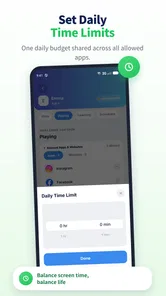
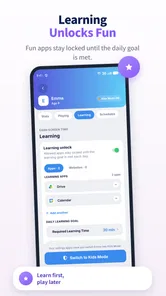
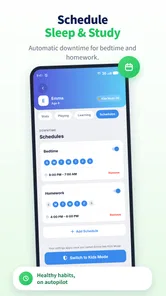
The starting condition matters. If your child uses a device without any structure, the first improvement is not a sophisticated report; it is a clear agreement about when the device is available and when it is not. This app fits that first step well because its central purpose is controlling screen time and locking the screen when the allowed period ends.
I found the best approach was to decide the rule before opening the app. For example, a child might use a tablet after homework, during a car journey, or while waiting at an appointment. The important detail is to define the occasion rather than simply handing over the device and hoping the session ends smoothly. Kids Mode can then support that decision instead of becoming another source of negotiation.
The app is listed in the Parenting category, carries an Everyone age rating, and has been available since October 19, 2018. Those details match its intended role: this is a family utility with a simple premise, not an entertainment app aimed at children. Its short store label, “Kids Mode,” is brief, but the useful interpretation is a controlled mode for supervised device use.
Setting up the first session
My advice is to configure it while the child is not waiting impatiently for a video or game. Parents often discover the awkward parts of a control app at the worst possible moment, with a child already holding the device. Taking a few minutes to establish the limit first makes the handoff calmer and gives you time to understand how the lock behaves.
The workflow begins with choosing the intended screen-time boundary and enabling the child-focused lock behavior. I would keep the first session short enough to observe what happens when the limit is reached. That trial is useful because every family has a different routine: one parent may want a device available for a quiet activity, while another may need a firm end point before bedtime.
More From Our News Desk

Weather by Xiaomi Review: Clear at a Glance, Less Clear Up Close

X Under Pressure: Can It Recover When Posting Goes Wrong?

Clash of Clans Is Won Between the Battles

Android Auto Makes the Case for Quieter Car Software

MobiOffice: Transforming Mobile Productivity with Seamless Integration

EA SPORTS FC™ Mobile Soccer: Redefining Mobile Sports Gaming
A useful, less obvious habit is to match the limit to the activity’s natural stopping point. A very short allowance in the middle of a level or video can create more frustration than a slightly longer, clearly explained session. The app can enforce the boundary, but it cannot decide whether the boundary is sensible for the particular activity. That remains a parenting decision.
There is also a difference between using a lock for a planned session and using it as a last-minute punishment. In my view, the first use is much more effective. When the child knows that the device will stop at an agreed point, the lock feels like part of the routine. If the parent changes the limit repeatedly during an argument, the technology becomes another bargaining tool rather than a stable rule.
The handoff between parent and child
The handoff is where this app becomes more useful than a verbal promise. I would set the session myself, explain what the child can do, and then give over the device. That sequence keeps the parent in charge of the boundary without requiring constant supervision during every minute of use.
For a younger child, I would demonstrate the basic idea in simple language: the device is available now, and it will lock when the agreed time is finished. For an older child, I would make the arrangement more collaborative by agreeing on when the session begins and what happens afterward. The app handles enforcement, but trust still depends on explaining the rule rather than hiding it.
This handoff also reveals one of the app’s practical trade-offs. A lock can reduce repeated reminders, but it does not remove the need for a parent to be available when the session ends. A child may still want help switching to dinner, homework, a bath, or another activity. The app can close the digital part of the routine; it cannot complete the physical transition.
I would be especially careful when the device belongs to several people. Before enabling a child-oriented lock, make sure the adult knows how to regain control and that the device is not about to be needed for an urgent call, navigation, schoolwork, or another adult task. A shared device needs a handoff plan in both directions: parent to child at the beginning, then child back to parent at the end.
What the child experiences during the session
From the child’s perspective, the value is consistency. Instead of hearing a parent announce a new stopping point every few minutes, the device follows the limit that was set at the start. That can make the rule feel less personal, particularly in families where screen-time arguments happen often.
Still, I would not describe the experience as completely frictionless. Any lock that interrupts an activity can feel abrupt, especially if the child has not been reminded that the session is nearly over. A practical workaround is to give a spoken warning before the final part of the allowance and ask the child to finish a natural stopping point. This does not weaken the limit; it makes the transition more understandable.
Another useful workflow is to reserve the app for situations where the parent genuinely needs a boundary. If you are sitting beside the child and sharing an activity, a manual end may be friendlier. If you are preparing food, helping another child, or managing a short waiting period, an automatic screen lock is more valuable because it prevents the session from quietly expanding.
The app is therefore strongest as a support for predictable routines, not as a substitute for conversation. Children learn the rule more easily when the parent connects the lock to a wider schedule: screen time after a task, a quiet activity during travel, or a defined period before the next family responsibility.
When the limit is reached
The intended outcome is simple: the child’s screen session ends through the app’s lock function rather than through an extended negotiation. That distinction may sound small, but it changes the parent’s role. Instead of repeatedly asking whether the device has been put away, the parent can focus on what comes next.
In a realistic evening scenario, I would set the tablet for a short post-homework session, explain that the device will lock afterward, and use the remaining time to prepare dinner. When the limit arrives, the screen is no longer available for casual continuation. The useful result is not merely that the device stops; it is that the next activity was planned before the lock appeared.
That last point is important. A locked screen can create a gap, and a gap can quickly turn into complaints if the child has nothing else to do. I would prepare the next step in advance: a book already on the table, pajamas ready, or a small household task that the child understands. The app works best when it is one link in a routine rather than the entire routine.
For parents, the main benefit is reduced mental load. You still need to choose a sensible allowance and explain it, but you do not have to monitor the clock continuously. In my experience, that makes the tool more useful during busy periods than during calm, shared screen time.
How it compares with ordinary alternatives
The usual alternative is a verbal rule: “You can use it until I say stop.” That costs nothing and may be enough for an older child who already respects the routine, but it places the parent in the role of timekeeper. Kids Mode is more helpful when the parent wants the device itself to enforce the limit.
Another alternative is the operating system’s built-in family controls. Those tools can be preferable when a household needs detailed app-by-app permissions, broader account management, activity summaries, or controls across several devices. I would choose that route for a family looking for one central dashboard and more extensive supervision.
This app has a narrower advantage. It is easier to think of as a focused screen-time lock for a particular device and moment. That simplicity can be welcome for a parent who does not want to build a complicated family-control system. The trade-off is that a focused lock may not satisfy families who need a complete picture of what a child does across phones, tablets, and accounts.
It also differs from simply removing a game or switching off Wi-Fi. Those blunt methods can stop access, but they do not express a timed agreement as clearly. A child may understand a planned limit better than an unexplained connection failure. On the other hand, if your goal is content filtering, location awareness, or detailed online safety management, a dedicated family-safety service may be a better fit.
Where the workflow becomes awkward
The first friction point is setup timing. If you discover the controls while a child is already asking for the device, the process can feel longer than expected. I would treat the initial configuration as a parent-only task and test it before relying on it during a rushed morning or a public outing.
The second is the emotional handoff at the end. A technical lock can stop the screen, but it cannot guarantee cooperation. Some children will accept the boundary; others will object because the activity ended. The app reduces one kind of negotiation, but parents still need a calm follow-up routine.
The third limitation is scope. I would not install this expecting a complete digital-parenting command center. Its purpose is much more specific: screen-time control, child lock, time limits, and screen locking. If you need extensive monitoring or several kinds of family safety tools in one place, compare it with the controls already built into your device and with broader parental-control products.
There is also a financial detail worth noticing. The app is free to install, while optional in-app purchases range from $0.99 to $27.99 per item. I would decide what you actually need before buying anything, rather than assuming that every paid option is necessary for a basic trial. A free starting point makes it easy to test whether the workflow suits your family, but the presence of optional purchases means the final experience may depend on which extras you choose.
Its reception suggests a reasonable level of interest: it has an average rating of 4.0 from around 2K ratings, with 74 written reviews and over 100K installs. I read that as evidence that the concept is understandable and useful to many parents, not as a guarantee that every household will find the setup perfect. A rating cannot account for differences in children’s ages, device-sharing arrangements, or family routines.
Who should use it, and who should skip it
I would recommend Kids Mode to a parent who needs a simple, repeatable screen-time boundary on one device. It is particularly suitable when the problem is not discovering every detail of a child’s activity, but stopping an agreed session without constant reminders. It can also help grandparents, babysitters, or other caregivers follow a parent’s time rule more consistently during a short handoff.
I would be more cautious if your child needs the device for mixed purposes. A tablet used for entertainment, homework, communication, and emergency access may require more careful planning than a device used mainly for a defined leisure session. Before turning on a lock, identify what the child might need to finish and what the adult may need to access.
I would skip it as the primary solution if you want detailed reporting, wide-ranging content controls, or a multi-device family dashboard. In that situation, the operating system’s family tools or a broader parental-control app may offer a better match. I would also skip relying on it alone for very young children who need an adult physically nearby; a lock is not supervision.
Small habits that make it work better
Set the boundary before handing over the device, not while the child is already absorbed in an activity.
Give a clear verbal warning near the end and encourage a natural stopping point whenever the activity allows it.
Plan the next offline activity before the screen locks, especially during bedtime or transitions between family tasks.
Use a short trial session first so you understand the handoff and can adjust the routine without pressure.
Keep adult use separate from child use on a shared device, and avoid starting a locked session when the device may be needed unexpectedly.
These habits are not decorative extras; they address the places where a screen-time app can fail in real life. The technology can enforce a limit, but parents still control the timing, the explanation, and the transition afterward. That is why I see the app as a practical piece of family organization rather than an automatic parenting solution.
My final view after following the complete workflow
Kids Mode - Kids Lock App takes a familiar parenting problem and gives it a concrete sequence: decide the rule, configure the session, hand over the device, let the limit run, and move into the next activity when the screen locks. I like that focused flow because it is easy to understand and useful during busy moments.
Its weaknesses come from the same simplicity. It is not the right choice for parents seeking deep monitoring, broad family management, or a detailed account of digital behavior. It can also make a transition feel abrupt if the child is not prepared. Those are genuine limitations, but they do not undermine its central purpose.
For a free Parenting app from INNOXAPPS LLP with an Everyone rating, Kids Mode is worth trying if your immediate goal is to make agreed screen-time limits more consistent. I would start with one device, one predictable routine, and a clearly explained handoff. If that outcome is all you need, the app’s focused approach can be more useful than a complicated control system. If your needs extend beyond timed access and screen locking, I would move to a broader parental-control option instead.
Kids Mode - Kids Lock App Frequently Asked Questions
Is Kids Mode - Kids Lock App suitable for young children?
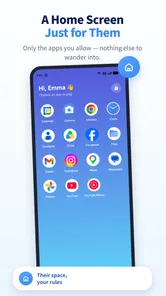
Kids Mode - Kids Lock App is a parenting app intended to help adults manage a child’s access to a phone or tablet. Its content rating is Everyone, and the central idea is to leave children with access to selected apps while keeping other areas restricted. Parents should still supervise device use and choose age-appropriate apps and content within the approved selection.
What is Kids Mode - Kids Lock App, and what does it do?
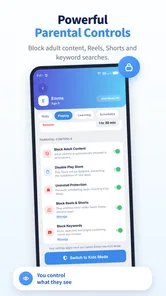
Kids Mode - Kids Lock App is designed to make a smartphone or tablet safer for children by limiting access to selected apps and features. After enabling the child-friendly mode, parents can choose which games, videos, or educational apps remain available while blocking settings, purchases, messages, and other private areas. The exact tools may vary depending on the device and app version.
Can parents choose which apps their children are allowed to use?
Yes, the main purpose of the app is to let parents create a controlled list of approved applications. During setup, you can generally select games, learning tools, streaming services, or other content that your child may open. It is important to review the list regularly, because newly installed apps may not automatically be restricted and some device functions may require additional parental controls.
Can my child exit Kids Mode or change the app’s settings?
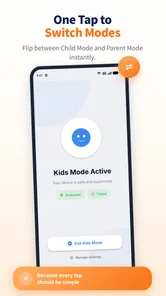
The app normally uses a parent-controlled password, PIN, or similar protection to prevent children from leaving the restricted environment or changing important settings. Choose a code your child cannot easily guess, and avoid using birthdays or simple number combinations. No lock application is completely foolproof, so you should also review Android or iOS system settings and keep the device updated.
Does Kids Mode - Kids Lock App block advertisements, purchases, and inappropriate content?
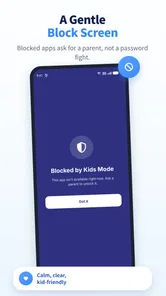
Kids Mode can help reduce accidental access to unsuitable areas by hiding or restricting selected apps and device functions, but it should not be treated as a complete content-filtering solution. Advertisements inside approved games may still appear, and in-app purchases or web content may require separate controls. For stronger protection, combine the app with Google Family Link, Apple Screen Time, store purchase restrictions, and age-appropriate content settings.
Pros
- Simple interface makes it easy for parents to set up quickly.
- Blocks accidental taps and exits while children use the device.
- Useful for keeping kids inside one selected app or activity.
- Helps prevent unwanted purchases and changes to device settings.
- Can support calmer
- more focused screen time for younger children.
Cons
- Some features may require payment or premium access.
- Children may eventually learn ways around basic lock controls.
- Compatibility can vary across Android devices and software versions.
- Parents must still check the app’s permissions and privacy settings.
- A locked device may require extra steps to regain normal access.