iOS Control Center - Panel
- 10.00
- 3.5
- Installs
- 1.00M
- Price
- Free
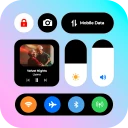
Screenshots
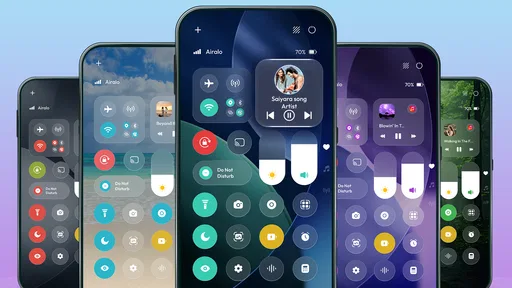
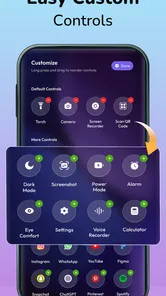
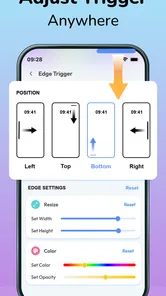
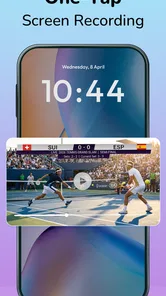

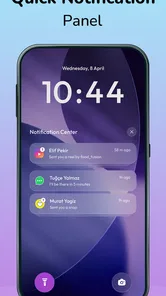
Analysis by Reviewed
I like Android tools that solve one small annoyance without asking me to rebuild the way I use my phone. iOS Control Center - Panel has a clear appeal: it brings an iPhone-inspired quick-access panel to Android, giving people who enjoy that visual style a way to reach common controls from a different-looking interface. My overall view is favorable but cautious. It is worth trying if appearance and quick access are your priorities; if you mainly want dependable system controls with no extra layer to manage, Android’s built-in panel may suit you better.
Why the control panel is the whole point
Before trying a panel like this, I would ask myself what I actually want to change. If the answer is “I want my phone to look more like an iPhone,” the app has a clear role. If the answer is “I need a faster way to reach a particular Android setting,” I would test the built-in quick settings first, because they are already part of the phone’s usual interaction. The difference is subtle but important: one choice is mostly about personal style, while the other is about improving a task.
That distinction also helps set expectations about compatibility. The app is listed for Android 8.0 and later, but a supported operating-system version does not by itself tell you how the panel will feel on your particular device. Android manufacturers can present their system controls differently, so I would try the app on the phone I plan to use rather than assume that someone else’s experience will transfer perfectly. A short hands-on test is more useful than choosing by screenshots.
For a practical trial, I would keep the phone’s normal layout unchanged and focus on one question: can I reach the panel and recognize what I need without interrupting what I was doing? That avoids confusing the novelty of a new look with a genuine improvement. I would also give myself a little time to build the gesture or access method into muscle memory; a control can feel awkward on the first attempt simply because it is unfamiliar, but repeated hesitation after regular use is a more meaningful warning.
A familiar shortcut panel, with a different purpose
Made by Byte Bloom, this free personalization app is aimed at changing how Android’s quick-access experience looks and feels. That distinction matters. It is not a replacement for Android itself, nor should a similar visual design be mistaken for Apple software. Its appeal is the chance to make a familiar phone interaction feel closer to the iOS style while remaining on an Android device.
That makes the app most interesting to people who care about the small details of their home-screen setup. A quick panel is something you open repeatedly, often without thinking; a change there can make the phone feel more personal than another wallpaper swap. But the value depends on whether the new presentation remains convenient in your own routine. A pretty panel that takes extra effort to reach is a poor trade for a shortcut you use dozens of times.
The app has a 3.5 average from around 1,900 ratings, with more than a million installs. I read that as evidence of broad curiosity, not a guarantee that every phone or preference will be a match. The rating also makes me temper expectations: this is a customization experiment to assess on your device, rather than an obvious must-have for every Android owner.
More From Our News Desk

 Instagram
Instagram’s Power Comes From Its Place in Your Phone
A close look at how Instagram turns Meta’s reach, recommendation systems and everyday camera habits into durable platform power—and what that costs users.

 Gmail
GmailGmail in a Busy Inbox: Who Benefits Most?
From first account to crowded workday, Gmail earns its place through dependable search and flexible sorting—but its best fit depends on how much inbox maintenance you can tolerate.

 Prime Video
Switching to Prime Video: What Changes in Your Viewing Routine
Prime Video can make a compelling second home for streaming, but switching means learning a different catalog, rental layer, and route from browsing to playback.

 Universal TV Remote Control
Universal TV Remote Control Works Best as a Reliable Backup
A phone remote earns its place through quick setup and reliable habits. Here is how to get more from Universal TV Remote Control—and where its limits show.

 Weather - By Xiaomi
Weather by Xiaomi Review: Clear at a Glance, Less Clear Up Close
Xiaomi’s weather app makes everyday forecasts quick to scan, but its calm surface can leave useful details and recovery paths harder to find than they should be.

 X
XX Under Pressure: Can It Recover When Posting Goes Wrong?
A resilience-focused review of X, examining setup, mistaken posts, interruptions, weak connections, and the gaps that matter when recovery needs to be dependable.
Latest News



Where the iOS-inspired approach can help
The strongest case is visual consistency. If you already use iOS-like icons, widgets, or a launcher theme, an iPhone-style quick panel can make the rest of your interface feel less like a collection of unrelated design choices. I would try it as the finishing touch to a broader setup, not expect it alone to transform the whole phone.
There is also a practical reason to customize this particular area: quick controls are most useful when they are easy to recognize and reach. A panel designed around a familiar style may feel intuitive to someone moving between Android and iPhone, or to someone who simply prefers that visual language. The important test is not whether it resembles another operating system in a screenshot, but whether you can open it and find what you need without slowing down.
Here is a realistic use case. Imagine you are settling into a quiet evening and want to adjust a phone setting without leaving the app you are reading. A quick-access panel can make that kind of interruption feel smaller. I would test the experience during ordinary tasks—while switching between apps, handling a call, or adjusting the phone one-handed—rather than judging it only while exploring the customization screen. The latter tells you how it looks; the former tells you whether it earns a place in your daily routine.
What to check before making it part of your routine
Because this app adds a custom route to quick access, spend a little time learning how to open it and then repeat the gesture or action in different situations. The most useful setup is the one you can trigger reliably when your hands are busy or your attention is elsewhere. If you find yourself pausing to remember how to bring the panel up, that friction will matter more than its styling.
I would also compare it directly with your phone’s built-in quick settings before deciding. Try the same everyday task with each panel and notice which takes fewer steps and feels easier to understand. Android’s native controls have the advantage of belonging to the phone already; a personalization layer has to justify itself through a style or interaction you genuinely prefer. This side-by-side check is a better way to judge the app than assuming an iOS-like appearance is automatically an improvement.
One useful way to make that comparison fair is to pick two or three controls you reach for in real life rather than explore every option at once. For example, during a commute you might need to adjust a setting before putting the phone away, while at home you may want to make a quick change without leaving a video or reading app. Use the same task in both panels and notice not only the number of actions, but whether you can do it without looking closely. A design that is attractive but demands more attention may not be the better everyday choice.
Another useful tip is to make one change at a time when evaluating the overall look of your device. If you alter the launcher, icons, wallpaper, and control panel together, it becomes hard to tell which part is making the phone feel smoother—or more cluttered. Start with the panel, use it for a few normal sessions, and then decide whether it complements your existing setup. This is especially helpful if your current home screen is already carefully arranged.
The trade-off is straightforward: customization introduces another interface to learn. Even when the purpose is simple, an additional panel can create a mismatch between what you expect Android to do and what the customized experience presents. If your main concern is speed, consistency, or reducing visual distractions, the stock option may be the better choice. If your motivation is personal expression, the extra layer may be worthwhile.
How it compares with familiar alternatives
The closest alternative is not another app; it is the quick-settings panel already included with Android. That built-in option is the sensible choice when reliability and familiarity matter more than appearance, or when you only use a few controls and do not care how they are presented. A launcher or icon theme can change the phone’s visual character too, but those changes do not necessarily alter the quick-access experience. This app is most distinctive when the panel itself is the part you want to restyle.
I would not treat it as a full phone makeover. Someone who wants the entire Android interface to feel different may get more value from a coordinated launcher and icon setup, while someone who only wants a recognizable route to quick controls can keep the rest of the phone as it is. The trade-off is focus: a panel-specific change is easier to evaluate and reverse in your habits, but it will not make unrelated parts of Android look or behave like iOS.
Who is likely to enjoy it—and who may not
I would recommend giving it a look if you enjoy tuning your phone’s appearance, prefer the iOS visual style, or want a more familiar-feeling panel while using Android. It is also a reasonable experiment for someone who switches between the two platforms and likes a degree of visual continuity. Since it is free to download, you can judge its basic appeal for yourself before deciding whether it deserves a permanent place in your setup.
I would be less enthusiastic about it for someone who is already happy with Android’s quick settings or who changes phone controls only occasionally. A new presentation has little value if the built-in panel already feels quick and clear. It may also be the wrong fit if you expect an exact copy of Apple’s software: the concept is an iOS-inspired panel on Android, not the iPhone operating system or a guarantee of identical behavior.
It is also a poor match for someone who dislikes changing a habitual control path. If you often need to act quickly without thinking—perhaps while walking, carrying something, or responding to a notification—the familiar system panel may be preferable simply because your fingers already know where to go. I would not trade that confidence for a visual resemblance unless the new route proves just as natural in repeated use.
There is a cost consideration beyond the free starting point. The app includes in-app purchases priced from $16.99 to $21.99 per item. I would first decide whether the everyday experience is useful and comfortable before spending anything. If you only want to satisfy curiosity about the design, the purchase options may not be relevant to your decision; if you are considering paying, make sure the customization you want is actually worth that level of expense to you.
That leads to a practical question: should you pay immediately to get the version of the experience you want? My answer is to establish what you value before making that choice. Use the free starting point to decide whether the panel improves your routine, then consider a purchase only if the specific customization you want is available and matters enough to justify the price. The app’s price range is not a reason to buy or avoid it on its own; the key is whether the result earns a place in your daily use.
The maturity picture is also worth keeping in mind. The current version is 1.0.12, and the app was released on May 11, 2026. That gives a reader a sense of where it sits in its lifecycle, but I would still approach it as a relatively early customization product rather than assume it has already become an essential part of Android. Its age rating is Everyone, and it requires Android 8.0 or later, which helps establish whether a device can run it before you invest time in trying it.
A sensible way to decide
My practical recommendation is to treat the first session as a test, not a commitment. Set up the panel, then use it for the controls you reach for most often. Pay attention to the moment of access, how quickly the layout makes sense, and whether the visual change makes your phone feel more coherent. If the experience feels natural after a few ordinary tasks, it is doing something useful. If you keep returning to the stock panel out of habit, that is a good sign the customization is not solving a real problem for you.
For a fair comparison, avoid changing your phone’s broader layout on the same day. Keep the rest of the interface familiar and focus on whether this panel improves your own routine. That isolates the app’s contribution and helps prevent the novelty of a new look from being mistaken for lasting convenience. It also gives you a clear answer to the question many customization apps raise: do I like using this, or did I only like setting it up?
If you share your phone or regularly hand it to someone else, another small check is whether the changed access method is easy to explain. A personalized shortcut can be perfectly comfortable for its owner yet confusing to a family member who expects the standard Android controls. In that situation, keeping the familiar route available—or choosing the stock panel—may be the more considerate option. This is not a technical drawback so much as a consequence of making a common interaction personal.
My verdict
iOS Control Center - Panel makes most sense as a personal styling choice with a practical side, rather than as a necessary upgrade to Android. Its appeal is easy to understand: it offers an iOS-inspired quick-access experience for people who want that look on their Android phone. Its limitation is equally important: a custom panel has to compete with the system controls you already know, and its appearance alone cannot prove that it will be faster or more comfortable for you.
I would try it if you enjoy personalization and are willing to judge it through everyday use. I would skip it if your priority is keeping the phone simple, or if the built-in quick settings already do everything you need. Byte Bloom’s app is free to start, but the optional purchases make it sensible to establish your own value threshold before paying. In short, it is a worthwhile experiment for the right kind of Android user—not a universal replacement for the standard panel.
iOS Control Center - Panel Frequently Asked Questions
What does iOS Control Center - Panel do?
iOS Control Center - Panel is designed to give an Android phone a shortcut panel inspired by the Control Center on iPhones. Depending on the version and device, it may provide quick access to common controls such as Wi-Fi, Bluetooth, brightness, volume, and selected apps. It is a customization utility, not an official Apple app, and it does not turn Android into iOS.
How do I open and customize the control panel?
After installing the app, you may need to grant its requested permissions and enable the panel in the app’s settings. It is commonly opened with a swipe from a screen edge, though the gesture and available options can vary by version. Check the customization settings before relying on it, since supported shortcuts, layout choices, and appearance may differ across Android devices.
What permissions does iOS Control Center - Panel need, and are they safe?
A floating panel or screen overlay may require permission to appear above other apps, while particular shortcuts can request access to related device settings or features. Review each permission prompt and the app’s privacy information, and grant only access needed for the controls you plan to use. Permission names and requirements can vary by Android version and the app’s release.
Will it work on every Android phone, and can it affect battery or performance?
Compatibility depends on your Android version, device manufacturer, and the app’s current requirements. Some phones may restrict background activity or overlay gestures, so the panel might need extra setup or may behave differently when another app is open. Keeping a service active can also use some battery or memory, although the impact varies with device settings and usage.
Is iOS Control Center - Panel free, and does it replace Android’s built-in controls?
The app may be available to install without an upfront charge, but its listing should be checked for advertisements, in-app purchases, and current pricing details. It generally adds a separate shortcut panel rather than replacing Android’s native Quick Settings or system controls. If the panel does not appear or a shortcut fails, you can still use the phone’s built-in settings.
Pros
- Quickly access common controls without navigating through settings.
- Adjust brightness and volume with convenient sliders.
- Customize shortcuts to better suit your daily needs.
- A familiar iOS-inspired layout is easy to understand.
- Useful for accessing controls while using other apps.
Cons
- Some features may require granting sensitive accessibility permissions.
- Compatibility can vary across Android devices and OS versions.
- Background operation may increase battery consumption.
- Ads or in-app purchases may limit the free experience.
- The iOS-style panel may not match every user's preferences.