InstaVision: Smart & Safe Home
- 1.18K
- 4.5
- Installs
- 100.00K
- Price
- Free

Screenshots

Analysis by Reviewed
When I first opened InstaVision: Smart & Safe Home, I approached it as a practical home-monitoring tool rather than another app I would check constantly. Its purpose is easy to understand: help me keep an eye on a home through video, listen and speak through the camera, and notice events that deserve attention. That combination makes it more useful than a simple live viewer, especially when I am away and do not want to stare at a screen all day.
InstaVision is a free House & Home app from InstaVision Inc. It is available for users aged Everyone, supports Android 9 and later, and has built a solid audience with an average rating of 4.5 from around 8,200 ratings. Its current version is 2026.08.12.1510, while the app has passed 100,000 installs. Those figures suggest that it is established enough to be taken seriously, but I still think the best way to judge it is by how quickly it helps a first-time user reach a useful result.
What the app feels like in everyday use
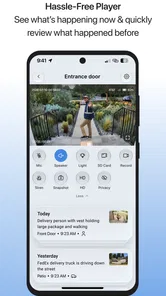
The central experience is built around home awareness. I can use the video feed to check a room, use two-way audio when I need to communicate, and rely on event detection to draw attention to activity. The important distinction is that these functions serve different moments. Live video is best when I deliberately want to inspect something. Two-way audio is useful when seeing is not enough. Event detection becomes valuable when I am busy and need the app to point me toward a moment worth reviewing.
That makes the app a reasonable fit for several ordinary situations. I might check whether a delivery has arrived, look in on a quiet room while I am elsewhere, or speak to someone at home without making a phone call. I can also imagine using it during a short trip, when a notification about activity is more practical than repeatedly opening a camera feed.
My main advice is to treat InstaVision as a monitoring companion, not as a replacement for every part of a complete home-security setup. A camera app can help me see and respond, but it does not remove the need for sensible placement, reliable connectivity, good household communication, and awareness of privacy. The strongest results come when the app is used as one part of a clear routine.
What to expect from video and audio
The HD video is aimed at making a live view useful rather than merely decorative. In practice, the value of a clear image depends on where the camera is placed, how much light is available, and whether the important area is actually within view. I would not judge the app only by opening the feed from a poor angle. A camera pointed at a bright window, a blank wall, or a busy passage can make even a capable monitoring system feel disappointing.
The two-way audio deserves a little more thought than its name suggests. It is convenient for short exchanges, but I would use it deliberately. A quick message to someone at home is different from leaving the microphone open while moving between rooms. Speaking through a camera can also feel abrupt if the other person is not expecting it, so I see this feature as an occasional communication tool rather than a replacement for an intercom in every situation.
More From Our News Desk

 Instagram
Instagram’s Power Comes From Its Place in Your Phone
A close look at how Instagram turns Meta’s reach, recommendation systems and everyday camera habits into durable platform power—and what that costs users.

 Gmail
GmailGmail in a Busy Inbox: Who Benefits Most?
From first account to crowded workday, Gmail earns its place through dependable search and flexible sorting—but its best fit depends on how much inbox maintenance you can tolerate.

 Prime Video
Switching to Prime Video: What Changes in Your Viewing Routine
Prime Video can make a compelling second home for streaming, but switching means learning a different catalog, rental layer, and route from browsing to playback.

 Universal TV Remote Control
Universal TV Remote Control Works Best as a Reliable Backup
A phone remote earns its place through quick setup and reliable habits. Here is how to get more from Universal TV Remote Control—and where its limits show.

 Weather - By Xiaomi
Weather by Xiaomi Review: Clear at a Glance, Less Clear Up Close
Xiaomi’s weather app makes everyday forecasts quick to scan, but its calm surface can leave useful details and recovery paths harder to find than they should be.

 X
XX Under Pressure: Can It Recover When Posting Goes Wrong?
A resilience-focused review of X, examining setup, mistaken posts, interruptions, weak connections, and the gaps that matter when recovery needs to be dependable.
Latest News



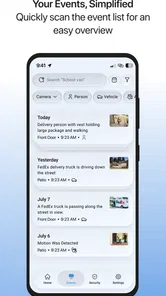
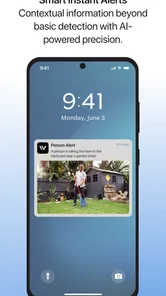
Event detection is potentially the most time-saving part of the experience. Instead of asking me to watch continuously, it can help focus attention on activity. That convenience also creates a trade-off: any detection system needs sensible interpretation. Movement does not automatically mean danger, and a quiet scene does not prove that everything is fine. I would use events as prompts to check the video, not as unquestionable conclusions.
Getting from installation to a useful first check
For a first-time user, the goal should be modest: complete setup and reach one meaningful live view. I would begin by installing the app on a supported device, opening it in the same place as the camera or home equipment, and keeping the camera positioned where its view is easy to understand. Starting with a complicated multi-room arrangement can make it harder to tell whether a problem comes from the app, the camera, or the network.
The first setup is easier when I already know which room I want to monitor and what success looks like. For example, I might choose the entrance and decide that success means seeing the doorway clearly and hearing a short spoken message through two-way audio. That gives me a simple test instead of wandering through settings without knowing what I am checking.
I would also take time to label or mentally separate different viewing areas if the app presents more than one device or location. Clear naming matters later, particularly when an event appears and I need to know which part of the home deserves attention. A vague room name can turn a useful alert into a small investigation.
Because the app depends on video and audio, I would check the basic physical details before blaming the software. The lens should not be blocked, the camera should not face an unnecessary source of glare, and the chosen viewing area should match the reason I installed it. A camera placed for general room awareness is not automatically well placed for identifying activity at a doorway.
The first successful action I would test
Once the live view is available, I would avoid immediately exploring every option. My first meaningful action would be a short, repeatable test: open the video, identify a familiar object in the frame, and use two-way audio to deliver a simple message. This confirms more than an empty loading screen does. I learn whether the image is understandable, whether the audio behaves as expected, and whether the camera is aimed at the right area.
After that, I would create a small real-world test for event detection. I might leave the monitored area, return in a normal way, and then check whether the app gives me an event worth reviewing. The point is not to stage an elaborate security experiment. It is to learn how the app presents activity in my own home, where lighting, furniture, pets, and daily movement may affect what is noticed.
That test also teaches me how much attention the app may demand. If ordinary movement produces frequent events, I would need to decide whether the information is still useful or whether the camera location is too busy. If an important area is rarely visible, repositioning the camera may help more than changing the way I use the app.
The best first milestone is not simply opening the app; it is completing one clear check from view to action. Once I can see the right area, communicate when needed, and understand how activity appears, the rest of the experience becomes much less intimidating.
Where new users may become confused
The most common confusion is likely to come from treating live video, event detection, and two-way audio as if they were the same function. They are related, but they answer different questions. Live video answers “what is happening now?” Event detection answers “what activity should I look at?” Two-way audio answers “can I communicate with someone there?” Keeping those roles separate makes the interface easier to understand.
Another possible source of uncertainty is an event that does not match the user’s idea of a security incident. An event can be a reason to inspect the feed, not a final diagnosis. I would avoid reacting to every notification as though it confirmed a problem. A better habit is to use the alert as a shortcut into the relevant moment, then judge the scene myself.
Audio can also create hesitation. If I cannot hear clearly, the cause may be the room, the device position, the network, or the way the conversation is being attempted. I would test audio when the room is quiet and keep the first exchange short. That makes it easier to separate a genuine app issue from an awkward real-world setup.
Privacy is another area where thoughtful use matters. A camera inside a home can capture family members, visitors, or private activities. I would choose locations carefully, tell people who regularly share the space that monitoring is in use, and avoid pointing the camera at areas that do not need observation. The app’s age rating of Everyone describes its store classification, not a reason to use home cameras without household boundaries.
A realistic daily scenario
Imagine that I am away from home for the afternoon and expect someone to arrive. Instead of asking that person to call repeatedly, I can use the live view to check the entrance when needed. If the camera shows the person is there, two-way audio may let me give a quick instruction. If an event is detected while I am occupied, I can review that moment rather than continuously watching the feed.
This scenario shows both the strength and the limitation of the app. It reduces unnecessary checking and gives me more than a silent image, but it still requires judgment. I need to know which camera I am viewing, understand what the event represents, and decide whether speaking through the camera is appropriate. The app supports the workflow; it does not make the decisions for me.
A different example is checking a room during a short absence. I might want reassurance that the space looks normal, but I should remember that a single view is only a snapshot of what the camera can see. Furniture, lighting, and blind spots still matter. InstaVision is most convincing when I use it to answer a focused question, such as whether a particular area appears occupied or whether a recent event deserves attention.
How it compares with simpler alternatives
Compared with a basic camera viewer, InstaVision offers a broader monitoring experience because video is joined by two-way audio and event detection. A simple viewer may be enough for someone who only wants to open a feed occasionally. I would choose InstaVision when I want the app to help surface activity and give me a way to respond without switching to another communication method.
Compared with checking in by phone, the app gives me visual context. A call can tell me that someone is home, but it cannot show me the room or entrance before I speak. On the other hand, a phone conversation is often more natural for a longer discussion. I see the app as better for quick, situational contact than for replacing ordinary calls.
It also differs from a full security service in an important way. A monitoring app can help me observe and react, while a professionally managed system may be more suitable for someone who wants a broader security arrangement and does not want to interpret events personally. InstaVision is a better match for hands-on users who want direct access to their home view and are comfortable making their own decisions.
Who should use it, and who should skip it
I would recommend InstaVision to a first-time home-monitoring user who wants a straightforward starting point with video, communication, and activity awareness in one place. It can also suit someone who already understands camera placement and wants a convenient way to check a home without relying only on a live feed.
I would be more cautious about recommending it to someone who expects a camera app to provide complete protection automatically. If the main requirement is professional response, highly specialized security equipment, or a system that demands almost no personal interpretation, a different category of solution may be a better fit.
It may also be the wrong choice for a user who dislikes notifications or has no interest in adjusting the physical setup. Event detection is only helpful when the resulting information is manageable, and video quality is only useful when the camera sees the right place. The app cannot compensate for an unsuitable installation.
Practical habits that improve the experience
I would start with one camera view and one purpose instead of trying to monitor the entire home at once. This reduces setup confusion and makes it easier to judge whether an event is genuinely useful. Once the first view works, adding more complexity becomes a deliberate choice rather than a guess.
I would also review the scene at different ordinary times, such as when the room is quiet and when people are moving through it. That helps reveal whether the camera is aimed too widely, whether common activity creates distracting events, and whether two-way audio is practical from the chosen location.
Another useful habit is to decide in advance what deserves a response. For me, an event near an entrance would be more important than repeated movement in a frequently used living area. This kind of personal rule makes event detection less stressful because I am not treating every alert with the same urgency.
Finally, I would keep the app updated when a newer version is available and periodically repeat the basic live-view test. The current version is 2026.08.12.1510, but the more important point is consistency: a monitoring tool should be checked before I depend on it during an absence, not only when I first install it.
My final view after using it
InstaVision: Smart & Safe Home makes a sensible case for combining HD video, two-way audio, and event detection in one home-monitoring app. I like that its usefulness can be understood through a simple path: choose a clear viewing area, confirm the live image, test a short conversation, and learn how activity appears in the real home.
Its strongest quality is not any single feature, but the way those features support different decisions. I can look, listen, speak, and then decide what matters. The trade-off is that I still need to place the camera carefully, interpret events responsibly, and respect the privacy of people who share the space.
For a free app in the House & Home category, it is an approachable option for users who want more than occasional video access but are not looking for a fully managed security service. I would recommend beginning with one realistic use case and judging the app by that result. If it helps me answer a specific home-monitoring question quickly and calmly, it has earned a place in my routine.
InstaVision: Smart & Safe Home Frequently Asked Questions
What phones and operating systems can run InstaVision: Smart & Safe Home?
InstaVision: Smart & Safe Home is an app in the House & Home category, and it requires Android 9 or later. Before installing, check your phone’s operating-system version and make sure you have enough available storage for the app and any updates. Compatibility with a particular phone does not guarantee that every connected camera or smart-home feature will be supported.
What is InstaVision: Smart & Safe Home used for?
InstaVision: Smart & Safe Home is designed to help users monitor and manage compatible home security devices from a mobile phone. Depending on the supported hardware, it may provide access to live camera feeds, motion alerts, recorded footage, device status, and other smart-home controls. Its usefulness depends on whether your cameras or security products are compatible. Its focus is home monitoring, with HD video, two-way audio, and event detection described as key capabilities.
Is InstaVision: Smart & Safe Home compatible with every security camera?
No. InstaVision: Smart & Safe Home is intended for specific compatible cameras and smart-home devices rather than every security product on the market. Before downloading, check the manufacturer’s compatibility list, device packaging, or setup instructions. You may also need a supported Wi-Fi network, an account, and the latest app version to complete pairing and access all available features.
Does InstaVision: Smart & Safe Home require an internet connection?
An internet connection is generally required for remote viewing, cloud notifications, account access, and controlling devices while you are away from home. Some features may continue to work on the same local network, depending on the camera model and app configuration, but offline functionality can be limited. A stable Wi-Fi connection is also important for smooth live video.
Is InstaVision: Smart & Safe Home safe for viewing home cameras?
The app is intended to provide secure access to compatible home-monitoring devices, but users should still take normal privacy precautions. Create a strong, unique password, enable available two-step verification, keep the app and camera firmware updated, and avoid sharing account credentials. Review permissions carefully and position cameras responsibly, especially in areas where household members or visitors expect privacy.
Pros
- Live camera viewing helps monitor rooms
- pets
- or entryways remotely.
- Motion alerts can notify you quickly when activity is detected.
- Two-way audio supports communication with people near the camera.
- Simple controls make everyday monitoring easy for most users.
- Useful for checking your home while traveling or away at work.
Cons
- Performance depends heavily on a stable internet connection.
- Some features may require compatible cameras or extra hardware.
- Cloud storage options may involve subscriptions or additional fees.
- Frequent alerts can become distracting in busy areas.
- Privacy depends on careful account and camera security settings.