Image to PDF & PDF Reader
- 61.00
- 3.0
- Installs
- 100.00K
- Price
- Free
Screenshots
Analysis by Reviewed
When a paper notice is already sitting in my camera roll, I want a quick route from picture to a document I can reopen later. Image to PDF & PDF Reader brings image conversion and PDF reading into one productivity app, with editing included in its stated scope. I’d consider it for small, practical jobs rather than assume it can replace a full office suite. Convenience is the appeal; the trust and editing questions I’d ask of any document app still deserve a careful look.
Start with a low-stakes test
Before making this part of my regular routine, I’d try it with a harmless image and inspect the resulting file. That first run answers practical questions that a feature label cannot: whether the output is easy to find, whether the page is readable, and whether the steps feel comfortable on my phone. It is a sensible way to judge the app without making an important document the test case.
I’d also separate “can open a PDF” from “can manage every PDF task I have.” Reading a file and making a modest change are different demands from editing a complex form or preparing a polished document for work. My expectations would stay tied to the job I need done, not to the broad promise of having several document tasks in one app.
Useful for small document jobs, with sensible expectations
I’d approach this as a small-job tool and start with an ordinary image rather than paperwork I can’t afford to mishandle. That makes it easier to judge whether the finished PDF is readable and convenient to retrieve. Next, I’d look at how the app fits into the choices I already use for keeping and sharing documents.
A focused tool rather than a complete office suite
JK Breaking News publishes this free productivity app. Its core idea is straightforward: bring an image into a PDF workflow, view a PDF, and make edits to PDF documents. That combination can save a little time when the job is modest, such as making a readable file from a photographed notice or checking a document someone has sent you.
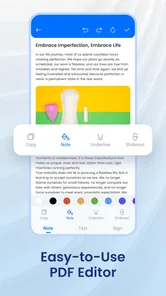
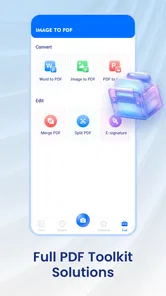
I wouldn’t treat the short name “Image to PDF” as the whole story. The app is also positioned as a PDF reader and editor, so it may suit someone who wants to move between those related tasks in one place. But the broad wording doesn’t tell me how deep the editing tools go. For changing a few details or handling a basic document, it could be handy; for complex layouts, collaborative review, or precision editing, I’d choose a dedicated PDF editor whose tools are clearly suited to that work.
The distinction is useful before installing: a simple conversion workflow and a full document-production workflow are not the same thing. If you mainly need to make a PDF from existing pictures, this app’s purpose is easy to understand. If you need advanced annotation, form handling, redaction, or reliable formatting across a large file, check that those exact tasks are supported in the app before trusting it with the job.
More From Our News Desk

Weather by Xiaomi Review: Clear at a Glance, Less Clear Up Close

X Under Pressure: Can It Recover When Posting Goes Wrong?

Clash of Clans Is Won Between the Battles

Android Auto Makes the Case for Quieter Car Software

MobiOffice: Transforming Mobile Productivity with Seamless Integration

EA SPORTS FC™ Mobile Soccer: Redefining Mobile Sports Gaming
How I’d use it in an ordinary day
Imagine I’m given a paper schedule at a school event and want to keep it with the event details on my phone. I could photograph the page, use an image-to-PDF tool to package it as a document, then open the result in a reader when I need to check a time. This is a practical use case because the source is already an image and the goal is simple access, not rebuilding the page as editable text.
A useful habit in that workflow is to check the image before converting it. Make sure the page is upright, the whole sheet is visible, and the text is legible at normal screen size. Conversion can place an image in a PDF, but it cannot repair a blurry photograph or recover a corner that was cut off. If the original image is poor, retaking it is usually better than expecting the PDF step to improve it.
For several related pages, I’d also decide how I want to identify the finished file before I start. A clear filename and a quick check of page order can prevent the common nuisance of having a document that opens correctly but is hard to find or confusing to share later. These are small workflow choices, yet they matter more than adding an editing app to the process if the goal is simply to keep paperwork organized.
Where it sits among familiar alternatives
Many phones already include a way to view common documents, and cloud storage or office apps may cover basic PDF access as part of a larger package. Those options can be the easier choice if you already use them and only need to read a file. Image to PDF & PDF Reader is more relevant when image conversion and PDF handling are the reason you’re looking for an app in the first place.
Compared with a specialist scanner app, an image-to-PDF workflow may be more direct if your pictures are already taken and you simply want them collected into a document. A scanner app may be preferable when you need capture guidance, automatic page cleanup, or a workflow built around scanning paper. In the other direction, a professional PDF editor is a better fit when precise changes are central to your work. I’d choose based on the task, not assume that one app will outperform every alternative across all document needs.
Trust is part of handling a document
PDFs often contain more than the page a person means to share: a home address, a signature, a school detail, or a reference number can be visible in a photo or document. That makes file handling a trust question, not just a convenience question. I’d be particularly deliberate before using any mobile app with confidential work, financial paperwork, medical documents, or identity records.
The app’s public profile gives readers a few basic signals: it is free, has an Everyone age rating, and has attracted over 100,000 installs. Its average rating is 3.0 from around 330 ratings, alongside 61 written reviews. I’d read that as a reason to set expectations and look for feedback about the specific workflow I care about, rather than as proof that the app is either dependable or unsuitable. Ratings can flag areas worth checking, but they don’t answer a privacy or security question on their own.
It runs from Android 8.0 and its current version is 1.0.3. Those details help with basic compatibility, but a version number does not tell me how files are stored or handled. For sensitive documents, I’d inspect the app’s permission prompts and privacy information directly, and avoid granting access that seems unrelated to the task. I would not infer a particular data practice from the app’s name, category, or download count.
Keep control at the moments that matter
Before selecting a picture, I’d review what is visible around the subject. A photographed bill might include other papers on the desk; a letter may show an address or account identifier. Cropping the source image first, when appropriate, is a simple way to avoid carrying irrelevant details into the resulting file. It is also worth reopening the finished PDF and checking every page before sending it to someone else.
Another useful precaution is to keep a clean original until I know the converted document is right. If a page is sideways, out of order, or hard to read, having the source image makes it easier to start over without losing the only copy. I’d also use the phone’s ordinary file-management choices to decide where the result belongs and who can access it, rather than assuming an app’s presence means a file is private or automatically protected.
Those habits are especially valuable when sharing a document outside the household. Open the final file, inspect it at a comfortable zoom, and confirm that the intended page—not a draft or an unrelated image—is the one being sent. A PDF can look tidy while still containing information the sender did not intend to include. Careful review is a practical safeguard regardless of which converter or reader I use.
What the rating and scope mean in practice
A 3.0 average is middling, so I’d approach the app as a tool to test on an uncomplicated file before depending on it. The audience scale is meaningful enough to show that it has found users, but installs do not establish how well it handles a particular phone, image, or editing task. If the first conversion is important, I’d make a harmless test document first and check the output before moving on to anything time-sensitive.
The app may be a good match for someone who wants a free, compact option for occasional image-to-PDF jobs and basic PDF access. It is less compelling for someone who already has a trusted reader and rarely converts pictures, or for a professional who needs a predictable set of advanced editing and document controls. It may also be the wrong choice if your organization requires a specific approved app for confidential files; in that case, follow the organization’s rules rather than choosing on convenience.
Small choices that improve the workflow
One practical trade-off is whether to convert an image immediately or first organize the source photos. If I have several pages from one handout, I’d group or identify them before starting, then check their sequence in the final PDF. That is more dependable than discovering after sharing that a useful page was left out or placed in the wrong order.
I’d also keep the purpose of the conversion in mind. A PDF can make a picture easier to collect and pass along as a document, but that alone does not make the text searchable or editable. If I need to copy text, change a table, or fill a structured form, I’d test that specific action first or choose a tool built for it. This distinction can save time when the source is a photograph rather than a digital document.
For a quick household task, such as sending a picture of a signed permission slip, the app’s combined focus may be convenient: convert, reopen, inspect, and then share using the phone’s usual controls. For an office process involving confidential records, multiple reviewers, or a required audit trail, I’d prefer an approved document system. The right choice depends less on how many tasks an app claims to cover than on what happens if the file is wrong or reaches the wrong person.
A cautious verdict for everyday use
I see Image to PDF & PDF Reader as a focused convenience app, not a promise of an all-purpose document system. Its main attraction is having image conversion and PDF viewing together, with basic editing also part of its stated purpose. For everyday paperwork, that could remove a step; for intricate edits or sensitive records, I’d verify the relevant capabilities and handling choices first.
It is free, rated for Everyone, and maintained by JK Breaking News; those facts make it easy to consider, but they don’t replace a quick hands-on check. I’d start with a non-sensitive image, confirm that the resulting PDF is readable and arranged as intended, and only then decide whether the workflow suits me. If that simple test goes smoothly, it may earn a place for occasional document chores. If I need stronger editing depth or clearer assurance for confidential work, I’d use a more specialized option instead.
Image to PDF & PDF Reader Frequently Asked Questions
What can I do with Image to PDF & PDF Reader?
Image to PDF & PDF Reader is designed to turn image files into PDF documents and let you open and read PDFs in one app. Depending on the version, you may be able to select images from your gallery or capture new ones, arrange them, and adjust basic page settings before exporting. Check the app listing for the exact tools available on your device, since features can vary by version.
How do I convert images into a PDF?
In general, you select one or more images, arrange them in the order you want, and start the conversion. The app then saves the result as a PDF that you can open or share. For a cleaner document, use sharp, well-lit images and review the page order before exporting. Available options such as paper size, orientation, or margins may depend on the app version.
Can I read and manage PDF files with this app?
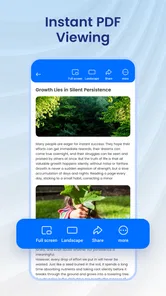
The app’s PDF reader is intended for opening and viewing PDF documents on your device. You may also find basic controls for navigating pages, zooming, or locating files, although the precise tools vary between releases. It is worth checking whether the version you plan to install supports features you rely on, such as search, bookmarks, annotations, or organizing documents into folders.
Does Image to PDF & PDF Reader require an internet connection, and is it safe to use?
Image selection, conversion, and reading may work offline when the app processes files locally, but features such as cloud storage, online sharing, or advertising can require a connection. Review the app’s permissions and privacy information before granting access to photos or files. Avoid converting sensitive documents until you understand how the app handles and stores your data.
Is Image to PDF & PDF Reader free, and what should I check before downloading?
The app may be free to download, but its listing can include advertisements, optional purchases, or limitations on certain tools. Before installing, check the current price, in-app purchase details, supported Android or iOS version, recent update history, and user reviews. Also confirm that the app has enough storage access to work with your documents and that it is available in your region.
Pros
- Converts multiple images into a single PDF.
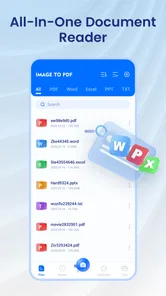
- Built-in reader lets you open converted files right away.
- Useful for digitizing receipts
- notes
- and printed pages.
- PDFs are easy to share with other apps.
- Combines image conversion and PDF viewing in one app.
Cons
- Conversion quality may depend on the original image resolution.
- Large image collections can create sizable PDF files.
- Complex layouts may not look exactly like the original images.
- You may need another app for advanced PDF editing.
- Check the app’s privacy policy before importing sensitive documents.











