Google Translate
- 188.06K
- 4.3
- Installs
- 1.00B
- Price
- Free

Screenshots
Analysis by Reviewed
I often reach for Google Translate when a language gap turns a small task into a frustrating one: reading a menu, checking a message, or asking a basic question while travelling. It is a free tools app from Google LLC, and its appeal is less about replacing a human interpreter than giving me a quick first pass when I need to understand or be understood. The audience rating is Everyone, so it is approachable for general everyday use, though the quality of a translation still depends on the language and context.
Where users can get stuck
The most common friction is choosing the right way to translate. Typing works well for a sentence you can copy or compose, while speaking is easier when your hands are occupied. Camera translation is convenient for printed text, but glare, small lettering, unusual fonts, or a crowded image can make the result harder to trust. I treat it as a way to get the gist, then check important details rather than assuming every word has been read correctly.
Another easy mistake is expecting a polished translation of slang, jokes, or a sentence with several possible meanings. Short, direct wording usually gives me a more useful result. If a phrase matters, I try breaking it into smaller parts or adding a little context, then compare the alternatives instead of choosing the first output automatically. That extra pause can prevent a confident-looking translation from changing the speaker’s intent.
The Latest on Google Translate
Breaking the Language Barrier
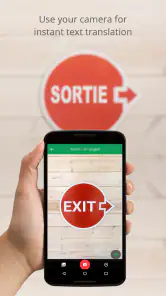
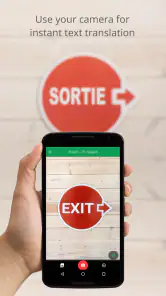
One of the coolest things about Google Translate is its ability to translate text in real-time. Imagine pointing your camera at a sign in a foreign country, and voilà, you can read it in your language! This is thanks to the app’s instant camera translation feature. It’s like having a personal translator in your pocket. I’ve used it to translate street signs, menus, and even entire pages of text. Super handy, right?
Setup checks that prevent surprises
Before relying on the app away from home, I check that I can select the languages I actually need and, when using offline translation, download the relevant language packs while I have a dependable connection. A download is only useful if it is ready before the connection disappears. I also test a short phrase in advance, so I know where the language controls are and can avoid fumbling through menus in a busy station or shop.
Offline use is best treated as a practical fallback, not a promise that every online capability will behave identically without a connection. For a trip, I save the essential phrases somewhere I can reach and keep the original text visible when accuracy matters. That gives me a second way to check an address, allergy note, or travel instruction if the app has trouble reading it.
Text and Voice Translation
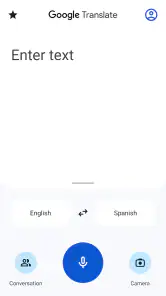
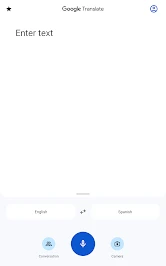
But it doesn’t stop there. The app also offers text translation for over 100 languages. Whether you’re typing a quick phrase or pasting in a hefty chunk of text, Google’s got you covered. Plus, the voice translation feature is a lifesaver when you need to have a conversation. Just speak into the app, and it’ll translate your words instantly. I’ve used this feature countless times while traveling, and it’s always a hit with the locals.
More From Our News Desk

X Under Pressure: Can It Recover When Posting Goes Wrong?

Clash of Clans Is Won Between the Battles

Android Auto Makes the Case for Quieter Car Software

MobiOffice: Transforming Mobile Productivity with Seamless Integration

EA SPORTS FC™ Mobile Soccer: Redefining Mobile Sports Gaming

How Microsoft OneDrive Became a Mobile Productivity Giant
For a simple everyday example, imagine asking a café worker whether a dish contains an ingredient you cannot eat. I would keep the question brief, show the translated text as well as speak it if that feels appropriate, and ask for confirmation rather than relying on a fast spoken exchange alone. This is a useful bridge for ordinary questions, but I would not use machine translation as the sole basis for a serious medical or safety decision.
Workflow recovery when a translation goes wrong
If a camera result looks scrambled, I first move closer, hold the phone steady, and isolate the words I need instead of trying to capture a whole busy page. If speech is misunderstood, I slow down, say one short sentence, and check the recognized wording before continuing. These small adjustments are often more effective than repeating a long phrase at the same pace.
When a conversation stalls, I switch to typing or show the translated sentence on screen. That is a useful recovery step in a noisy place, where speech recognition may struggle, or when an accent makes a phrase difficult to catch. I also keep the source sentence simple: translating “Could you point me to the entrance?” is usually more practical than delivering a long explanation with several clauses.
Making a quick translation easier to check
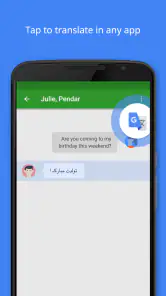
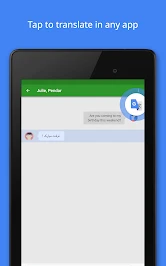
For messages and signs, I use the source text as a reference rather than treating the translated version as a replacement. With a short message, I can compare the original and translation line by line and notice whether a name, time, or negation seems to have disappeared. If the wording has consequences, I ask the sender to clarify the key point in simpler terms instead of trying to repair a complicated sentence by guessing.
A useful habit is to translate my own reply back into the language I understand before sending it. That back-check is not proof that the first translation is correct, since the same ambiguity can survive both directions, but it can reveal an unintended change in meaning. I find it most worthwhile for practical details such as meeting places, opening instructions, and simple requests, not for polishing a personal message where tone matters more.
Offline Mode
We’ve all been there – traveling abroad with spotty Wi-Fi and no data. But fear not, because Google Translate’s offline mode has got your back. You can download language packs in advance, so even when you’re off the grid, you’re still in the loop. I remember downloading a few languages before a trip to Asia, and it made navigating the bustling streets so much easier.
Compared with carrying a phrasebook, a translation app is quicker for looking up an unfamiliar sentence and lets me adapt what I want to say on the spot. A phrasebook can still be the better backup for a fixed set of important expressions, especially if I want something that does not depend on navigating an interface. For longer documents or nuanced writing, I would rather ask a fluent speaker or use a human translator than assume a quick app output is publication-ready.
When the app may not be the cause
Sometimes a disappointing result comes from the situation rather than a malfunction. A weak connection can interrupt online tasks; unclear speech, background noise, or hard-to-read print can also affect what the app receives. I check whether the source text is legible, the selected languages match the conversation, and the network is working before restarting or trying the same input again.
With a 4.3 average from around nine million ratings and more than a billion installs, it is clearly a familiar option for many people, but popularity does not make every translation reliable. The best habit is to use it confidently for low-stakes navigation and everyday exchanges, then slow down when the wording could affect money, health, consent, or an important commitment.
Choosing it over other language tools
Against a phrasebook, its main advantage is flexibility: I can enter a question I did not plan for, while a book is faster when I already know which fixed expression I need. A bilingual dictionary is often better when I want to study a word’s range of meanings rather than get a complete sentence quickly. For a conversation, the app brings input and translated output into one place, but a fluent person remains better at reading tone, humor, and social context.
That makes it a particularly good fit for independent travellers, multilingual households handling occasional practical messages, and curious readers trying to understand a label or sign. It is less suitable as a daily language-learning method on its own: seeing a translation can answer an immediate question without teaching me why that wording fits. I use it to get unstuck, then look up unfamiliar phrasing separately when I want to learn from it.
Conversation Mode
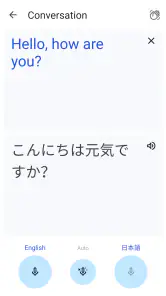
What really sets this app apart is its conversation mode. This feature allows you to have a back-and-forth chat with someone in a different language. The app translates both sides of the conversation in real-time, making it a breeze to communicate. I once had a lengthy chat with a vendor at a market in Spain using this feature, and it was as though we spoke the same language.
For a smoother exchange, I take turns speaking and leave a beat for the translation before the other person answers. In a loud market, I would move somewhere quieter or switch to typed messages rather than blame the feature when it misses a phrase. It is also worth remembering that translation can flatten politeness or tone, so I keep requests courteous and check the other person’s reaction instead of treating the screen as a perfect substitute for shared language.
A small travel workflow that pays off
On a travel day, I would prepare before reaching the place where I need help: select the language pair, check that any offline packs I need are ready, and rehearse a few short questions. At a station, I might first use the camera to understand a sign, then type a destination name if the print is difficult to read. If I need to ask someone, I can show a short translated question rather than trying to explain everything aloud in a noisy queue.
This sequence is more dependable than expecting one mode to handle every step. Camera use is useful for getting oriented, typing gives me control over the exact source words, and speech can be quicker when the setting is calm. I still keep important details—such as a reservation address or a written instruction—available in their original form so I can show them if a translation is unclear.
Who will get the most from it
I recommend it to travellers, people who receive occasional messages in another language, and anyone who needs quick help understanding signs or short instructions. The combination of typed input, speech, camera use, and offline language packs makes it more adaptable than a pocket phrasebook for unpredictable situations. The trade-off is that several modes can feel like too much when all you need is one memorized sentence, and the app cannot reliably resolve every cultural nuance or ambiguous phrase.
If your main task is an important business negotiation, a legal document, or a sensitive medical conversation, I would choose a qualified human interpreter or fluent reviewer. For a casual trip or everyday curiosity, though, this is a practical tool to have ready. Its broad popularity is reassuring as a sign that many people find it useful, but it does not guarantee that a particular translation is right; I get the best results when I treat it as a helpful assistant and verify what matters.
What I would do when a setup check fails
If the language I need is not selected, I check both sides of the translation before entering a sentence; choosing the wrong source language can make a sensible phrase appear nonsensical. If I planned to work offline and cannot get the expected result, I first confirm that the needed language pack was downloaded while online and try a basic text phrase. I avoid assuming that every mode will have the same options without a connection.
When a translation still looks wrong, I change one thing at a time: simplify the sentence, check the language pair, or switch from speech to typing. That makes it easier to identify whether the problem was the input or the situation. If the meaning remains uncertain and the decision matters, the safest recovery is to pause and ask a person who understands the language rather than keep rephrasing until an answer merely looks convincing.
A practical verdict
Google Translate is free, broadly accessible, and useful precisely because it can help in several kinds of language situations without requiring a separate tool for each one. Its value is strongest when I need a fast understanding, a short spoken exchange, or a way to read text around me. I would skip it as the only source for high-stakes wording, but for ordinary travel and quick communication, I find it well worth keeping on my phone.
In the end, Google Translate is more than just a translation app; it's like a magic wand for language barriers. Whether you’re a frequent traveler or just someone curious about different languages, it’s an essential tool to have on your phone. So, next time you’re in a bind trying to understand or communicate in a foreign language, remember you’ve got a trusty ally in Google Translate. Happy translating, folks!
Google Translate Frequently Asked Questions
Can I adjust the text size or display to make translations easier to read?
If you find translated text difficult to read on your device, check the app’s display and accessibility options alongside your device’s own text-size settings. Larger text can make phrases easier to review, particularly when you are using the app while traveling or comparing a translation with its source. A comfortable display setup can improve everyday use without changing the meaning of the translation itself.
Can I save useful translations for later?
Saving a translation you expect to need again can be helpful for common phrases, study, or travel preparation. Look for the app’s available saving or history options and consider how you want to organize useful results for quick reference. Saved translations are most useful as reminders or starting points; check their context before reusing a phrase in a different situation.
Can I copy and share translated text from Google Translate?
Translated text can be useful beyond the app, such as when you need to include a phrase in a message or keep a copy for reference. Check the options shown with a translation to see how you can copy or share it on your device. Before passing a result along, read it carefully, since an automatic translation may not preserve the exact tone or intended meaning.
Can I use Google Translate to translate text by typing or pasting it?
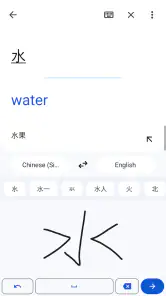
Yes. Google Translate can help you translate text you enter, making it useful for checking a word, phrase, or short message. You can type the material or paste text when that is more convenient, then review the result in the language you need. For longer or consequential content, read the translation in context and seek human review if precision is important.
Can I translate a conversation without typing everything?
Yes. Google Translate offers speech translation, so you can speak into your device’s microphone and receive a translated version. This can make simple exchanges easier when you and another person do not share a language. Speak clearly and keep sentences straightforward for the best chance of getting a useful result; for sensitive or complicated conversations, confirm important details rather than relying on the translation alone.
Pros
- Supports multiple languages for translation.
- Offers offline translation feature.
- Includes text
- voice
- and image translation.
- User-friendly interface and easy to use.
- Regularly updated with new features.
Cons
- Translations may lack context accuracy.
- Requires internet for real-time translation.
- Voice recognition errors can occur.
- Limited offline language packs available.
- Privacy concerns over data usage.
- Category
- Tools
- Version
- Varies with device