G Cloud Backup
- 73.34K
- 4.4
- Installs
- 5.00M
- Price
- Free

Screenshots
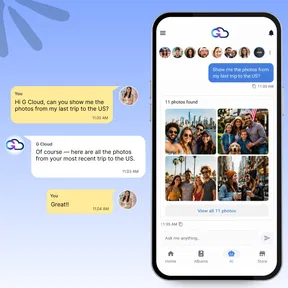

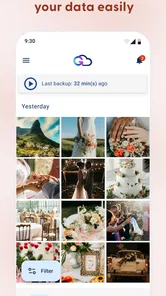
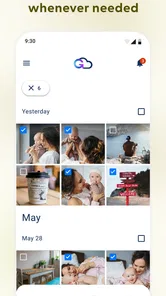
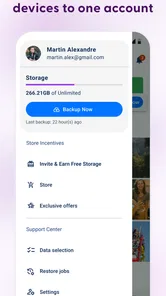
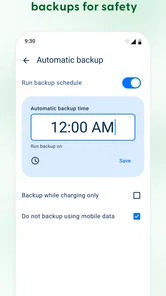
Analysis by Reviewed
When several people in a household use phones for work, school, photos, and everyday communication, losing one device can create a surprisingly large problem. I looked at G Cloud Backup with that situation in mind, rather than treating it as just another button for copying files. It is a free productivity app from Genie9 LTD that focuses on backing up and restoring personal phone content, and I found its main value in making recovery less intimidating for people who do not want to manage a complicated technical system.
That distinction matters. A household may have a parent replacing an old phone, a teenager worried about photos, or a shared tablet that changes hands regularly. In each case, the useful question is not simply whether a backup exists. It is whether the right person can understand what is being saved, keep accounts separate, and restore the correct material without mixing one family member’s information with another’s. G Cloud Backup can help with the backup part, but it does not turn separate personal accounts into one coordinated family archive.
How G Cloud Backup fits into a busy household
In my experience, the app is easiest to appreciate during a phone change. Imagine a family member whose old Android phone is becoming unreliable. The phone still turns on, but its photos, contacts, messages, and other personal information feel vulnerable. Instead of waiting until the device stops working, that person can use G Cloud Backup as a dedicated place to prepare for a later restore.
The practical benefit is emotional as much as technical. A backup tool is often ignored when everything works, then urgently needed when a phone is lost, damaged, or reset. G Cloud Backup gives that task its own clear purpose, which is more approachable than expecting every household member to understand a full manual transfer process. I would especially consider it for relatives who want reassurance but are not comfortable navigating advanced phone settings.
It is also useful when one person manages several devices, but I would be careful with the phrase “shared backup.” The app is not a magic household vault where everybody’s information should be combined. Each person should understand which account and device they are using. A parent helping a child or an older relative can assist with setup, yet the personal data should remain associated with the correct user rather than being treated as a common family folder.
That boundary is one of the most important things to establish before anyone taps through setup. A family can coordinate a backup routine, but coordination is not the same as shared ownership. If two people use the same login simply because it seems convenient, restoring later may become confusing. The app is better approached as a collection of individual safety nets, one for each person who needs one.
What I would decide before installing it
I would first list the information that matters most to each user. One person may care mainly about photographs, another about contacts and messages, and another about call history or calendar information. That small inventory prevents a common mistake: assuming that “backup” automatically means every item on the phone will be handled in exactly the way the user expects.
More From Our News Desk

Weather by Xiaomi Review: Clear at a Glance, Less Clear Up Close

X Under Pressure: Can It Recover When Posting Goes Wrong?

Clash of Clans Is Won Between the Battles

Android Auto Makes the Case for Quieter Car Software

MobiOffice: Transforming Mobile Productivity with Seamless Integration

EA SPORTS FC™ Mobile Soccer: Redefining Mobile Sports Gaming
I would also decide who is responsible for checking the routine. A backup that was configured once and forgotten is less useful than one that is reviewed occasionally. The app can be part of a household habit, but it should not be treated as proof that every important file is protected forever. For irreplaceable photographs or documents, I prefer having an additional copy in a separate location rather than relying on a single service.
Another sensible step is to label devices and accounts clearly in the household’s own notes. This is not a feature claim about G Cloud Backup; it is simply good practice when one person helps several users. Write down whose phone is connected to which account, what the person expects to restore, and whether the old device should remain available until the new one has been checked. That simple record can prevent an avoidable mix-up during a stressful replacement.
Keeping setup personal instead of accidentally communal
G Cloud Backup is rated for Everyone, which makes it approachable for a broad range of users, but an age rating does not remove the need for adult guidance. A younger user may understand the idea of saving photos without understanding account access, restoration, or the difference between personal and shared information. I would help with the first setup while explaining what the backup is for and who should be able to access it.
For a shared household device, I would be even more cautious. If several people use the same phone or tablet, the person setting up the backup should know exactly whose content is being protected. A device that changes hands can contain mixed photographs, messages, contacts, or app-related information. Before starting, separate what belongs to each person as far as the device allows, and do not assume that a single backup account is the right answer for everyone.
The app is free to install and use as a productivity tool, but it includes in-app purchases ranging from $0.99 to $269.99 per item. That makes account boundaries important for another reason: a household should decide who is allowed to approve purchases and whether a child or guest is using an account connected to payment access. I would review the purchase situation before handing the phone to someone else, particularly when an adult is providing technical help on a family device.
Those optional purchases do not automatically make the app unsuitable, but they do mean that “free” should be understood as the entry point, not as a promise that every possible use will remain without cost. I would begin with the free experience, identify what the household actually needs, and only then consider whether an in-app purchase is justified. There is no reason to pay simply because the app is installed.
Coordinating a restore without creating confusion
The restore stage deserves more planning than most people give it. When a new phone arrives, the temptation is to rush through setup and erase the old device immediately. I would keep the old phone available until the replacement has been checked carefully. Confirm that the intended user can access the correct backup, then review the important categories one by one instead of assuming that a successful-looking process means everything is ready.
This is where G Cloud Backup can be more comfortable than a purely manual approach. A person who dislikes connecting phones to a computer or moving folders by hand may find a dedicated backup-and-restore workflow easier to understand. The trade-off is that convenience can encourage overconfidence. I would still verify the items that matter most, especially photographs, contacts, and messages, before treating the old phone as disposable.
For household coordination, I would use a simple schedule rather than trying to perform every backup at the same moment. Each family member can check their own device separately, while one technically confident person keeps a note of which phones have been reviewed. This avoids the false reassurance that comes from saying “the family is backed up” when only one device has actually been checked.
There is also a privacy advantage to keeping the process individual. If a parent restores a child’s phone, the parent should be helping that child recover their own information, not browsing through unrelated personal content. Likewise, an adult relative may appreciate assistance but still want control over what is restored. Clear communication before the restore is more valuable than trying to solve a privacy disagreement afterward.
I would not use this app as the only plan for a shared work folder, a household document archive, or files that several people need to edit. A cloud drive or deliberately organized shared storage system is usually better for collaboration because it is designed around access and ongoing file management. G Cloud Backup makes more sense for personal device recovery than for building a common family library.
Trust, age, and the limits of reassurance
The Everyone age context is helpful for families looking for an approachable backup utility, but younger users may still need an adult to explain the consequences of restoring or changing accounts. The key issue is not whether a child can press the buttons. It is whether they understand which information is personal, which account belongs to them, and why another person should not casually use their credentials.
I would describe the app to a teenager as a safety copy for their phone, not as a private diary or an invisible shield. That wording leaves room for sensible expectations. A backup can help after a device problem, but it does not replace careful account security, thoughtful sharing habits, or a conversation about who may assist with recovery.
For older relatives, the strongest use case is guided setup. I would sit with them, choose understandable labels, and write down the recovery steps in plain language. The app’s value is much higher when the person who needs the restore can recognize the account and explain what should come back. If only one family member knows how everything works, the household has created a dependency rather than genuine resilience.
Trust also affects whether the app is the right choice. Someone who wants a highly controlled business backup system, detailed administrative separation, or a formal shared-storage policy may need a more specialized service. G Cloud Backup feels aimed at personal convenience, not at replacing professional device management. That is not a flaw; it is simply a boundary I would respect.
Where it stands beside usual alternatives
The usual alternatives are the phone maker’s built-in backup tools, manual transfers to a computer, and general cloud storage. Built-in tools can feel more integrated because they are already connected to the operating system, while manual transfers offer direct control over folders and files. General cloud storage is often stronger when several people need to access and organize the same documents.
G Cloud Backup appeals to me when the priority is a straightforward personal recovery path rather than a broad file-management system. It gives the backup task a distinct identity, which can be useful for someone who does not want to sort through computer folders. Compared with a manual copy, it reduces the number of physical steps. Compared with shared storage, it keeps the focus on restoring a person’s device rather than collaborating on files.
The compromise is that another app means another account relationship to understand. A household already comfortable with its phone manufacturer’s backup system may prefer staying inside that ecosystem. Someone who wants to inspect every file manually may also prefer a computer or external drive. I would choose G Cloud Backup for approachability and a dedicated recovery workflow, not because it eliminates every decision involved in protecting data.
Its long presence also gives it a familiar position in the productivity space. The app was released on July 9, 2012, and the current version is 12.2.3. It has a 4.4 average from around 315 thousand ratings, with over 5 million installs, so it is clearly used by a substantial audience. Those figures suggest that it is not an obscure experiment, but they do not remove the need to test the workflow with the particular phones and accounts in your home.
Small habits that make the app more useful
My first tip is to perform a test before an emergency. Choose a non-critical item or a spare device if one is available, and learn how the restore process feels. This exposes account confusion while the original phone is still working. A backup plan that nobody has practiced can be surprisingly difficult to use under pressure.
My second tip is to avoid deleting the old phone too soon. After restoring, open the categories that each household member identified as important. Check a selection of older and newer photographs, look for expected contacts, and confirm that the new device is usable for the person who owns it. This is more reliable than checking only whether the app reports that a restore finished.
My third tip is to separate household assistance from household access. A parent can help with setup, write down instructions, or stay nearby during a restore without making every account communal. That approach is especially useful when children become teenagers or when an older relative wants independence. Technical support should not automatically become permission to inspect everything.
My fourth tip is to keep a second copy of truly irreplaceable material. G Cloud Backup can be one layer in a personal protection plan, while important photographs or documents may deserve another destination as well. The reason is simple: every single backup arrangement has a failure point, whether that is a forgotten account, a damaged phone, an incorrect setup, or a problem accessing the service at the moment it is needed.
My fifth tip is to review the purchase boundary before another person uses the device. Because optional items can cost from $0.99 up to $269.99 each, I would not leave payment decisions vague in a shared household. Decide who evaluates upgrades, explain that the app can be used without immediately buying anything, and keep the backup discussion separate from pressure to spend.
Who should use it and who should look elsewhere
I would recommend G Cloud Backup to people who want a dedicated, approachable way to prepare for phone replacement or recovery. It is particularly suitable for households where one person can guide setup for others, provided every user keeps a clear account boundary. It also suits users who find manual computer backups too technical and who want something more focused than a general cloud drive.
I would be less enthusiastic for a family that needs one shared workspace, detailed administrator controls, or a carefully governed archive of documents. In those cases, a collaboration-oriented cloud service or a conventional computer-and-drive routine may be a better fit. I would also hesitate if nobody in the household is willing to verify backups and practice restoration. No backup app can compensate for a setup that is never checked.
People who already trust their phone’s built-in backup and are happy with it may not gain enough to justify adding another service. The strongest reason to choose this app is not novelty; it is that its personal backup approach feels easier for a particular user to understand and maintain. If the existing system already meets that need, switching may add complexity instead of removing it.
My household verdict
After looking at it through the lens of shared devices and family coordination, I see G Cloud Backup as a practical personal safety net rather than a family management platform. Its free starting point, Everyone rating, and clear productivity purpose make it approachable, while Genie9 LTD has kept the app present in the mobile backup conversation for many years. The real success of the app, however, depends on how carefully the household handles accounts, expectations, and restore checks.
The best way to use G Cloud Backup is as one personal backup layer per user, with a practiced restore plan and a second copy for the files nobody can replace. That approach respects privacy, reduces confusion, and avoids treating a shared phone as if it automatically represented one shared identity.
I would recommend trying it when a household wants less intimidating phone recovery and is prepared to keep each person’s setup distinct. I would skip it as a replacement for shared document storage, formal device administration, or a complete multi-layer archive. Used within its proper boundaries, it can make a stressful phone change much calmer; used without those boundaries, it may only move the confusion from the old device to the new one.
G Cloud Backup Frequently Asked Questions
Can G Cloud Backup replace the backup tools already built into my phone?
G Cloud Backup provides a separate way to back up and restore selected phone content through cloud storage, which can be useful alongside the tools already available on a device. It is not a reason to assume every phone feature or app will be copied exactly. Before depending on it, decide which content matters most and check that the app is set up to include it.
What should I check before choosing G Cloud Backup for my phone?
Before installing, consider whether your device meets the Android requirement, which types of content you want to protect, and whether the available storage and purchase options suit your needs. Backup apps also need relevant permissions and a reliable internet connection to upload files. Thinking through these points first can help you decide whether G Cloud Backup fits the way you want to protect and restore your phone data.
Who develops G Cloud Backup, and is it a general-purpose productivity app?
G Cloud Backup is developed by Genie9 LTD and is a productivity app focused on protecting and restoring phone content through cloud backups. Its purpose is practical: keep selected files and information available if you change phones or need to recover them. It is free to download, and the app is rated for everyone.
What is G Cloud Backup, and what can it back up?
G Cloud Backup is a cloud-storage and backup app designed to protect important content from an Android device. Depending on the device and permissions granted, it can back up items such as contacts, call logs, messages, photos, videos, music, documents, and selected settings. It is especially useful when switching phones or recovering data after accidental deletion, loss, or damage.
Is G Cloud Backup free to use?
G Cloud Backup generally offers a free plan with limited cloud storage, while larger storage capacities and some advanced features may require a subscription or in-app purchase. Before relying on it for a complete device backup, check the current storage allowance, pricing, renewal terms, and included features shown in the app or on the official store listing, since these details can change. In-app purchases range from $0.99 to $269.99 per item.
Pros
- Automatically backs up contacts
- messages
- photos
- videos
- and call logs.
- Cloud access makes restoring data easy after switching or resetting devices.
- Scheduled backups reduce the need for manual data management.
- Supports multiple accounts and devices under one backup service.
- Offers file organization and browsing directly within the backup library.
Cons
- Free storage is limited
- so larger backups may require a paid plan.
- Some advanced backup options are restricted to premium subscribers.
- Backup speed depends heavily on your internet connection and file size.
- The interface can feel dated compared with newer cloud storage apps.
- Restoring large collections may take considerable time and battery power.











