Evil Eyes Live Wallpapers
- 210.00
- 4.7
- Installs
- 1.00M
- Price
- Free
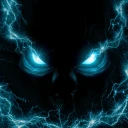
Screenshots
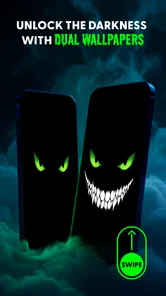
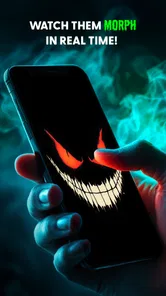
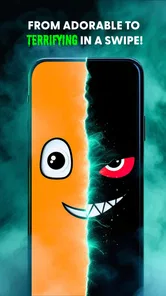
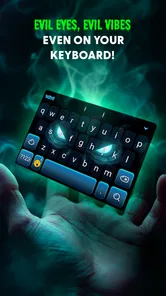
Analysis by Reviewed
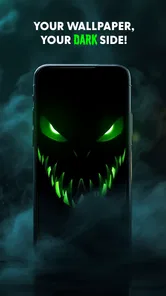
I installed Evil Eyes Live Wallpapers expecting a simple personalization app with a spooky visual hook, and that is exactly where its appeal lies. It turns a phone screen into a dark backdrop with animated eyes that blink, creating an eerie effect without asking me to learn a game, manage an account, or spend time building a theme. It is free, rated for Everyone, and made by DummTech, so the basic idea is easy to understand: choose a creepy animated wallpaper and give the home or lock screen a different mood.
That simplicity is also the most important thing to understand before downloading it. This is not a broad customization suite with icon packs, widgets, ringtones, and elaborate theme controls. It is a focused live wallpaper app. I found it most enjoyable when I treated it as a visual accent rather than a complete redesign of my phone. The eyes work best on a dark screen, where the movement is noticeable without making every icon difficult to read.
The app has built a substantial audience, with a 4.7 average from around 62 thousand ratings and over 1 million installs. Those figures suggest that the concept connects with many people, but they do not change the practical question: will a blinking pair of eyes suit your everyday screen? After testing the setup and thinking through common problems, my answer is yes for users who want a quick horror-inspired look, but only if they are comfortable with a deliberately narrow feature set.
Where the first setup can become confusing
The main friction is not understanding the wallpaper itself. It is the handoff between the app and the phone’s wallpaper picker. A live wallpaper is different from an ordinary image: it has to be selected as an active background, and Android may present separate choices for the home screen, lock screen, or both. If someone expects tapping the app to finish everything automatically, the process can feel less direct than applying a normal photograph.
I recommend slowing down at the preview stage. Look at the eyes against your actual icons and check whether the movement remains visible without covering important shortcuts. A very dark background can make the animation stand out, while a busy wallpaper or bright icon arrangement can reduce the effect. This is one of the first useful trade-offs: the more dramatic the darkness, the more carefully you may need to check readability.
On a phone running Android 7.0 or later, the general process should be familiar, although menu names can vary by manufacturer. Open the app, use its wallpaper option, preview the result, and confirm the destination offered by the system. If the phone asks whether to apply it to the home screen, lock screen, or both, choose deliberately rather than accepting the first highlighted option.
That choice matters in everyday use. On the home screen, the animation becomes part of the phone’s regular personality. On the lock screen, it is more of a short visual surprise each time the display wakes. Applying it to both creates the strongest consistent effect, but it also means the eyes will be present in more situations, including moments when you may prefer a calmer screen.
More From Our News Desk
 Instagram
Instagram’s Power Comes From Its Place in Your Phone
A close look at how Instagram turns Meta’s reach, recommendation systems and everyday camera habits into durable platform power—and what that costs users.

 Gmail
GmailGmail in a Busy Inbox: Who Benefits Most?
From first account to crowded workday, Gmail earns its place through dependable search and flexible sorting—but its best fit depends on how much inbox maintenance you can tolerate.

 Prime Video
Switching to Prime Video: What Changes in Your Viewing Routine
Prime Video can make a compelling second home for streaming, but switching means learning a different catalog, rental layer, and route from browsing to playback.

 Universal TV Remote Control
Universal TV Remote Control Works Best as a Reliable Backup
A phone remote earns its place through quick setup and reliable habits. Here is how to get more from Universal TV Remote Control—and where its limits show.

 Weather - By Xiaomi
Weather by Xiaomi Review: Clear at a Glance, Less Clear Up Close
Xiaomi’s weather app makes everyday forecasts quick to scan, but its calm surface can leave useful details and recovery paths harder to find than they should be.

 X
XX Under Pressure: Can It Recover When Posting Goes Wrong?
A resilience-focused review of X, examining setup, mistaken posts, interruptions, weak connections, and the gaps that matter when recovery needs to be dependable.
Latest News



Checks that prevent a disappointing result
Before blaming the app, I would check whether the phone is actually showing the selected live wallpaper. Some devices keep an old wallpaper on one screen while applying the new one to another. Return to the system wallpaper settings and inspect both destinations. If the eyes appear on the home screen but not the lock screen, that can be a selection issue rather than a failure of the animation.
I would also remove any battery-saving restriction only if the phone is clearly stopping the background from moving. Battery tools from some manufacturers can pause background activity to extend runtime. I would not change several system settings at once; first confirm whether the wallpaper is static, missing, or simply too subtle to notice. That distinction makes troubleshooting much easier.
Another sensible check is the preview itself. If the eyes animate in the app’s preview but not after applying them, repeat the system selection from the phone’s wallpaper menu. If the preview is also still, close and reopen the app before trying again. These are simple recovery steps, but they avoid the common mistake of repeatedly reinstalling an app when the real issue is that Android has not completed the wallpaper handoff.
Keep the current release in mind as well. The version I reviewed is 5.35.1, and the app was released on October 3, 2024. If your screen behaves differently after a system update, first confirm that the app is current through the normal store process. I would then reapply the wallpaper instead of assuming that the animation has permanently stopped working.
Recovering when the wallpaper disappears
Live wallpapers can be replaced accidentally when a user changes a theme, selects a still image, or switches to a manufacturer’s own wallpaper collection. If the eyes vanish after you personalize the phone in another way, check the active wallpaper before opening support pages or deleting the app. Reapplying the selection is often the fastest recovery.
If the app opens but the wallpaper is no longer active, I would use this order: preview it again, return to the system picker, select it, and then lock and unlock the phone once. This gives the device a chance to refresh the display without turning a small issue into a complicated reset. If that does not help, restarting the phone is a reasonable next step.
I would avoid clearing app storage unless I had already checked the wallpaper picker and restarted the device. Clearing storage can remove local choices and force another setup, while it may not address a system-level selection problem. The most useful troubleshooting principle here is to identify where the failure occurs: inside the preview, during selection, or after the wallpaper has been applied.
There is also a practical workflow for people who change wallpapers often. Take a moment to note which screen the eyes were assigned to before trying another theme. When you want to return to them, go through the same destination rather than assuming the app will restore itself. This is a small habit, but it prevents confusion on phones that separate home and lock screen backgrounds more strictly.
When the phone, not the app, is responsible
Not every visual problem points to DummTech’s app. If the phone is in a low-power mode, background animations may be reduced or paused. If the device uses a custom launcher, the wallpaper may be displayed differently from the manufacturer’s default launcher. If the lock screen is controlled by a separate theme system, the home screen can work normally while the lock screen ignores the selection.
Screen settings can also change the impression. A dim display, a strong blue-light filter, or an always-on display mode may make the animation feel less visible. In that situation, the app may be working exactly as intended, but the phone’s presentation is muting the contrast. I would test it briefly in normal brightness before deciding that the eyes are not animated.
Notifications and icons are another consideration. The wallpaper itself may look striking in a clean preview but become visually crowded once several rows of icons, widgets, and alerts are added. I found that the effect benefits from leaving some open space around the animated area. Users who rely on a dense productivity layout may prefer a static dark wallpaper because it keeps attention on their shortcuts.
Battery expectations deserve an honest mention. An animated background has more work to do than a still image, even when the animation is simple. I would not choose this app for a phone where every bit of battery efficiency matters. The sensible approach is to watch how your own device behaves during a normal day and switch back to a static background if the trade-off feels unnecessary. Battery impact can vary with screen technology, brightness, refresh behavior, and the phone’s power management.
The same applies to performance. On a modern phone, a small animated wallpaper may feel effortless. On an older or heavily loaded device, any moving background can be one more task competing for resources. If scrolling feels less smooth after applying it, compare the experience with a still wallpaper before changing unrelated settings. That quick comparison tells you whether the live background is contributing to the problem.
How it compares with ordinary personalization choices
Compared with a normal photograph, the advantage is atmosphere. A still image can be attractive, but the blinking eyes add a small moment of surprise whenever I look at the screen. Compared with a full theme pack, the advantage is restraint: I do not have to replace icons, rearrange widgets, or redesign the entire interface just to get a horror-inspired look.
The limitation is equally clear. A broad personalization app is usually better for someone who wants coordinated colors, custom icons, multiple visual components, or a large library of styles. Evil Eyes Live Wallpapers is the better fit when the desired result can be described in one sentence: “I want my screen to look creepy.” If that sentence needs to include matching icons and a complete layout, this app alone will feel too limited.
It also differs from a video wallpaper in a useful way. A video can offer a more elaborate scene, but it may feel busy or distracting. The blinking eyes are a smaller visual commitment, which makes them easier to live with on a daily screen. The trade-off is that users seeking cinematic motion or a detailed animated environment may find the concept too minimal.
Everyday situations where it works best
Imagine setting up a phone for a Halloween party, a horror-film fan, or a friend who enjoys unusual personalization. This app makes sense because the result is immediately recognizable and does not require explaining a complicated theme system. I would apply it to the home screen, keep the icons arranged normally, and use the dark background to make the eyes the focal point.
It can also work as a temporary change when a familiar phone starts to feel dull. I like that the concept does not demand a permanent commitment. You can use the eyes for a weekend, a themed event, or simply a change of mood, then return to a photograph or a plain background through the same system wallpaper controls.
For a shared or family device, I would be more cautious. The Everyone rating makes the app broadly suitable from an age-classification perspective, but “suitable for everyone” does not mean every person will enjoy a pair of evil-looking eyes appearing in the dark. A child, older relative, or colleague may prefer a friendly or neutral background. Personal taste matters more here than technical compatibility.
I would also skip it if you need your wallpaper to communicate information. Some personalization tools focus on calendars, weather, battery details, or productivity widgets. This one is about mood, not utility. It will not make a busy schedule easier to read, and it may compete with widgets that already need strong contrast.
Who should install it and who should pass
I would recommend it to horror fans, users who enjoy playful visual changes, and anyone wanting a quick animated accent without paying for a theme. It is especially appealing if you like dark screens and do not mind revisiting the system wallpaper picker during setup. The free price removes the usual hesitation around trying a narrowly focused design.
I would pass if you want a large catalog of unrelated styles, a professional-looking home screen, or the lowest possible background activity. I would also pass if moving imagery is distracting or if you depend on a clean, information-dense layout. In those cases, a static image or a broader personalization tool is likely to be a better match.
The audience size and strong average rating show that the idea has found its users, but I would not treat popularity as a guarantee that the animation will suit your phone. The most important test is personal: apply it briefly, check both screens, and see whether the eyes remain visible without interfering with your normal shortcuts.
For me, the app succeeds because it commits to one visual idea instead of pretending to be an all-purpose customization platform. The blinking eyes give a dark screen a little character, and the setup is manageable once I understand that Android controls the final wallpaper assignment. The main weaknesses are the possible handoff confusion, the limited scope, and the fact that animated backgrounds are not ideal for every battery or launcher setup.
My practical verdict is that Evil Eyes Live Wallpapers is worth trying if you want a free, focused horror-style change and are willing to perform a couple of basic setup checks. Start with the home screen, confirm the preview, and apply it through the system picker. If it disappears, check the assigned screen and power settings before reinstalling. Choose it for atmosphere, not for a complete phone makeover. That expectation matches what it does best and makes the experience much more satisfying.
Evil Eyes Live Wallpapers Frequently Asked Questions
What type of wallpaper app is Evil Eyes Live Wallpapers?
Evil Eyes Live Wallpapers is a personalization app for people who want a creepy, supernatural look on their phone. Its focus is animated evil-eye imagery, with eyes that blink in the dark rather than ordinary static backgrounds. If you enjoy horror-inspired visuals, it offers a simple way to bring that theme to your screen; if you prefer bright or realistic designs, its style may not be for you.
Will the animated eyes be distracting when I use my phone?
The blinking animation is the main visual feature, so it will be noticeable whenever the wallpaper is visible. Whether that feels distracting depends on your preferences and how often you look at your home or lock screen. Preview a design before applying it, and consider choosing a less visually busy option if you want the horror theme without an animation that draws your attention every time you wake the screen.
Can I use Evil Eyes Live Wallpapers on both my home screen and lock screen?
The wallpaper can be applied to your home screen, lock screen, or both, depending on the options available on your phone. After choosing a design, preview it and follow the system prompt to select where it should appear. Android’s menu names and available choices can vary by manufacturer and version, so check the preview carefully before confirming.
Does Evil Eyes Live Wallpapers offer different designs to choose from?
The app is centered on animated evil-eye designs, so you can browse the available themes and preview their visual effects before choosing one. The selection is intended for people who enjoy a creepy, dark, or supernatural look on their screen. Explore the options in the app to find an animation that suits your taste and remains comfortable to see every day.
What is Evil Eyes Live Wallpapers?
Evil Eyes Live Wallpapers is an Android personalization app that adds animated, sinister-looking eye designs to your phone’s home or lock screen. After installing it, you can browse the available themes, preview the visual effects, and apply a selected wallpaper. The app is aimed at users who enjoy dark, horror-inspired, gothic, or supernatural artwork rather than realistic photography or productivity features. It is developed by DummTech and is free to download.
Pros
- Adds a dark
- eye-catching style to Android home screens.
- Offers animated visuals that make static wallpapers feel more dynamic.
- Fits horror
- gothic
- and Halloween-themed phone setups.
- Can complement matching icons
- widgets
- and lock-screen designs.
- Provides a quick way to personalize a device without complex setup.
Cons
- Live animation may consume more battery than a static wallpaper.
- Some devices may show reduced smoothness during background activity.
- The creepy design may not suit professional or minimalist layouts.
- Compatibility and appearance can vary across different screen sizes.
- Wallpaper apps may request permissions users should review carefully.