Drone Remote Controller
- 36.00
- 4.2
- Installs
- 50.00K
- Price
- Free
Screenshots
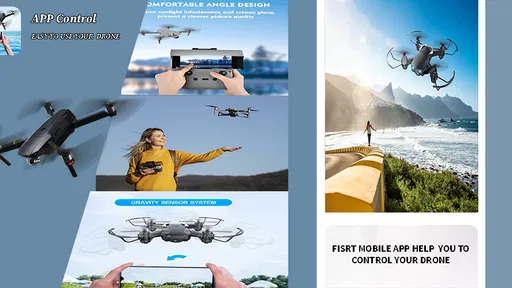
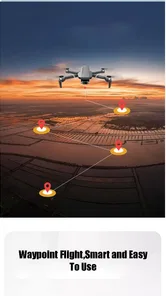
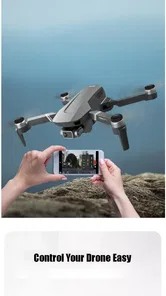
Analysis by Reviewed
If you have a small drone and want a larger, more familiar screen for its flight view, Drone Remote Controller is built around a simple idea: use your phone as the display while the physical drone controller remains part of the setup. I found that focus helpful because it avoids pretending to be a universal flight app. It is a practical companion for people who already have compatible drone equipment and want to see the camera feed or control interface on a phone rather than relying on a smaller built-in display.
The app comes from SweatersApp and sits in the Libraries & Demo section rather than among full-featured flight simulators or general photography tools. It is free, rated for Everyone, and works on phones running Android 6.0 or later. Its current version is 9.0, and the app has passed the fifty-thousand-install mark with a 4.2 average from roughly four hundred ratings. Those figures suggest that it has found a useful audience, but they do not remove the most important question: whether your particular drone controller can work with it.
My overall impression is that this is best approached as a focused display companion, not as a replacement for a manufacturer’s complete control system. If your goal is to connect a phone, get the visual side of the flight ready, and keep the physical controls in your hands, the concept makes sense. If you expect automatic compatibility with every drone, advanced flight planning, or a complete alternative to dedicated hardware, you should set your expectations differently.
What to expect before installing
The first thing I would clarify is the role of the app. The store summary describes using a phone as a drone controller display, while the short description calls it a drone remote controller. In everyday use, that points toward a phone-based screen for a drone setup rather than a standalone virtual joystick that magically controls any aircraft. The distinction matters because many first-time users assume that installing an app is enough to turn a phone into a universal transmitter.
I would therefore begin with the drone and its physical remote nearby. Check how your equipment normally sends its live view to a phone, and keep the phone charged before testing. A phone that is perfectly capable of running the app may still be awkward for flight if its battery is low, its screen is difficult to read outdoors, or the cable connection is loose. The app can make the display more convenient, but it cannot compensate for an unsuitable phone position or an unreliable controller connection.
For a first test, choose an open, familiar location and keep the aircraft on the ground. This is not just cautious advice; it makes troubleshooting much easier. If you launch immediately and then discover that the screen is blank, you have less time to work out whether the problem is the app, the controller, the aircraft, or the connection between them. A grounded test lets you inspect each part without turning a setup issue into a flight problem.
I also recommend treating the phone as one part of a chain. The drone must be powered correctly, the remote must be ready, the phone must be connected in the expected way, and the app must display the information you need. When something fails, change one thing at a time. Repeatedly disconnecting everything at once can make a simple issue appear random, especially for a first-time user who is still learning which device is responsible for each stage.
More From Our News Desk

 Gmail
GmailGmail in a Busy Inbox: Who Benefits Most?
From first account to crowded workday, Gmail earns its place through dependable search and flexible sorting—but its best fit depends on how much inbox maintenance you can tolerate.

 Prime Video
Switching to Prime Video: What Changes in Your Viewing Routine
Prime Video can make a compelling second home for streaming, but switching means learning a different catalog, rental layer, and route from browsing to playback.

 Universal TV Remote Control
Universal TV Remote Control Works Best as a Reliable Backup
A phone remote earns its place through quick setup and reliable habits. Here is how to get more from Universal TV Remote Control—and where its limits show.

 Weather - By Xiaomi
Weather by Xiaomi Review: Clear at a Glance, Less Clear Up Close
Xiaomi’s weather app makes everyday forecasts quick to scan, but its calm surface can leave useful details and recovery paths harder to find than they should be.

 X
XX Under Pressure: Can It Recover When Posting Goes Wrong?
A resilience-focused review of X, examining setup, mistaken posts, interruptions, weak connections, and the gaps that matter when recovery needs to be dependable.

 Clash of Clans
Clash of Clans Is Won Between the Battles
Its raids are quick; its community is a long-term project of coordination, teaching, rivalry, and shared responsibility—with all the friction that entails.
Latest News



Installing and preparing the phone
Installation is straightforward for compatible Android phones because the app is free and supports Android 6.0 onward. After opening it, I would avoid rushing directly into a flight. First, place the phone in the position you intend to use on the controller. This reveals practical problems that are easy to overlook, such as a clamp covering a button, a cable bending sharply, or the screen sitting at an angle that reflects the sky.
A useful preparation step is to clear unnecessary apps from view and keep the phone dedicated to the test. Incoming calls, notifications, or a screen that locks at the wrong moment can distract you when you are trying to confirm the connection. I would also raise the display brightness only as much as necessary. A bright screen is easier to see, but using maximum brightness throughout a session can make the phone warm and consume power faster.
The app’s value becomes clearer when the phone is treated as a purpose-built monitor rather than a second controller. Keep the physical remote in the position that feels natural, then use the phone only for the visual information it provides. This division of labor is more comfortable than trying to watch a screen while also searching for virtual controls, and it preserves the tactile feedback that many pilots prefer from real sticks and switches.
Before connecting, take a quick look at the ports and cable ends. A cable can appear connected while still being loose enough to interrupt the display when the controller moves. If the screen changes when you gently reposition the phone, stop there and fix the physical arrangement before testing the aircraft. That small check can save a great deal of confusion later.
Making the first successful connection
For the first meaningful success, I would define the goal narrowly: get the phone to show the expected drone-related display while the aircraft remains safely on the ground. Do not make the first test about taking off, recording a perfect clip, or exploring every control. A stable screen is the foundation for everything else.
Start the equipment in the order recommended by your drone’s normal operating routine, then open the app and watch for a usable display. If the screen appears, pause for a moment instead of immediately touching every option. Confirm that the image remains steady while the controller sits still. Then move the controller slightly without launching and check whether the displayed information behaves consistently.
This staged approach gives you a clear answer to the question many new users have: how do I know it is ready? I would look for a stable visual feed, a controller that responds normally, and no obvious interruption when the phone is held in its intended position. If one of those pieces is missing, the setup is not ready for a real flight, even if the app itself has opened successfully.
Once the display is dependable, the next small test is to make a low-risk change using the physical remote while watching the phone. Keep the aircraft grounded and use only the controls you already understand. The purpose is to confirm that the screen is useful alongside the controller, not to experiment with unfamiliar flight functions. This is also a good moment to learn whether the phone’s layout is readable at a glance.
One practical insight is that a larger phone screen can improve awareness but also encourage you to stare at it too much. I found the best workflow is to glance at the display for framing and status, then return attention to the aircraft and surroundings. The app is most useful when it supports your flight habits rather than becoming the only thing you watch.
Where first-time users may become confused
The most common misunderstanding is likely to be compatibility. A phone running the required Android version is only one part of the equation. The drone, controller, connection method, and app all need to cooperate. If the app opens but does not provide the expected display, that does not automatically mean the phone is faulty. It may indicate that the equipment combination is outside what the app can handle.
Another source of confusion is the difference between a remote controller and a display. A physical controller may still be doing the actual transmitting while the phone supplies the visual interface. If you remove the controller and expect the phone alone to behave exactly like dedicated hardware, you may be approaching the app in the wrong way. I would keep the original controller available throughout the first sessions and only change the setup after you understand what each component contributes.
A blank or interrupted view can also come from the connection rather than the application screen itself. Check the cable seating, the controller’s power, and the phone’s position before repeatedly reinstalling the app. Reinstallation is a tempting first response, but it rarely fixes a loose connector or an unpowered remote. Changing one variable at a time is slower for a minute and much faster overall.
There is also a difference between a display that is technically visible and one that is genuinely usable. If text is too small, glare hides the image, or the phone is mounted where your hands keep touching it, the setup may work but still be poor in practice. Move the phone, adjust the viewing angle, and test again while standing as you would during a real flight. A successful connection should be judged from the pilot’s position, not from a desk.
I would be careful with assumptions about advanced functions. This app’s clear appeal is the phone display and controller relationship. It should not be chosen on the expectation of professional mapping, automated routes, aircraft-specific maintenance tools, or a rich editing suite. Those are reasons to look at a manufacturer’s official application or a specialized flight platform instead. Choosing the right tool for the job is more useful than forcing this app into a role it was not designed to fill.
A realistic everyday use case
Imagine taking a compact drone to a quiet field to check the view from a nearby trail. You have already used the physical remote before, but its display is inconvenient for checking framing. With this app, the phone can serve as the screen while your hands stay on the familiar controller. Before takeoff, you connect everything at the car, confirm the image while the aircraft is still on the ground, and adjust the phone so sunlight does not wash out the view.
During the flight, the benefit is not that the app suddenly makes the drone smarter. The benefit is that the visual side of the session can be easier to inspect. You can glance at the phone to judge composition, then look back toward the aircraft and the surrounding space. When you land, the same setup can be useful for checking whether the display remained stable during movement rather than discovering a connection problem after packing everything away.
A second use case is a short practice session at home without launching. You can arrange the controller and phone, learn where the display sits, and rehearse the order in which you power and connect the equipment. This removes some of the pressure from the first outdoor attempt. It also helps you decide whether the phone is comfortable enough for longer use before you depend on it away from home.
For someone who shares a drone with family, the phone-based display can make demonstrations easier because the screen is familiar and easy to reposition. However, I would still keep the explanation simple: the phone is part of the viewing setup, while the physical remote remains important. That prevents a new user from assuming that tapping the screen is always equivalent to moving the controller.
How it compares with the usual alternatives
The most obvious alternative is the drone maker’s official app. That option is usually the safer choice when you need aircraft-specific settings, firmware handling, flight records, camera controls, or detailed warnings. An official app is designed around a known range of hardware, whereas a general controller-display tool may appeal more because it is lightweight and focused. If your drone depends on manufacturer-only functions, I would start with the official software.
Another alternative is using the controller’s built-in screen, when available. That can be more dependable because it reduces the number of separate devices and connections. On the other hand, a phone may be more familiar, easier to replace, or more comfortable to view. The trade-off is that the phone introduces another battery, another mounting decision, and another possible point of connection trouble.
You could also use a generic screen-mirroring or video-monitoring solution, but that may solve only the visual part and leave the controller relationship unclear. Drone Remote Controller is more relevant when you want an app associated with the remote-display task rather than a general mirroring tool. Still, I would not choose it simply because it is free. The right choice depends on whether your equipment needs a broad official ecosystem or a simpler phone-centered display.
In my view, this app occupies a useful middle ground. It is less ambitious than a complete flight platform, but that can be an advantage for a person who wants fewer distractions. The limitation is equally clear: the narrower focus means it is not the best answer for every pilot. Beginners who need guided safety checks and aircraft-specific instructions may feel more comfortable with the manufacturer’s app, while experienced users with compatible equipment may appreciate the uncomplicated role here.
Small workflow improvements that make a difference
My first tip is to create a repeatable connection routine and use it every time. Keep the controller, phone, and cable together, then perform the same ground check before leaving the launch area. A consistent order makes it easier to notice what changed when the display fails on a later day. It also reduces the temptation to troubleshoot while the aircraft is already in the air.
My second tip is to test the setup with the phone mounted, not held in your hand. A connection that works on a table may fail when the cable is bent around a clamp. The mounted test exposes strain, glare, and accidental screen touches before they matter. It also helps you find a position where you can glance at the display without losing awareness of the drone.
My third tip is to separate display testing from flight testing. First confirm that the screen appears. Then confirm that it stays visible while the controller moves. Only after that should you consider a short, conservative flight. This three-stage method is more informative than one dramatic test because you know exactly which step introduced a problem.
My fourth tip is to keep the original control method available even after the phone works. A phone can be a convenient display, but depending on one extra device without a backup plan is unnecessary. If the phone overheats, loses power, or shifts in its mount, you want to end the session calmly rather than improvise. The app improves convenience; it should not encourage careless preparation.
One trade-off I noticed is that a larger display can make framing feel easier while making battery planning more important. Bright screens and active connections draw attention from the phone’s power reserve. I would begin with shorter sessions, check the phone after each test, and avoid assuming that a full charge will behave the same way in every outdoor condition. That is a general device consideration, but it becomes especially relevant when the phone is doing more than one job.
Who should use it and who should skip it
I would recommend giving it a try if you already own a drone with a physical remote, prefer using your phone as the viewing screen, and want a free app with a focused purpose. It is also a sensible option for someone who dislikes learning a complicated flight interface when the main need is simply to see the drone’s display in a more convenient place.
I would be more cautious if you are buying a drone specifically for advanced aerial photography or automated flight. In that situation, the manufacturer’s application may offer a more complete path from setup to safe operation. Likewise, if your drone has unusual hardware or depends on proprietary controls, compatibility should be your first concern rather than the app’s price or rating.
It is not the right choice for someone looking for a flight simulator, a general camera editor, or a replacement for every function found in dedicated drone software. The category placement in Libraries & Demo fits its practical, utility-like character. It helps organize the phone side of a drone setup, but it should not be mistaken for an entire aerial-production workflow.
My recommendation after using the setup
Drone Remote Controller makes sense when you understand its job: it gives a compatible drone setup a phone-based display and works alongside the physical remote. I like that this focused approach can make the first screen check less intimidating for a new user. The free price also makes it easy to test without committing money, and the Everyone rating keeps it approachable for general users.
The most reassuring path is to install it, arrange the phone on the controller, connect everything while the aircraft is grounded, and treat a stable display as the first success. From there, learn the viewing angle, check the cable position, and only then move to a short flight. That sequence answers the practical questions that matter most: whether the phone is comfortable, whether the display remains reliable, and whether the setup fits your equipment.
My final judgment is positive but deliberately specific. This is a useful companion for the right drone and the right expectation, not a universal answer to drone control. If you want a straightforward phone display and already have a controller-based workflow, it is worth trying. If you need aircraft-specific features, automated tools, or guaranteed support for specialized hardware, I would choose a dedicated official alternative instead. Used within its narrower role, it can turn the phone you already carry into a more convenient part of your flight setup.
Drone Remote Controller Frequently Asked Questions
Is Drone Remote Controller free to download, and what should I know about its age rating?
Drone Remote Controller is free to download, so you can try it without paying for the app itself. It is rated for Everyone, making it suitable for a broad audience. Keep in mind that using the app as a drone control display still requires a compatible drone and careful attention to safe flying practices.
What is Drone Remote Controller and what can I use it for?
Drone Remote Controller is a mobile application designed to connect compatible drones with an Android or iOS device. After pairing, it may let you view the camera feed, control flight movements, adjust settings, capture photos or videos, and review stored media. Its exact functions depend on the drone model, controller hardware, and version of the app.
Which drones and smartphones are compatible with Drone Remote Controller?
Compatibility is the most important detail to check before downloading. Drone Remote Controller may support only specific drone brands, models, or remote-control systems rather than every aircraft. Your phone also needs a supported Android or iOS version, sufficient storage, and sometimes Wi-Fi, Bluetooth, or USB access. Check the developer’s compatibility list before purchasing or connecting a drone.
Does Drone Remote Controller require an internet connection to fly a drone?
An internet connection may not be required for basic flight once the app and drone are properly paired, because communication often takes place directly through Wi-Fi, Bluetooth, or a physical cable. However, internet access can be necessary for initial login, firmware updates, map data, cloud synchronization, technical support, or downloading additional resources. Always complete setup before flying outdoors.
Is Drone Remote Controller safe and easy for beginners to use?
The app can simplify drone operation by placing flight controls, camera tools, battery information, and warnings on one screen, but it does not replace proper training. Beginners should read the instructions, practice in an open area, check GPS and battery status, and learn local aviation rules. Avoid relying solely on automatic features, especially in strong wind or crowded locations.
Pros
- Simple controls make basic drone operation easy for beginners.
- Supports convenient live camera viewing on compatible drone models.
- Responsive joystick controls provide smooth flight adjustments.
- Compact interface keeps essential flight functions easy to access.
- Useful for controlling drones without carrying a separate physical remote.
Cons
- Compatibility may be limited to specific drone models or firmware versions.
- Live video quality depends heavily on Wi-Fi strength and distance.
- Phone notifications or calls can interrupt the flight session.
- Extended use may drain the smartphone battery quickly.
- Small on-screen controls can feel uncomfortable during longer flights.