Colorify: Coloring Book Maker
- 292.00
- 4.4
- Installs
- 100.00K
- Price
- Free
Screenshots

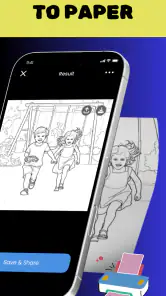

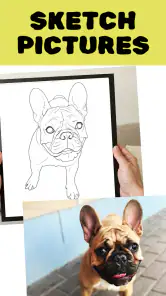
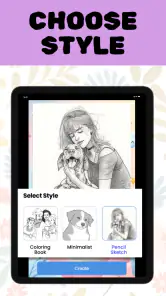
Analysis by Reviewed
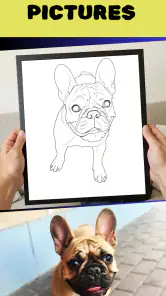
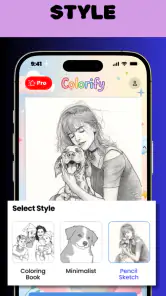
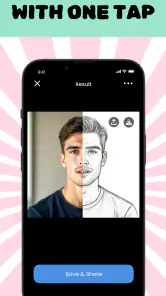
I tried Colorify: Coloring Book Maker as a photography app rather than treating it like a conventional coloring-book download. Its central idea is simple but useful: take a picture and turn it into a line-based coloring page with AI assistance. That makes it appealing for parents, teachers, hobby artists, and anyone who wants a more personal page than a ready-made cartoon sheet can provide.
What makes the concept interesting is the source material. Instead of choosing from a fixed gallery, I can start with a pet, a family moment, a building, a toy, or a holiday decoration. The result is not just another filter; it is an attempt to reshape an ordinary image into something I can print and color. In practice, the quality of that transformation matters more than the novelty of the idea, and the experience is closely tied to how smoothly the app can process an image.
Turning personal photos into coloring pages
The app comes from Yoya Mobile and is available for free, with optional in-app purchases ranging from $1.99 to $99.99 per item. It is rated for Everyone, which fits the family-friendly nature of making coloring sheets from everyday photographs. Its photography category is also a sensible home for it, although I found myself using it more like a creative utility than a camera editor.
The workflow is easiest to understand when viewed as a small creative project. I choose an image, let the app interpret the important shapes, and then judge whether the generated page is actually pleasant to color. A good photo does not necessarily make a good page. Clear subjects, separated objects, and reasonably strong contrast give the AI more useful visual structure. A crowded image with several people, patterned clothing, and a busy background can turn into a page full of tiny or confusing marks.
That is the first practical lesson I would give a friend: choose the photograph for its outlines, not for its beauty. A well-lit portrait with a simple background may produce a more enjoyable coloring page than a dramatic landscape packed with texture. If the goal is to print the result, I would also crop away irrelevant edges before processing. This keeps the main subject larger and reduces the chance that the page becomes dominated by background detail.
The app is especially good for sentimental projects. A child can color a page based on a favorite stuffed animal, or a family can create a small set of pages from a trip. Teachers may find the approach useful for turning classroom objects into themed activities, while craft-minded users can use the pages as a starting point for cards, decorations, or handmade gifts. These uses feel more convincing than simply generating random pages because the source image gives the activity a personal reason to exist.
Why the original image matters more than expected
AI conversion is not the same as tracing every visible detail faithfully. It has to decide which edges deserve emphasis and which areas can be simplified. That means the output should be judged as an illustration, not as a perfect technical copy. A face may become recognizable through its outline while losing subtle features, and a plant may look better when its leaves are distinct rather than overlapping.
I would avoid using a favorite photograph as the first test. Start with a disposable image that has one obvious subject and a calm background. This lets you learn how the app interprets your pictures without feeling disappointed if the first result needs a different crop or a simpler source. Once you understand what works, more meaningful images become easier to prepare.
Another useful approach is to create a small sequence rather than relying on one complicated picture. For a child’s activity, several simple pages usually work better than one crowded page. A toy, a shoe, a fruit bowl, and a pet portrait can form a varied set, with each page offering a different level of visual challenge. That is a more thoughtful use of the app than repeatedly processing nearly identical snapshots.
Connectivity changes the pace of the creative process
The AI element is the part that makes connectivity important. Processing an image can feel different from using a basic offline drawing tool because the app may need to communicate before the transformation is ready. I would therefore avoid beginning a batch of pages at the exact moment a child is waiting for an activity, especially when I am away from a reliable connection.
This matters in ordinary situations. Imagine taking pictures at a family gathering and wanting to turn them into pages during the car ride home. If the connection is weak, the creative session may become a sequence of waiting, retrying, or deciding which image is worth sending through the process. The app can still be useful in that setting, but I would prepare the images and do the conversion when the network is stable rather than treating it as an instant camera effect.
The same consideration applies at school, in a waiting room, or while traveling. A strong signal can make the experience feel direct, while an inconsistent connection adds uncertainty between choosing an image and seeing the result. Because the main attraction is the AI conversion, connectivity is not a minor background detail; it shapes whether the app feels playful or inconvenient at that moment.
I also prefer to keep the first attempt modest when the connection is unpredictable. Processing one carefully selected photo is easier to monitor than sending a large group of images and discovering that several have stalled. This is a small habit, but it reduces wasted time and makes it easier to identify whether a problem comes from the picture or from the network.
Using it comfortably on a phone
Colorify is designed for a mobile setting, so its strongest use case is spontaneous creation. I can take a picture, make a page from it, and decide later whether it deserves printing. That is more convenient than transferring every image to a desktop editor and manually tracing the outlines. The phone-first approach also suits parents who want a quick activity from something already in the camera roll.
Still, a phone screen is not the ideal place to inspect every fine line. Small details can look acceptable on a display and become frustrating when printed. I recommend zooming in on the most complicated areas before committing to a page. Look at hair, foliage, textured fabric, and overlapping objects in particular. If those regions are already visually tangled on the phone, they are unlikely to become easier for a child to color on paper.
The app also works best when I separate creation from printing. I can use the phone to experiment, but I would inspect the final page at the size I expect to print. A page intended for a young child should favor broad, readable spaces. A more detailed image may suit an older artist, but only if the lines remain deliberate rather than looking like accidental visual noise.
That leads to a less obvious trade-off: the most realistic photo is not always the most enjoyable coloring page. A simple illustration-like source can produce a better activity than a high-detail photograph. If you are creating pages for several age groups, choose different source images instead of expecting one conversion style to satisfy everyone.
What happens when a result fails
Any image-conversion workflow needs a recovery plan, and I found that the best response to a disappointing page is usually to change the input rather than repeatedly hoping for a different interpretation. Crop tighter, remove a distracting background, or choose a photograph with clearer separation between the subject and its surroundings. These adjustments address the cause instead of merely repeating the same attempt.
Connectivity failures deserve a similar calm approach. If processing pauses or does not complete, I would first check whether the connection is stable, then retry with one image rather than a whole collection. It is also sensible to keep the original photograph untouched in the camera roll. That way, a failed conversion is only a failed attempt, not a lost source for another workflow.
When a page looks too busy, I would not immediately blame the app. The source may contain more information than a coloring page can comfortably hold. A group photo, for example, can be meaningful but difficult to simplify. A better recovery path may be to crop one person or object at a time and build a small series. This produces pages that are easier to color and often more visually satisfying.
There is also a difference between a technically successful result and a useful one. An image can finish processing and still be unsuitable for printing because the outlines are too dense or the subject is hard to recognize. I consider that an important part of reviewing this app: success is not merely receiving an output, but receiving one that works for the person who will color it.
Being careful with mobile data and purchases
Since the app’s main task involves transforming pictures, I would use it thoughtfully on a mobile connection. Images can be larger than they appear in a thumbnail, and repeated experiments may consume more data than a single quick edit. When I am on a limited plan, I would prepare a few strong candidates first, avoid sending every near-duplicate, and wait for a dependable connection before processing a larger set.
This selective workflow has a creative benefit too. Limiting the candidates forces me to think about what I actually want to make. Instead of converting an entire camera roll, I can choose images with a clear purpose: a page for a birthday activity, a keepsake from a trip, or a simple drawing exercise. The result is less wasteful and usually more coherent.
The free entry point makes experimenting easy, but the optional purchases deserve attention before someone commits to regular use. The listed purchase range stretches from $1.99 to $99.99 per item, so I would check the purchase screen carefully and avoid assuming that every useful part of the experience is included at no cost. This is particularly important when a child is using the phone, because the creative activity should not become an accidental spending session.
I also prefer to review any generated page before printing several copies. A quick inspection can reveal that the source image needs a crop or that the page is too detailed for the intended user. That habit saves paper, ink, time, and repeated processing. It is a practical advantage of treating the app as a design step rather than pressing a button and immediately sending everything to a printer.
How it compares with ordinary coloring apps and manual tools
Traditional coloring apps usually give me ready-made illustrations and a digital palette. They are better when I want instant coloring on the screen, predictable outlines, and no need to prepare a photograph. Colorify takes the opposite route: it makes the source image personal, but the quality depends more heavily on that image and on the conversion process.
Printable coloring pages from websites or books are also more consistent. They often have professionally arranged compositions and clear difficulty levels. If I need a reliable activity immediately, a conventional coloring book may be the safer choice. Colorify becomes more compelling when the emotional connection to the picture matters more than perfect illustration quality.
Manual tracing in a drawing app offers greater control. I can decide exactly which lines stay, remove distractions, and adjust the composition myself. The cost is time and skill. Colorify is valuable because it handles the first interpretation quickly, even though I still need to judge the result. For a casual project, that balance is attractive; for a polished commercial illustration, I would choose a tool with deliberate editing and vector control instead.
The app sits between automation and craft. It is faster than tracing and more personal than a fixed coloring library, but it is not a replacement for either one in every situation. That middle position explains both its appeal and its limitations.
Who will enjoy it, and who should pass
I would recommend it to people who want coloring pages connected to real memories, pets, objects, or places. It is also a good fit for adults who enjoy experimenting with photographs and do not mind making a few attempts before finding the right source image. Families can get more value from it when they treat the process as part of the activity: choosing the photo, discussing what should remain visible, and then coloring the result.
I would be more cautious about recommending it to someone who wants a large, dependable library of finished pages with no preparation. A conventional coloring app or printed book will be less dependent on image selection and likely more predictable. I would also steer away from it for users who need precise artistic control over every contour, because AI interpretation can simplify or combine details in ways that are not fully under the user’s command.
It may not be the best choice for a last-minute offline activity either. The network-sensitive part of the workflow can make timing less predictable, particularly when the connection is poor. For travel, I would prepare pages before leaving rather than assuming that a new photograph can always become a finished printable sheet on demand.
My verdict on the connected experience
Colorify: Coloring Book Maker is a clever photography app with a clear purpose: it turns personal images into coloring projects instead of asking users to settle for a generic collection. I like the idea most when I choose simple, meaningful photographs and take a moment to inspect the result before printing. The strongest pages come from thoughtful input, not from sending every image through the converter.
The connection-dependent nature of AI processing is the main factor I would plan around. With a stable network, the process can feel quick and creative; with an unreliable one, it becomes less suitable for an immediate activity. Careful image selection, limited batch processing, and keeping the original photos safe make the experience more dependable and more data-conscious.
The app has a 4.4 average from around 10K ratings, with over 100K installs, and the current version is 1.0.55. It runs on Android 7.0 or later, so it remains accessible to many older devices. Those figures suggest a healthy level of interest, but my recommendation is based more on the specific workflow: choose it if the personal connection of your own photos is the point. Skip it in favor of a standard coloring library or a manual editor when consistency, offline immediacy, or fine-grained control matters more.
For me, the best way to use it is as a small creative bridge between the camera roll and the printer. It does not remove the need for judgment, but it can turn an ordinary picture into a page that feels made for one person. Use a strong connection, start with a simple image, and review before printing; those three habits make the difference between a novelty and a genuinely enjoyable coloring activity.
Pros
- Large selection of relaxing coloring pages for different interests.
- Simple controls make coloring accessible for beginners and children.
- Custom color palettes allow more creative freedom.
- Finished artwork can be saved and shared from the app.
- Useful for short
- calming breaks away from stressful activities.
Cons
- Some pages and tools may require in-app purchases.
- Ads can interrupt the coloring experience for free users.
- Detailed illustrations may feel difficult on smaller phone screens.
- The app may use noticeable storage for downloadable coloring content.
- Creative options can feel limited compared with full drawing apps.
- Category
- Photography
- Version
- 1.0.55