Cloud Storage Backup & Drive
- 248.00
- 4.2
- Installs
- 1.00M
- Price
- Free

Screenshots
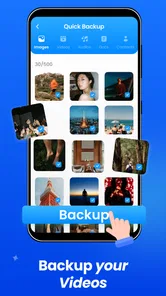

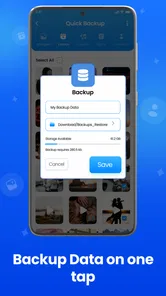
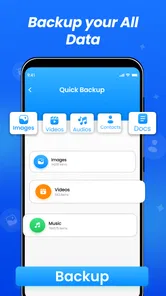
Analysis by Reviewed
I found Cloud Storage Backup & Drive most useful when I treated it as a simple safety net rather than as a complete replacement for every storage service I already use. Developed by Daily Utility Apps, this free productivity app is built around saving files, photos, videos, and contacts in cloud storage. That focus makes the purpose easy to understand: put important personal material somewhere safer than a single phone.
My review centered on a question that is easy to overlook: how comfortable is the app for people using it in different situations and with different abilities? A storage tool can have valuable functions yet still become frustrating if its labels are hard to read, its controls are awkward to reach, or its workflow assumes perfect vision, steady hands, constant connectivity, and plenty of time. In my experience, Cloud Storage Backup & Drive has a straightforward idea and a reasonably approachable starting point, but its usefulness depends heavily on how much control and reassurance you need during backup.
How the layout feels when you are trying to find something
The strongest part of the experience is its direct purpose. I do not have to guess whether I am looking at a social feed, a document editor, or a complicated file-management suite. The app sits in the productivity category, and its central job is clear from the moment I think about using it: protect personal content and reach it again when necessary.
That clarity matters for readability. Someone who is not comfortable with technical storage terminology can approach the app with a practical goal, such as saving holiday photos or keeping contacts available after changing phones. The store summary describes backup for files, photos, videos, and contacts, so those are the kinds of material I would organize first rather than trying to turn the app into a full office workspace.
I also appreciate that a focused backup tool can reduce decision fatigue. Traditional file-management services often present a broad collection of folders, sharing controls, document tools, synchronization choices, and account settings. Those options can be useful, but they may overwhelm a person who simply wants to protect a few important categories. Here, the narrower purpose gives the app a more approachable role.
Still, simple does not automatically mean effortless. Backup tasks involve choices that deserve careful attention: what should be copied, where it should appear, whether an item has finished uploading, and how to retrieve it later. When I use any cloud drive, I prefer to pause after selecting content and confirm that the result is understandable. I would advise doing the same here instead of assuming that tapping a backup control means every selected item is already safely available.
For users with reading difficulties, the most practical habit is to work in small batches. Selecting one content type at a time makes the process easier to follow than mixing photos, videos, contacts, and miscellaneous files in one rushed session. It also gives you a clearer way to check whether the expected material is present. This is a small workflow change, but it reduces the mental load of remembering what was included.
More From Our News Desk

Weather by Xiaomi Review: Clear at a Glance, Less Clear Up Close

X Under Pressure: Can It Recover When Posting Goes Wrong?

Clash of Clans Is Won Between the Battles

Android Auto Makes the Case for Quieter Car Software

MobiOffice: Transforming Mobile Productivity with Seamless Integration

EA SPORTS FC™ Mobile Soccer: Redefining Mobile Sports Gaming
People who rely on larger text or display magnification should test the important screens before committing to a major backup. Enlarged text can make a control easier to read while also causing labels or buttons to occupy more space. If the interface becomes crowded on your device, a short trial with a few unimportant files is safer than beginning with irreplaceable content. I would not consider a storage app ready for serious use until its main actions remain understandable at the display settings I actually use.
Finding a comfortable routine instead of navigating by memory
A good backup routine should not require me to remember a complicated sequence every time. I would keep the app in a familiar location, use consistent names for manually organized material, and avoid scattering related files across several destinations. That advice is especially helpful for older users or anyone who becomes disoriented when an app changes context between local phone content and cloud content.
The app is free to install, which lowers the barrier to trying this approach. It is rated for Everyone, so its intended audience is broad rather than limited to a specialist or professional group. Its current version is 1.7.8, and it runs on Android 8.0 or later. Those details make it worth checking the phone first: a person using an older Android device may need to confirm compatibility before planning a backup around it.
The public response is encouraging without being a reason to skip personal testing. Cloud Storage Backup & Drive has an average rating of 4.2 from around ten thousand ratings, with 246 written reviews. I read that kind of reception as a sign that many people find the basic idea useful, not as proof that every device, screen size, or personal workflow will feel equally comfortable.
Motor, visual, hearing, and attention demands
Cloud storage can help people who have difficulty handling physical media or repeatedly moving files between devices. Keeping a digital copy in one place may be easier than managing memory cards, cables, or a computer. For someone with limited dexterity, reducing the number of transfers can be a genuine advantage. The app’s value is not only that it stores content; it can remove some physical steps from the backup process.
At the same time, a touchscreen backup workflow still asks for accurate taps, scrolling, selecting, and possibly navigating through lists. A person with tremors, reduced reach, or difficulty making small movements may find selection screens more demanding than the basic description suggests. My practical recommendation is to avoid selecting a large mixed group when precision is difficult. Smaller groups make accidental selections easier to notice and undo.
There is also a trade-off between convenience and confidence. Automatic or broad backup behavior can reduce repeated interaction, but a person may then be less certain about what was actually saved. Manual selection provides more control but asks for more motor and visual effort. I would choose the least demanding method that still gives me a clear way to verify the result.
For users with low vision, high-contrast phone settings, screen magnification, and a clean display can make ordinary navigation more manageable. These adjustments are device-level aids rather than features I would attribute specifically to the app. I would also avoid relying on tiny thumbnails alone when checking photos. File names, categories, or a deliberate one-at-a-time review are safer ways to confirm that the correct material was chosen.
People who are deaf or hard of hearing may not be affected by spoken guidance in the same way as other users, so visual confirmation becomes particularly important. A storage action should be considered complete only when the screen provides a clear indication that the process has finished or that the content is available. I would not rely on a sound, vibration, or an assumption that the app has completed its work without checking the visible state.
Attention and memory are another part of accessibility. Backups often happen while someone is distracted: packing for a trip, setting up a replacement phone, or trying to free space quickly. In those moments, an unclear distinction between local and cloud copies can create mistakes. I prefer to perform backups when I can concentrate, then open the stored material afterward. That second check is particularly important for contacts and personal documents, where a missing item may not be noticed until much later.
A realistic everyday use case
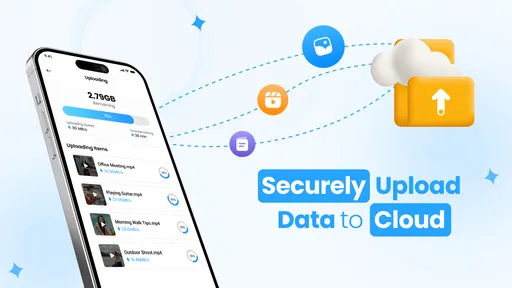
Imagine that I am preparing to replace an aging phone. I would begin with contacts because they are easy to overlook and difficult to reconstruct from memory. Next, I would handle a small group of important photos and documents rather than attempting an enormous upload while rushing. After each group, I would check the cloud location and note what still needs attention. Only then would I move on to videos, since they can take longer to handle and are more likely to make a rushed process feel uncertain.
This sequence is more inclusive than simply telling everyone to “back up everything.” It gives a person with limited stamina, attention, or hand control natural stopping points. It also makes troubleshooting easier: if something goes wrong, I know which group was involved instead of having to investigate one large, confusing operation.
For a family member who is less confident with technology, I would write down a short personal checklist using plain language: contacts, important photos, essential files, then verification. I would avoid promising that one tap solves every backup need. The app can be a useful part of that routine, but the human explanation and final check are what make the process dependable.
When the app is helpful in difficult circumstances
Situational access is often where a backup app earns its place. If I am traveling, dealing with a damaged phone, or helping someone move to a new device, cloud storage can be more practical than carrying a separate drive. It also helps when the only available computer is unfamiliar or when the person using the phone cannot comfortably manage cables and folders.
The app is also a reasonable option for people who want one uncomplicated destination for personal material. A parent might use it to protect family photos, while a student could keep selected coursework available away from the original phone. Someone who frequently changes devices may value having a cloud-based copy instead of depending entirely on the old handset.
However, situational access has limits. A cloud workflow depends on the phone, the account, and the connection being usable at the moment you need it. If I were preparing for a trip with unreliable connectivity, I would not treat cloud storage as the only copy. I would keep especially important information available through another appropriate method as well. That is not a criticism unique to this app; it is a basic trade-off of relying on remote storage.
People working in bright sunlight, on a crowded bus, or while wearing gloves may find precise touchscreen selection less comfortable. In those settings, I would postpone a large backup if possible. If postponing is not possible, I would choose a small, clearly defined task and verify it later in a calmer environment. Accessibility is sometimes about timing rather than a permanent setting.
The same applies to users with limited data plans or little patience for long transfers. Photos and contacts are not equally demanding, so handling the smaller, more essential categories first can make the app more useful in a constrained situation. I would avoid beginning with a large video collection when the phone is low on battery or the connection is unstable. A staged plan is less impressive than an all-at-once button, but it is more realistic.
How it compares with familiar alternatives
Compared with keeping everything only on the phone, Cloud Storage Backup & Drive offers a sensible layer of protection against device loss or failure. Local storage is immediate and does not require a cloud account, but it leaves one physical device carrying too much responsibility. For personal photos, contacts, and important files, I prefer having a separate copy.
Compared with transferring files to a computer manually, the app may be easier for someone who does not want to manage cables, desktop folders, or different file locations. Manual transfers can provide excellent control, though, especially for users who need to inspect every item or maintain a carefully arranged archive. If detailed folder management and desktop editing are central to your routine, a broader drive service may suit you better.
Compared with a full-featured cloud platform, this app’s focused backup role may feel less intimidating. The trade-off is that people who need advanced collaboration, extensive document editing, or a sophisticated shared workspace may prefer a service designed around those tasks. I would choose this app for straightforward personal protection, not because it replaces every kind of cloud software.
There is also a difference between backup and synchronization. I think of backup as preserving a copy, while synchronization aims to keep versions aligned across devices. Those goals can overlap, but they are not identical. Before relying on the app for a multi-device workflow, I would decide which behavior I actually need. If I mainly want a safety copy of personal content, it makes sense. If I expect every change on one device to appear instantly and consistently elsewhere, I would investigate a more specialized option.
Costs, expectations, and the barriers that remain
The app is free, but it includes in-app purchases ranging from $0.49 to $499.99 per item. That wide range is important context for anyone who wants predictable spending. I would review any purchase screen carefully, especially if I were setting the app up for a child, an older relative, or someone who needs a tightly controlled budget. Free installation does not mean every possible use is free.
I would also avoid judging the app solely by its install count. It has passed one million installs, which shows broad interest, but popularity cannot tell me whether the navigation works with my display settings or whether the backup process fits my connection and storage habits. A short, low-risk trial is more useful than assuming a widely installed app will automatically be comfortable.
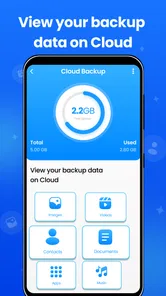
One remaining barrier is the emotional difficulty of trusting a backup. Users may not know whether a file is safely stored, whether a contact list is complete, or whether a photo is merely visible locally. This is why verification matters so much. I would open a few backed-up items, check the relevant categories, and keep a written note of the last successful routine. That practice is especially valuable for anyone who has memory difficulties or is helping another person remotely.
Another barrier is the possibility of overconfidence. A cloud copy is not a substitute for thinking about account access, device security, or the importance of the material being stored. I would use a strong device lock, avoid leaving a session open on a shared phone, and consider whether especially sensitive files belong in this workflow. Those are prudent habits, not claims about a particular security certification or policy.
The app may not be the right choice for someone who needs extensive accessibility documentation before adoption, highly granular administrative controls, or a professional archival system. It may also be a poor fit for a person who wants a completely offline solution. In those cases, a local backup method or a more established platform with the exact controls required could be the better decision.
Who I would recommend it to
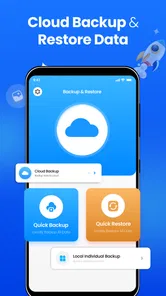
I would recommend Cloud Storage Backup & Drive to someone who wants a clear, personal cloud backup destination for photos, videos, files, and contacts without starting with an elaborate productivity suite. It is particularly appealing for people who are moving away from cable-based transfers or who want a second place for important phone content.
I would be more cautious when recommending it to a user who needs a fully documented accessibility experience, works mainly with large professional archives, or expects advanced collaboration. I would also ask anyone with limited dexterity or vision to test the selection and verification steps personally. The app’s general-purpose audience is encouraging, but individual comfort matters more than the audience label.
My best tip is to create a repeatable, low-stress routine: begin with contacts, continue with irreplaceable photos and files, handle videos separately, and verify each group before moving on. That approach exposes the real strengths and weaknesses of the app quickly. It also makes the service more usable for people who cannot comfortably complete a long, uninterrupted task.
After using it as a focused backup tool, my view is positive but measured. Cloud Storage Backup & Drive is most valuable when simplicity, personal protection, and fewer physical transfer steps matter more than advanced cloud management. Its free entry point and broad age rating make it approachable, while the 4.2 average suggests that many users find the basic experience worthwhile.
I would not call it a universal answer for storage, accessibility, or device migration. The purchase range, the need to verify completed backups, the demands of touchscreen selection, and the limits of cloud dependence all deserve attention. Even so, for a person who wants a practical way to place important phone content somewhere beyond the handset, Cloud Storage Backup & Drive is worth trying carefully. Start with non-critical material, adjust the phone for comfortable reading and tapping, and build confidence through small verified backups rather than trusting a single rushed action.
Cloud Storage Backup & Drive Frequently Asked Questions
What devices and operating systems can I use with Cloud Storage Backup & Drive?
Cloud Storage Backup & Drive is available for Android and iOS, so it may suit users who want to keep files accessible from a mobile device. On Android, the app requires version 8.0 or later. Before installing, check that your device meets the operating system requirement and has enough free space for the app and any files you choose to keep available offline.
Who develops Cloud Storage Backup & Drive, and what kind of app is it?
Cloud Storage Backup & Drive is a productivity app developed by Daily Utility Apps. It is intended for storing and backing up digital content, with a focus on keeping files, photos, videos, and contacts in a cloud drive. Its content rating is Everyone, making it broadly suitable for general audiences, though each user should still review the permissions requested during setup.
What is Cloud Storage Backup & Drive used for?
Cloud Storage Backup & Drive is designed to help you store, organize, and access files online from your Android or iOS device. It can be useful for backing up photos, videos, documents, and other important files, while also allowing you to retrieve them from different devices. Its usefulness depends on the available storage space, supported file types, and the account plan you choose.
Is Cloud Storage Backup & Drive free to use?
Cloud Storage Backup & Drive is free to download, but it also offers in-app purchases. The app may offer a free storage allowance, but free accounts commonly include limits on capacity, file transfer features, or advanced backup options. Additional space and premium tools may require a subscription or in-app purchase. Before downloading or uploading large amounts of data, check the current pricing, storage limits, renewal terms, and whether the selected plan works for your personal backup needs.
Does the app automatically back up photos and other files?
Automatic backup availability can depend on the app’s permissions, device settings, and the type of account you use. After installation, you may need to enable access to photos, files, contacts, or other content manually. It is also important to review which folders are included, whether backups use mobile data, and when synchronization occurs to avoid unexpected data usage.
Pros
- Automatic backup keeps important files protected without manual uploads.
- Files can be accessed across phones
- tablets
- and computers.
- Sharing links make it easy to send files without large email attachments.
- File previews help you check photos
- documents
- and videos before downloading.
- Search and folder tools make stored content easier to organize.
Cons
- Free storage space may be limited
- especially for photos and videos.
- Uploading large files can consume considerable mobile data.
- Some advanced backup and sharing features may require a subscription.
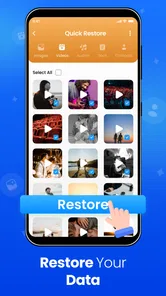
- Restoring many files at once can take time on slower connections.
- Privacy depends on account security and the provider’s data policies.











