Cleanup Master
- 34.00
- 4.6
- Installs
- 100.00K
- Price
- Free

Screenshots



Analysis by Reviewed
Phone clutter rarely arrives as one dramatic problem. It builds up in small ways: an old download remains forgotten, photos become harder to sort, apps accumulate, and battery details are somewhere you have to go looking for them. I like a utility that brings those chores into one place, but only if it helps me make sensible choices instead of encouraging me to delete things blindly. Cleanup Master is aimed at that practical middle ground: a free productivity app for clearing junk files, handling photos and apps, and checking battery information.
My first impression is that its appeal is convenience rather than a promise to transform a phone. The useful question is whether I can deal with several ordinary maintenance tasks without hopping between settings screens and separate tools. That makes it most relevant to people whose storage feels untidy or who want a straightforward place to inspect what is taking up attention on their device.
Where the clutter builds up
I find phone clutter is easiest to deal with before it becomes a last-minute problem. In this section, I look at the small habits that let downloads, screenshots, and seldom-used apps pile up, and why choosing one clear cleanup goal can make a review safer as well as quicker. That sets up a practical first session focused on what you actually need to change.
A maintenance tool, not a magic speed button
Cleanup utilities are easy to judge by dramatic claims, but the work that matters is more modest: finding things worth reviewing, making cleanup less tedious, and helping me avoid deleting something I still need. The name Cleanup Master suggests a broad cleaner, while its actual focus spans junk files, photos, installed apps, and battery information. I would treat it as a convenient organizer for these tasks, not as proof that every slow phone can be fixed by pressing a button.
That distinction matters because storage clutter and performance are related only sometimes. Removing unneeded files can free space, but it does not automatically solve weak signal, an ageing battery, or an app that is misbehaving. I find the app more persuasive when I use it to inspect and tidy than when I expect a single cleanup pass to make the whole device feel new.
It is developed by Alpha Black Car Services Inc 2 and sits in the productivity category. The app is free, carries an Everyone age rating, and has a 4.6 average from around 1,600 ratings. More than 100,000 installs suggest that it has found an audience, though popularity alone cannot tell me whether its cleanup suggestions will suit my particular habits.
Start with inspection, not deletion
My best first step with a cleaner like this is to look through what it identifies before taking action. Junk-file labels can sound more definitive than they are: a file may be unnecessary to one person but useful to another, especially if it belongs to an app or an unfinished task. I would pause over unfamiliar items and remove only what I can recognize or confidently do without.
More From Our News Desk

Weather by Xiaomi Review: Clear at a Glance, Less Clear Up Close

X Under Pressure: Can It Recover When Posting Goes Wrong?

Clash of Clans Is Won Between the Battles

Android Auto Makes the Case for Quieter Car Software

MobiOffice: Transforming Mobile Productivity with Seamless Integration

EA SPORTS FC™ Mobile Soccer: Redefining Mobile Sports Gaming
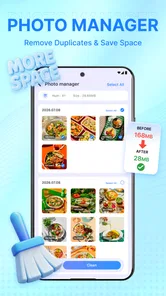
The same cautious approach applies to photos and apps. Before clearing images, I would decide whether I am trying to remove duplicates, old screenshots, or simply make the gallery easier to navigate. Before uninstalling an app, I would check whether I rely on it occasionally or need its stored information. The practical value is not just deletion; it is having a prompt to review digital clutter with a clearer purpose.
One useful habit is to separate “make room now” from “organize for later.” If I need space urgently, I can focus on obvious disposable items and apps I no longer use. If space is not pressing, I can take more time with photos and less familiar files. This avoids turning a quick maintenance session into a rushed cleanup that creates its own recovery work.
Small routines that save effort
In an everyday scenario, imagine I am about to record a long event or download a large file and notice that storage is tight. Rather than deleting the first large-looking item I see, I can use a cleanup session to review junk, scan my photo habits, and consider apps I have stopped opening. The benefit is a more deliberate sequence: reclaim what is clearly unnecessary first, then make harder choices only if I still need room.
A second useful workflow is to treat photo cleanup as a short, focused task rather than an endless gallery scroll. I would begin with a clear category in mind, such as screenshots that have already served their purpose, and stop when that category is done. That boundary is important. A broad “clean everything” mindset can make it easy to remove memories or reference images that are difficult to replace.
App management has a different trade-off. Removing something I rarely use can simplify the phone, but occasional-use apps may be worth keeping if reinstalling them would be inconvenient or if they hold local material I need. I would use the management view to prompt a decision, then check the app itself for anything important before uninstalling. That extra pause costs a little time, but it is cheaper than discovering later that a useful file or login was tied to an app I removed.
Battery information is most useful as context for a decision, not as a verdict. If I am trying to understand why a day feels unusually demanding, checking battery details can help me pay attention to the issue. I would still look at my actual usage and device settings before changing habits or blaming one application. A battery readout is a starting point for observation; it does not replace the phone’s own controls or explain every drain by itself.
Less switching, with a few sensible pauses
The clearest potential time saver is having several maintenance jobs gathered under one app rather than remembering separate routes for storage, photos, installed apps, and battery details. That can make a quick check feel manageable. It is especially helpful for someone who does not enjoy exploring system menus and wants a more direct place to begin.
Still, a combined tool is not automatically better than the built-in options. Android’s own storage and app settings may be the safer choice for people who prefer system-level controls or want to understand exactly what they are changing. A dedicated gallery may also be better for someone whose main need is careful photo sorting. Cleanup Master makes more sense when the convenience of a shared maintenance stop outweighs the benefits of specialized tools.
I would also avoid treating repeated cleanup as a daily ritual. If the phone is working normally and storage is comfortable, there is no need to create busywork just because a cleaner is available. A quick review when space becomes an issue, after a burst of downloads, or during a broader phone tidy-up is more sensible than deleting files on a schedule without checking what they are.
That is where the app’s reliability has to be judged in practice: do its prompts help me make a safe choice, and do I understand the result? I would favor a slower, transparent review over a fast cleanup whose consequences are unclear. For photos and unfamiliar files in particular, taking a moment to inspect is not friction to eliminate; it is a safeguard worth keeping.
Who will get the most from it
I can see this fitting people who want a simple maintenance routine, have a habit of accumulating screenshots or unused apps, or find it annoying to check several types of phone information in different places. It may also suit someone helping a less technical family member tidy a device, provided they review choices together rather than letting any cleanup suggestion become an automatic command.
It is less compelling for someone who already manages storage comfortably through Android settings, keeps a carefully organized photo library, or wants detailed battery diagnostics rather than a convenient check. It is also not the right answer when the underlying issue is a failing battery, a persistently unstable app, or a need to back up irreplaceable photos. Those problems call for the relevant system tool, app support, or a proper backup workflow, not simply a cleanup pass.
A measured recommendation
The app is currently at version 14 and supports Android 8.0 and later. That makes it an option for users on compatible Android devices, but I would still approach it as a practical helper rather than an essential system component. Its usefulness depends on whether its combined focus matches the chores I actually want to handle.
My recommendation is straightforward: try it if you want one place to begin reviewing files, photos, apps, and battery information, and make each cleanup decision deliberately. Skip it if you prefer the built-in settings or need specialized photo or battery tools. The best result is not the biggest deletion; it is a phone that feels easier to manage with less time spent searching and less risk of removing something important.
Make the first session answer a real question
I would get more out of the app by opening it with one concrete goal, rather than tapping through every maintenance area just because it is there. “I need room for a download” is a useful goal; “I should clean my phone” is vague and can lead to needless deleting. A specific purpose helps me judge whether a suggested action is relevant, and gives me a natural point to stop once the problem has been addressed.
For a first pass, I would check the available storage through the phone’s usual settings, then use the cleaner to focus on material I already suspect I can spare. Comparing before and after in the system settings gives me a grounded sense of whether the task helped. It also keeps expectations realistic: a small reduction in clutter may be a worthwhile result even if the phone does not suddenly feel faster.
There is a practical privacy habit here too. Photos and app data can be personal, so I would do this review when I have enough time to inspect the choices, not while rushing between errands or handing the phone to someone else. A cleanup tool is most useful when I remain in control of what is selected. For particularly important images or documents, I would make sure they are backed up independently before making any change that could remove them.
Choosing between one hub and separate tools
Compared with the usual alternatives, the main trade-off is breadth versus specialization. Android’s built-in controls are a sensible starting point for anyone who values direct access to device settings, while a dedicated gallery can offer a more natural place to sort a large photo collection. A separate battery utility may suit someone who wants deeper analysis. This app’s role is different: it puts several kinds of routine housekeeping within reach, which may save navigation even if it is not the most detailed tool for each individual job.
That distinction helps answer whether it is worth keeping installed. If I only need to clear storage once, the phone’s existing settings may be enough and there may be little reason to add another utility. If I regularly forget where to review photos, applications, or battery information, having a single place to start could be useful. The value comes from reducing the effort of getting to a decision, not from replacing every system feature.
I would not use it as a substitute for a backup service or as a diagnostic answer to every battery concern. Those are different jobs. Nor would I assume that a file described as junk is always meaningless in my own circumstances. The safest workflow is to use its cleanup focus to identify what deserves attention, then make the final call based on whether I recognize the item and whether I have another copy if it matters.
Who should leave it off the shortlist
People who are already comfortable managing storage through Android, rarely accumulate disposable files, and prefer not to install an additional maintenance app may gain very little. The same is true for someone who wants a deep technical battery report or sophisticated photo-library organization: a tool focused on several everyday chores is unlikely to be the best specialist choice. In those cases, the built-in route or a focused app is a better fit, even if it means using separate screens.
I would also be cautious about recommending any cleanup routine to someone who tends to approve every prompt without reading it. The point is to make reviewing easier, not to remove judgment from the process. If a user is likely to delete unfamiliar files just to see a cleaner screen, a manual storage review with a trusted helper may be safer. The app is most useful for people willing to pause and make intentional choices.
Convenience is the test that matters
For me, the best way to evaluate it is over a few ordinary maintenance moments: when downloads have piled up, when screenshots are crowding the gallery, or when I want to check battery information without searching through menus. If it shortens those tasks and makes my choices clearer, it earns its place. If I find myself opening it without a specific need, repeating cleanups, or second-guessing what it wants to remove, the convenience is not worth the extra step.
That makes this a modest recommendation rather than an all-purpose one. The app’s combined approach can be handy for an Android user who wants a straightforward starting point for storage, photos, apps, and battery checks. I would keep the process selective, protect anything important before cleanup, and use the phone’s own controls whenever I need more precision. Used that way, it can reduce the small frictions of phone upkeep without pretending that every device problem is a clutter problem.
Cleanup Master Frequently Asked Questions
What is Cleanup Master, and what does it do?
Cleanup Master is a utility app designed to help users manage files and free up storage space on a mobile device. Depending on the version and device, it may offer tools such as junk-file scanning, duplicate-file detection, app management, or memory monitoring. The features available can vary, so check the app listing and permissions before installing rather than assuming every advertised tool is included.
Is Cleanup Master safe to install and use?
Safety depends on the specific Cleanup Master app, its developer, and the version offered in your region. Download it from an official app store, review the developer information and recent user feedback, and check requested permissions before granting access. A cleaner may need file access to scan storage, but permissions unrelated to its stated purpose deserve extra scrutiny. Avoid unofficial download files.
Can Cleanup Master really speed up my phone or extend battery life?
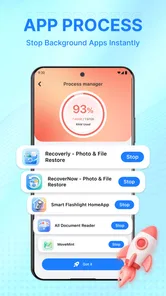
A cleanup app can help when storage is nearly full by identifying files you choose to remove, but it cannot reliably make every phone faster or improve battery life. Modern Android and iOS systems already manage background processes, and repeatedly force-closing apps can be counterproductive. Treat performance claims cautiously, review scan results yourself, and use the system’s built-in storage and battery tools where practical.
Does Cleanup Master delete files automatically, and can deleted items be recovered?
Whether Cleanup Master deletes anything automatically depends on its settings and the particular version. Before confirming a cleanup, inspect the selected categories and individual files; cached data, downloads, and duplicate media may include items you still want. Deletion may be permanent, and recovery is not guaranteed. Back up important photos and documents first, and do not approve a broad cleanup without checking its contents.
Is Cleanup Master free, and does it contain ads or subscriptions?
Pricing and monetization can differ between versions, platforms, and regions. Cleanup Master may be free to download while offering advertisements, optional in-app purchases, or a paid subscription for additional tools. Read the store listing and the purchase screen carefully to confirm current terms, renewal details, and trial conditions. You can also check whether core cleanup features work without paying before committing to a subscription.
Pros
- Quickly clears cached files to free up storage space.
- Shows which apps and files are taking up the most room.
- Includes tools for finding and removing duplicate photos.
- Simple layout makes common cleanup tasks easy to find.
- Lets you review selected items before deleting them.
Cons
- Some cleanup results may include files you still want to keep.
- Background scanning can use battery and system resources.
- Useful features may be restricted to a paid plan.
- Frequent ads can interrupt the cleanup process.
- Cleaning temporary files may not noticeably speed up every device.











