All Files Viewer
- 50.00
- 4.2
- Installs
- 10.00M
- Price
- Free
Screenshots
Analysis by Reviewed
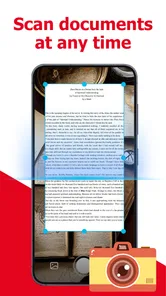
I judge a file viewer less by how many formats it claims to handle than by how quickly it gets me from a file name to a readable page. All Files Viewer is a free productivity app from Nullbyte Labs, built around opening documents rather than managing an elaborate office workflow. Its focus on PDF reading makes it a practical candidate for checking a handout, reference sheet, or work document on a phone. My overall impression is that it makes most sense as a convenient reader to keep on hand, not as a replacement for a dedicated editing or document-management suite.
What to expect when opening a document
The app’s appeal is straightforward: when a document arrives somewhere on your device, a viewer that can handle different kinds of files may save you from hunting through several specialist apps. All Files Viewer presents itself as an all-files viewer, with PDF reading as a central use. That combination suits quick reference better than deep document production. I would reach for it to read a form before a meeting or check a page someone has sent me, rather than to rewrite a report.
Speed in a reader is not only about how fast a file opens. It is also about whether the page remains comfortable to follow, whether I can return to the right document later, and whether the app stays responsive when I switch away to answer a message. I would assess those points during ordinary use instead of assuming that a broad file-viewing label guarantees a smooth experience with every document. Large, image-heavy PDFs can be demanding for phone software generally, so a quick check of a small file is not a reliable test of how a dense manual will behave.
For a useful first try, open a document you already know well: perhaps a short PDF with headings, a few pages, and a link or table. That lets you judge text clarity and navigation without mistaking the document’s own complexity for an app problem. Then try the kind of file you expect to use most often. The most useful test is your real document, not a generic blank page, because scanned pages and text-based PDFs can feel very different to read.
A practical routine for everyday files
Imagine a colleague sends a meeting agenda while you are away from your desk. You need to confirm the room, check the order of topics, and perhaps refer to one page during the discussion. A focused viewer can be enough for that job: open the document, scan the relevant section, and keep the phone available as a reference. This is a better fit than trying to edit a complex file on a small screen, where even a capable reader cannot remove the basic friction of selecting text or moving around a long page.
A small habit can make this kind of use more dependable: keep filenames recognizable before opening them. When a document is named “scan-final-new” or “document,” the trouble may be finding the correct version rather than reading it. If you regularly receive several similar files, rename them in your usual file manager where that is convenient, then use All Files Viewer for the reading step. Separating file organization from viewing keeps expectations realistic and makes it easier to tell whether the app is the bottleneck.
Where heavy use can feel different
There is a meaningful difference between opening a short, text-based PDF and spending a long session inside a lengthy reference document. A file with many scanned pages may take more effort to move through, while a crowded page can demand repeated zooming and repositioning. Those are not unique faults of this app; they are trade-offs of reading detailed documents on a phone. I would not judge performance from one fast-opened file, nor assume that a slow scan-heavy document means every file will feel sluggish.
More From Our News Desk

Weather by Xiaomi Review: Clear at a Glance, Less Clear Up Close

X Under Pressure: Can It Recover When Posting Goes Wrong?

Clash of Clans Is Won Between the Battles

Android Auto Makes the Case for Quieter Car Software

MobiOffice: Transforming Mobile Productivity with Seamless Integration

EA SPORTS FC™ Mobile Soccer: Redefining Mobile Sports Gaming
If you have a work session involving several documents, I would test the exact sequence you plan to use: open one file, switch to another task briefly, return, and continue reading. This reveals the practical experience better than repeatedly opening the same small sample. It also helps answer an important everyday question: is this comfortable as a one-off reader, or does it fit a routine where you consult files throughout the day? If the second use case matters, pay attention to whether you can resume your place and locate the next file without unnecessary detours.
For a presentation or deadline, I would keep a second route available for essential material. That does not mean expecting the app to fail; it is sensible preparation for any phone-based document workflow. Save the file somewhere accessible and know how to open it with another installed viewer if the document behaves unexpectedly. This is especially useful for forms with unusual layouts or documents that need precise printing, where a dedicated PDF tool or a desktop application may be a safer choice.
Reliability and the limits of a viewer
A file viewer earns trust by handling ordinary reading predictably, but reliability also depends on the file itself and the device. A damaged download, an incomplete attachment, or an unusual document layout can cause trouble before the reader has a fair chance to help. When a page looks wrong, I would first reopen the original file or compare it in another viewer. If the same issue appears elsewhere, the document is a more likely cause than the app.
For files that matter, keep the original in a known location rather than treating the viewer as the only place your work exists. That makes recovery simple if you close the app, change devices, or need to try another reader. It is a modest but valuable distinction: All Files Viewer is a way to access documents, while backup and version control belong in the storage or work tools you already use. I would avoid relying on a viewing app alone to protect important records.
All Files Viewer is currently at version 1.2.0. That is useful context when deciding whether to make it part of a regular workflow: I would try it with low-stakes files first, then move on to documents where consistency matters. A younger app version is not evidence of instability, just a reason to evaluate the experience on your own device rather than assume every edge case is already covered. If a particular file is essential, testing it before the day you need it is a better plan than discovering a layout issue during a meeting.
Choosing the right device and alternative
The app is intended for devices running Android 7.0 or later, so compatibility is one practical check before installing. Even on a supported phone, available memory, screen size, and the weight of a document can shape the experience. A compact phone is handy for a quick check, but long technical pages are more comfortable on a larger display. I would use a phone for reading on the move and switch to a tablet or computer when a document requires sustained attention or close comparison between pages.
Compared with the usual alternatives, a general file viewer is appealing when you want one place to open everyday documents without committing to a full office suite. A dedicated PDF reader is the better fit if your routine depends on specialized annotation, extensive markup, or precise document handling; a full office app makes more sense when editing is the main task. Those alternatives may add complexity or focus on a narrower job. All Files Viewer’s value is in the simpler role of making files available for reading, provided that is what you actually need.
I would also think about how documents reach you. If you mostly open one PDF from a message now and then, a lightweight, familiar reading workflow matters more than advanced organization. If you manage a large archive, sort files for a team, or need dependable cross-device coordination, your existing cloud or office tools may be the more important part of the setup. A viewer can reduce the friction of opening a document, but it does not automatically solve the larger problem of keeping work organized.
Who is likely to get the most from it
I can see All Files Viewer working well for students checking course material, people who read forms on their commute, and workers who need to consult a PDF without editing it. It is also a reasonable option for someone who wants a general-purpose file reader rather than a dedicated tool for every document type. The audience should be comfortable with a phone-first approach and willing to use another app when a task calls for editing, markup, or more deliberate file management.
I would skip it as a primary work solution if your day revolves around revising documents, adding detailed comments, signing files through a particular workflow, or comparing many versions. In those situations, choose a purpose-built PDF editor or office suite and use a general viewer only as a backup. I would also avoid making it the sole route to a critical document until I had opened that exact file and confirmed that it is legible and easy enough to navigate on my screen.
The app has a 4.2 average from around 9,500 ratings, and it has passed 10 million installs. Those figures suggest that it has reached a broad audience, but popularity cannot tell me whether my own files will behave well or whether I will like the reading controls. It is free and rated for Everyone, which makes trying it a low-commitment option for a general reader. I still think the best decision comes from testing a typical file rather than treating ratings or install volume as a guarantee.
My performance verdict
All Files Viewer is most convincing when I treat it as a practical access point for everyday documents: open a file, read what matters, and get back to the task at hand. Its PDF emphasis gives it a clear use, while its broader viewer positioning may appeal to people who encounter different files in routine work. I would not expect a reader alone to replace editing software, storage tools, or a large-screen setup for demanding documents.
My recommendation is conditional but positive. If you often need to check PDFs on an Android device and want a free app to try, All Files Viewer is worth testing with the documents you actually use. Start with an ordinary file, then try a longer or more visually dense one before depending on it for a time-sensitive job. For quick reading it is a sensible candidate; for editing-heavy or high-stakes workflows, pair it with a more specialized tool. Nullbyte Labs has built it for a useful everyday role, and whether it becomes a regular part of your routine will come down to how comfortably it handles your own files.
A quick decision before you rely on it
One useful way to decide is to sort your documents by what you need to do with them, not just by file type. If most are references you read once or revisit briefly, this app’s straightforward role is a good match. If you need to make changes, preserve a carefully formatted copy, or pass edits back to colleagues, choose an editor first and use a viewer only for checking the result.
For a student, that might mean opening a lecture handout before class, locating the assigned section, and keeping the original course file untouched. For someone handling household paperwork, it could be checking a form while on the move and returning to a computer if the form needs careful completion. These small tasks are where a phone reader can be genuinely convenient without pretending to replace a larger workflow.
I would also test one awkward but ordinary file, such as a scan with small print, before deciding it is ready for daily use. Zooming often can turn a supposedly quick check into a fiddly one, especially on a compact display. If that test feels tiring, the issue may be the combination of page design and screen size rather than a reason to dismiss the app entirely; use a larger screen for that document and keep the phone for simpler reading.
That practical distinction is what makes my recommendation measured rather than automatic. All Files Viewer is an approachable option to try for casual document access, while people with demanding reading or editing habits should compare it against a specialized tool using their own files. I would keep it installed if it makes those quick checks easier, but I would not reorganize an established document system around it unless its day-to-day behavior proves comfortable.
All Files Viewer Frequently Asked Questions
What is All Files Viewer, and what can I use it for?
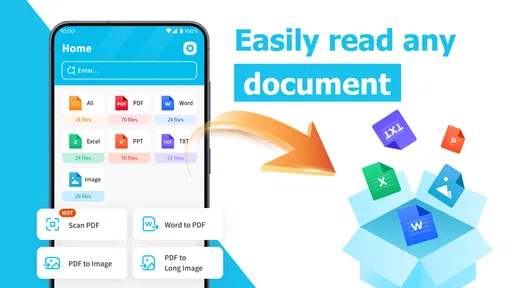
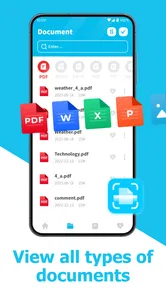
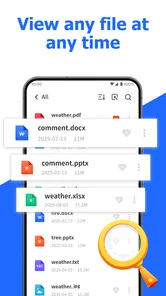
All Files Viewer is a file-opening app designed to help you access and inspect different types of documents from one place. Depending on the version and the formats it supports, it may be useful for viewing common office files, PDFs, images, and other stored items without switching between several apps. Check the app’s listing for its current supported formats, as compatibility can vary by platform and release.
Which file formats does All Files Viewer support?
The formats available can differ between the Android and iOS versions, and may also change after updates. Before downloading, look at the app’s store description for the specific extensions it can open, such as document, spreadsheet, presentation, PDF, or image files. A file may still fail to display if it is damaged, password-protected, unusually formatted, or created with features the viewer does not handle.
Can I use All Files Viewer to edit files or only view them?
A viewer is generally intended for opening and reading files, so you should not assume that All Files Viewer can make full edits or preserve changes. Some versions may offer basic actions such as sharing, renaming, or managing files, but editing features can be limited or absent. If you need to revise a document, confirm the app’s listed tools or use an editor designed for that file type.
Does All Files Viewer require an internet connection, and are my files uploaded?
Whether an internet connection is needed depends on the app’s features and how your files are stored. Files saved on your device may be viewable offline, while cloud storage, online conversion, or other connected services can require internet access. Review the app’s privacy policy and permissions to understand how it handles file access and whether any processing involves external servers; avoid opening sensitive files until you are comfortable with those terms.
Is All Files Viewer free, and is it safe to download?
Check the Google Play or Apple App Store listing for the current price, in-app purchases, subscription terms, ads, and developer details, since these can change. For a safer download, use the official store rather than an unfamiliar download site, review recent ratings and update history, and inspect the requested permissions. File access may be necessary for the app’s purpose, but permissions unrelated to viewing files deserve a closer look.
Pros
- Opens a broad range of common document and media formats.
- Useful for quickly checking files without switching between apps.
- A straightforward viewer can be easy for first-time users to navigate.
- Handy for browsing files stored locally on your device.
- Can help identify a file’s contents before sharing or organizing it.
Cons
- Format support may vary
- especially for specialized or newer file types.
- Viewing files does not necessarily include editing or conversion tools.
- Large documents may take longer to load on older devices.
- Some files may need another app to open or play correctly.
- Be mindful of storage and privacy permissions when browsing personal files.











