AI Translator: Voice & Screen
- 22.00
- 4.2
- Installs
- 1.00M
- Price
- Free

Screenshots

Analysis by Reviewed
I reach for a translator when a conversation is already happening, not when I have time to study a phrasebook. AI Translator: Voice & Screen is built for those quick interruptions: it brings voice, typed text, and on-screen content into one translation-focused app. That mix makes it more practical than a tool limited to typing, especially when I am trying to understand a spoken question or read a message without switching between several apps.
My overall impression is that this is a useful everyday helper, with the usual caution that machine translation is a guide rather than a guarantee. It is a free productivity app from HKL Game Studio, rated for Everyone, and its appeal is easy to understand: over a million installs and an average rating of 4.2 suggest that many people find a place for it in their routine. I would consider it for travel, casual conversations, or quick reading, while keeping a human check in mind for anything important.
Where the quick workflow helps most
I find the quickest workflow most useful when the source changes mid-task: a spoken reply, then a short phrase I want to enter myself. Switching input methods can be more productive than repeating a sentence that was misheard, especially for names or addresses. The next thing I consider is how well that convenience holds up when the phone is already busy.
Speed is about fewer steps, not magic
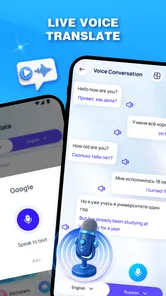
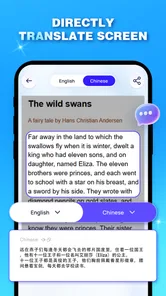
The app’s main promise is convenience across voice, text, and screen translation. In practice, that is a useful distinction from a conventional translator that makes typing the default. If someone says something to me, voice translation is the natural starting point; if I have a short note or phrase, text is easier to review; and if the words are already visible on the phone, screen translation can avoid retyping them.
I would treat “instant” as an aim, not a guarantee that every result arrives at the same pace. Translation speed can depend on the length and clarity of what I submit, the language involved, the device, and the connection available at the time. A short, clearly spoken request is a more sensible test than a noisy conversation with several people talking over one another. The practical benefit is that the app gives me several ways to begin, not that it removes every delay or misunderstanding.
One useful habit is to keep voice input to a complete thought rather than a long stream of unrelated sentences. That makes it easier to notice when a result has lost context and to repeat just the confusing part. For a written translation, I would also split a long message into meaningful paragraphs instead of feeding in a dense block. These small choices can improve the usefulness of a translation without assuming the app can resolve ambiguity on its own.
One app for different kinds of interruptions
The three input modes make the app particularly handy when the source changes from moment to moment. Imagine asking for directions while a person answers aloud, then needing to read a sign or a message a few minutes later. Keeping voice and screen translation within the same app can make that sequence less fiddly than bouncing among a speech translator, a text tool, and a separate screen utility.
More From Our News Desk

Weather by Xiaomi Review: Clear at a Glance, Less Clear Up Close

X Under Pressure: Can It Recover When Posting Goes Wrong?

Clash of Clans Is Won Between the Battles

Android Auto Makes the Case for Quieter Car Software

MobiOffice: Transforming Mobile Productivity with Seamless Integration

EA SPORTS FC™ Mobile Soccer: Redefining Mobile Sports Gaming
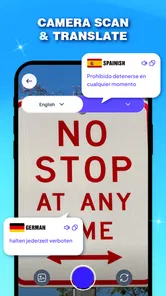
For screen content, I would use it selectively. A short label, a brief message, or a menu item is a reasonable target because the key information is limited and easy to check against what is displayed. Dense pages, unusual formatting, or text embedded in a busy screen are harder cases for any translation workflow: the source itself may be difficult to interpret before the language is even changed. When accuracy matters, comparing the translated result with the original text is worth the extra moment.
A less obvious benefit of having voice and text available together is the chance to switch modes when one input is awkward. If a name or address is being misheard, typing it may be more reliable than repeating it louder. Conversely, when my hands are occupied, speaking a short phrase can be more convenient than entering it manually. I would not assume one mode is always best; choosing the input that preserves the clearest source is the more useful trick.
Busy situations expose the trade-offs
Heavy use is where I would be most deliberate. A quick exchange at a counter is different from relying on a phone for a long, complicated conversation. Background noise, fast speech, unfamiliar accents, and overlapping speakers can all make voice input less dependable. If I need to understand an important detail, I would ask for a slower repeat, capture one idea at a time, and check the result before acting on it.
There is also a practical attention cost. Looking between a conversation and a phone can make an exchange feel less natural, even when the translation itself is useful. For a short question, that trade-off is often worthwhile. For a sensitive discussion or a conversation where tone and nuance matter, I would prefer a fluent person or a more deliberate human translation rather than treating an automated result as the final word.
For travel, I can see a particularly grounded use: reading a short notice, checking a menu item, then asking a simple follow-up aloud. The key is to use the app to reduce uncertainty, not to make a high-stakes decision from a single translated phrase. If a sign concerns safety, a medication label, or a legal instruction, I would look for a second source or a qualified person. That is not a failing unique to this app; it is a sensible boundary for automated translation.
Reliability means checking the source and result
I would judge reliability by whether the translation helps me take the next sensible step, not by expecting a perfect literary rendering. Short everyday phrases are easier to validate than idioms, jokes, or sentences whose meaning depends on earlier conversation. When the wording seems oddly formal or incomplete, a quick rephrase in simpler language can be more productive than repeatedly submitting the same sentence.
For spoken translation, speaking clearly and pausing between thoughts gives the input a better chance of preserving meaning. For text, keeping names, numbers, and critical details visible in the original helps me verify them. Screen translation is most reassuring when I can compare the translated wording with the exact source on display. These checks are especially useful because a fluent-sounding translation can still miss a detail.
I also think about what happens when a result is not good enough. The simplest recovery is to try a different input: type a phrase that speech recognition did not catch, or shorten a long sentence that produced an unclear result. If the app or device becomes unresponsive, restarting the task is a reasonable first step, but I would not rely on a translation app as the only way to communicate in an urgent situation. Carrying a written address or learning a few essential phrases remains a sensible backup.
Device fit, cost, and version details
The listed minimum operating-system requirement is Android 8.0, so people with older Android devices should check compatibility before planning to depend on it. The current version is identified as 110_20260907. I would still leave some room for ordinary device constraints: voice and screen workflows can feel less comfortable on a small display, and using translation while moving between apps may demand more attention than a quick typed lookup.
I cannot infer a precise battery impact or memory footprint from the app’s description, so I would avoid promising that it is especially light or demanding. In practical terms, extended voice use and frequent app switching are the moments when I would pay attention to battery and responsiveness on my own phone. If the device is already struggling, a basic text-only translation workflow may be less distracting than trying to handle a live exchange through several steps.
The app is free to download, with optional in-app purchases listed from $1.99 to $59.99 per item. I would start with the free experience and only consider paying if a feature I actually use is restricted in a way that matters to me. Since the purchase range is broad, it is worth checking the purchase details shown in the app before confirming anything. The free starting point makes it easy to judge whether voice, text, or screen translation fits my routine first.
How it compares with familiar alternatives
A standard text translator is often the calmer choice when I have a paragraph to edit carefully. Typing lets me control punctuation and revise the source before translating, which is valuable for work messages or wording that must be precise. AI Translator’s stronger case is convenience across different inputs: it is more appealing when the source is spoken or already visible on the screen, rather than a block of text I can comfortably copy and paste.
A dedicated live-conversation tool may suit someone who spends a lot of time speaking with people in another language and wants a workflow centered on dialogue. A camera-focused translator may be a better fit for someone whose main task is reading printed signs or documents. This app’s combination is attractive for mixed, everyday situations, but a broader set of modes does not automatically make it the best specialist tool for every task.
That distinction helps me decide who should skip it. If I only translate occasional written sentences, my phone’s usual translation option may be enough. If I need dependable, nuanced translations for business, medical, legal, or safety-critical use, I would not make an automated app my sole authority. And if I want an offline-first tool, I would check that requirement directly before relying on this one, rather than assuming a particular connection workflow.
My performance verdict
AI Translator: Voice & Screen makes the most sense as a flexible first stop for short, low-stakes language barriers. Its voice, text, and screen options give me a practical way to handle changing sources without committing to a single translation style. The strongest workflow is simple: choose the clearest input, keep phrases manageable, and verify details that could change what I do next.
With 1.9 thousand ratings and 22 written reviews, its store feedback offers a modest snapshot rather than a reason to expect flawless results in every situation. I find the overall proposition appealing for casual travel, quick messages, and everyday curiosity, especially given that it is free to begin and is rated for everyone. The optional purchases and the limits inherent in automated translation are worth keeping in view, but neither changes the basic usefulness of having several ways to translate at hand.
My recommendation is to try it if you regularly move between spoken words, typed phrases, and text on your screen. Give it a few ordinary tasks before depending on it, and notice which mode works best on your device. If you need polished wording, sensitive interpretation, or guaranteed understanding under pressure, choose a human or specialist alternative. For everyday moments where a quick, imperfect aid is better than being stuck, this app is a sensible companion.
A practical routine for a day out
One way I would use it on a trip is to keep each translation tied to a clear decision. At a café, I might check one unfamiliar menu item through screen translation, then use text to prepare a simple question about it. If the server replies aloud, voice input can help me follow the answer. That sequence is more manageable than translating an entire menu or trying to capture a long conversation all at once.
For addresses and names, I would keep the original spelling visible and type it when speech recognition is likely to confuse it. I would also avoid asking the app to interpret a whole message when only one sentence matters; translating the relevant part makes it easier to compare meanings and spot a mismatch. These choices do not guarantee accuracy, but they help me control the quality of the source I am asking it to handle.
Who benefits, and when I would choose something else
This app is best suited to someone who encounters several kinds of language input in ordinary life: a spoken question, a short note, and text on a phone screen. It is less compelling for a person who translates only occasional paragraphs, since a familiar text-only tool may be simpler. Anyone who needs polished, repeatable wording for a professional document should favor careful editing or a qualified translator rather than relying on a quick result.
For a family member who is not confident with technology, I would first check whether switching among the modes feels straightforward on their device. A single clear translation task is a better introduction than handing over a complicated conversation. If a result seems wrong, changing the input method or simplifying the phrase is more useful than assuming the app has failed completely—or that its first answer must be right.
The app is a sensible choice when speed means reducing steps, not expecting certainty. I would use it as a flexible companion for everyday communication, keep a backup for urgent needs, and reserve human help for details where a small translation error could matter. That balance lets its mix of voice, text, and screen translation be useful without asking it to do more than an automated translator reasonably can.
AI Translator: Voice & Screen Frequently Asked Questions
What can AI Translator: Voice & Screen translate?
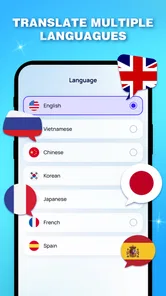
AI Translator: Voice & Screen is designed to help with common translation tasks, including spoken conversations and text displayed on your screen. The exact languages and features available can vary by app version, device, and region, so check the current listing and in-app language options before relying on a particular language pair. For important or nuanced content, compare the result with another trusted source.
How does voice translation work in AI Translator: Voice & Screen?
Voice translation generally involves speaking into your device’s microphone, letting the app recognize your words, and then viewing or hearing a translated result. Clear speech, a quiet environment, and the correct source language can improve recognition. You may need to grant microphone permission, and performance can depend on your device and internet connection. Try a short test before using it in an important conversation.
Can AI Translator: Voice & Screen translate text shown in other apps?
The app’s screen-translation features may help interpret text visible on your display, but the method and supported content can differ across devices and app versions. Screen capture or accessibility permissions may be required, and some protected screens or media may not be available for translation. Review the permission prompts carefully and use the feature only on content you are allowed to access.
Does AI Translator: Voice & Screen work offline, and is it free?
Offline availability, free usage limits, and subscription requirements can change over time, so check the app’s store page and pricing details before downloading. Some translation functions may need an internet connection, while other options may be available without one if language data can be downloaded. Also review any trial terms, in-app purchases, or renewal conditions before starting a paid plan.
Is AI Translator: Voice & Screen accurate and safe for private information?
Translation quality can vary with accents, background noise, slang, context, and the languages involved, so treat results as helpful guidance rather than guaranteed professional translations. Avoid using an ordinary translation app as the sole source for legal, medical, or similarly sensitive decisions. Before entering private or confidential material, read the app’s privacy policy and understand what data and permissions it may collect or process.
Pros
- Translates spoken conversations without requiring manual text entry.
- Screen translation can help with text in apps and on websites.
- Useful for quick translations while traveling or communicating abroad.
- Combines voice and screen translation in one app.
- A practical option for users who frequently switch between translation tasks.
Cons
- Translation accuracy may vary with accents
- noise
- and phrasing.
- Voice features may require microphone access.
- Screen translation may need permission to display over other apps.
- Some languages or features may not be available in every mode.
- Frequent use can require an internet connection and consume mobile data.











